
Data Export creates a CSV file (or PDFs) of your records, with only the records and columns you choose. CSV files open in Excel, Google Sheets and other spreadsheet programs.
Export to CSV
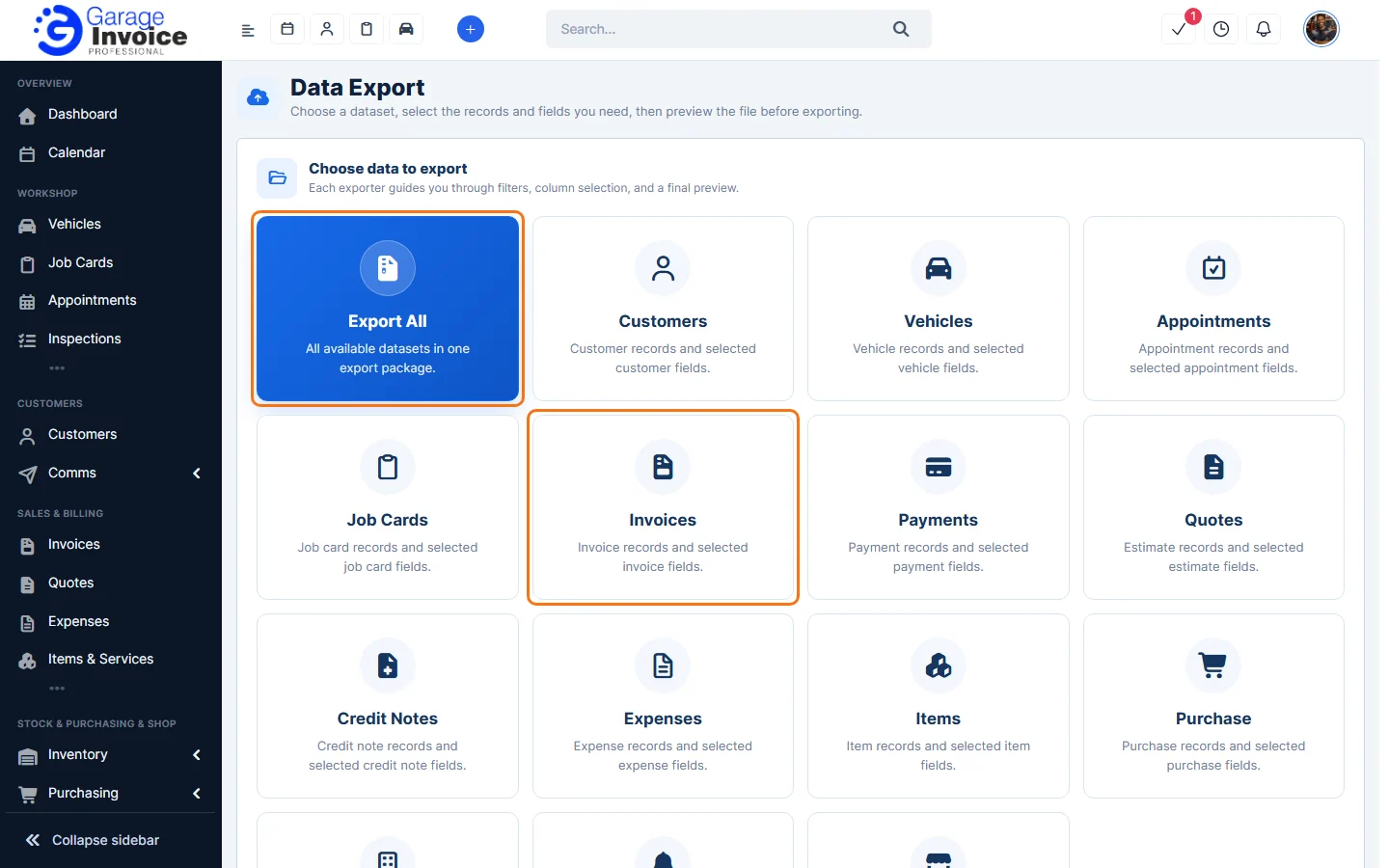
- Click Utilities & Data in the sidebar (under Administration) and choose Data Export. Click what you want to export, or Export All for everything in one package.
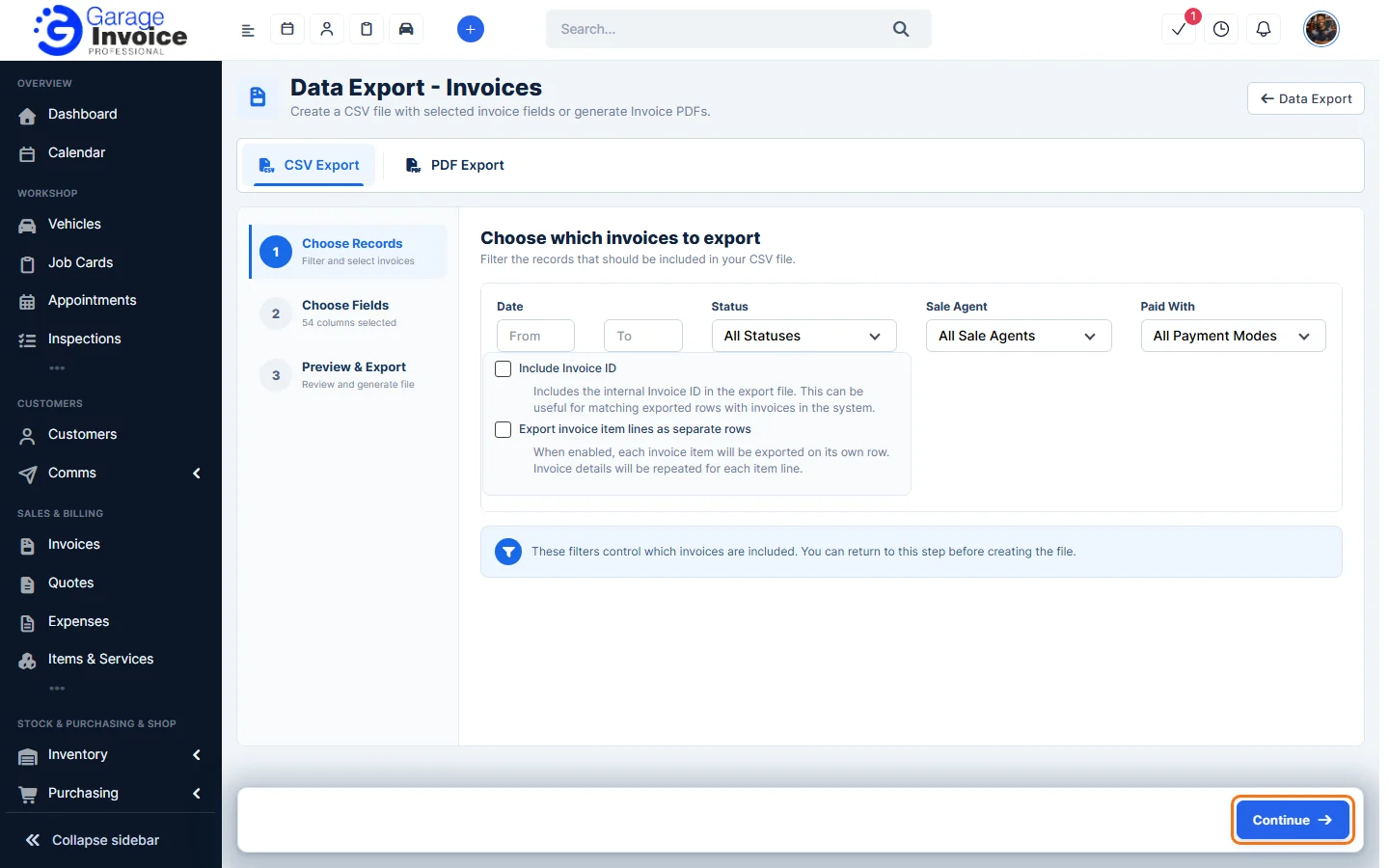
- Choose Records: use the filters to pick the records, for example the date range and status, then click Continue. The filters for each type are listed below.
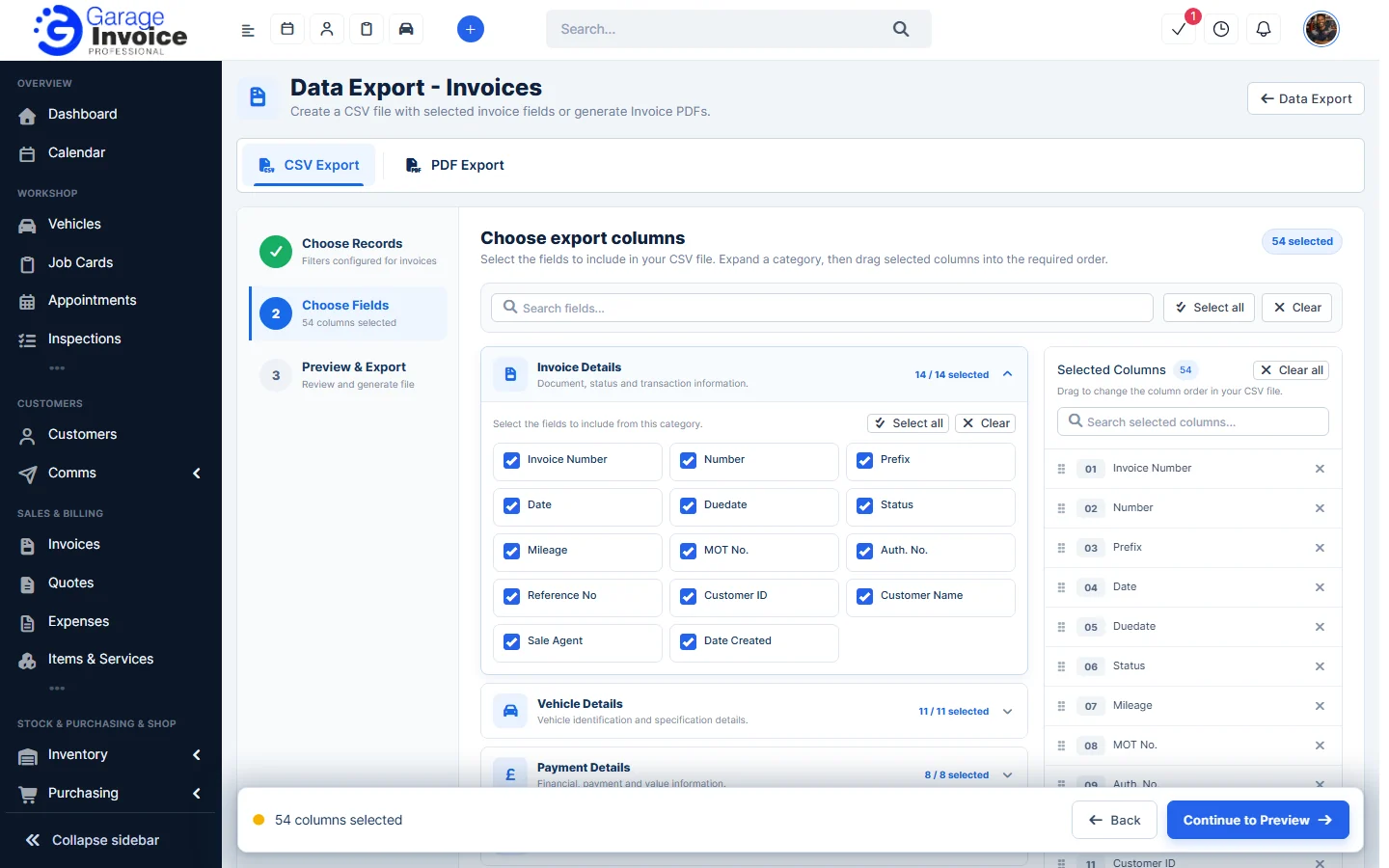
- Choose Fields: open a category (for example Invoice Details, Vehicle Details, Payment Details, Amounts, Address Details, Notes or your custom fields) and tick the columns you want. Use Select all or Clear. Under Selected Columns, drag the columns into the order you want in the file. Click Continue to Preview.
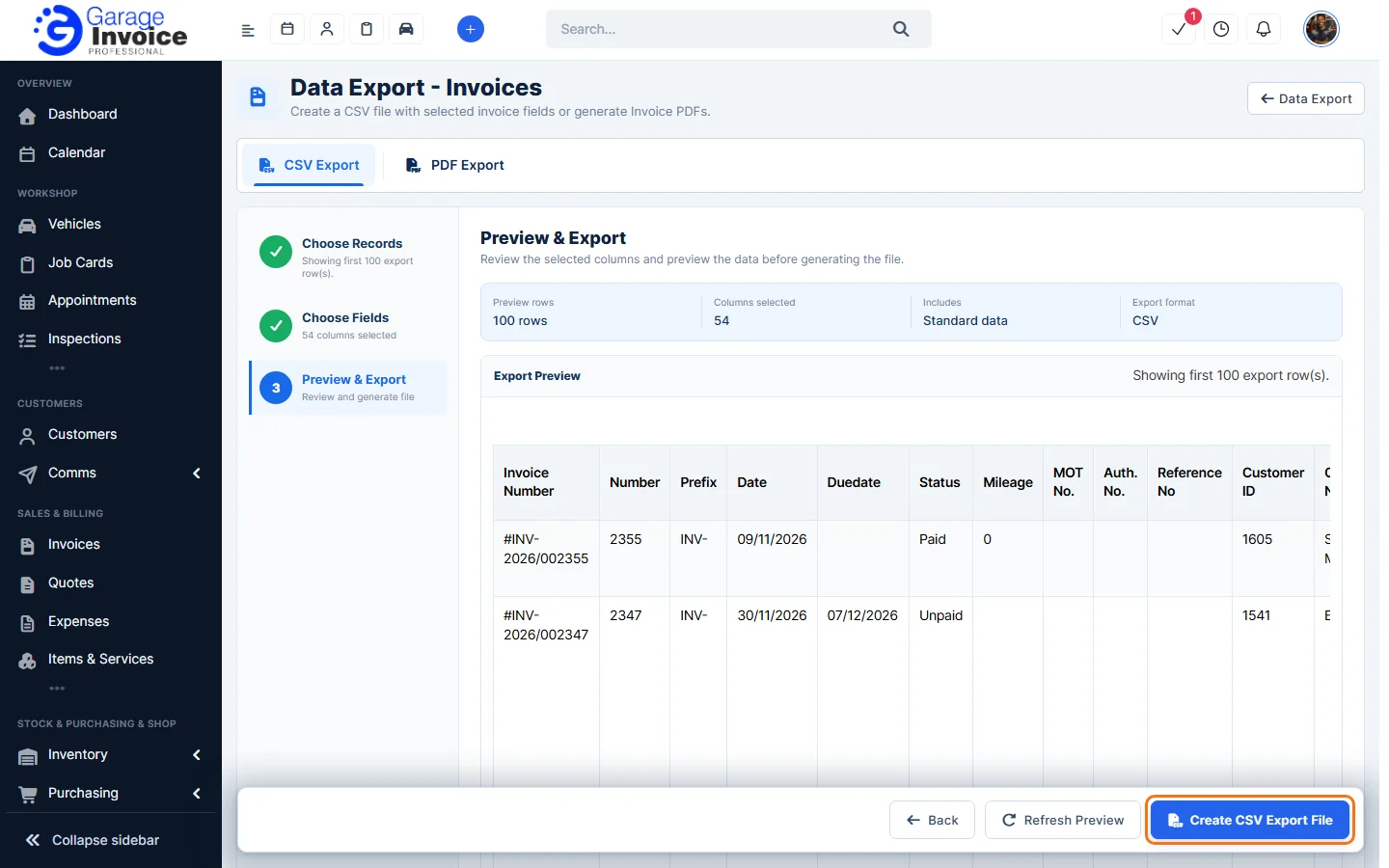
- Preview & Export: check the Export Preview (the first 100 rows). Click Refresh Preview after changes, Back to change the columns, or Create CSV Export File to make the file.
Export documents as PDFs
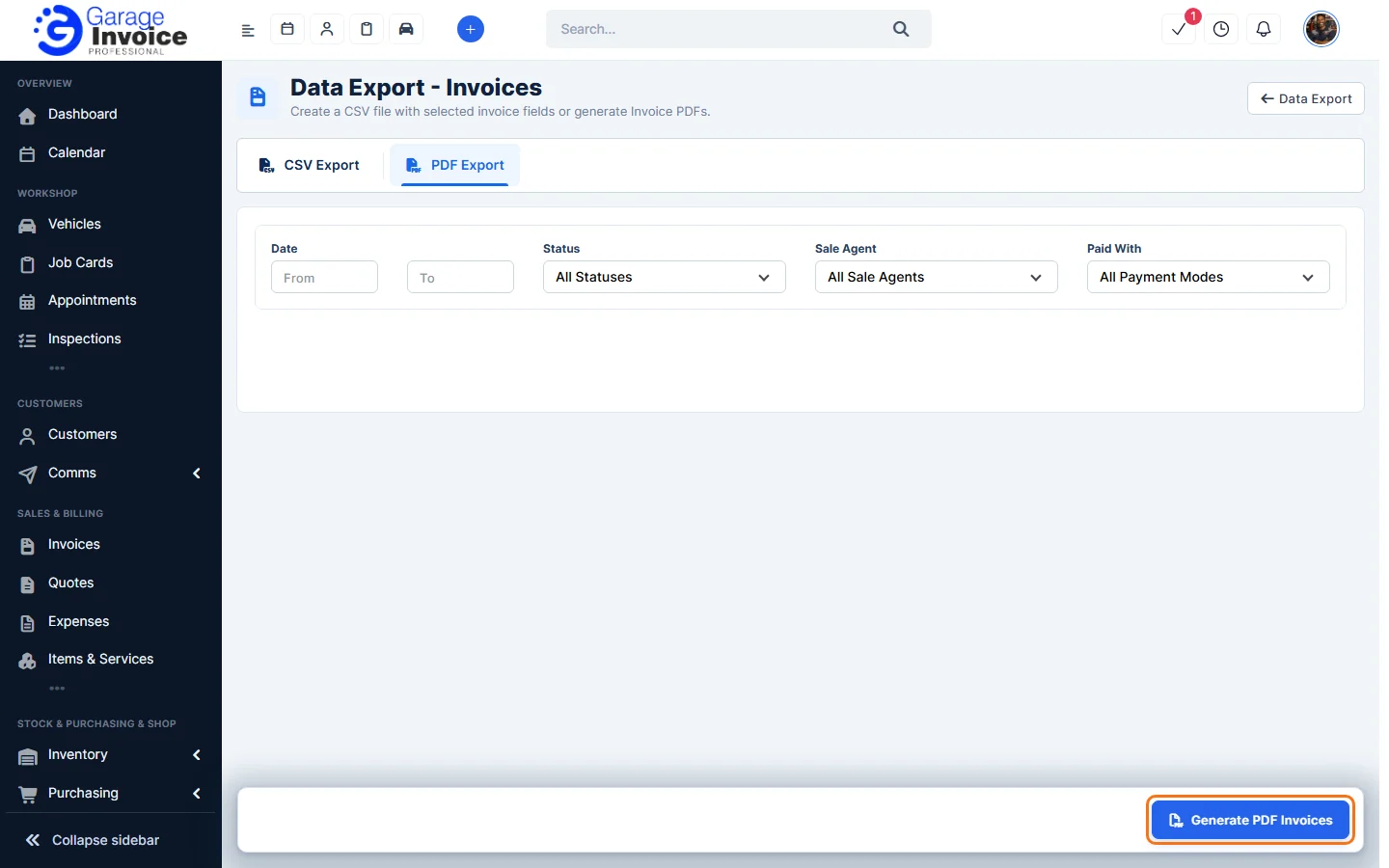
Job cards, invoices, payments, quotes, credit notes, expenses, purchase documents and shop orders also have a PDF Export tab. Choose the filters and click the generate button, for example Generate PDF Invoices, to get the documents as PDFs in one go.
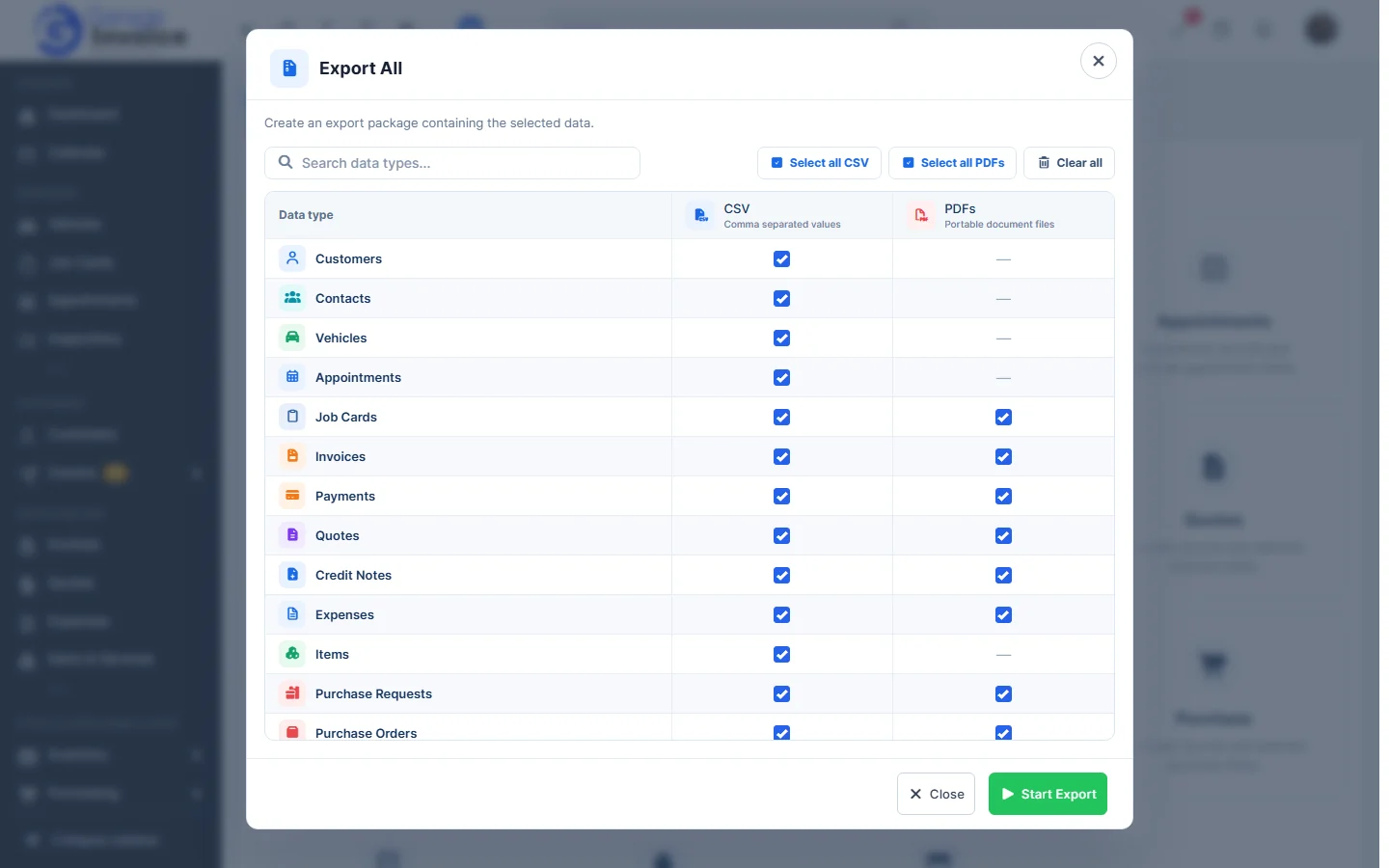
Export All
Click Export All to make one export package. Tick CSV and/or PDFs for each data type (or use Select all CSV, Select all PDFs and Clear all), then click Start Export. PDFs are available for job cards, invoices, payments, quotes, credit notes, expenses, purchase documents and shop orders.
What you can export
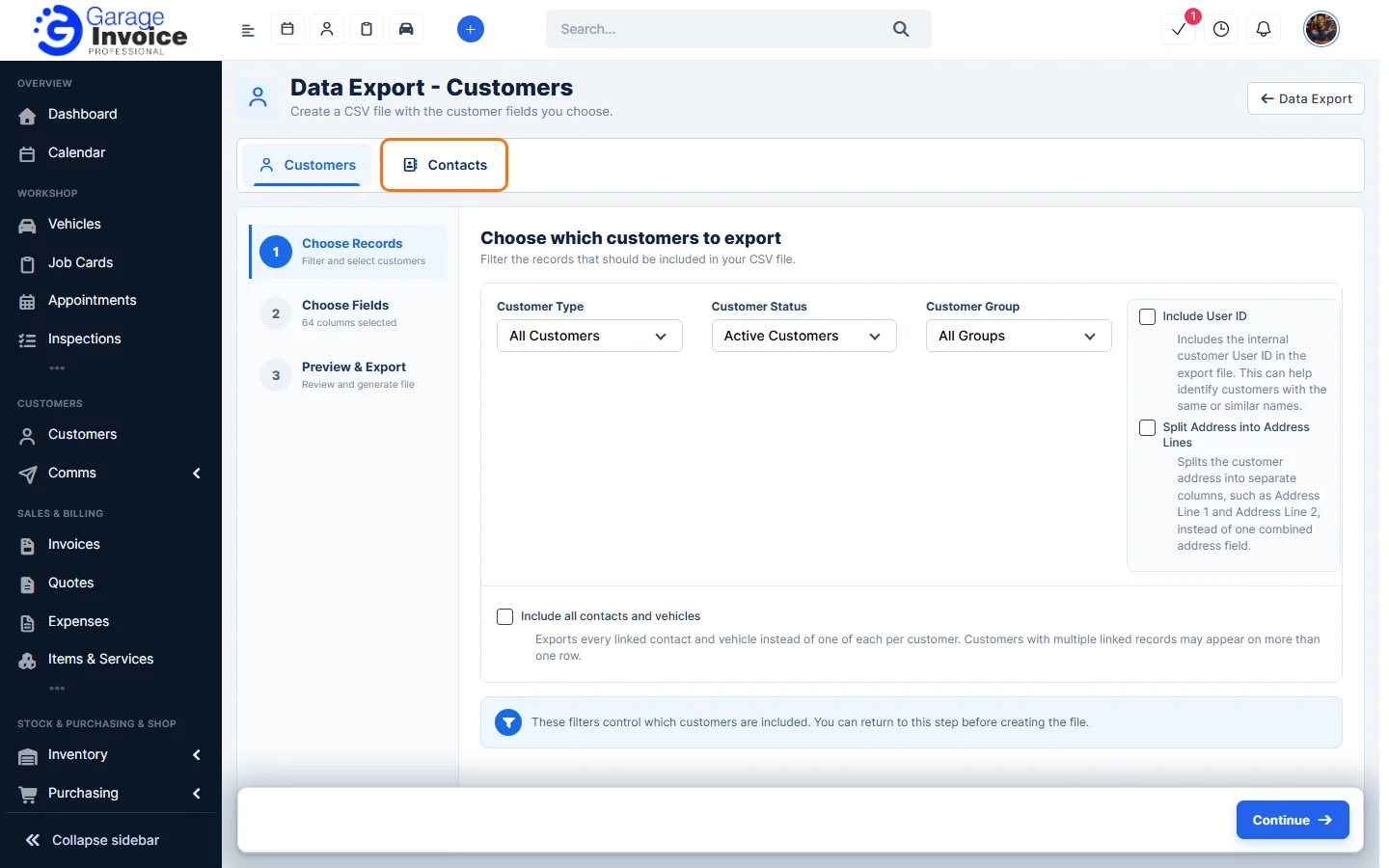
- Customers: two tabs, Customers and Contacts. Filter by Customer Type, Customer Status and Customer Group (contacts also by Contact Status). Options: Include User ID (helps tell apart customers with similar names), Split Address into Address Lines (separate Address Line 1, 2… columns instead of one) and Include all contacts and vehicles (every linked contact and vehicle, so a customer may appear on more than one row). Columns cover contact, customer/company, group, address, finance (such as total invoices and current balance) and vehicle details.
- Vehicles: filter by Status, Make and Year; option Include Vehicle ID. Columns include registration, make, model, year, colour, fuel, engine size, VIN, MOT and service due dates and tyre sizes.
- Appointments: filter by Date, Services, Providers and Status; option Include Appointment ID. Columns include date, time, status, vehicle, service, add-ons, provider, duration, price and the customer’s work requested.
- Job Cards: filter by Date, Status, Providers and Invoiced / Not Invoiced; options Include Job Card ID and Export job card item lines as separate rows (each item on its own row, with the job card details repeated).
- Invoices: filter by Date, Status, Sale Agent and Paid With; options Include Invoice ID and Export invoice item lines as separate rows. Columns include invoice and vehicle details, payments, amounts (subtotal, tax, discounts, total, outstanding balance), addresses and notes. See also Export Invoices.
- Payments: filter by Date and Payment Mode. Columns: payment ID, invoice ID, date, amount, payment mode and method, transaction ID, date recorded, added from and note.
- Quotes: filter by Date, Status and Invoiced / Not Invoiced; options Include Quote ID and Export quote item lines as separate rows. See also Export Quotes.
- Credit Notes: filter by Date, Status and Applied / Not Applied; options Include Credit Note ID and Export credit note item lines as separate rows.
- Expenses: filter by Date, Category, Payment Mode and Billable; options Include Expense ID and Export expense item lines as separate rows.
- Items: filter by Item Type, Warehouse and Group; option Include Item ID. Columns include prices with and without tax, purchase prices, unit, group, supplier, duration and tyre details.
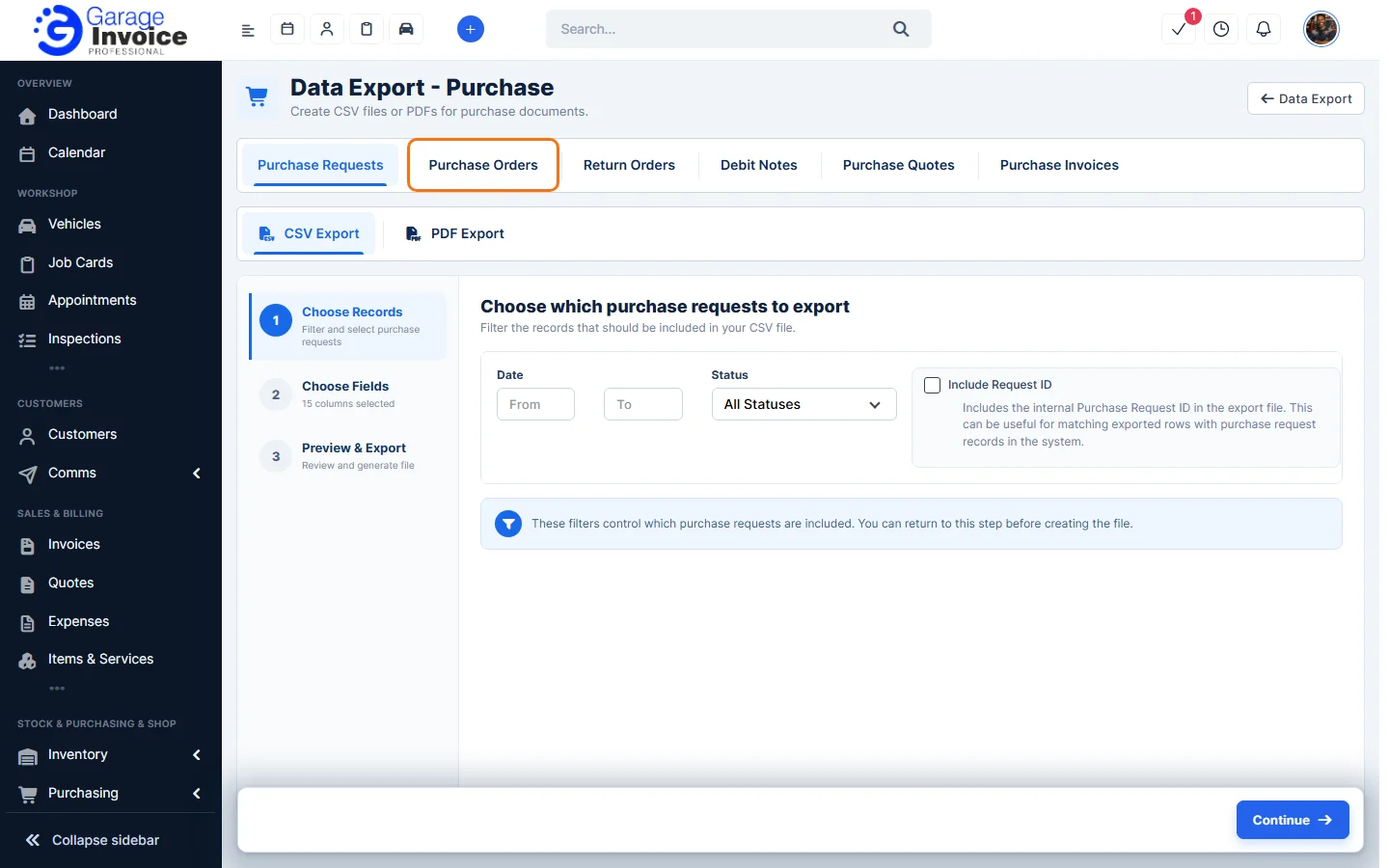
- Purchase: tabs for Purchase Requests, Purchase Orders, Return Orders, Debit Notes, Purchase Quotes and Purchase Invoices, each with CSV and PDF export. Filter by Date and Status.
- Vendors: filter by Status and Date Created; option Include Vendor ID. The headings match the Vendors import, which can use the ID to update the same vendors.
- Reminders: filter by Date, Reminder Type and Status; option Include Reminder ID.
- Shop: shop orders; filter by Date, Status and Channel; option Include Order ID. Also has a PDF Export tab.
Tip: the Include … ID options add the internal record ID, which helps you match exported rows with records in Garage Invoice or update them with an import.
To bring data in, see Data Import.