
- Click Job Cards in the sidebar and click the job card number. The job card opens on the right, with Edit, Send, Print, More and Convert at the top.
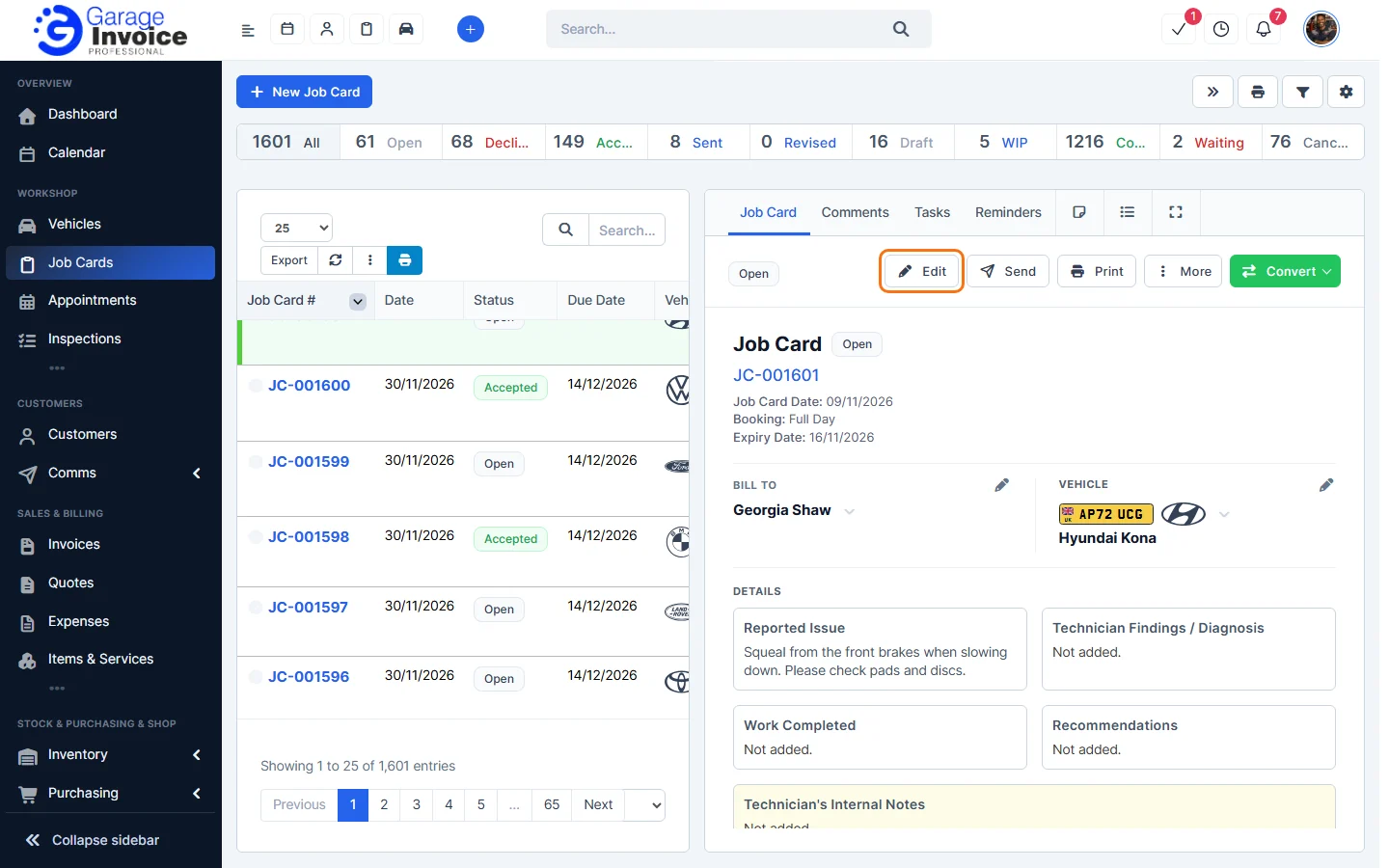
Tip: to see only one vehicle’s job cards, open the vehicle and click the Job Cards tab.
- Click Send.
- In the Send Job Card window:
- Template: chosen for you based on the job card’s status. You can pick another one.
- Send to: choose the customer’s contacts. Click Add CC or Add BCC to copy someone in.
- Subject & message: click to change the email text.
- Attachments: the Job Card PDF is included. Click Preview PDF to check it.
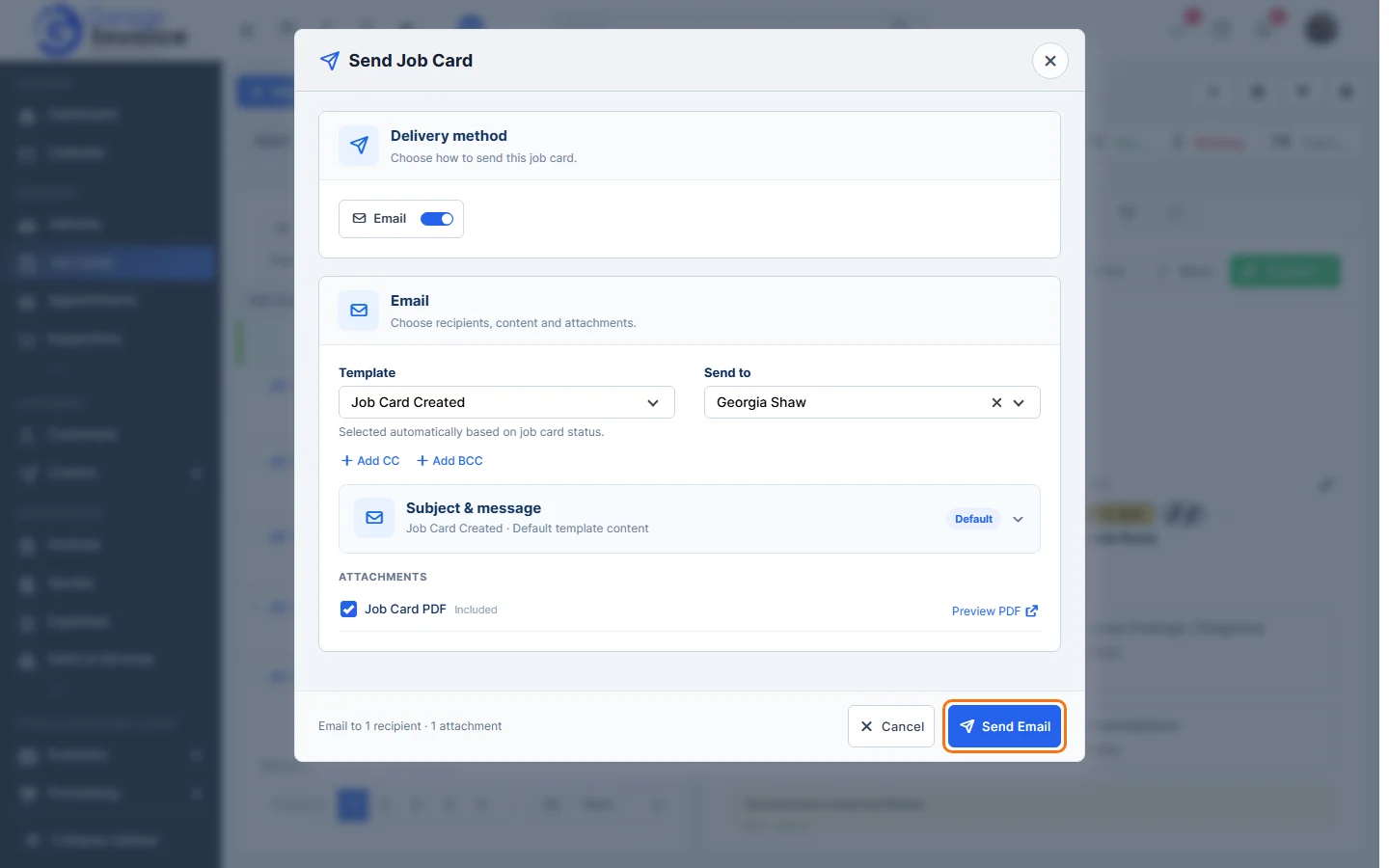
- Click Send Email.
The customer can view the job card online and accept or decline it. When they do, the job card’s status changes and you’ll see it on the job card.
Tip: to print the job card instead, click Print, or open More for View PDF, Download PDF, Staff Print and Print with Totals.
Feature Digital job cards: see what it does and how it fits your workshop.