
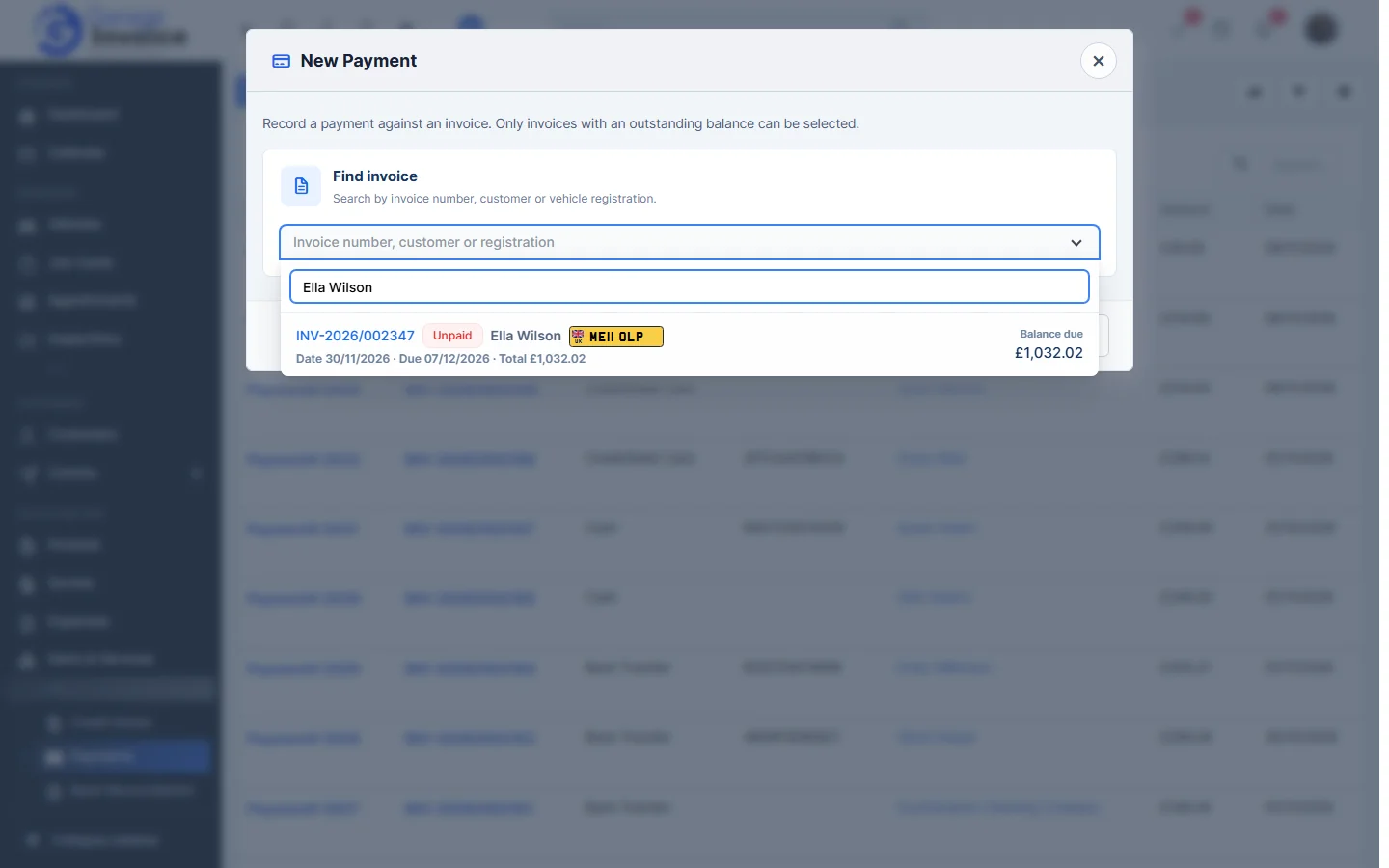
- Click Payments in the sidebar and click New Payment.
- Under Find invoice, type the invoice number, customer’s name or vehicle registration and choose the invoice. Only invoices with something left to pay are listed, with their status and balance due.
- Check the invoice summary (total, paid so far and amount due), then fill in:
- Amount Received: the amount due is filled in. Change it for a part payment.
- Payment Date and Payment Mode (required) and, if you like, a Transaction ID and a note.
- Tick Do not send Invoice Payment Recorded confirmation email to customer if they shouldn’t get an email.
Click Change invoice if you picked the wrong one.
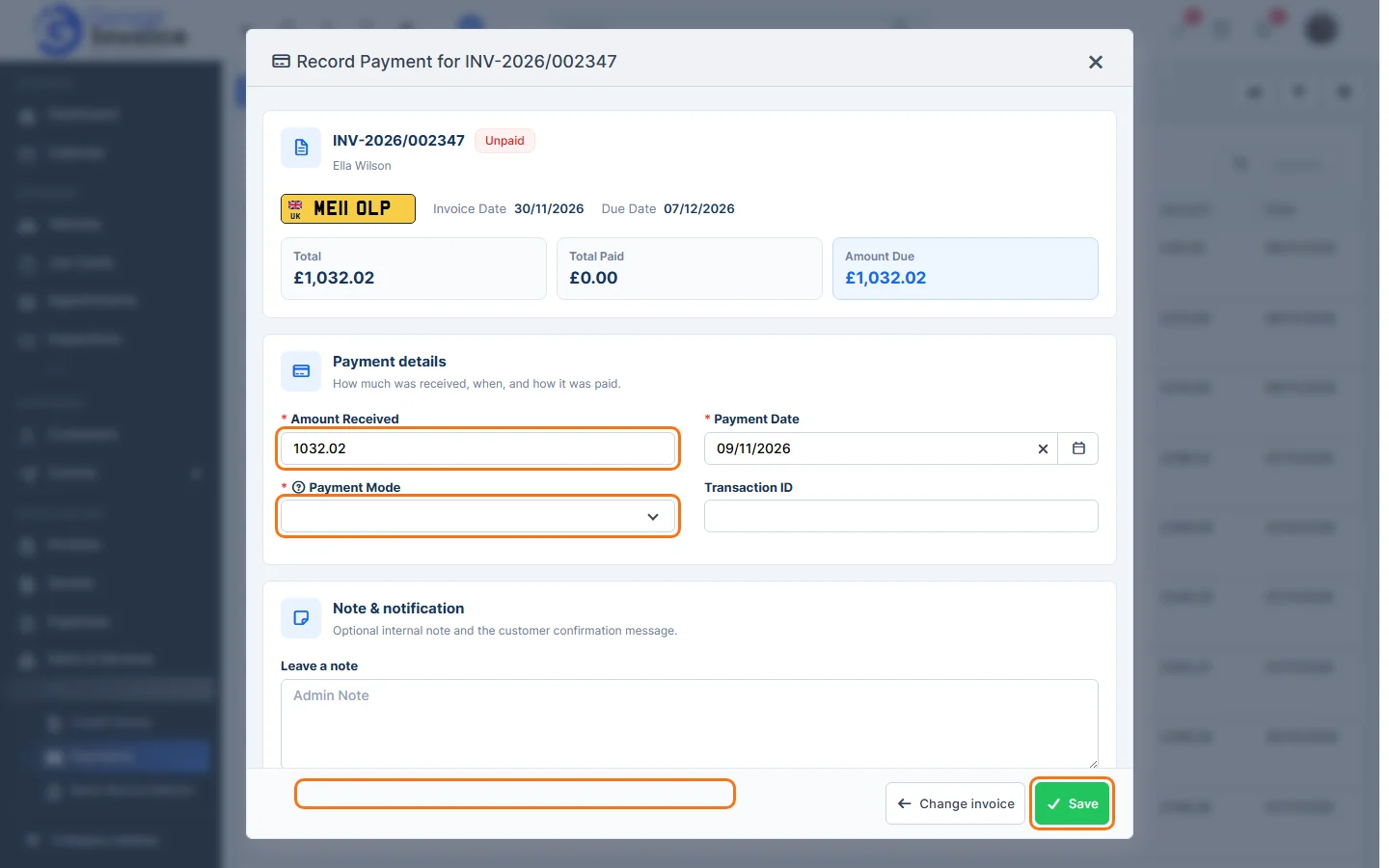
- Click Save.
The payment appears at the top of the Payments list and the invoice becomes Partially Paid or Paid.
Tip: you can also record a payment from the invoice itself (see Record Invoice Payment), or several at once (see Batch Payments).
Feature Payments and online payments: see what it does and how it fits your workshop.