
Note: you need Stripe set up first. The Billing Plan list shows the plans from your Stripe account. See Subscriptions Overview.
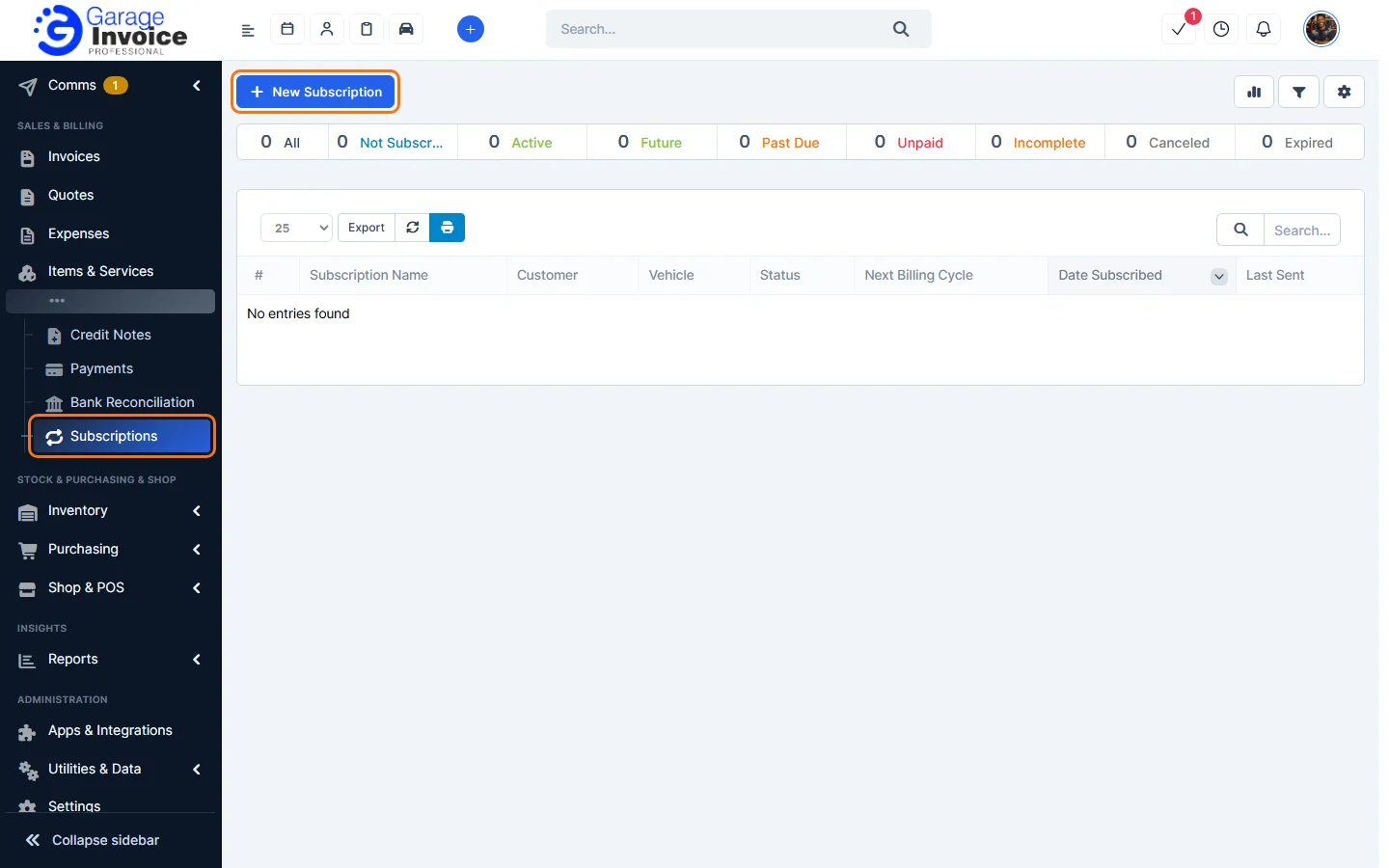
- Click Subscriptions in the sidebar (under Sales & Billing, click ••• if you can’t see it) and click New Subscription.
- Under Plan & billing:
- Billing Plan (required): the Stripe plan to charge.
- Quantity (required): how many units of the plan.
- First Billing Date: leave it blank to start billing on the day the customer subscribes. If you set a date, it must be in the future. If the date passes before the customer subscribes, the day they subscribe is used.
- Under Subscription details, enter the Subscription Name (required) and a Description. Tick Include description in invoice item to show the description on the subscription invoice, for example what the plan includes.
- Under Terms & Conditions, enter the terms the customer sees before they subscribe.
- Under Customer & vehicle, choose the Customer (required) and, if you like, the vehicle the subscription is for.
- Under Currency & tax, check the Currency and choose Tax 1 (Stripe) and Tax 2 (Stripe) if the plan needs tax.
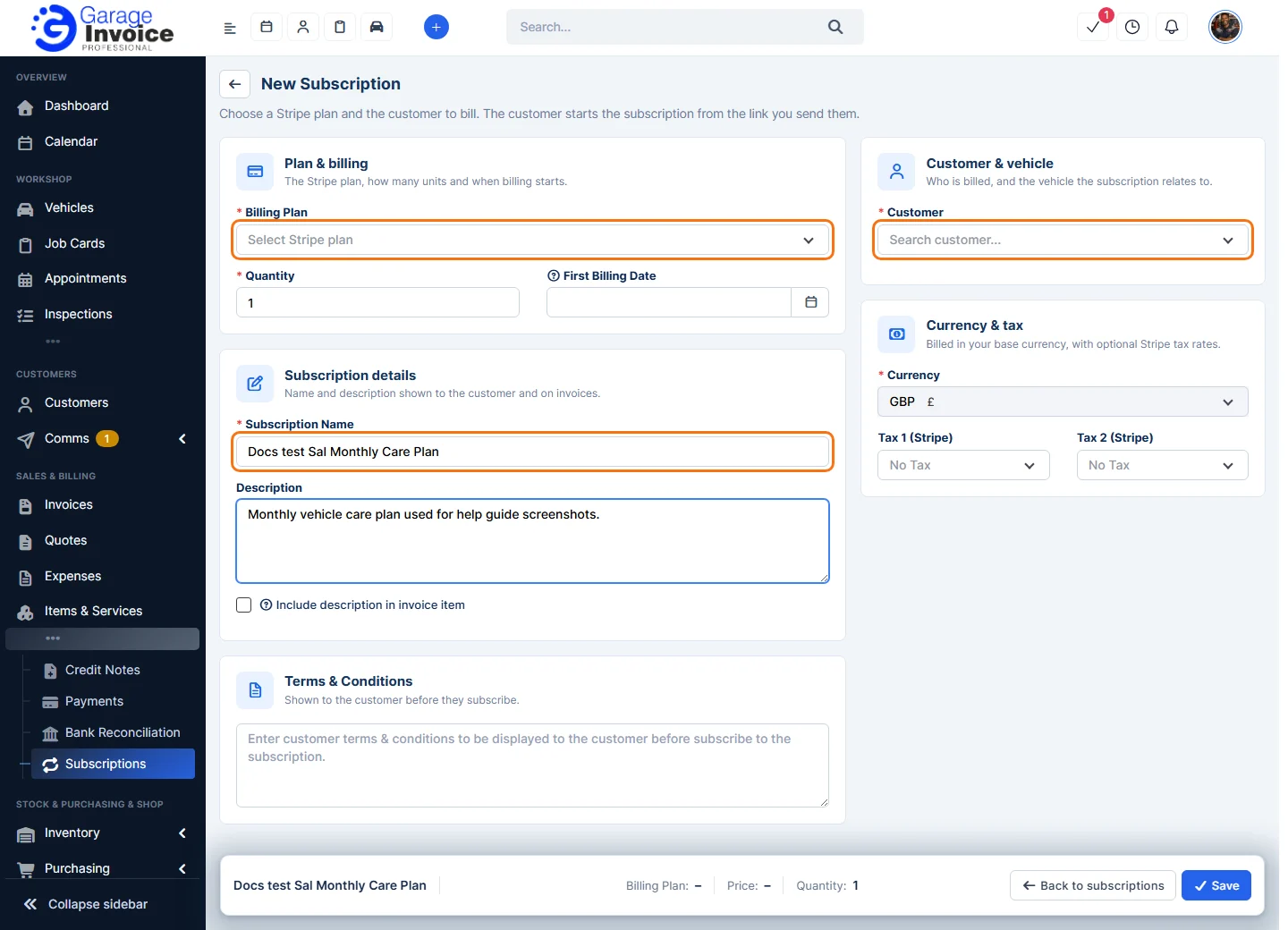
- The bar at the bottom shows the Billing Plan, Price and Quantity. Click Save.
The customer starts the subscription from the link you send them. Until then, the subscription is counted under Not Subscribed.
Tip: what is emailed after each successful payment is set in Subscription Settings.