
Email the inspection
- Click Inspections in the sidebar (under Workshop) and click the inspection number. It opens on the right with Edit, Send, Print, More and Convert.
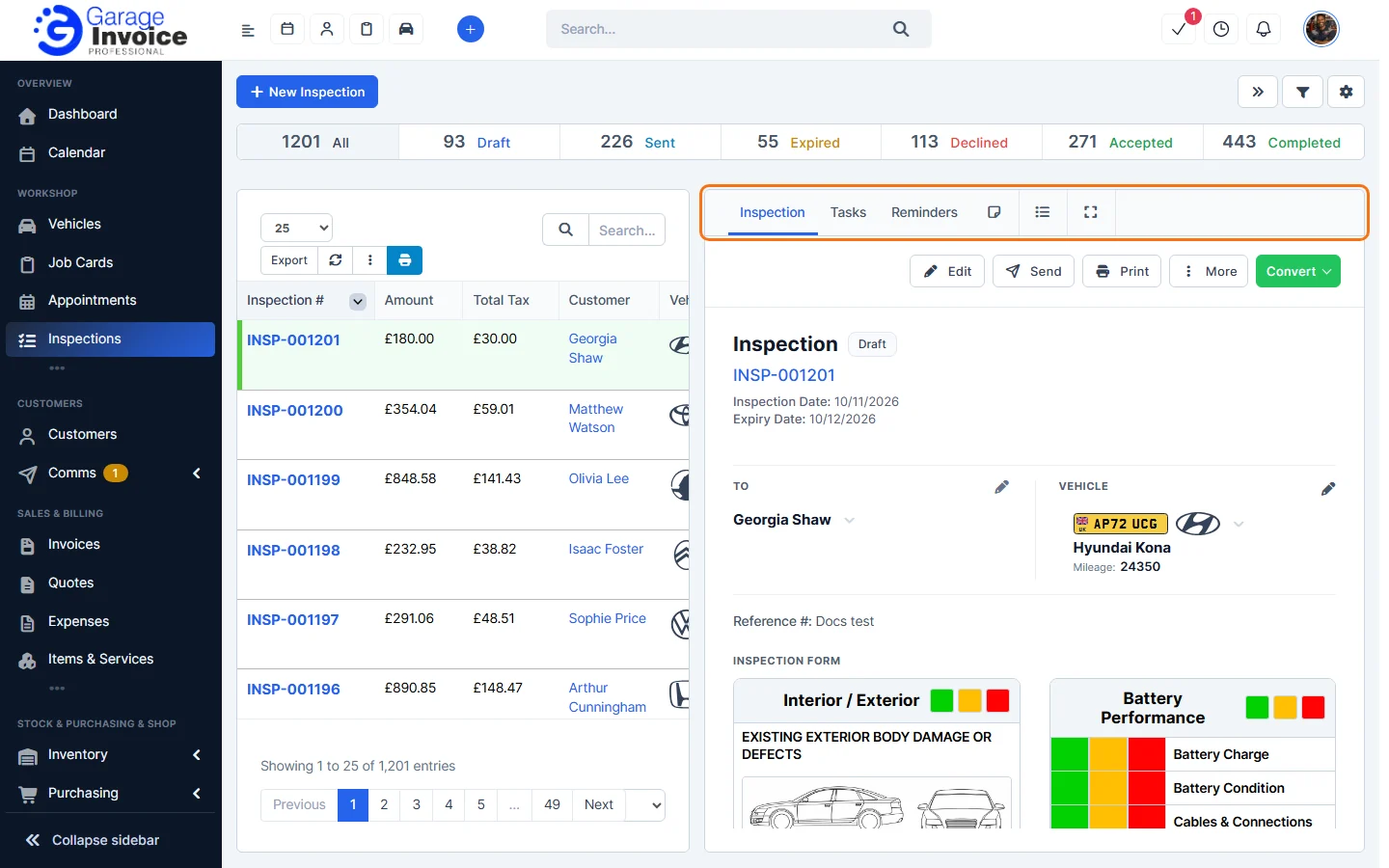
- Click Send.
- In the Send Inspection window, check the Template (it’s selected automatically from the inspection’s status), choose who to Send to (click Add CC or Add BCC to copy someone in), and click Subject & message to change the email. The Inspection PDF is attached. Click Preview PDF to check it.
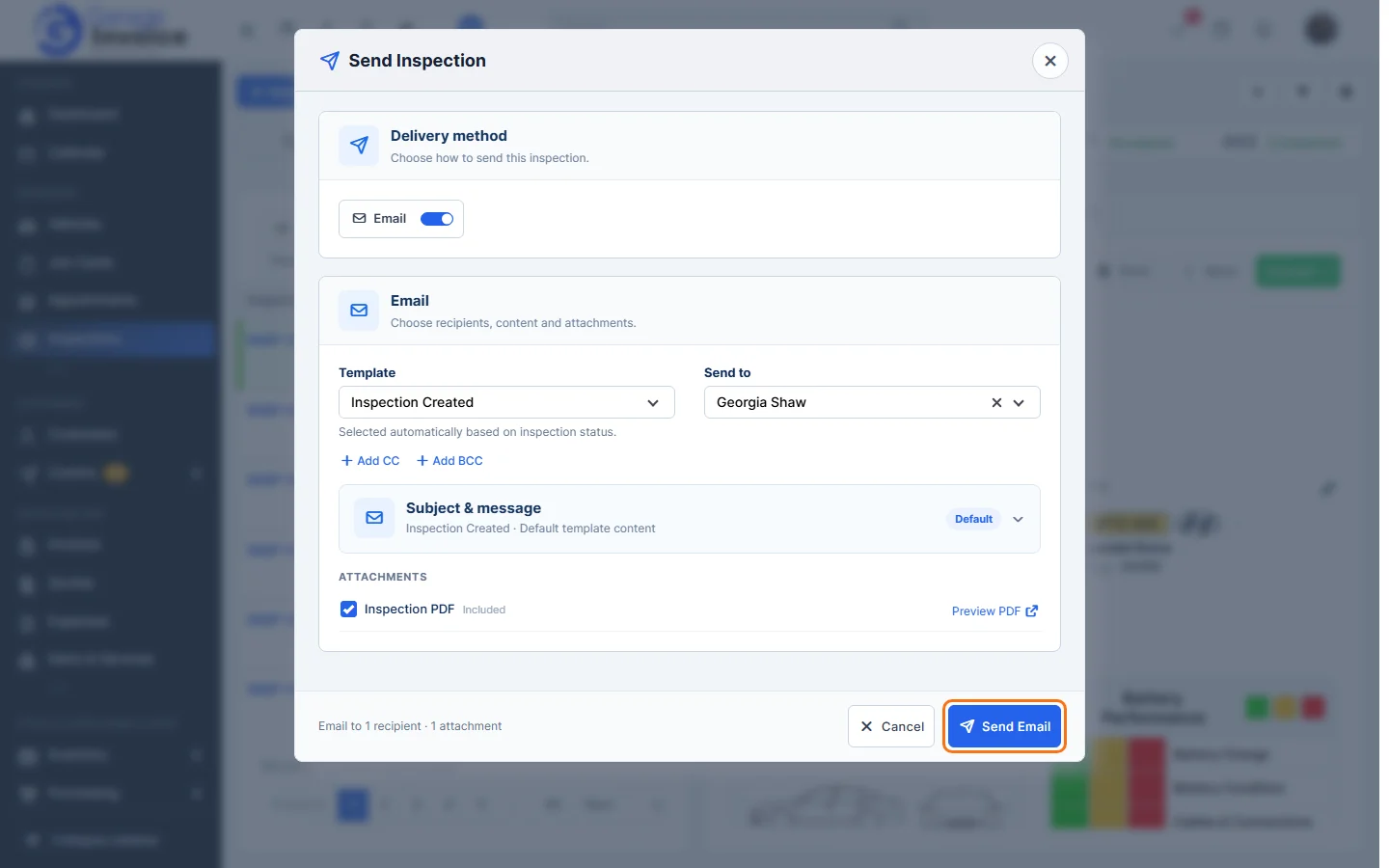
- Click Send Email.
Tip: when you create an inspection, click the arrow next to Save and choose Save & Send to save and email it in one go.
Print or download the PDF
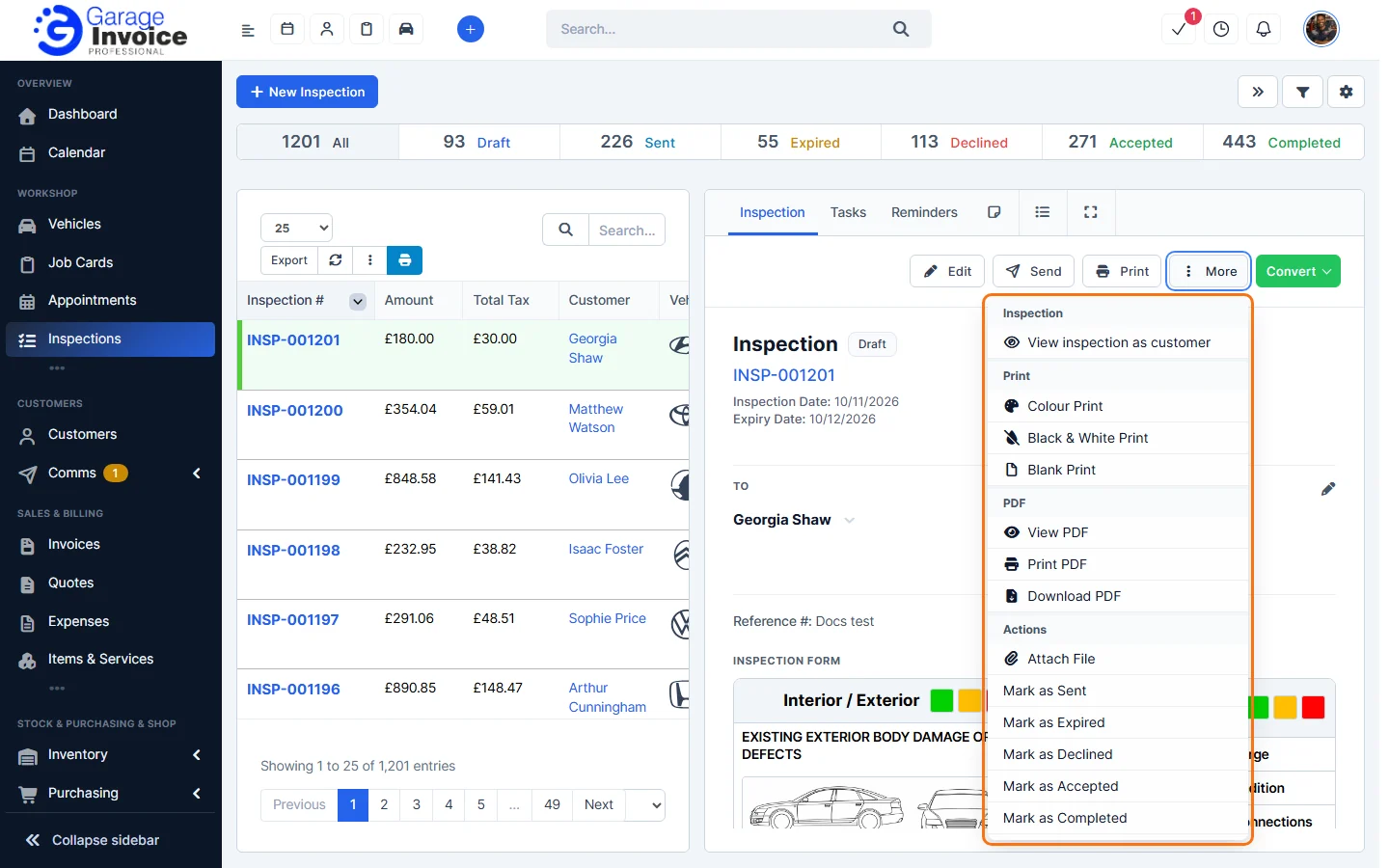
Click More:
- View inspection as customer: opens the page the customer sees.
- Colour Print, Black & White Print or Blank Print (an empty form to fill in by hand).
- View PDF, Print PDF or Download PDF.
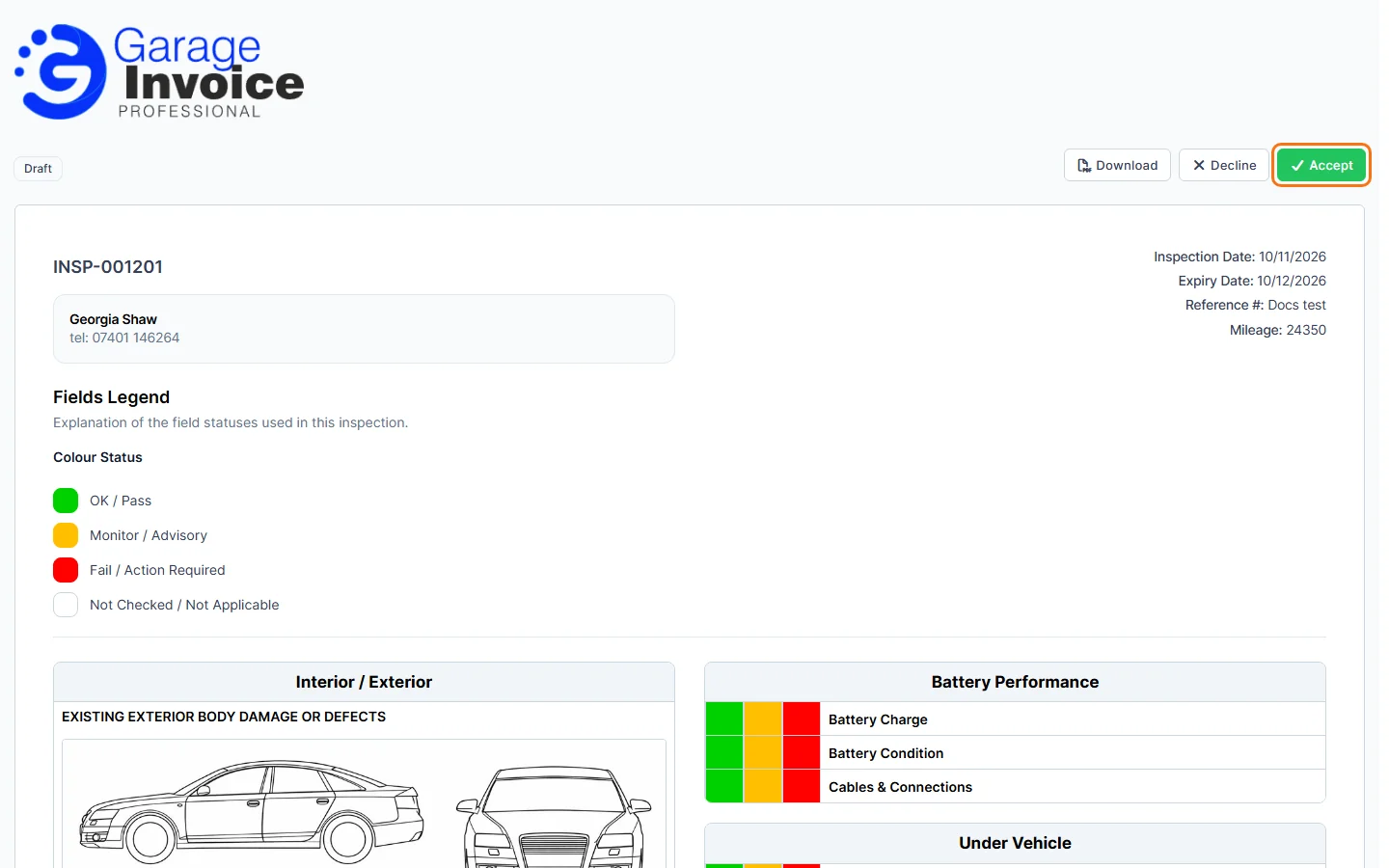
What the customer sees
The customer page shows a legend of the colours, every check, the items and totals, the notes and the photos. The customer can Download it, Decline it or Accept it.
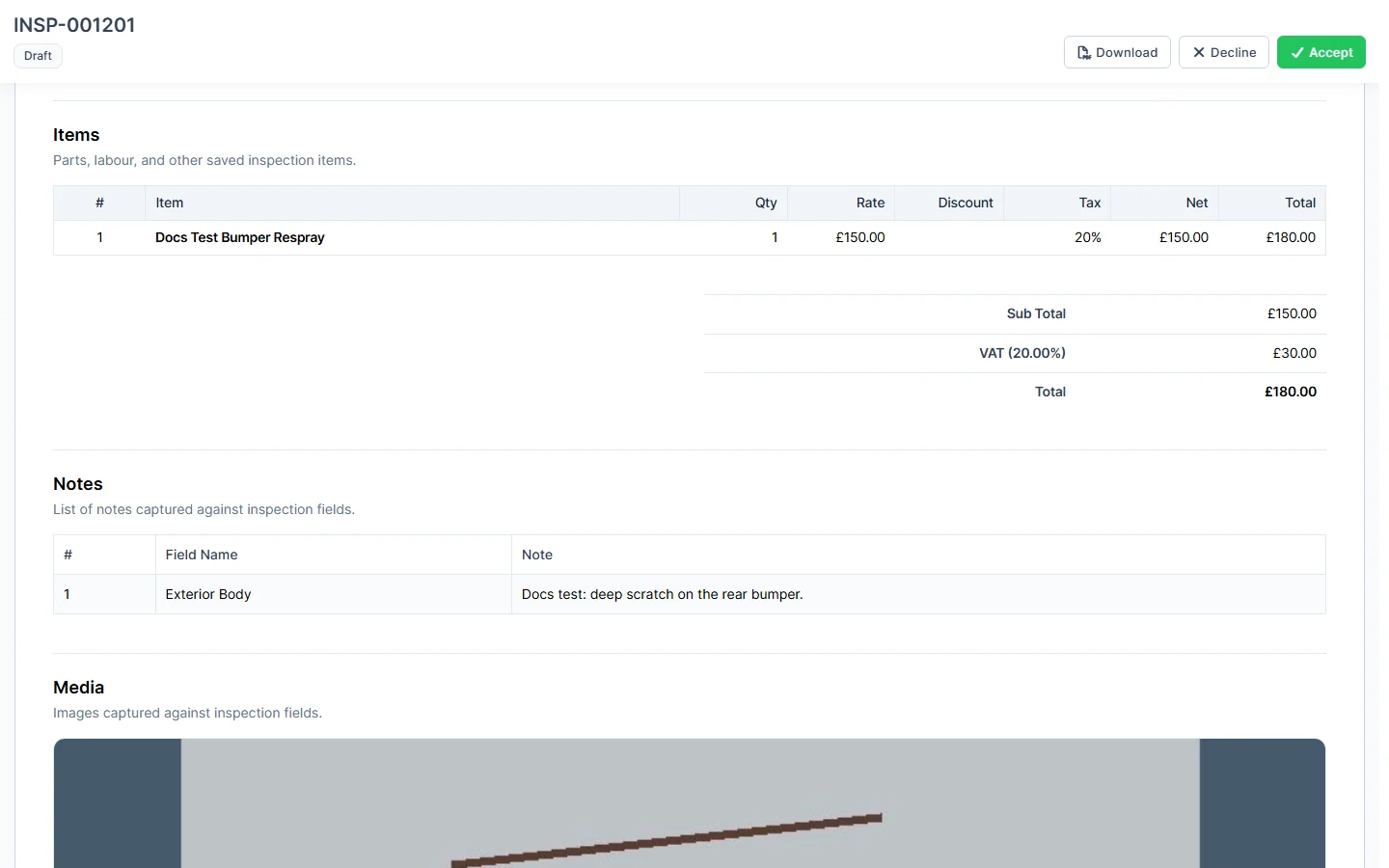
Note: what appears on the PDF and the customer page (for example customer name, technician, totals, notes, photos, QR code) is set on the template’s Settings tab or in Inspection Form Settings on the inspection. See Inspection Templates. To hide draft inspections from the customer area, see Inspection Settings.
Feature Vehicle inspections: see what it does and how it fits your workshop.