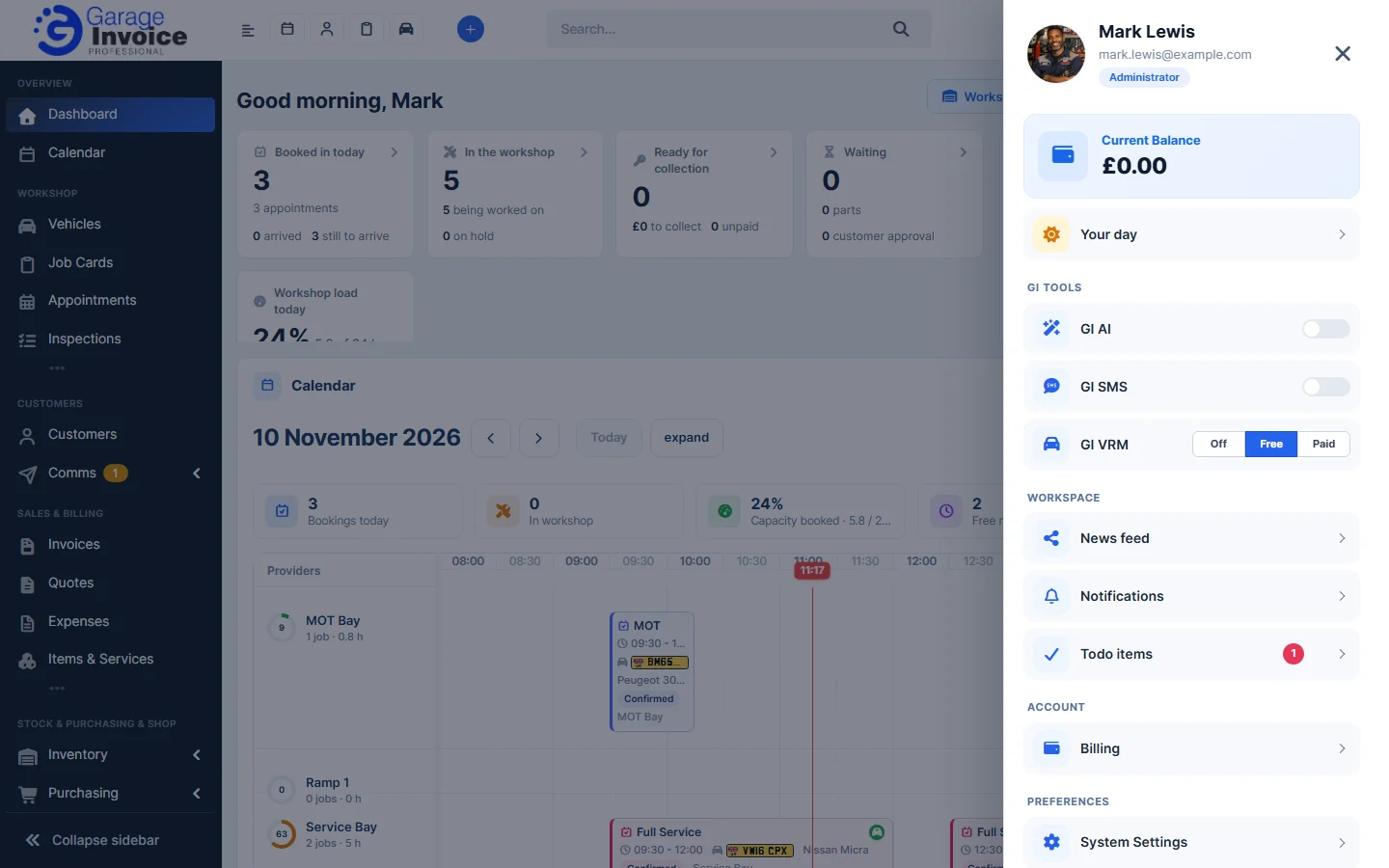
The sidebar on the left takes you to each part of Garage Invoice. The bar at the top has shortcuts, search and your notifications.
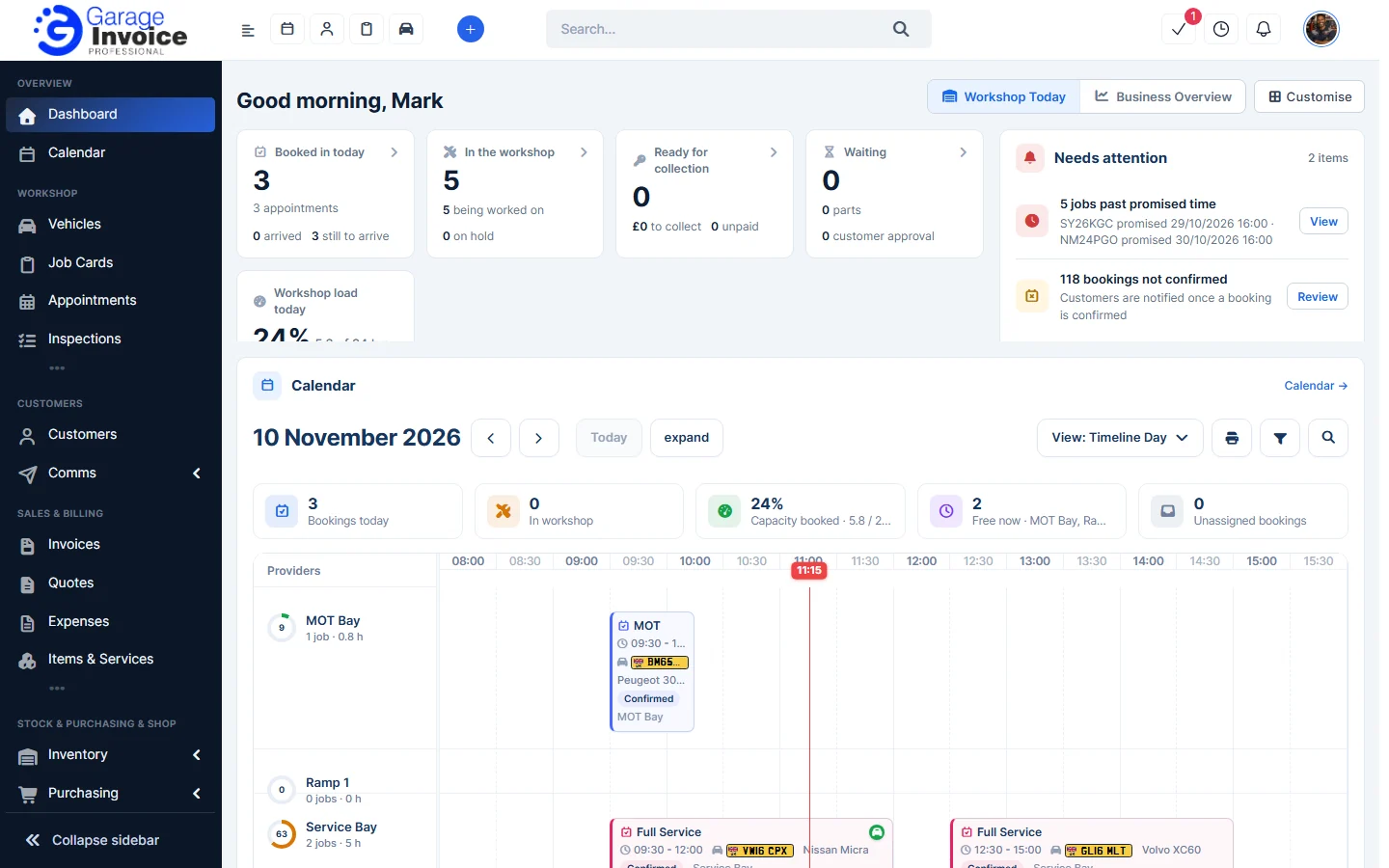
The sidebar
The sidebar is grouped into sections:
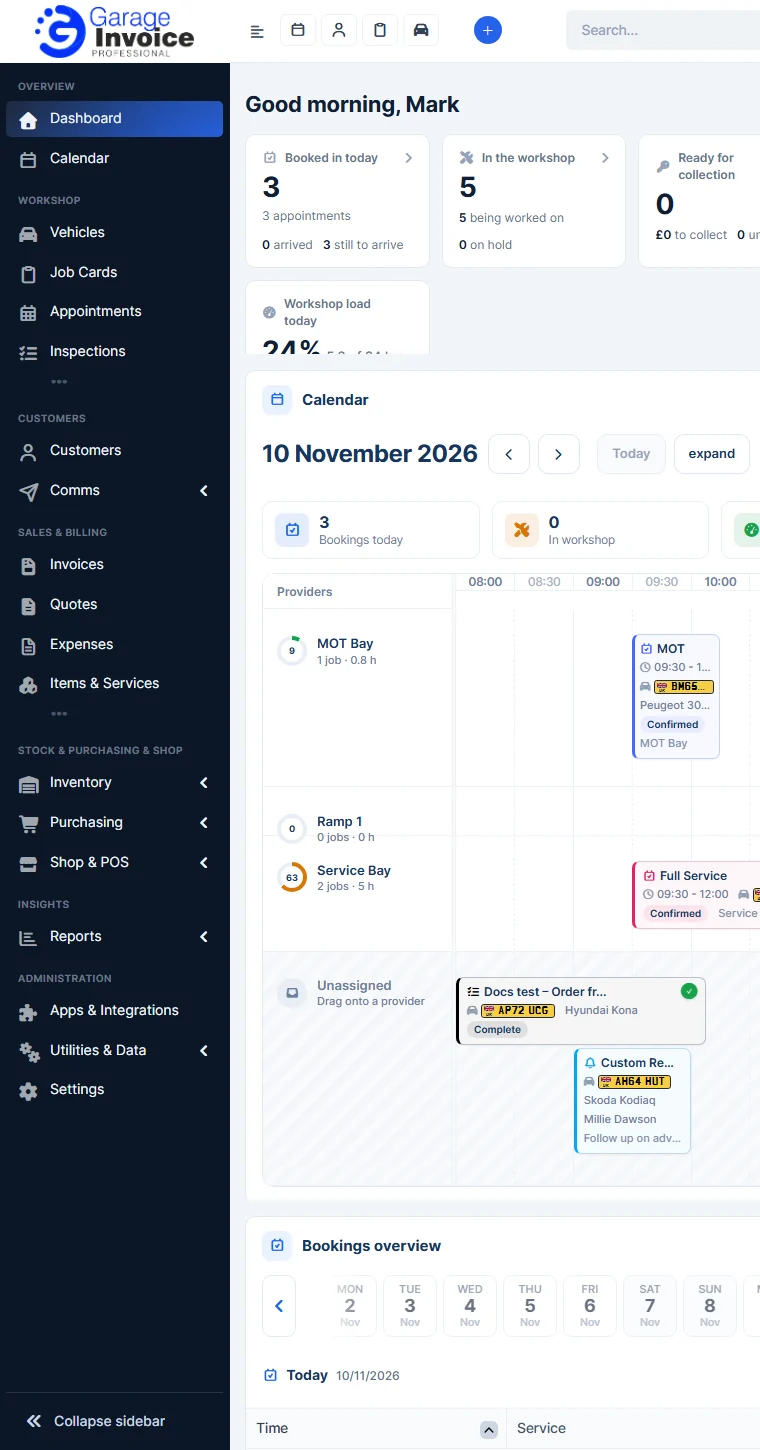
- Overview: Dashboard and Calendar.
- Workshop: Vehicles, Job Cards, Appointments and Inspections, plus Reminders and Tasks.
- Customers: Customers, and Comms (Bulk Email & SMS, Enquiries, Tickets and Announcements).
- Sales & Billing: Invoices, Quotes, Expenses and Items & Services, plus Credit Notes, Payments, Bank Reconciliation and Subscriptions.
- Stock & Purchasing & Shop: Inventory, Purchasing, and Shop & POS.
- Insights: Reports.
- Administration: Apps & Integrations, Utilities & Data and Settings.
- Click an item with an arrow, such as Comms or Inventory, to open its sub-menu.
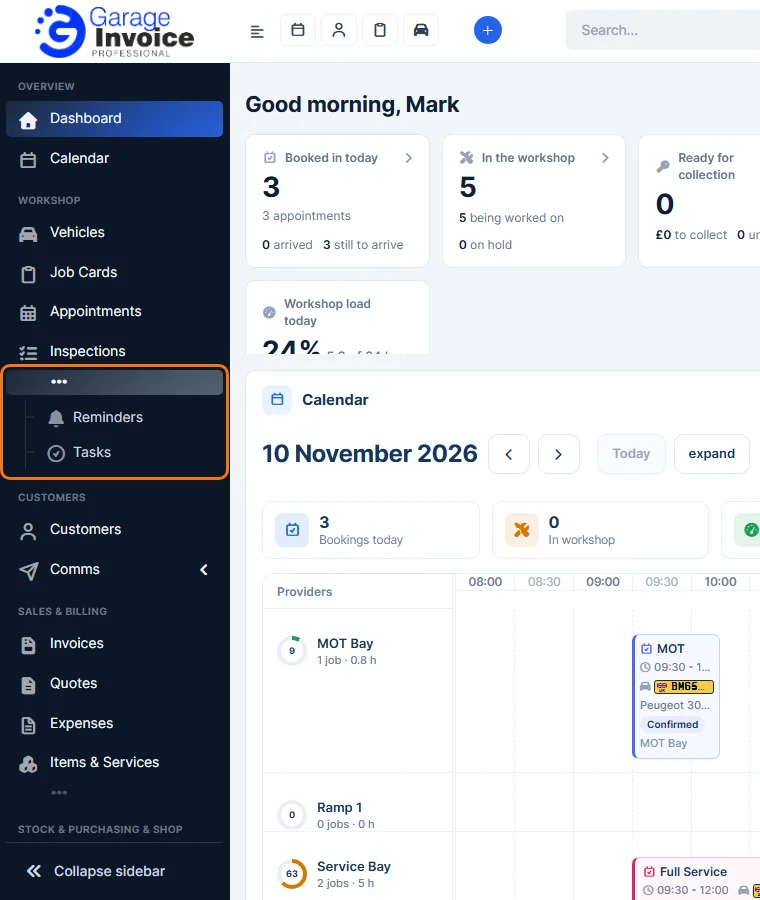
- Some sections have more items than they show. Click the ••• under a section to see the rest, for example Reminders and Tasks under Workshop.
- Click Collapse sidebar at the bottom to shrink the sidebar to icons and give the page more room. Click Expand sidebar to open it again.
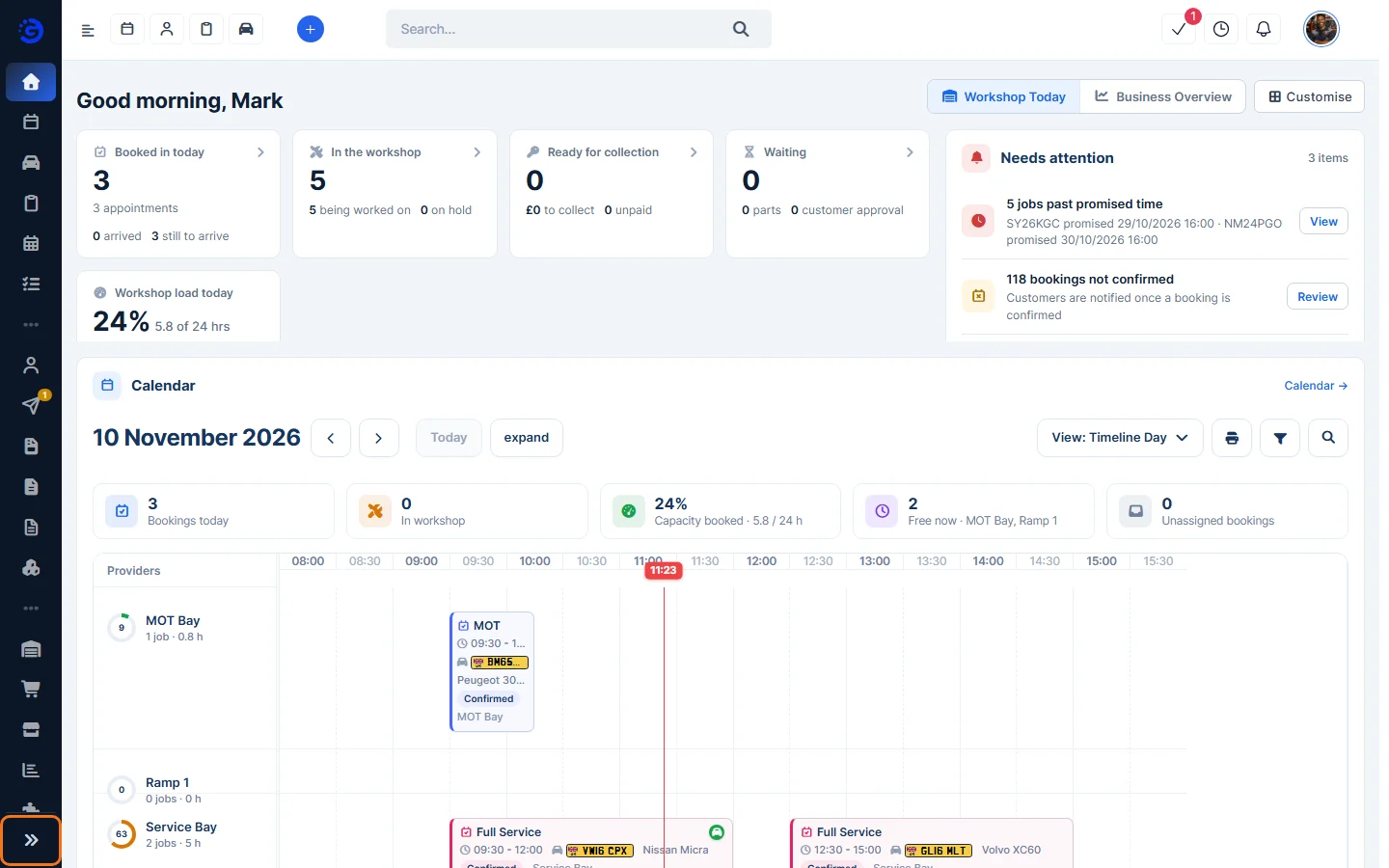
Tip: you can rename, reorder and hide sidebar items. See Menu Builder.
The top bar
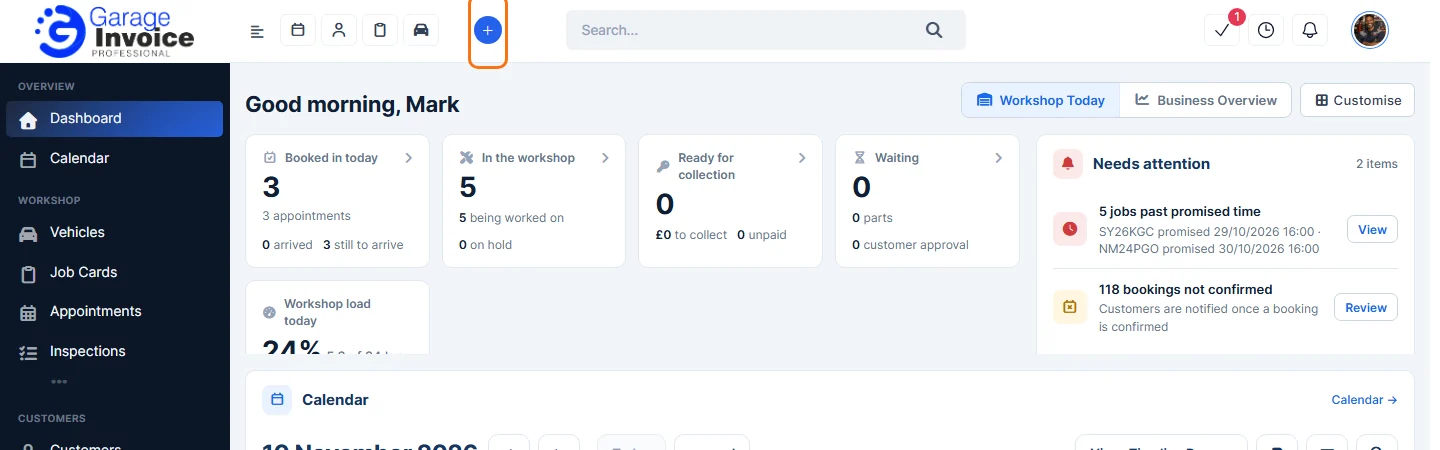
- Shortcuts: the buttons next to the logo open pages you use often, such as Calendar, Customers, Job Cards and Vehicles. You can choose up to 8. See GI System Settings.
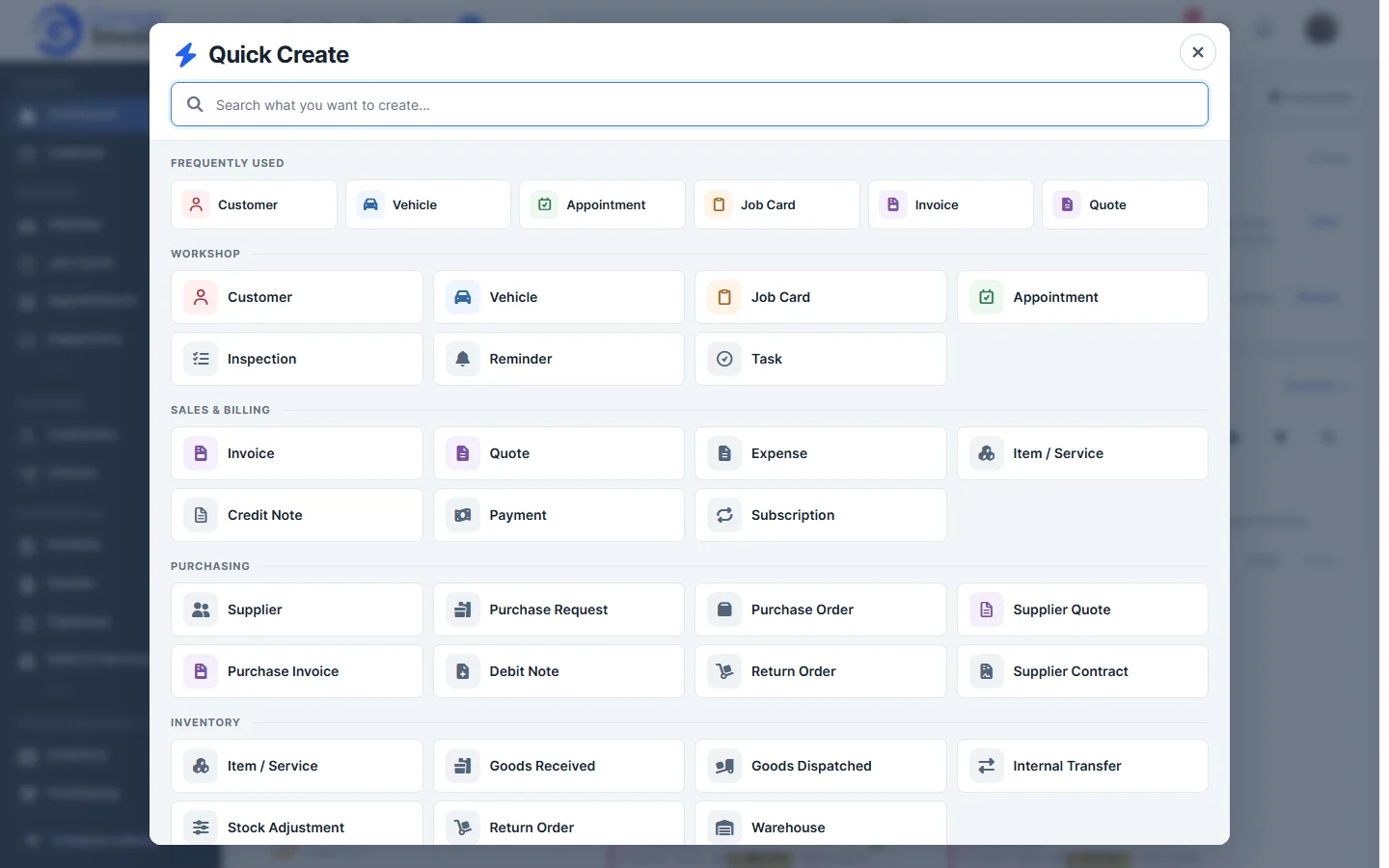
- Quick create: click the blue + to create a record from anywhere.
 Type in Search what you want to create… to filter, or click an item, for example Customer, Job Card or Invoice. Frequently used shows the ones you use most.
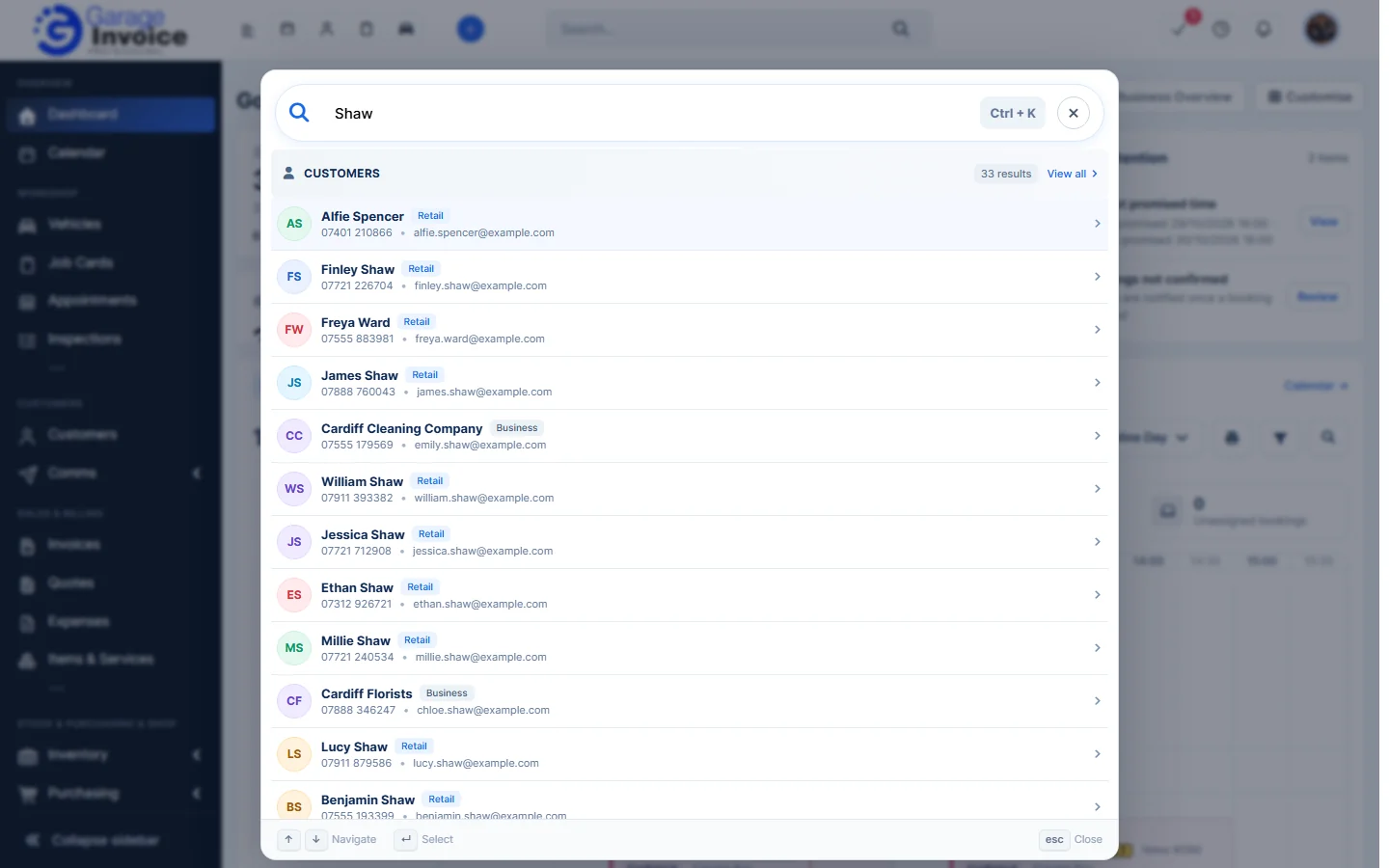
- Search: click Search… (or press Ctrl + K) and type a name, registration, phone number or document number. Results are grouped, for example Customers and Contacts. Click View all for the full list, or click a result to open it. Use the arrow keys and Enter to pick a result, and Esc to close.
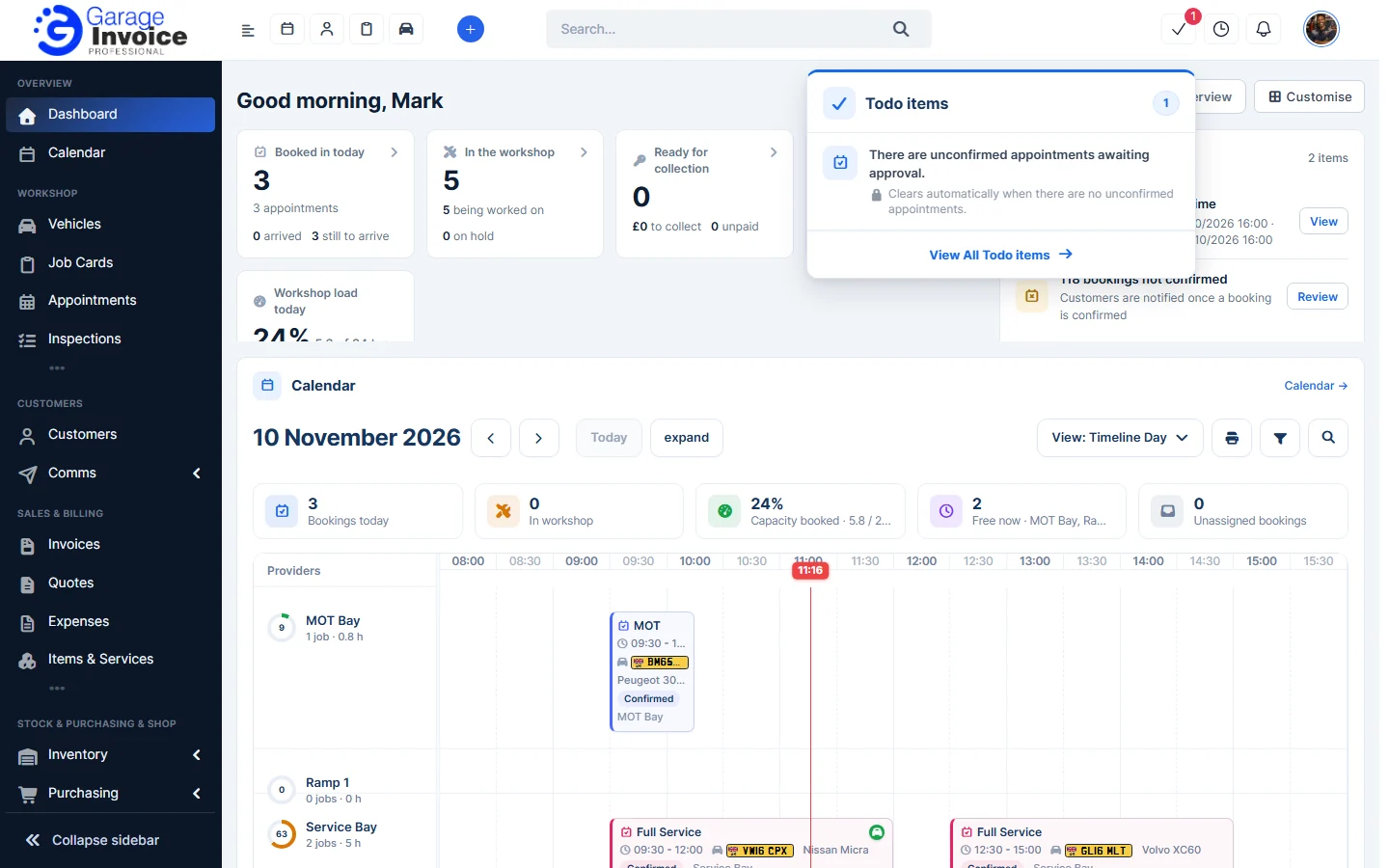
- Todo items (tick icon): things that need your attention, for example unconfirmed appointments. Click View All Todo items for the full list. See Review Unconfirmed Appointments.
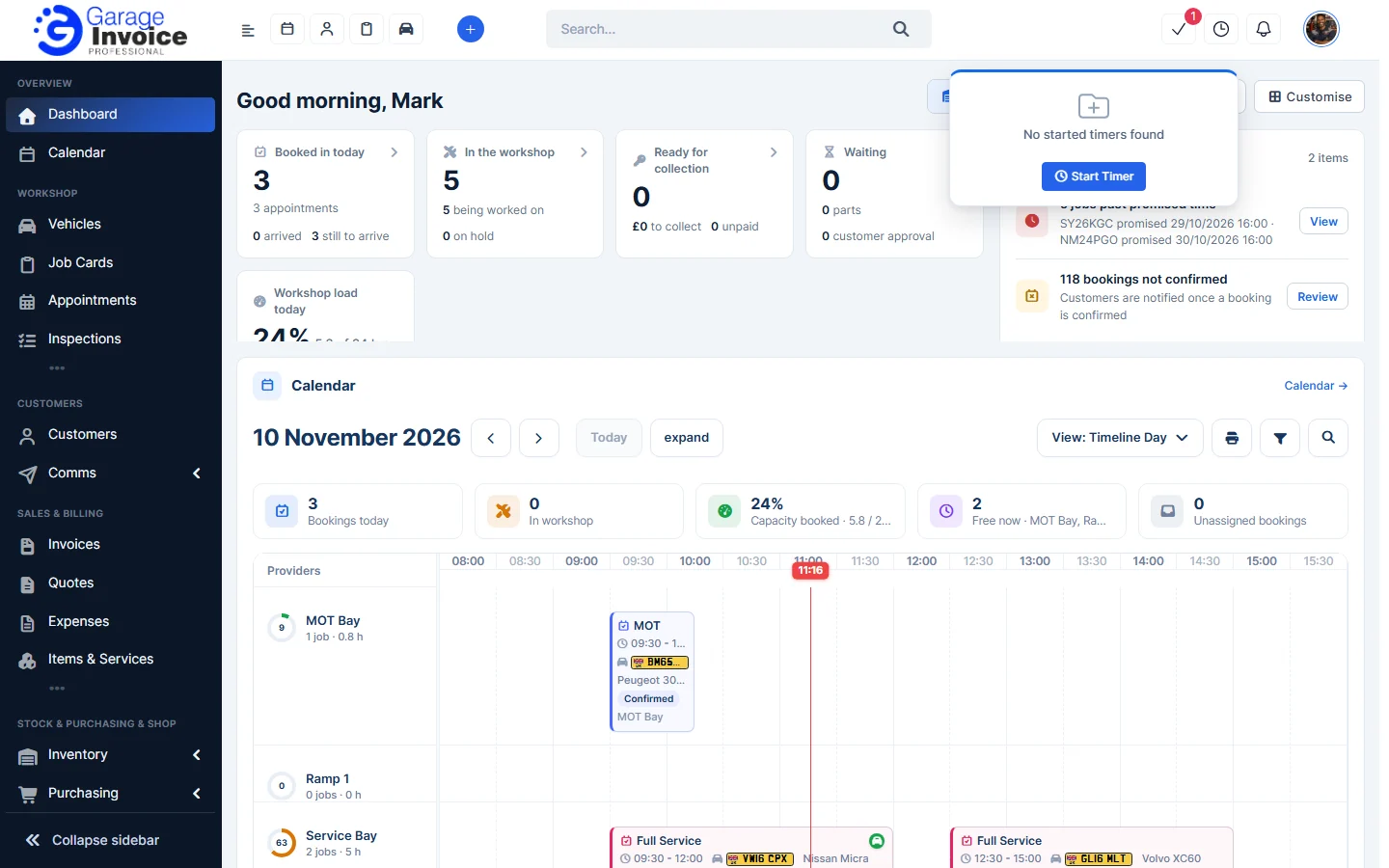
- Timers (clock icon): shows the timers you’ve started. Click Start Timer to time your work. See Start Timer for Task.
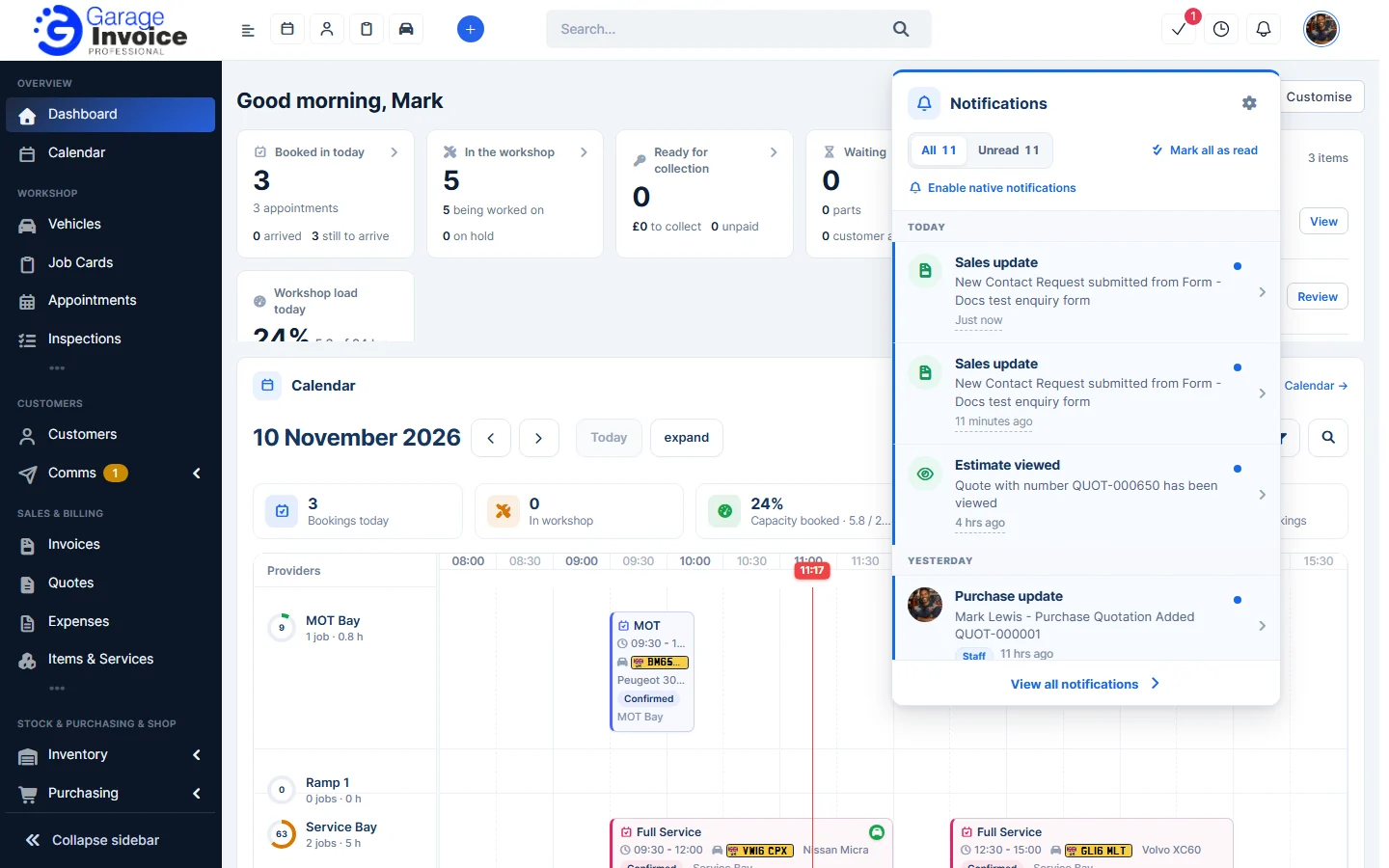
- Notifications (bell icon): updates such as new enquiries, viewed quotes and sent reminders. Switch between All and Unread, click Mark all as read, or click View all notifications. Click Enable native notifications to get them from your browser too.
- Your profile (your photo): opens a panel with Edit Profile, your Current Balance, Your day, the GI Tools (GI AI, GI SMS and GI VRM), News feed, Notifications, Todo items, Billing, System Settings, Dark Mode and Logout.