
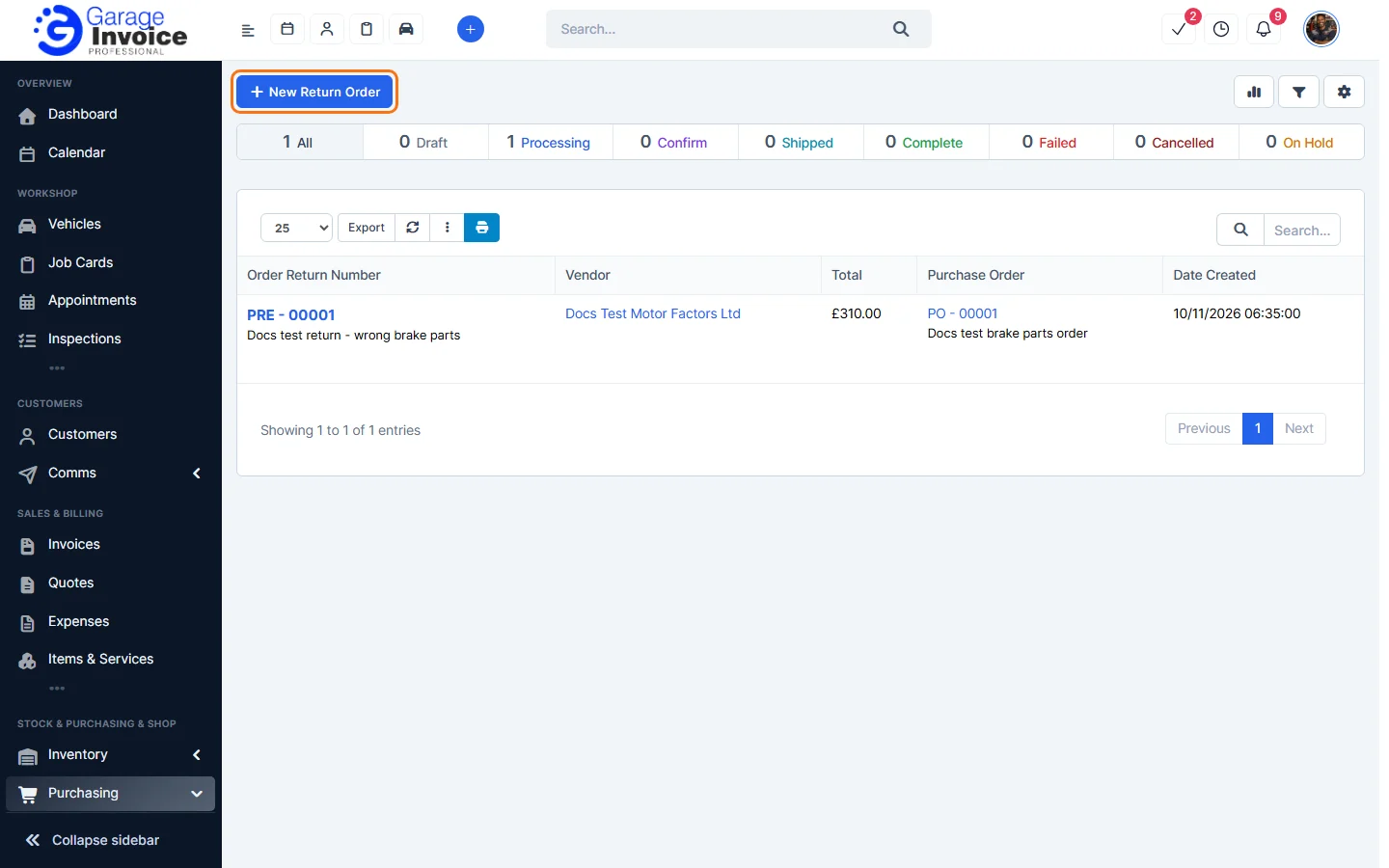
- Click Purchasing in the sidebar (under Stock & Purchasing & Shop) and click Return Orders. The tabs show return orders by status: Draft, Processing, Confirm, Shipped, Complete, Failed, Cancelled and On Hold. Click New Return Order.
- Choose the Purchase Order. The supplier, email, order date and all items from the order are filled in. Change the Return Order Name if you like; the Return Order Number (PRE) is set for you.
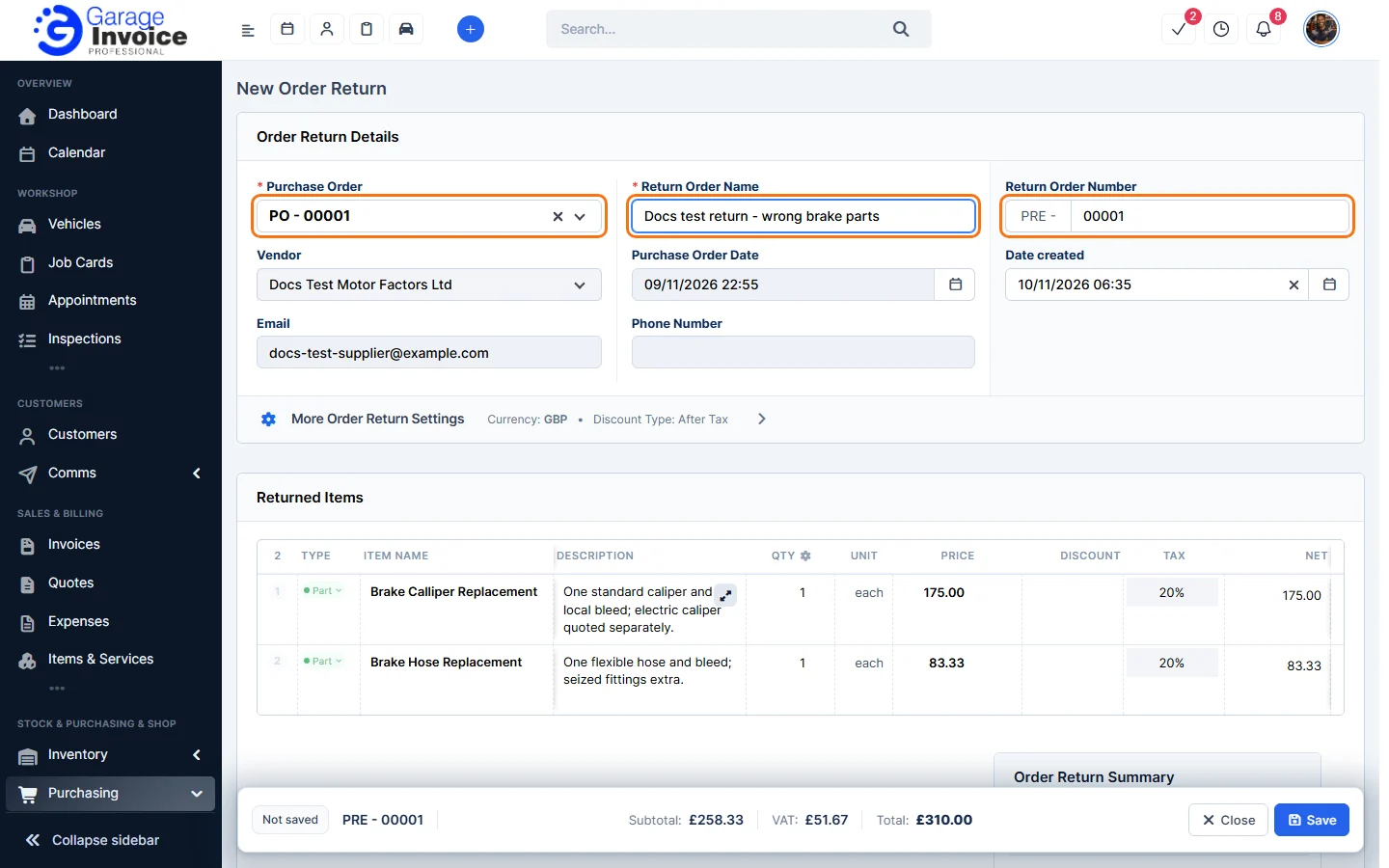
- Under Returned Items, keep the items you are sending back and change the quantities if needed. Any Fee for Return Order from the supplier’s return policy is taken off the total.
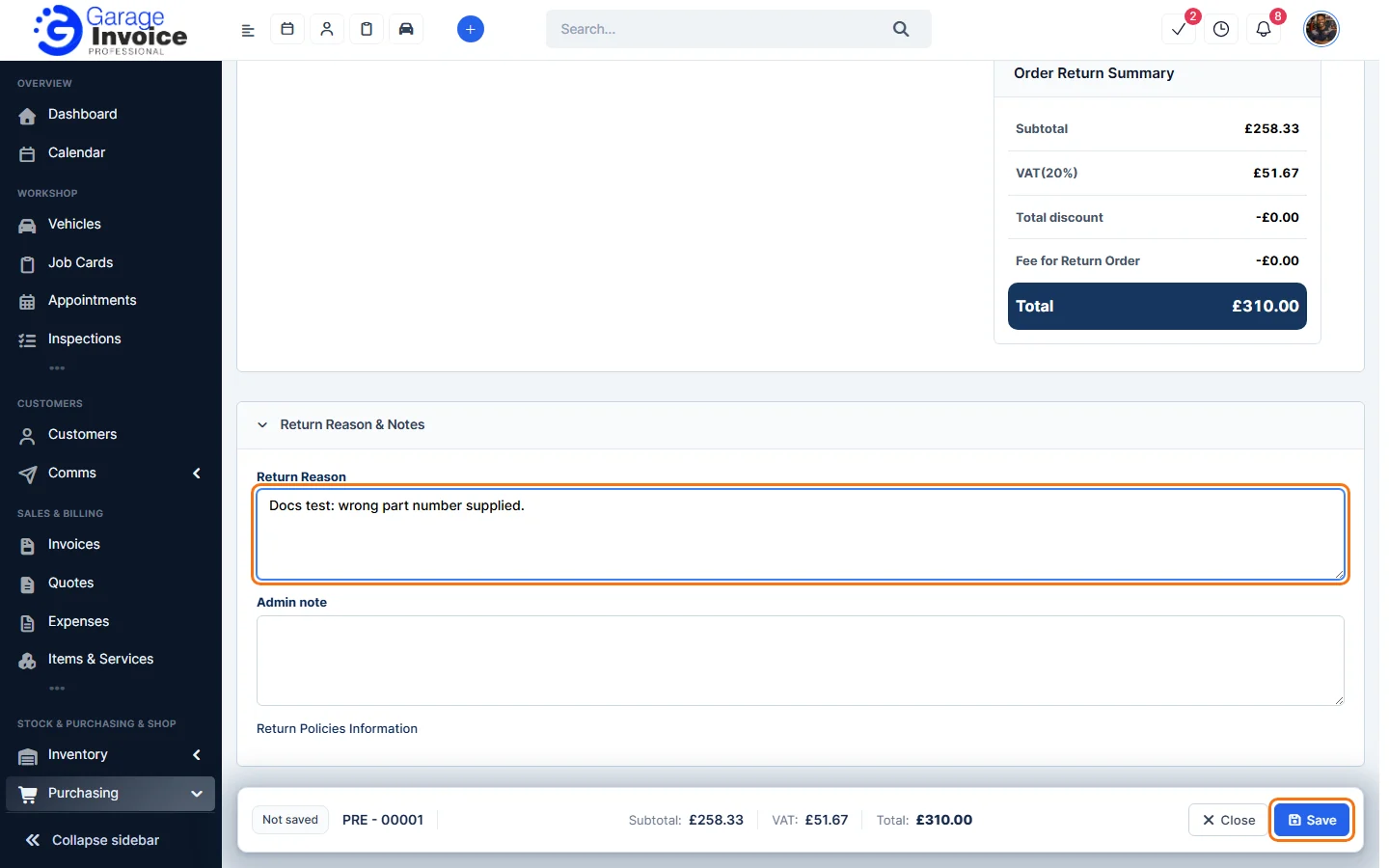
- Type the Return Reason and an Admin note if you like, then click Save.
- The return order opens with the status Processing. Use More to Edit or Delete it.
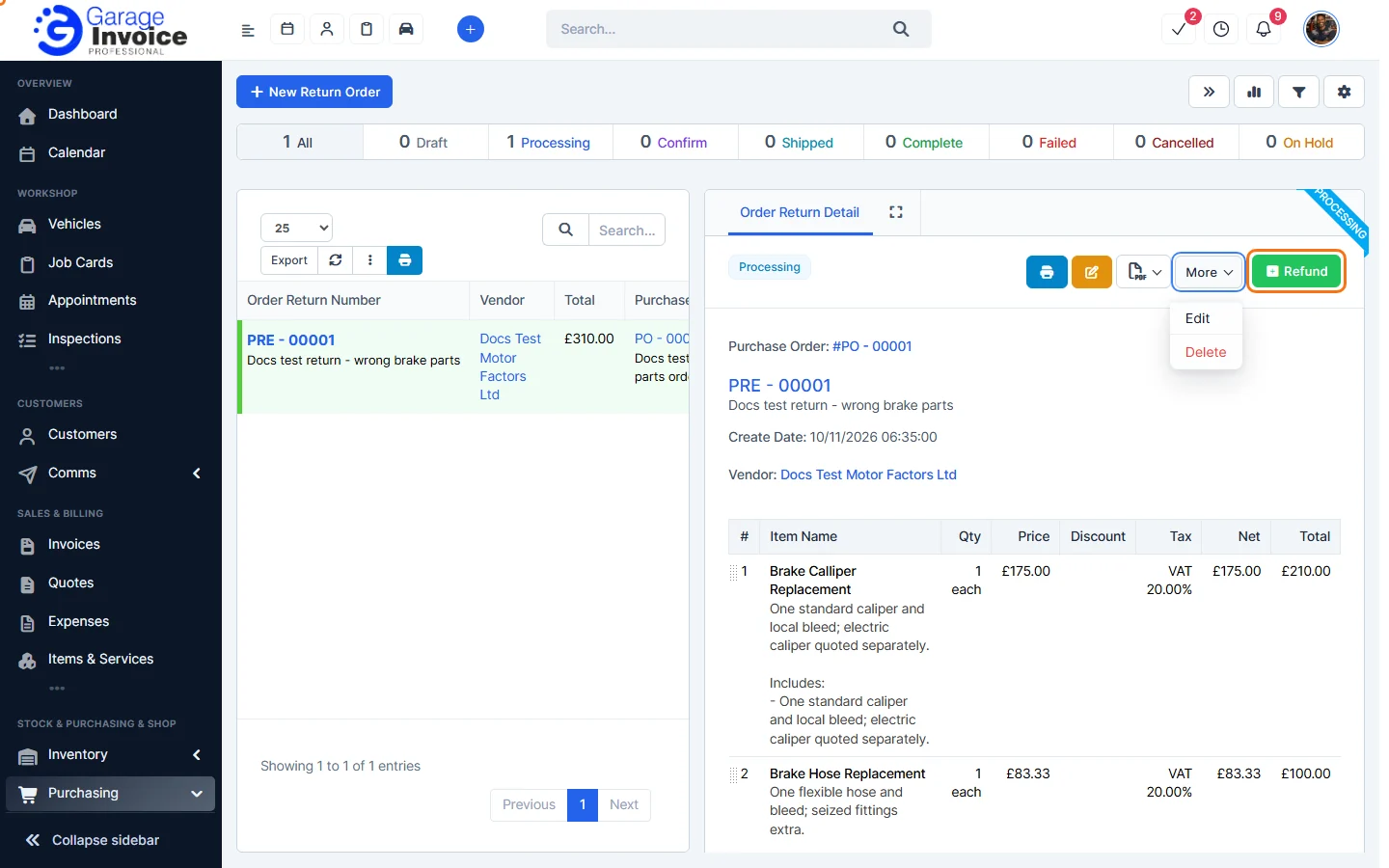
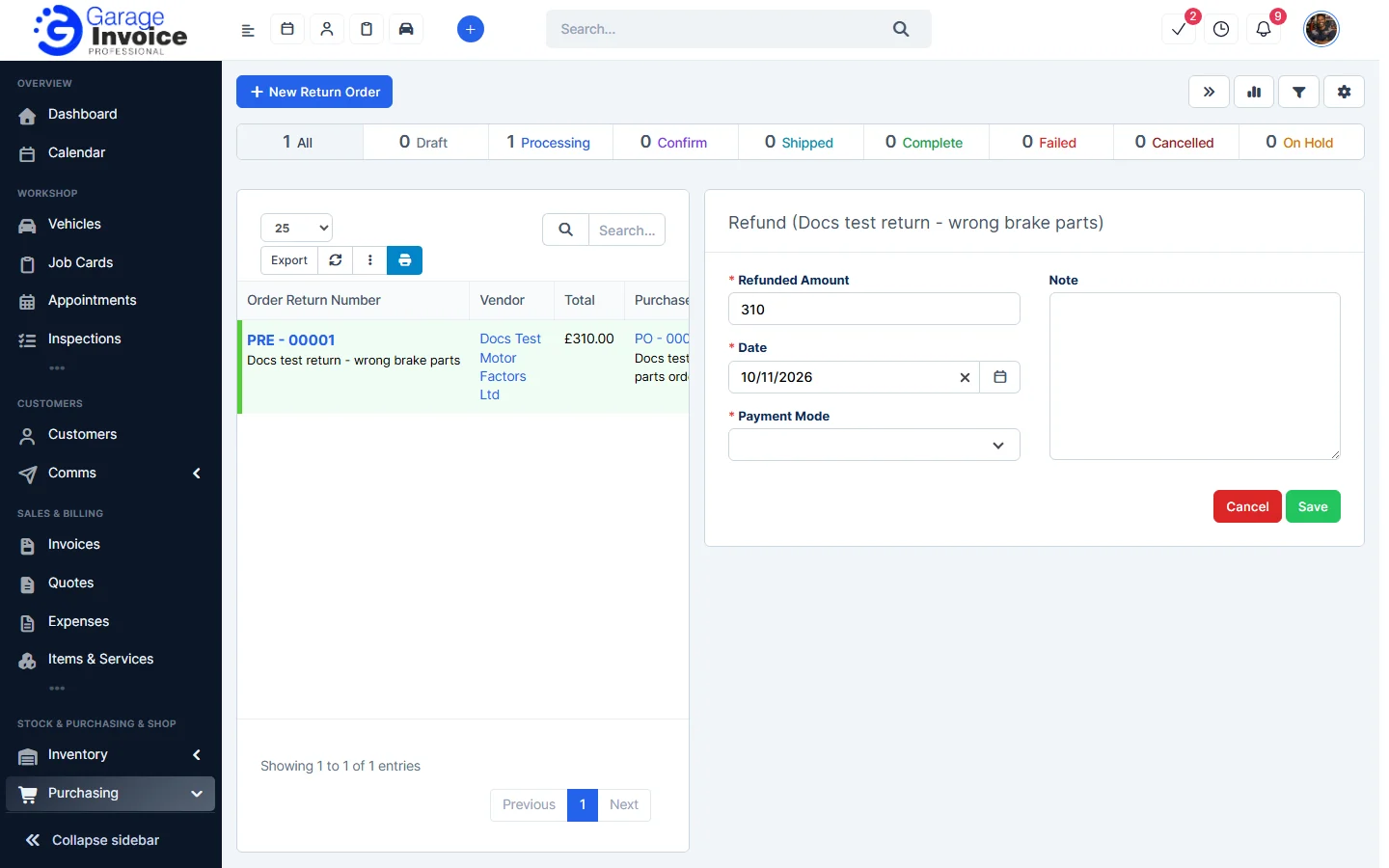
- When the supplier pays you back, click Refund, enter the Refunded Amount, Date and Payment Mode, and click Save.
Tip: you can also start a return from the purchase order itself. See Create a Return Order from a Purchase Order.
Feature Stock and inventory control: see what it does and how it fits your workshop.