
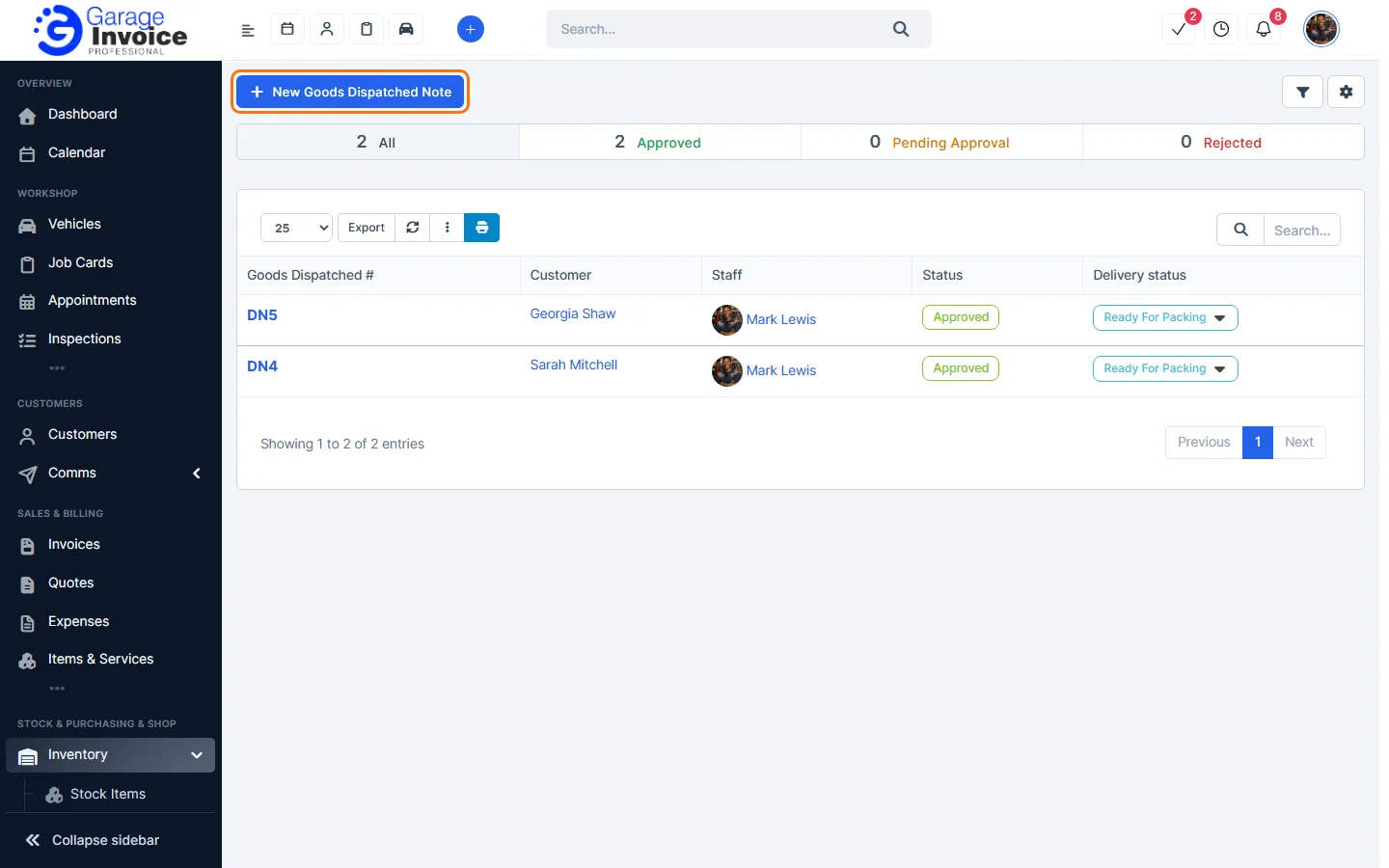
- Click Inventory in the sidebar (under Stock & Purchasing & Shop) and click Goods Dispatched. Click New Goods Dispatched Note.
- Choose the Customer and whether to use their billing or shipping address. You can link a Vehicle. The Goods Dispatched Note Number and Date are filled in for you. Click More Settings for the salesman, department, requester and expenditure type.
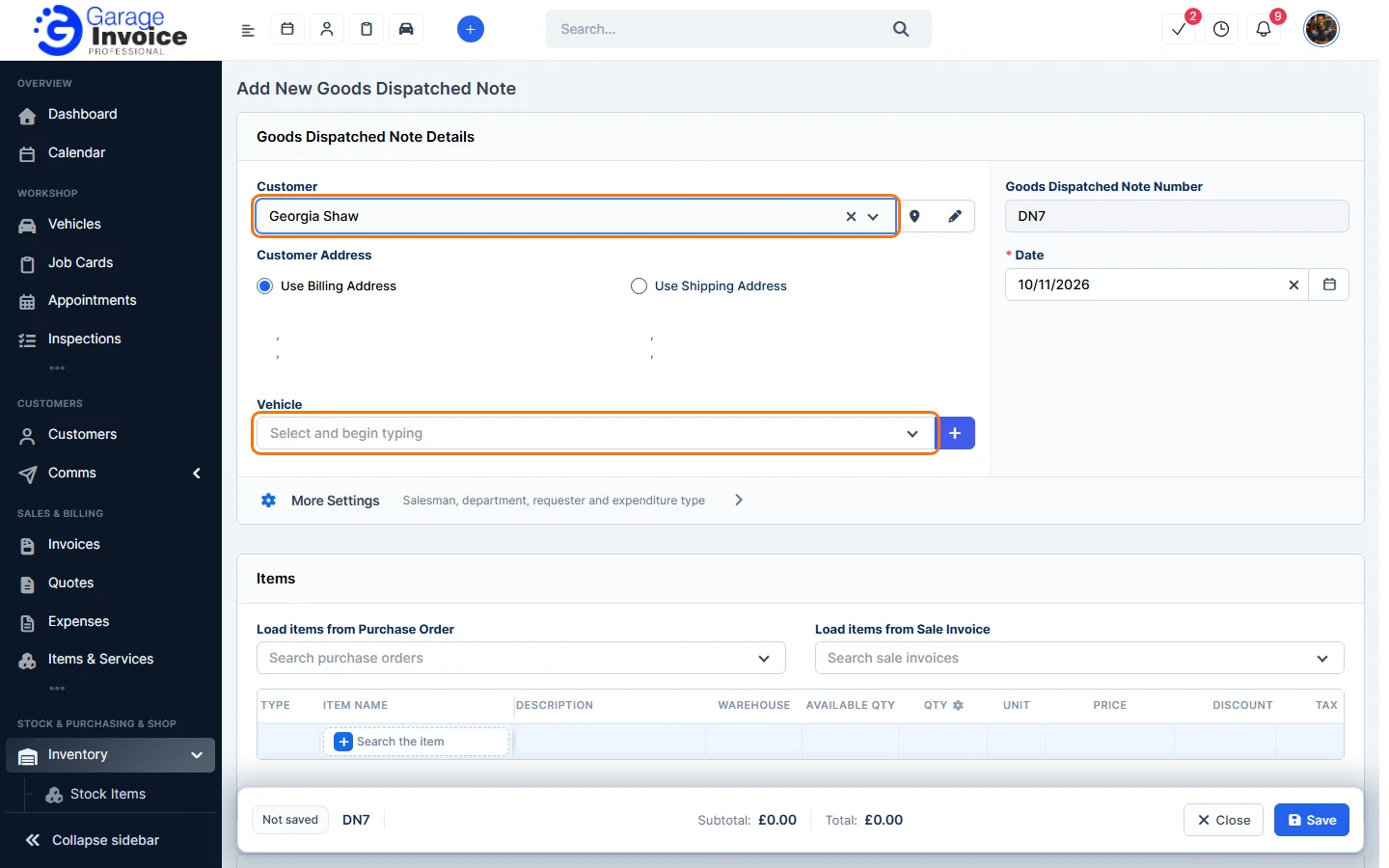
- Under Items, you can copy the items from a purchase order or an invoice with Load items from Purchase Order or Load items from Sale Invoice.
- To add an item yourself, click Search the item, type part of its name and click it in the results. Check the Warehouse and Available Qty, then enter the Qty.
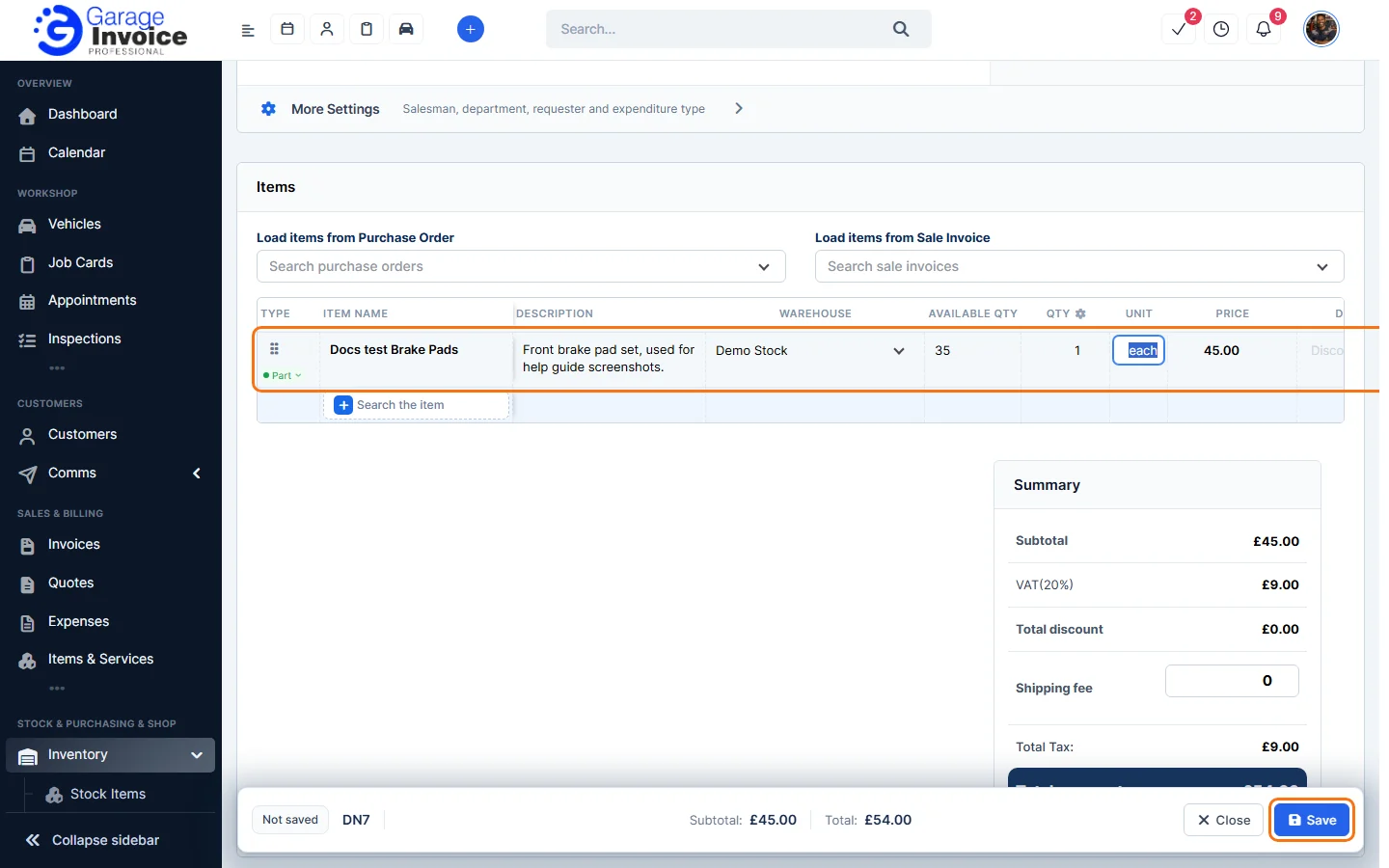
- Click Save in the bar at the bottom of the screen.
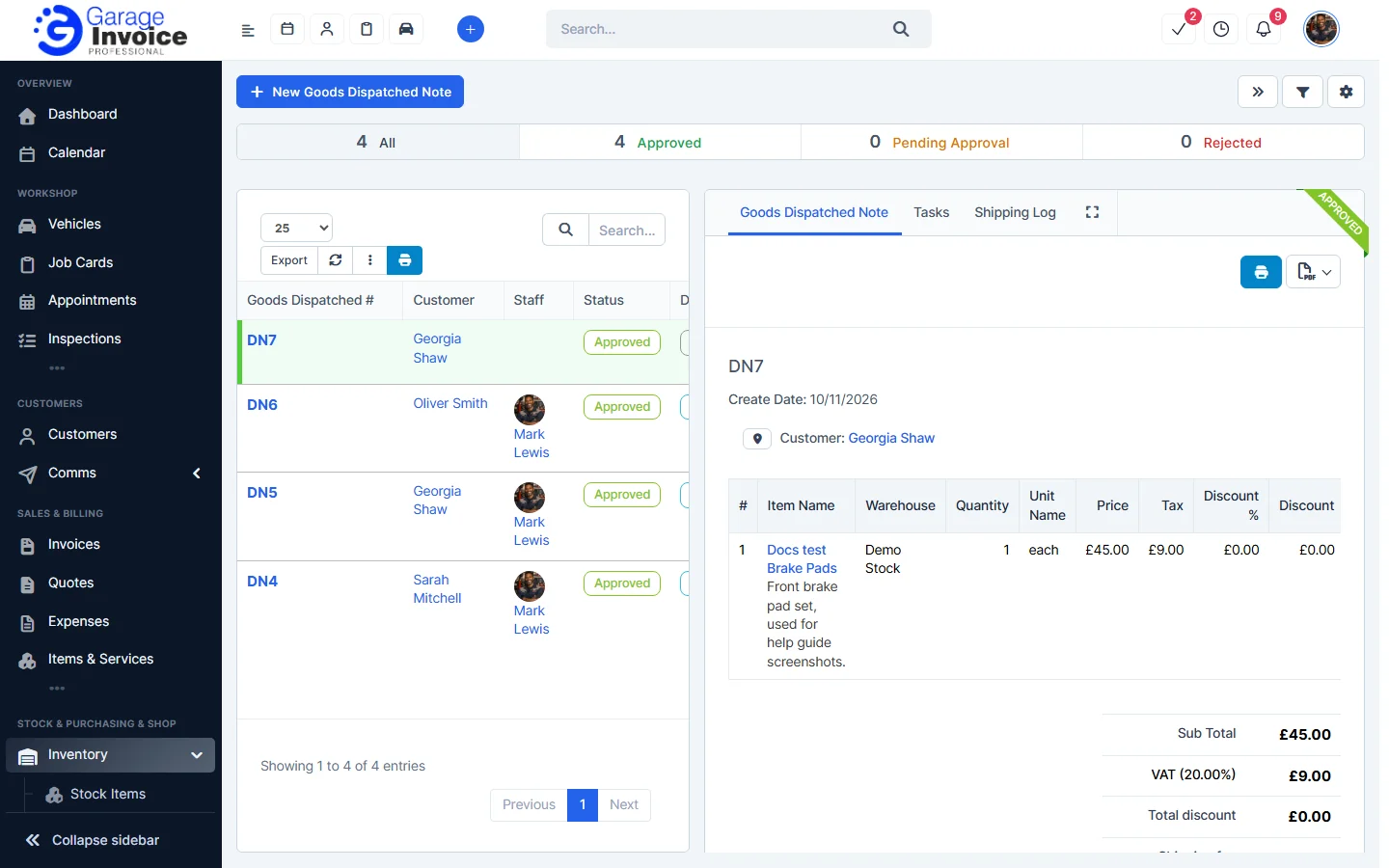
The note opens on the right and the stock goes down straight away. Its delivery status starts as Ready For Packing. See Change Delivery Status.
Tip: you can have a Goods Dispatched Note created automatically when you add an invoice. See Inventory General Settings.
Feature Stock and inventory control: see what it does and how it fits your workshop.