
Apps & Integrations is where you connect Garage Invoice to other services: accounting software, AI, calendars, email, SMS and card payments.
Open Apps & Integrations
- Click Apps & Integrations in the sidebar, under Administration. You can also click Settings, open Integrations & Services and click Apps & Integrations.
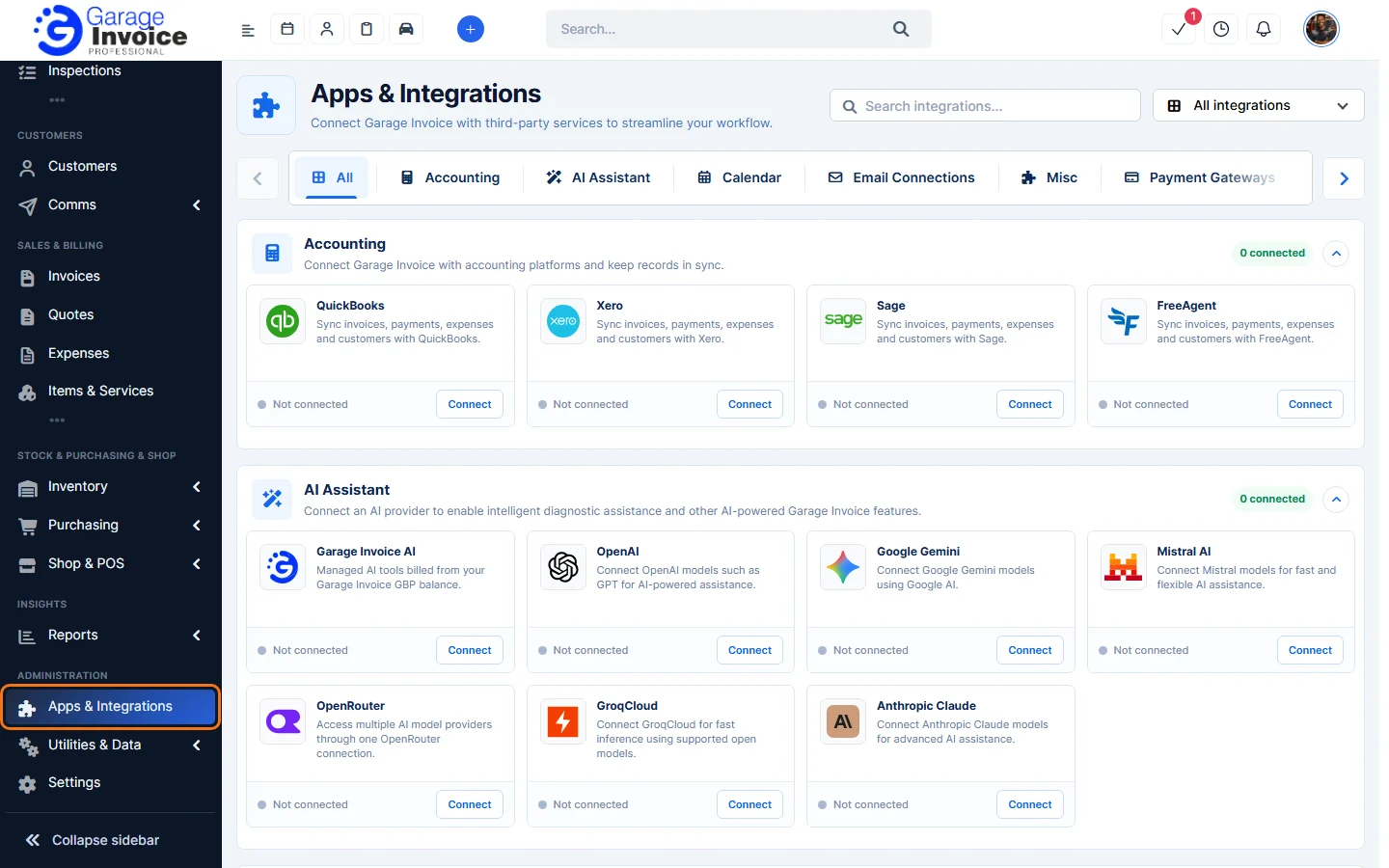
- Use Search integrations… to find a service by name, and the All integrations list to show Connected or Available to connect only.
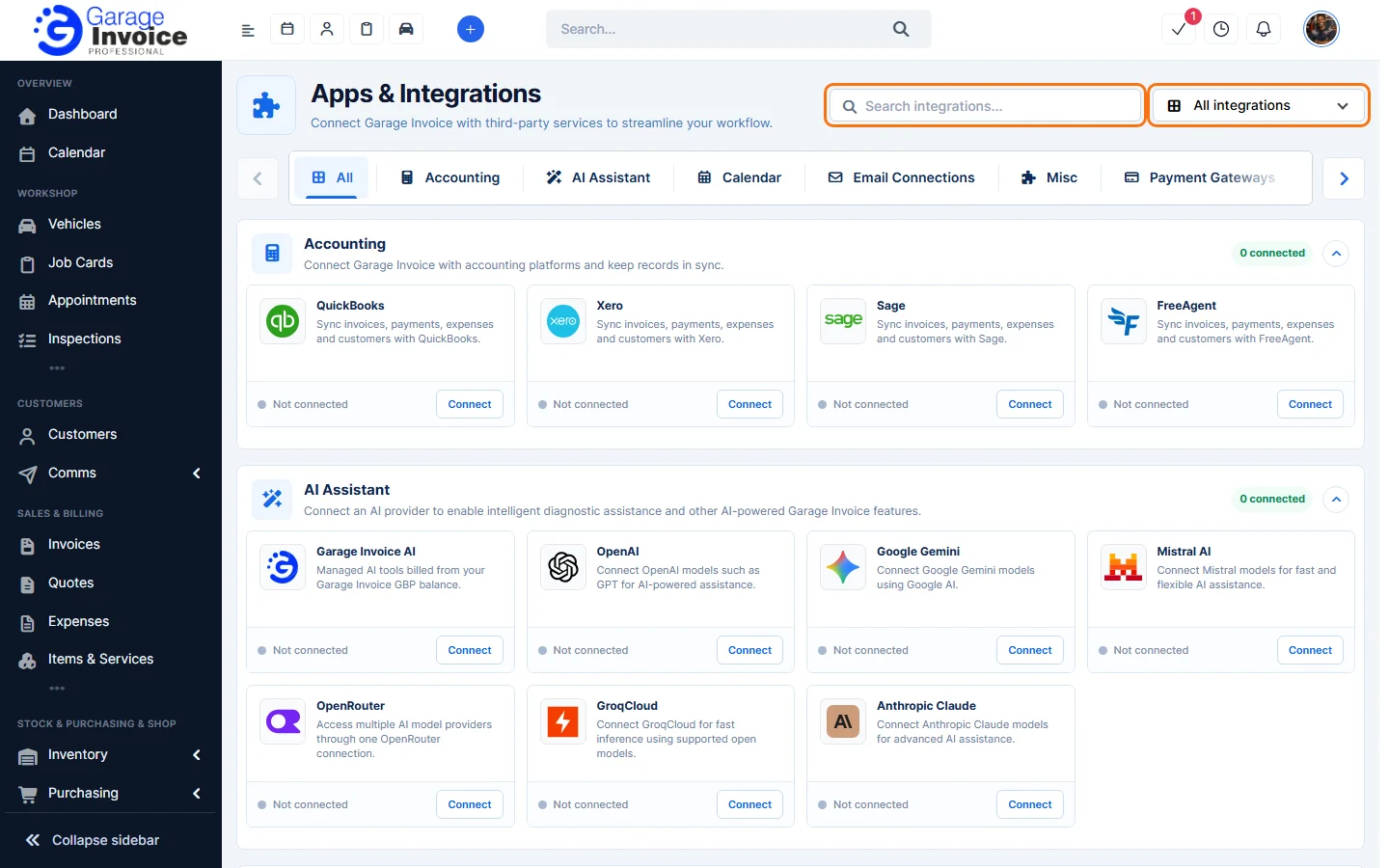
- Click a tab to see one category: All, Accounting, AI Assistant, Calendar, Email Connections, Misc, Payment Gateways or SMS Connections. Each category shows how many services are connected.
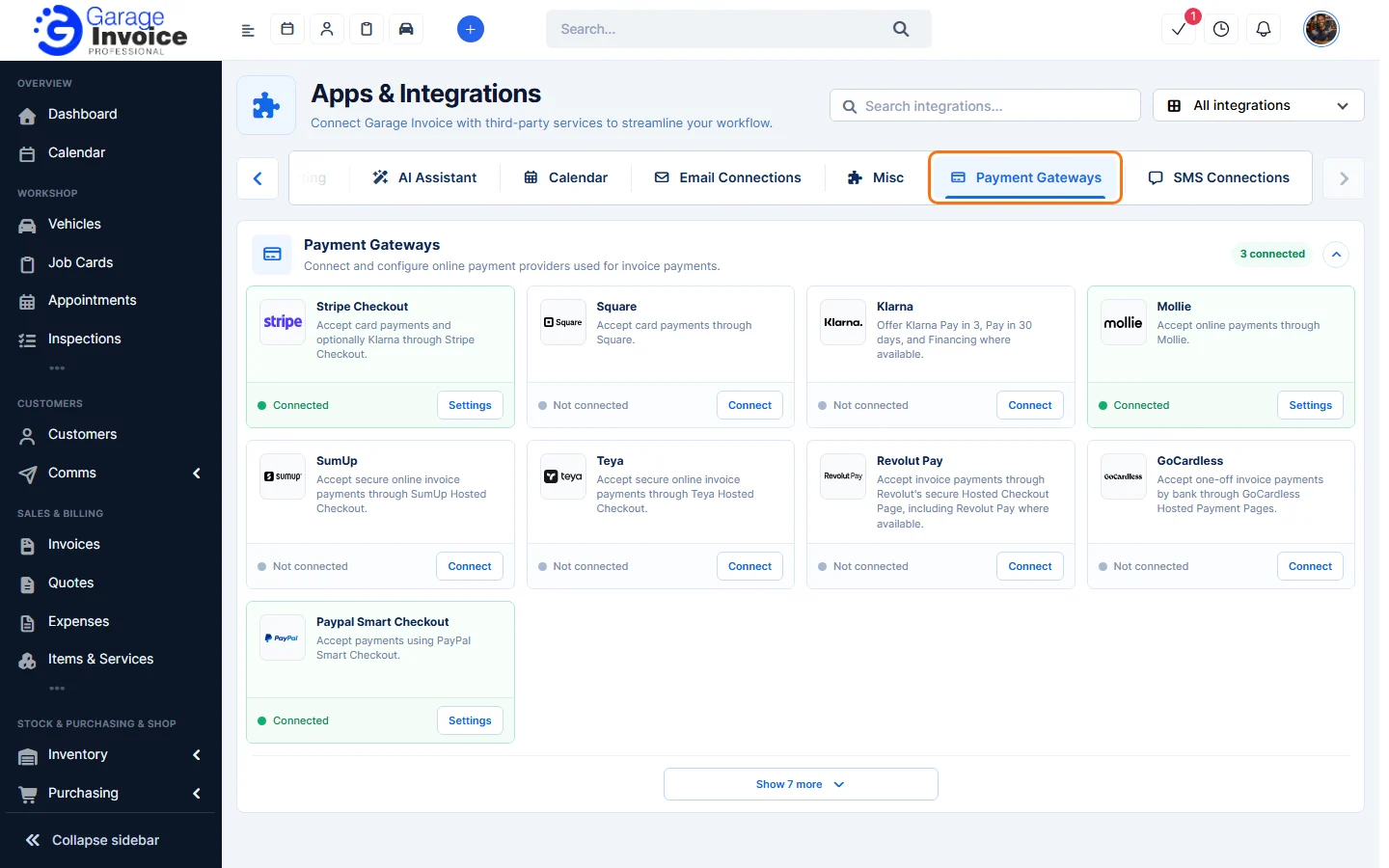
Categories
- Accounting: QuickBooks, Xero, Sage and FreeAgent. Sync invoices, payments, expenses and customers with your accounting software. (To export files for accounting instead, see Accounting Export Overview.)
- AI Assistant: an AI provider for AI features such as AI Assist on invoices and job cards. Garage Invoice AI is the managed option, billed from your Garage Invoice balance, with three service levels: Economy, Balanced and Premium. You can also use your own account with OpenAI, Google Gemini, Mistral AI, OpenRouter, GroqCloud or Anthropic Claude. See AI Settings.
- Calendar: Google Calendar, Microsoft Outlook Calendar, iCloud Calendar and CalDAV Calendar. Sync events, assigned appointments and job cards with a staff member’s own calendar.
- Email Connections: the service that sends your emails. Garage Invoice (the built-in email service) is connected by default. Others include Microsoft 365 / Outlook / Hotmail, Google Gmail / Google Workspace, Yahoo Mail / AOL, Zoho Mail, iCloud Mail, Mail.com, Other SMTP and sending services such as Brevo, Amazon SES, Mailgun and Mailjet. Click Show more to see them all. Only one email provider is active: connecting another one replaces the current one, and Garage Invoice asks you to confirm. See Email Providers.
- Misc: Pusher, for chat messages and staff notifications that update in real time, and desktop notifications.
- Payment Gateways: take card and online payments for invoices. Includes Stripe Checkout, Square, Klarna, Mollie, SumUp, Teya, Revolut Pay, GoCardless, PayPal Smart Checkout, Braintree and more. See Accept Online Payments for Invoices.
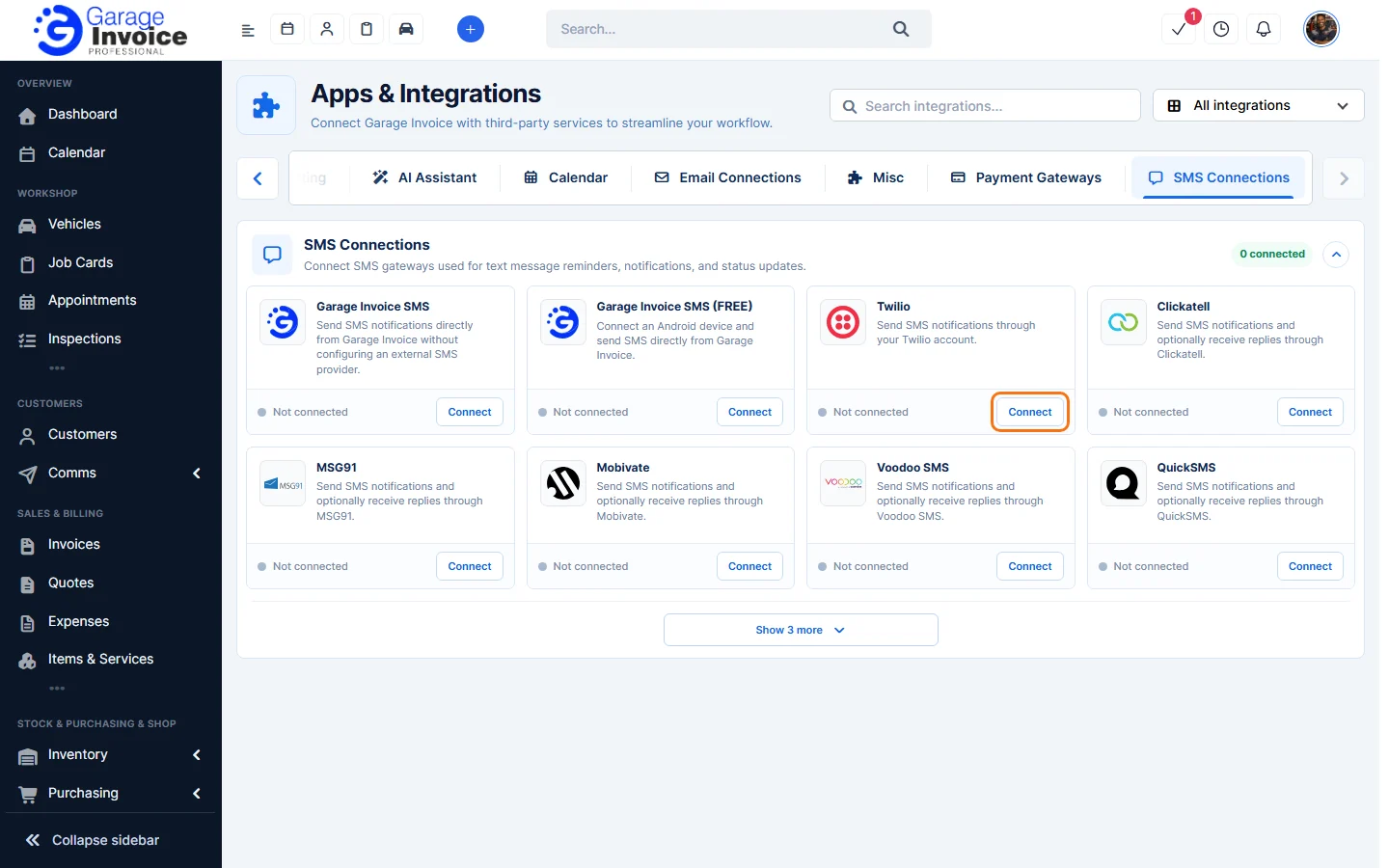
- SMS Connections: the service that sends text message reminders and updates. Garage Invoice SMS needs no external account and is charged to your Garage Invoice balance; you choose one-way or two-way messaging and the name customers see. Garage Invoice SMS (FREE) sends from your own Android phone. You can also use Twilio, Clickatell, MSG91, Mobivate, Voodoo SMS, QuickSMS, The SMS Works, BulkSMS or Dexatel.
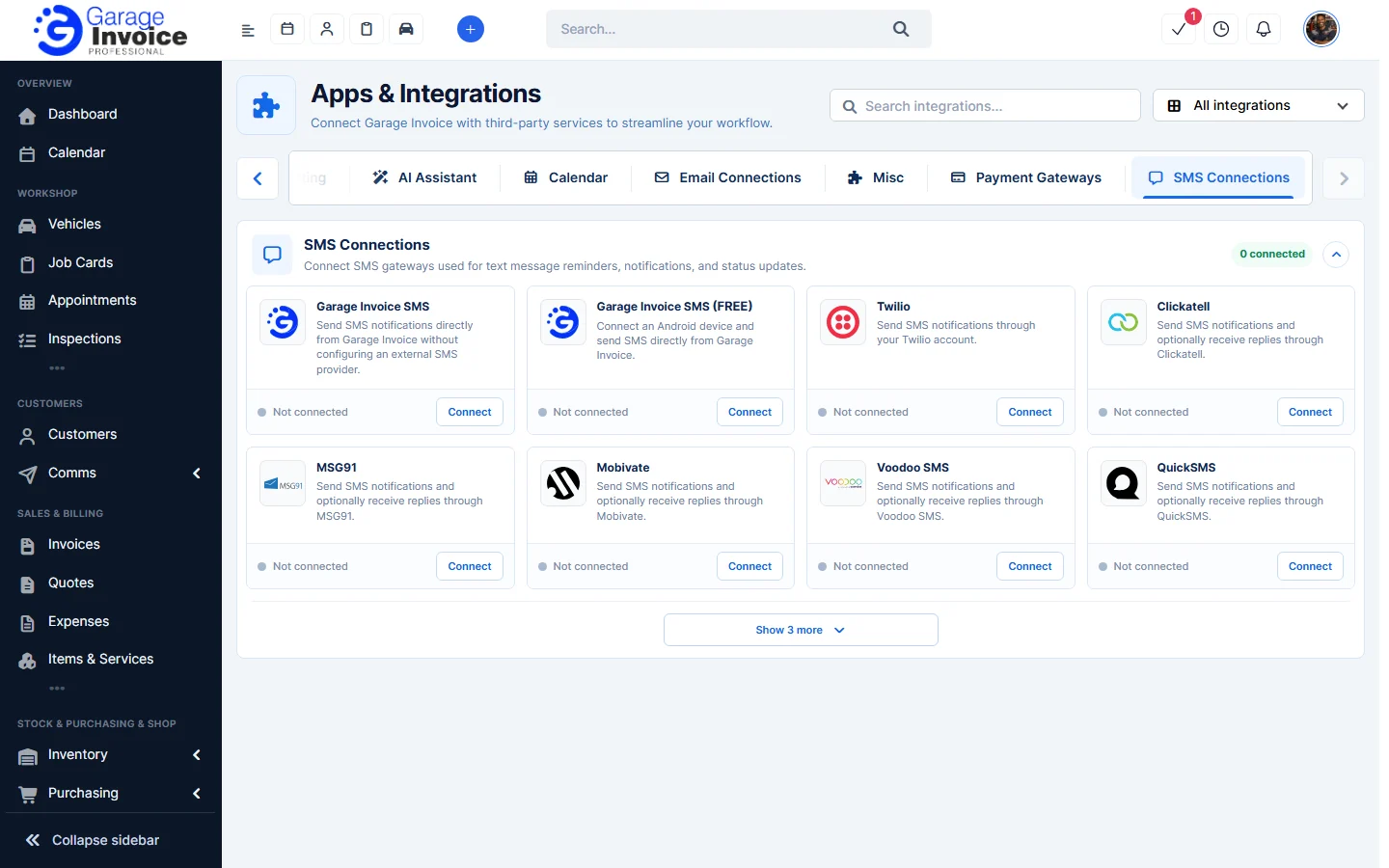
Integration cards
Each card shows the service, what it does and its status:
- Not connected with a Connect button: the service isn’t set up yet.
- Connected (green card) with a Settings button: the service is set up. Click Settings to change it.
Connect a service
- Click Connect on the service’s card.
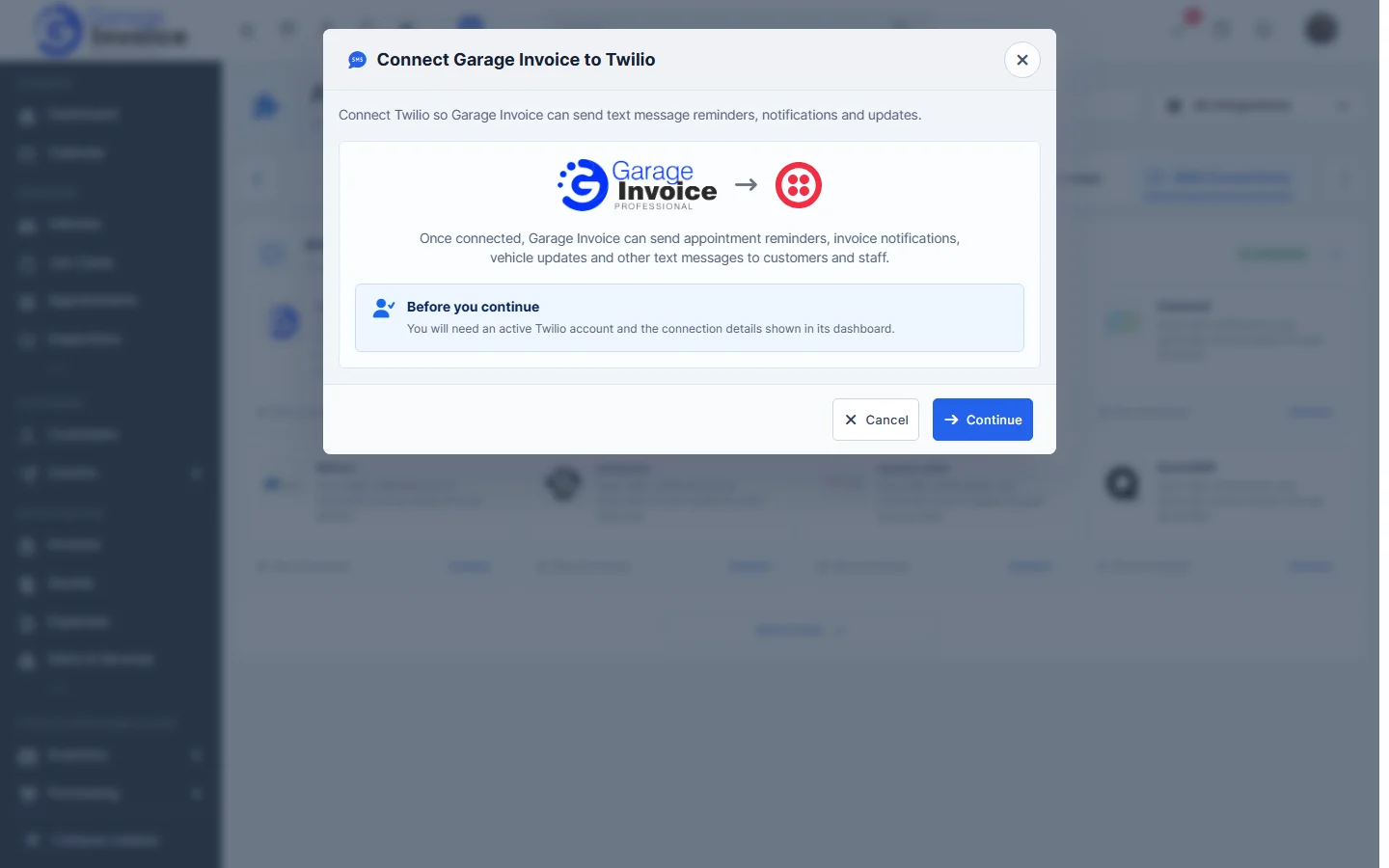
- A window explains what the connection does and what you need, for example an active account with that service and the connection details from its dashboard. Click Continue to go on, or Cancel.
- Enter the details from the other service. For an AI provider such as OpenAI, that’s the API key and, if you use them, the Organisation ID and Project ID, plus the Default model and Request timeout. Tick Enable this AI provider, and choose Allow AI Data Processing and the AI Context Permissions (how much vehicle history the provider may receive). API keys are encrypted and never shown again in full.
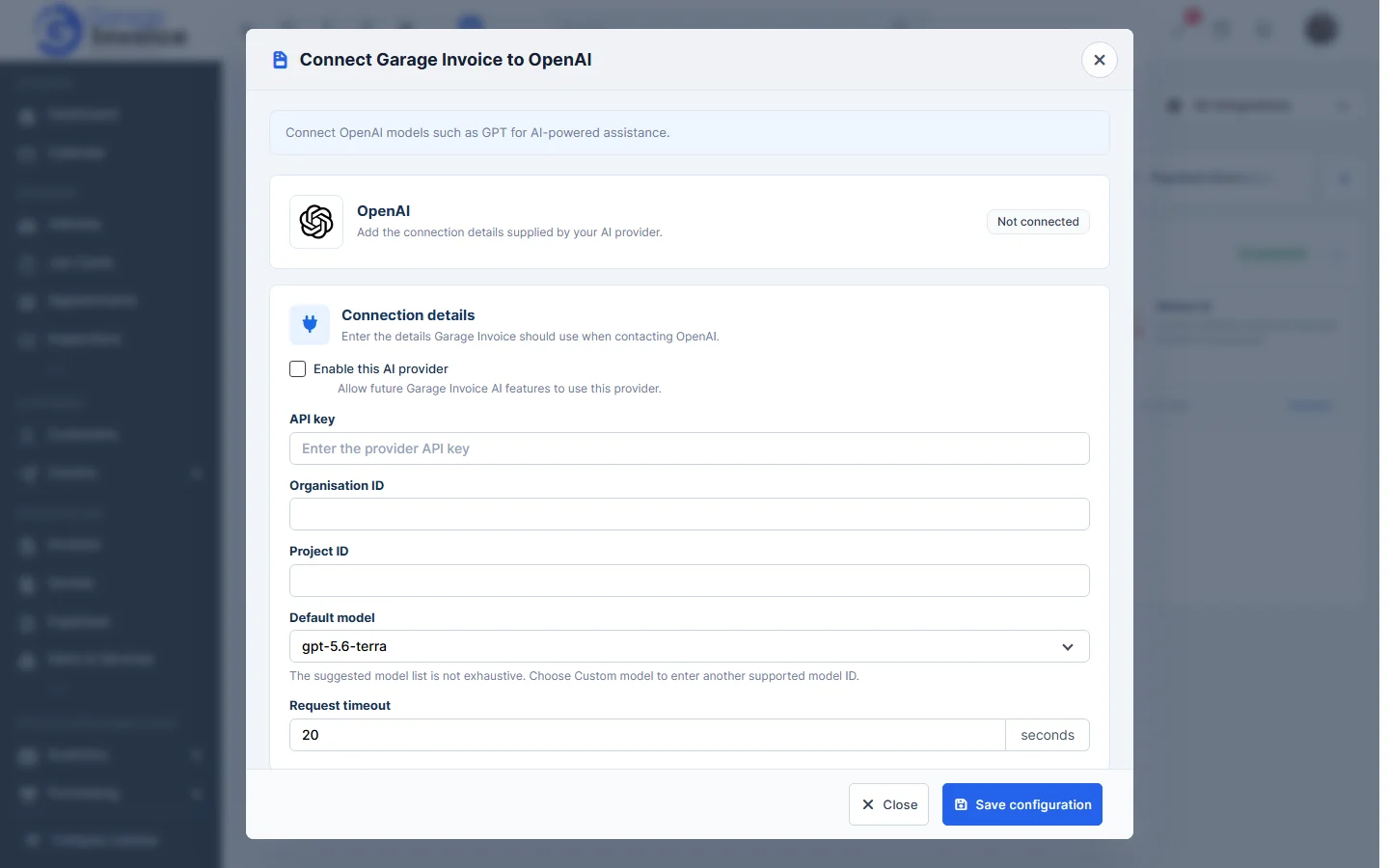
- Click Save configuration (or Save Settings). The card changes to Connected.
Note: some services, such as Garage Invoice AI and Garage Invoice SMS, are paid services charged to your Garage Invoice balance. See Billing & Usage.
Step-by-step guides: Set up Garage Invoice SMS · Set up Garage Invoice SMS (FREE) · Set up Twilio · Set up Clickatell · Set up MSG91 · Email Providers · Accept Online Payments for Invoices
Related settings: AI Settings · Google Settings · Vehicle & Postcode Lookup Settings