
Inventory keeps track of the parts and other items you hold in stock, in one or more warehouses. Every stock movement is recorded on a document, such as a Goods Received Note when stock comes in or a Goods Dispatched Note when it goes out.
- Click Inventory in the sidebar (under Stock & Purchasing & Shop) and click Stock Items.
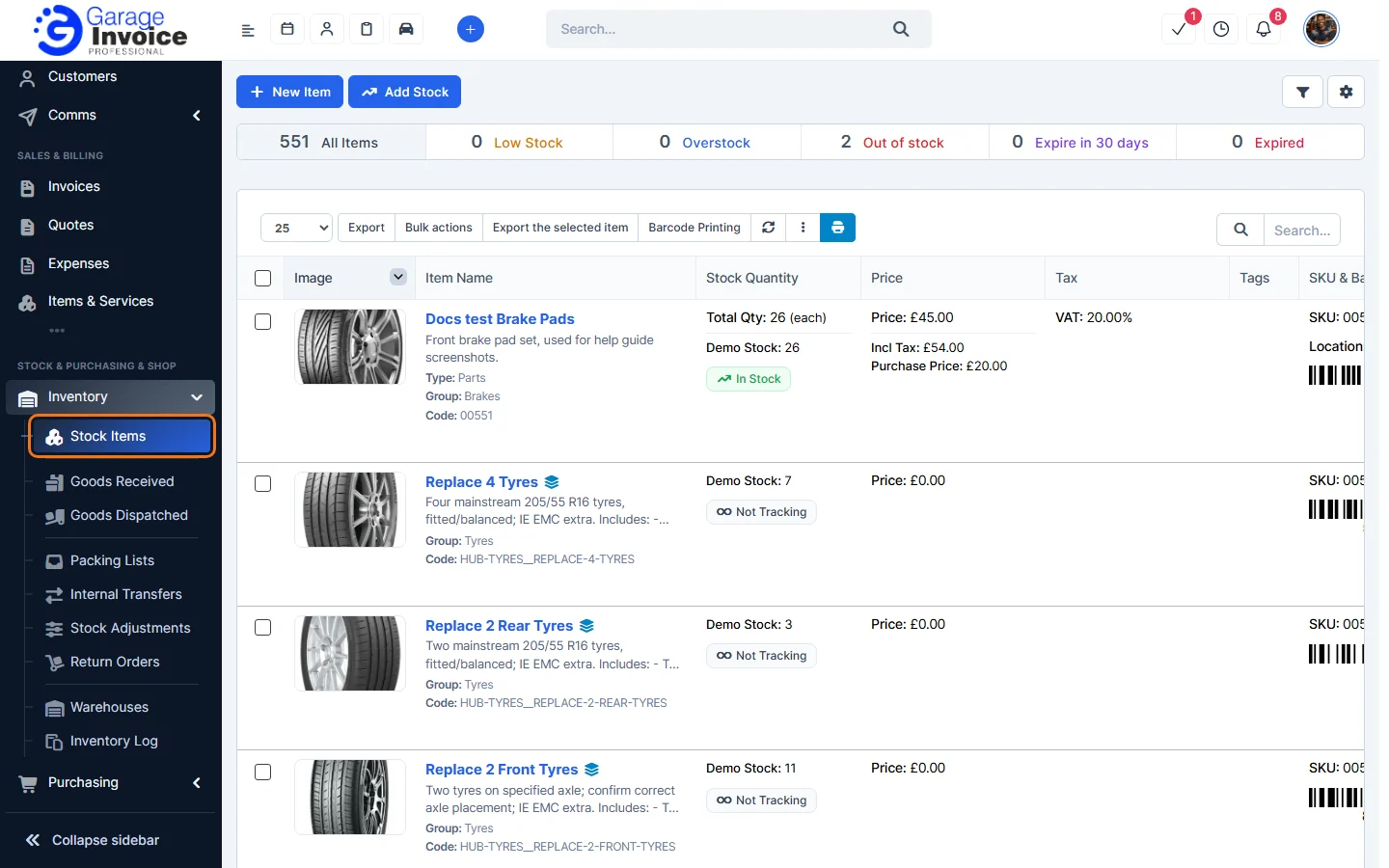
- The Inventory menu has these pages:
- Stock Items: your items, their stock levels and prices. See Add New Item.
- Goods Received: stock coming in, for example a delivery from a supplier. See Add New Goods Received Note.
- Goods Dispatched: stock going out to a customer. See Add New Goods Dispatched Note.
- Packing Lists: packing slips made from Goods Dispatched Notes. See Add New Packing List.
- Internal Transfers: stock moved from one warehouse to another. See Add New Internal Transfer.
- Stock Adjustments: corrections for lost, damaged or found stock. See Add New Stock Adjustment.
- Return Orders: items a customer returns to you, or items you return to a vendor. See Add New Customer Return Order.
- Warehouses: the places you keep stock. See Add New Warehouse.
- Inventory Log: every stock movement in one list. See Inventory Log.
- On the Stock Items page, the bar at the top shows how many items you have and how many are Low Stock, Overstock, Out of stock, Expire in 30 days and Expired. Each item shows its stock in each warehouse, its prices, tax and SKU.
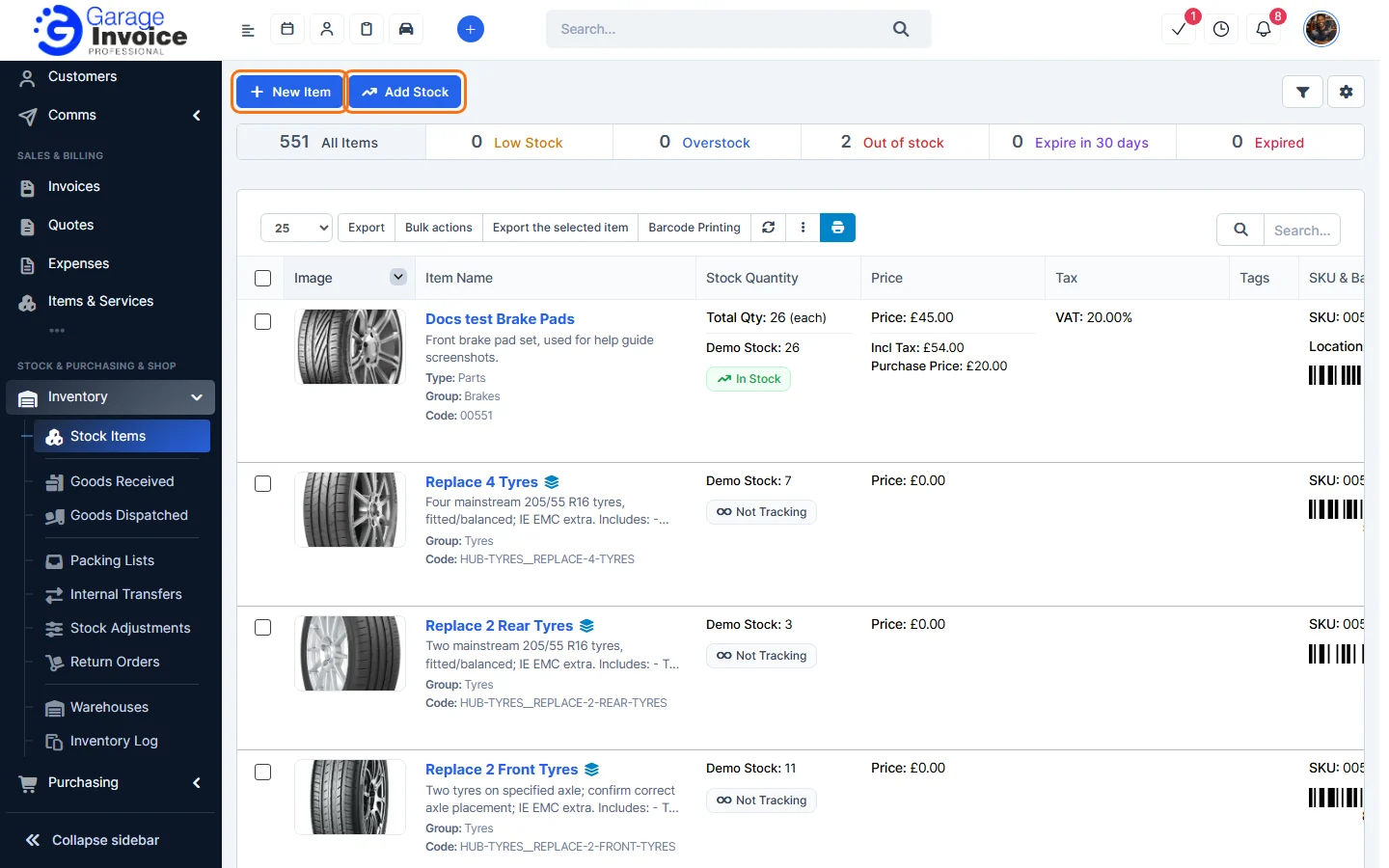
- The document pages (Goods Received, Goods Dispatched and so on) show counts for All, Approved, Pending Approval and Rejected. Click a document number to open it on the right.
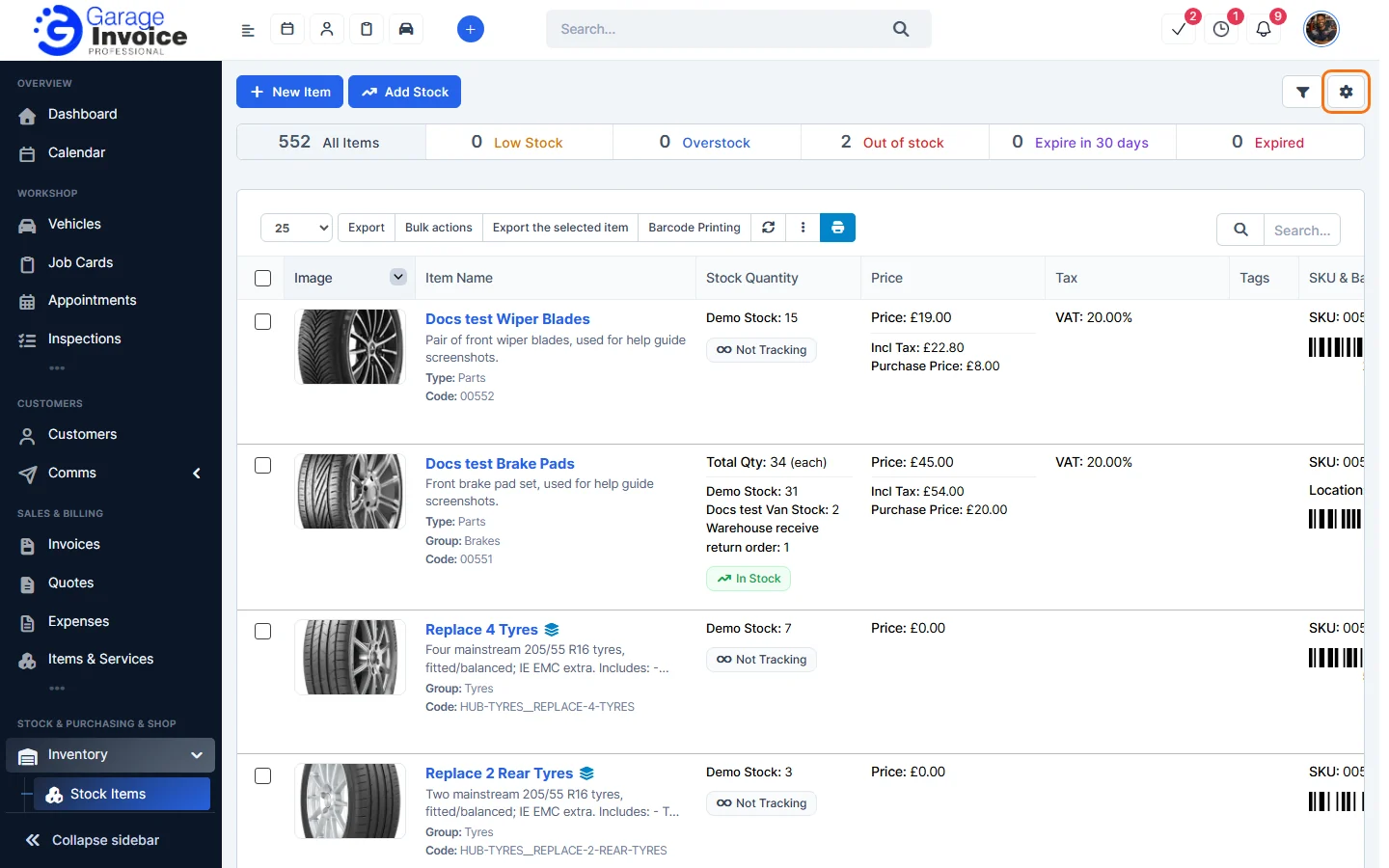
- To change how Inventory works, click the gear button at the top right of the Stock Items page. See Inventory General Settings.
Feature Stock and inventory control: see what it does and how it fits your workshop.