
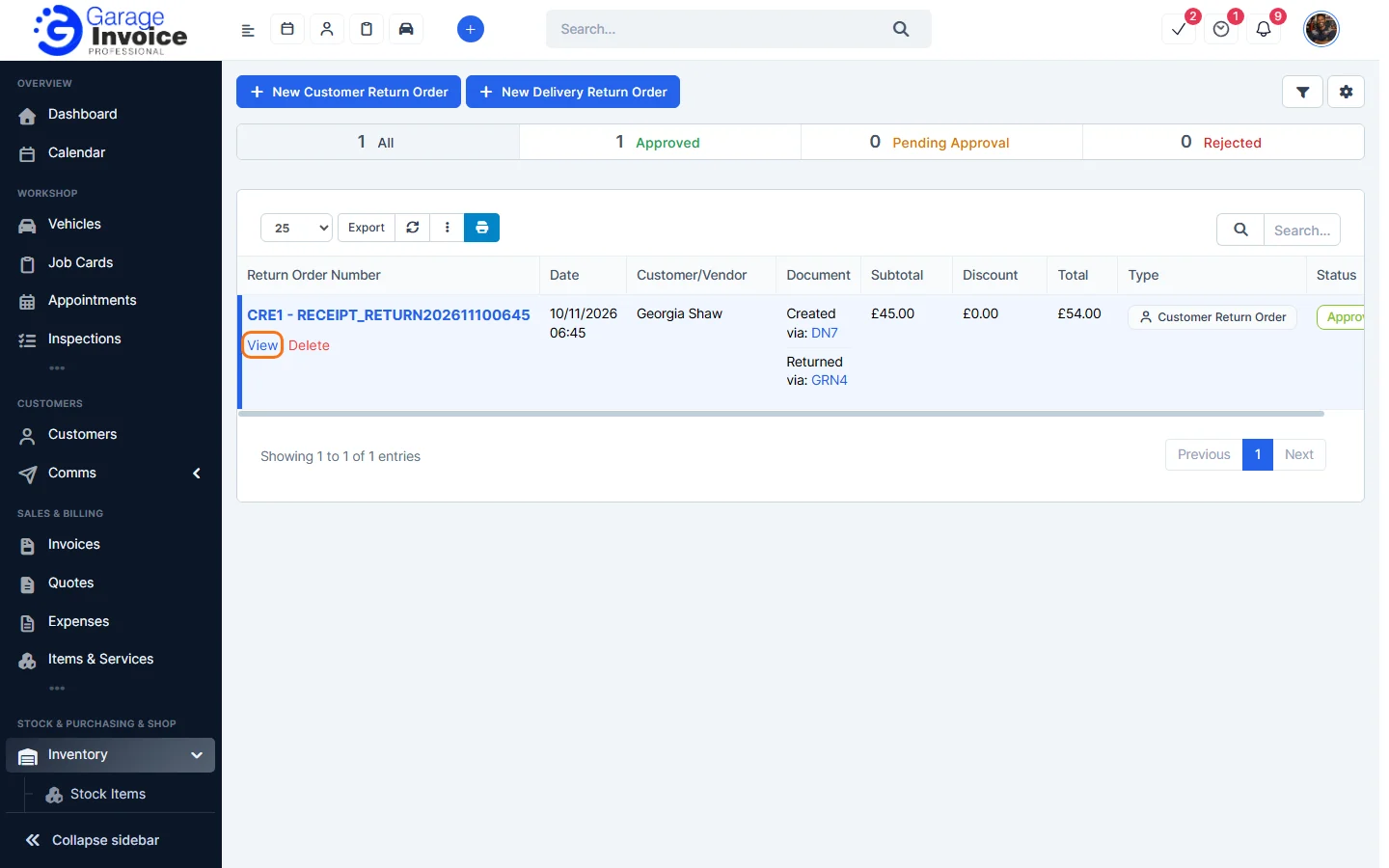
- Click Inventory in the sidebar (under Stock & Purchasing & Shop) and click Return Orders. The list shows each return order’s date, customer or vendor, the document it came from, totals, type and status. Use the Type filter to show only customer or delivery return orders.
- Click the return order number, or hover over it and click View.
- It opens on the right. A customer return order shows the Goods Dispatched Note it was created from, the Goods Received Note that put the items back into stock, the customer, items and reason.
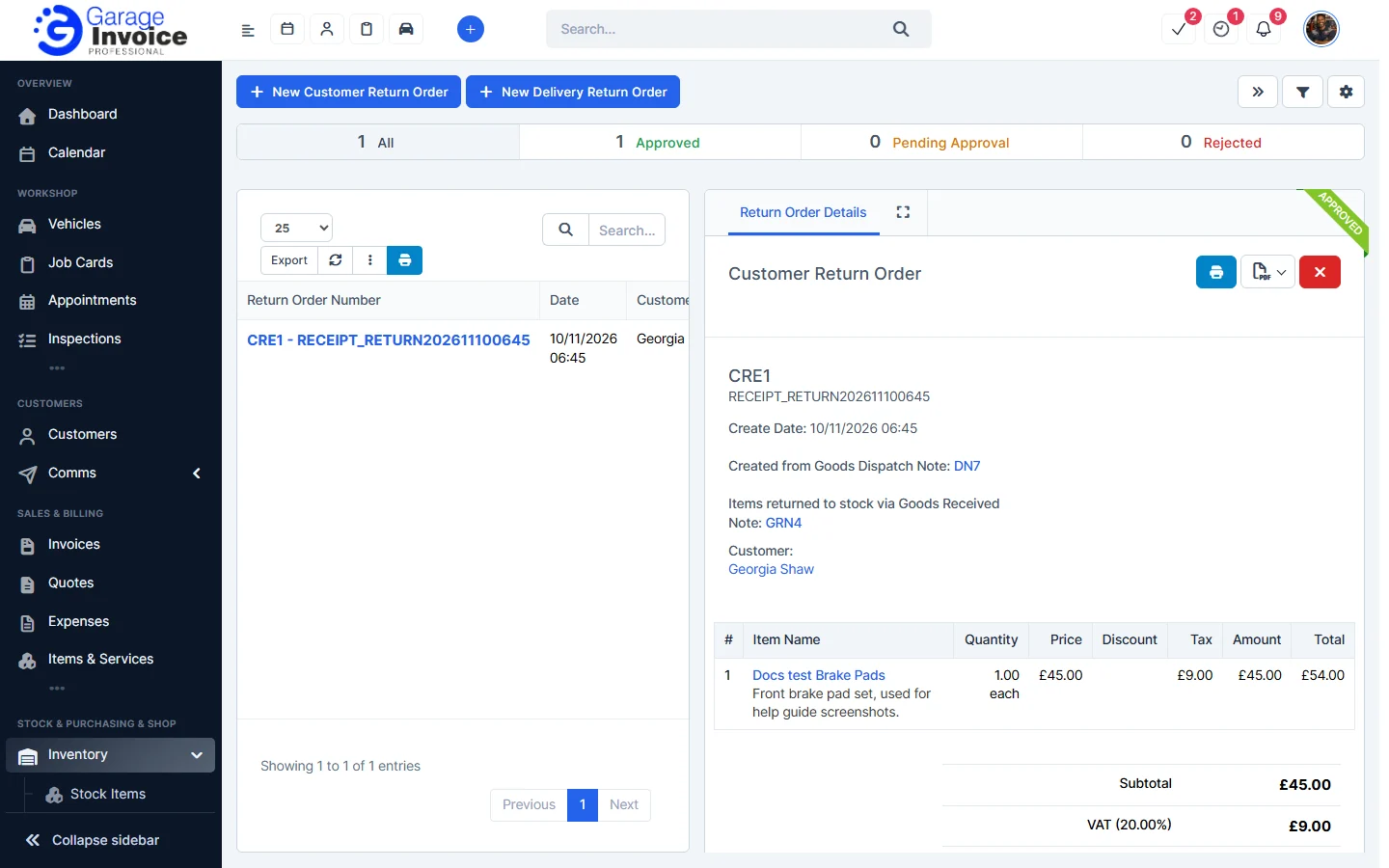
- Use the buttons at the top:
- The blue printer button prints the document.
- The PDF button opens a menu with View PDF, View PDF in New Tab, Download and Print.
Feature Stock and inventory control: see what it does and how it fits your workshop.