
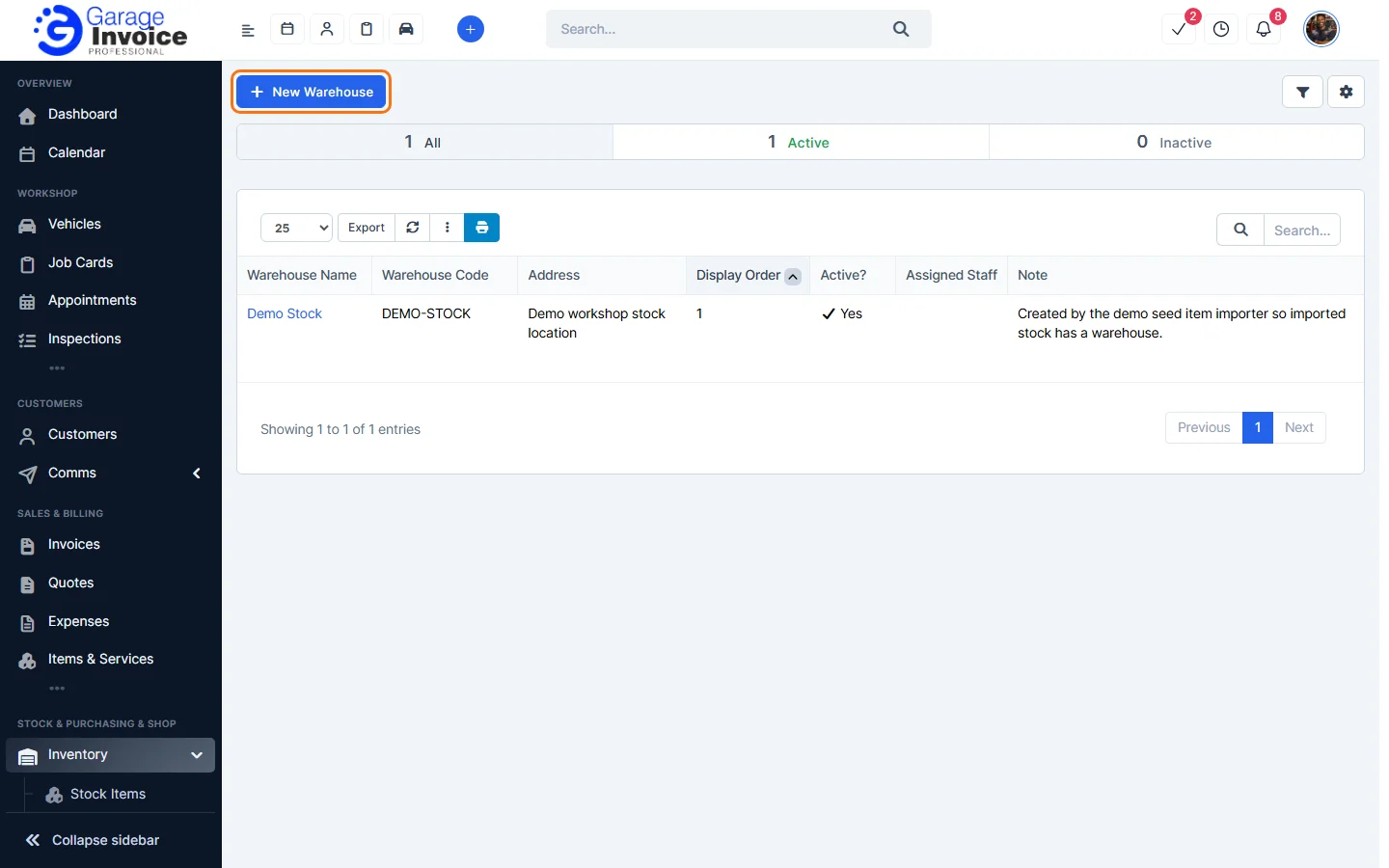
- Click Inventory in the sidebar (under Stock & Purchasing & Shop) and click Warehouses. Click New Warehouse.
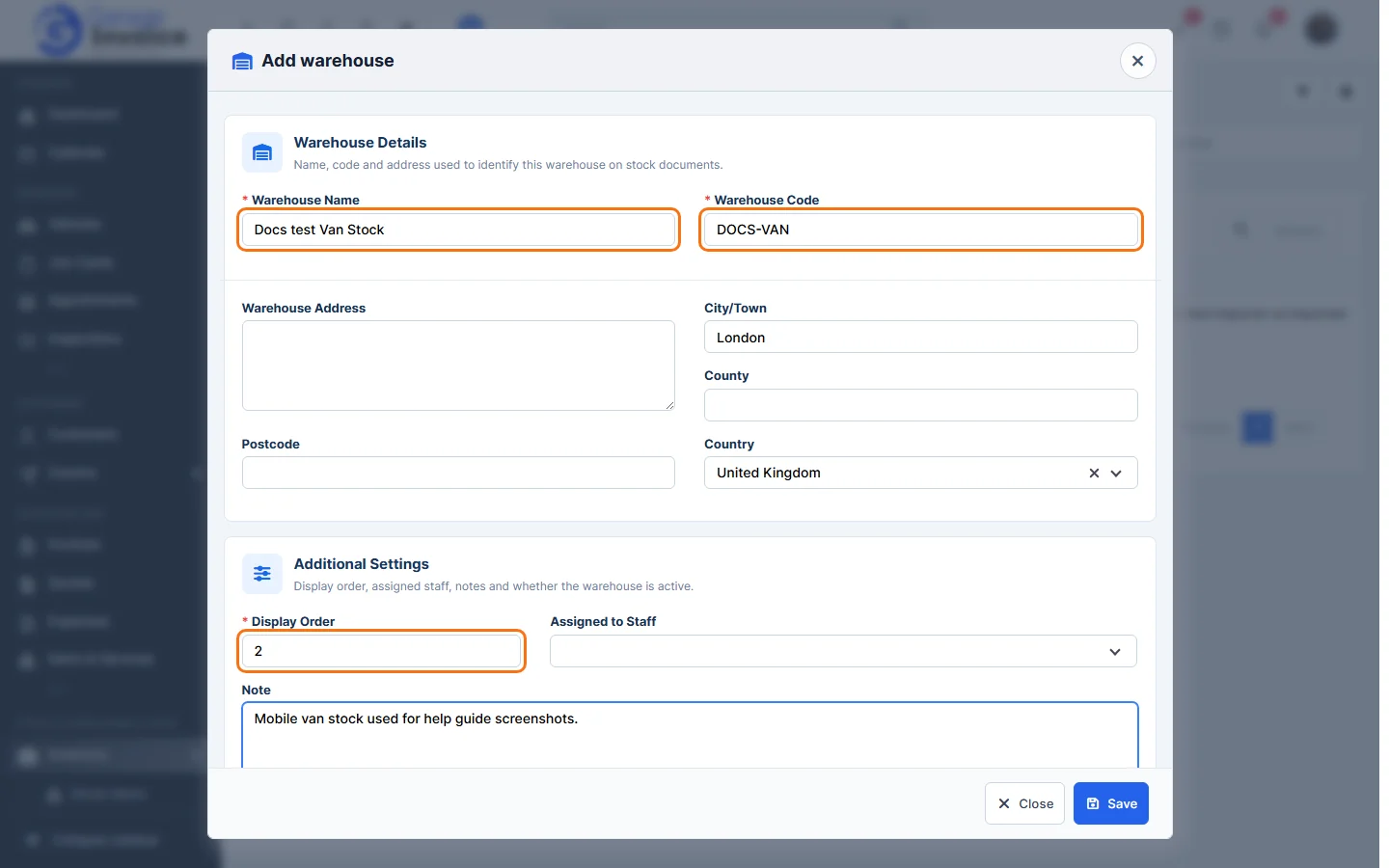
- Enter the Warehouse Name and a short Warehouse Code (both required). Add the address if you like.
- Enter the Display Order (required). Warehouses are listed in this order.
- Choose the staff it is Assigned to, add a Note, and leave Make it Active ticked so you can use it.
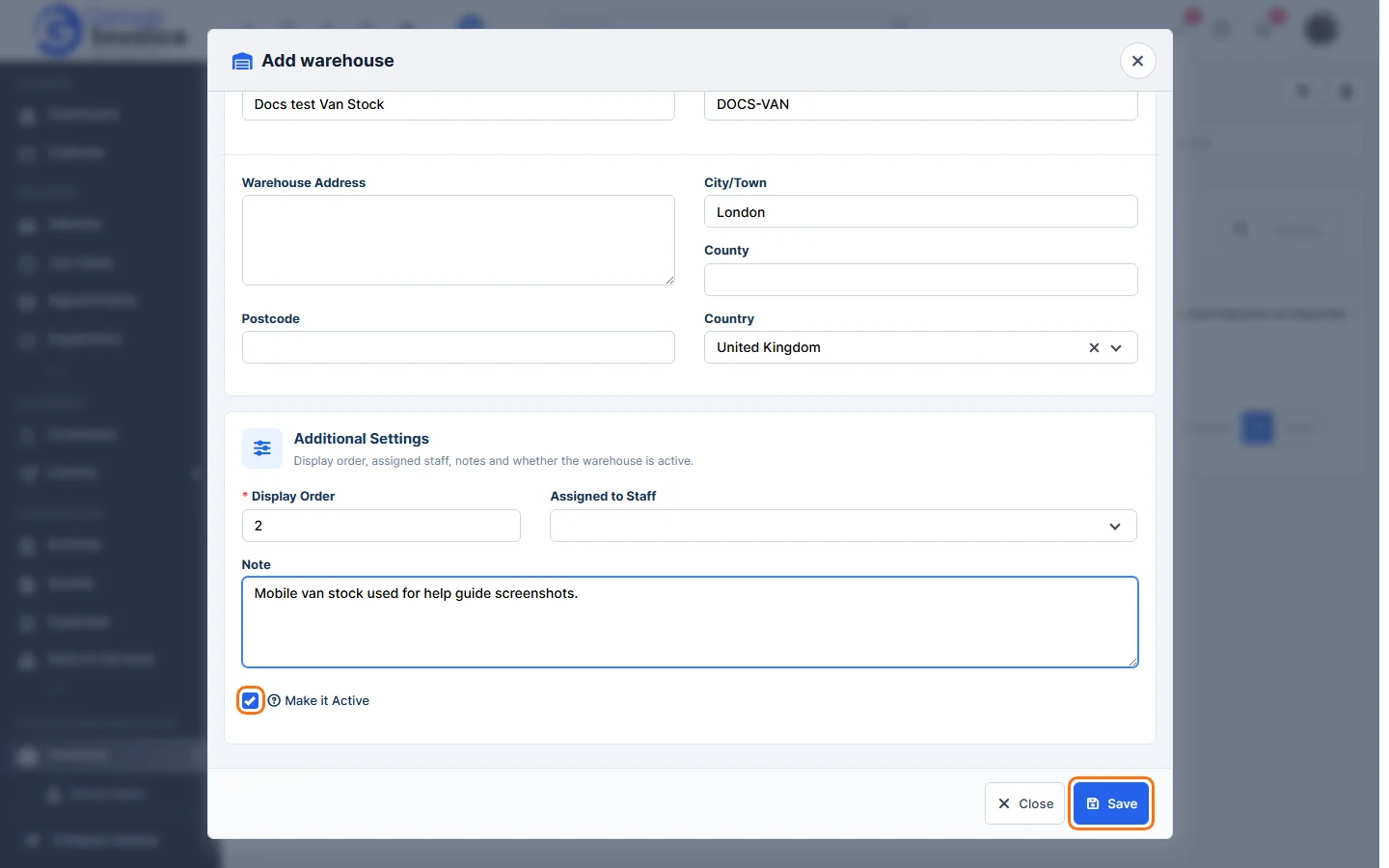
- Click Save.
The app shows “Added successfully” and the warehouse appears in the list. You can now choose it on stock items and stock documents.
Feature Stock and inventory control: see what it does and how it fits your workshop.