
Inspections are vehicle health checks. Your technician works through a checklist (an inspection template), marks each check, adds notes and photos, and you can send the result to the customer, who can accept or decline it online. Inspections can also hold priced items and be converted into a quote, invoice or job card.
The Inspections page
- Click Inspections in the sidebar, under Workshop. Click New Inspection to start one. See Create an Inspection.
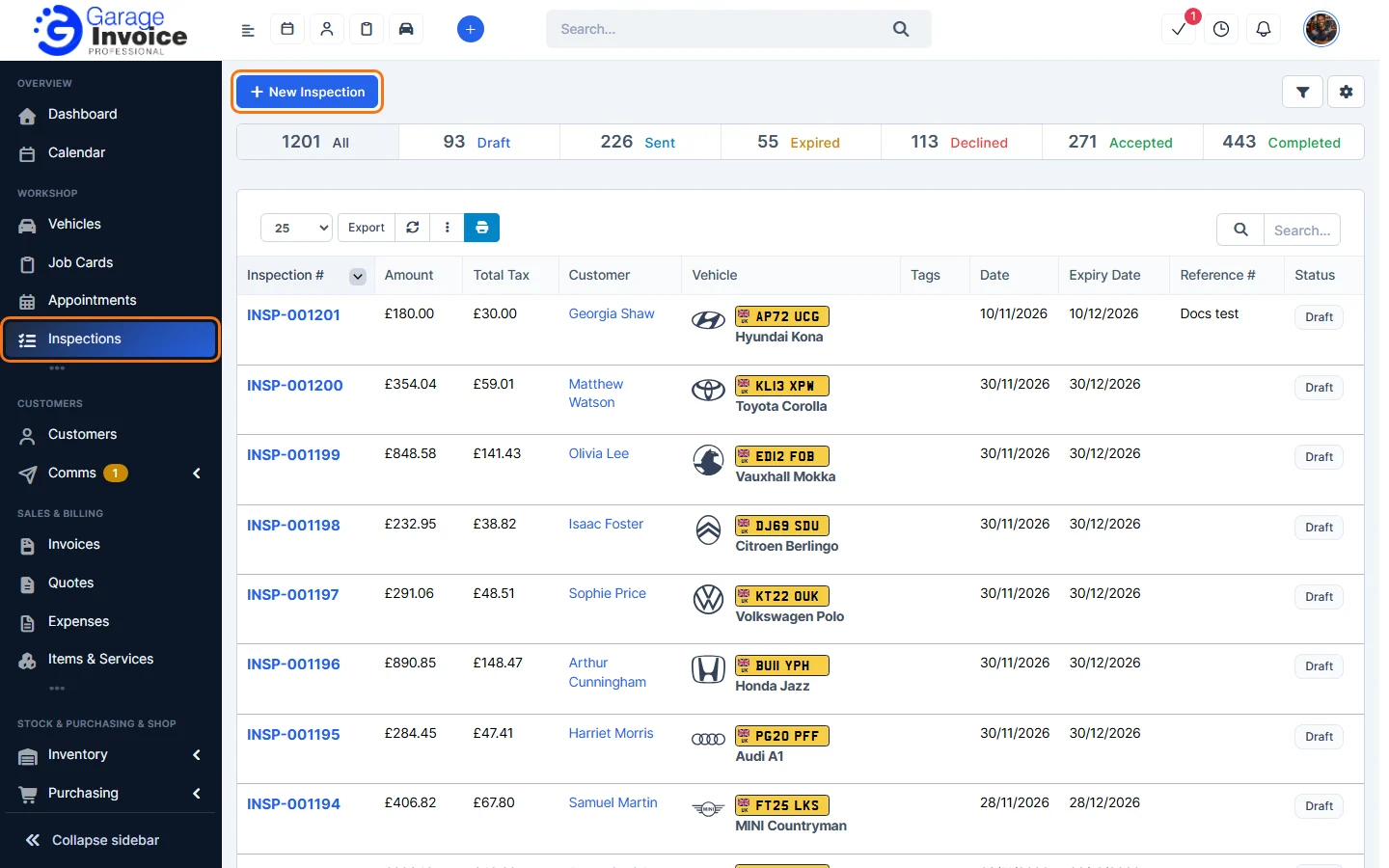
- The bar at the top counts your inspections by status. Click a status to show only those inspections:
- Draft: saved but not sent to the customer yet.
- Sent: emailed to the customer or marked as sent.
- Expired: marked as expired.
- Declined and Accepted: the customer’s answer, given online or recorded by you.
- Completed: marked as completed.
- The list shows each inspection’s number, Amount, Total Tax, Customer, Vehicle, Tags, Date, Expiry Date, Reference # and Status. Use Search to find an inspection, and Export or the print button to export the list.
Filter the list
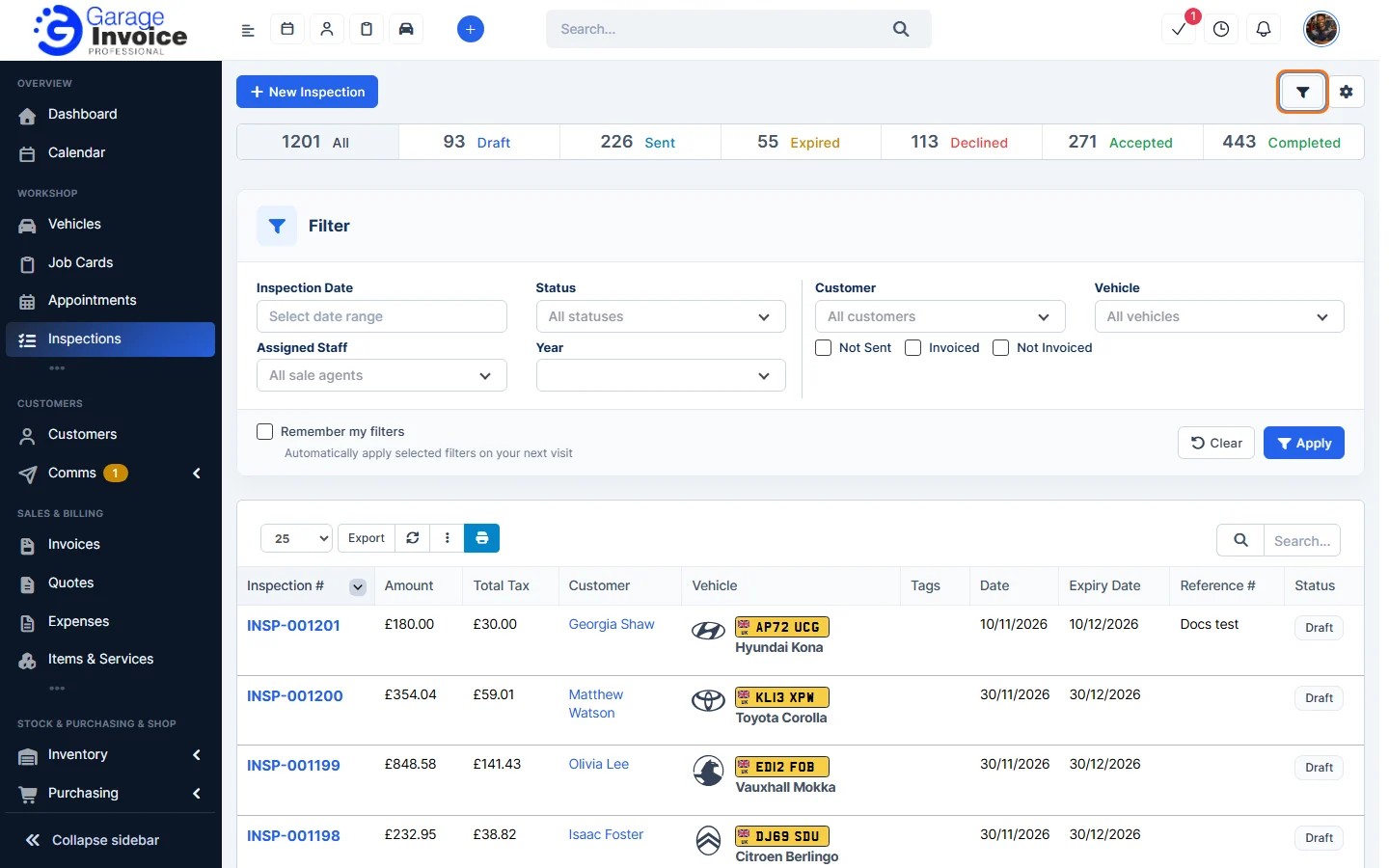
- Click the filter button at the top right.
- Filter by Inspection Date, Status, Assigned Staff, Year, Customer or Vehicle, or tick Not Sent, Invoiced or Not Invoiced. Tick Remember my filters to apply them automatically on your next visit.
- Click Apply. Click Clear to remove the filters.
The gear menu
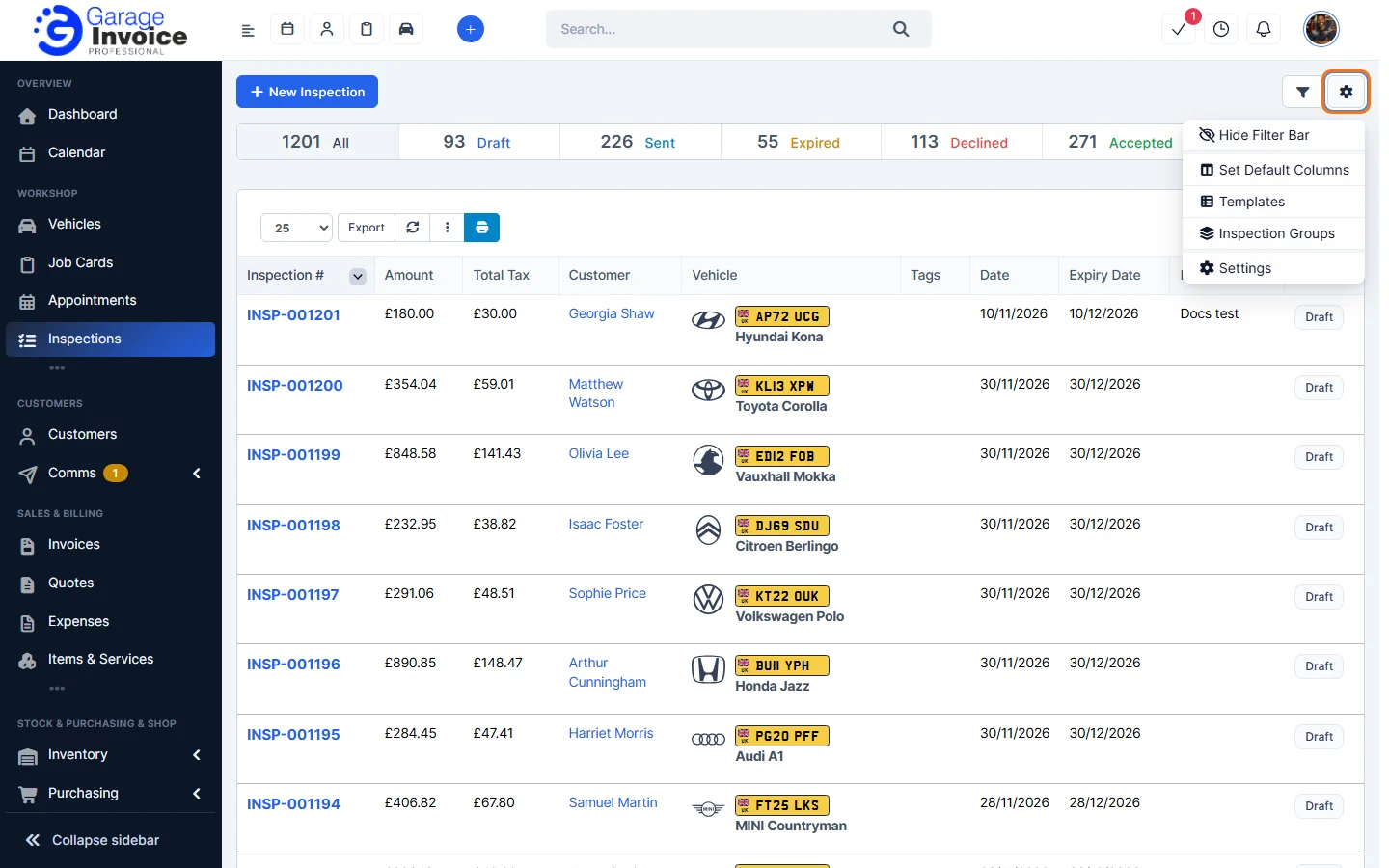
Click the gear button at the top right:
- Hide Filter Bar: hides the status bar.
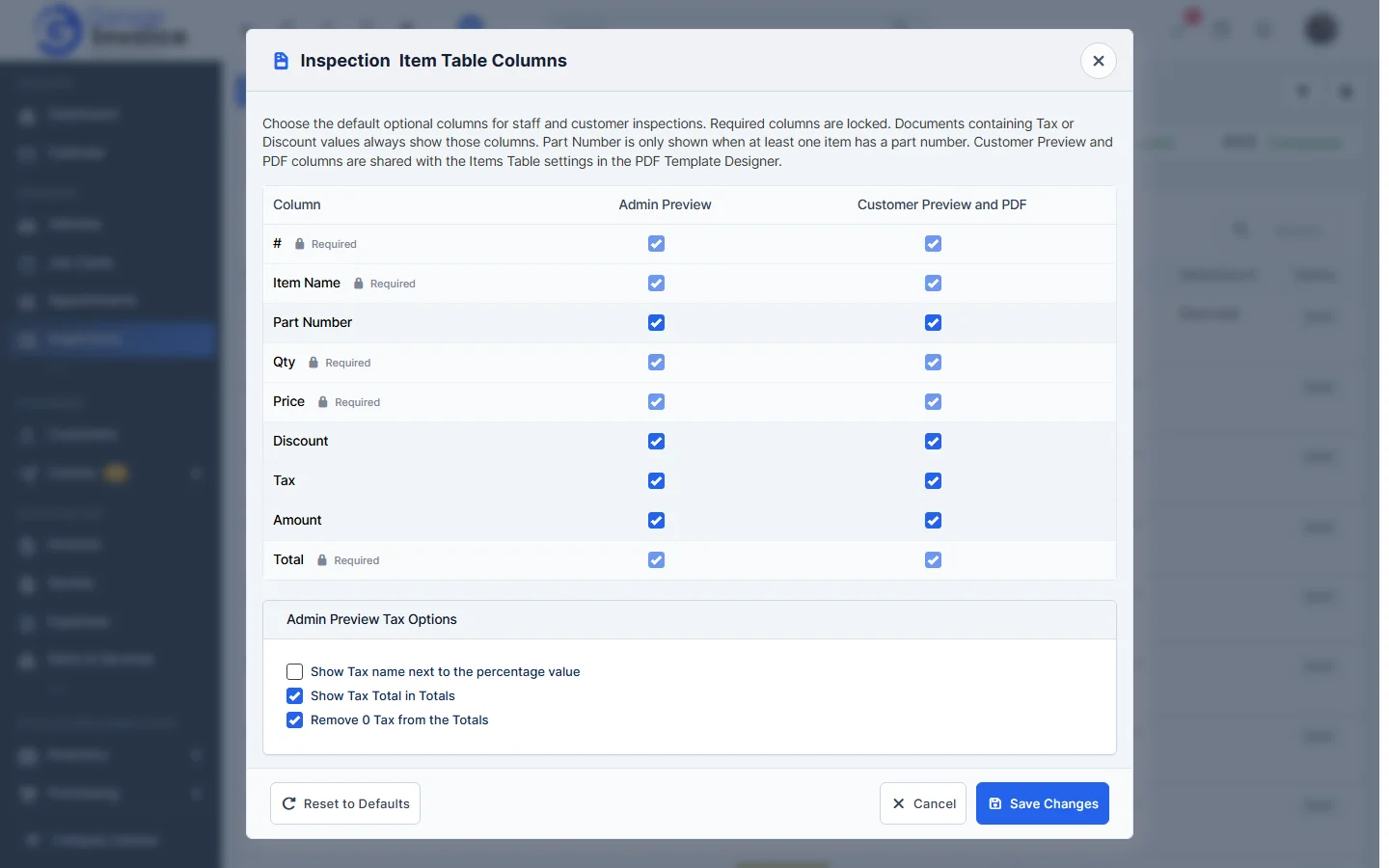
- Set Default Columns: choose which optional item columns (for example Part Number, Discount, Tax) show in the admin preview and in the customer preview and PDF. Required columns are locked.
- Templates: your inspection checklists. See Inspection Templates.
- Inspection Groups: the section names used in templates. See Inspection Groups.
- Settings: see Inspection Settings.
Open an inspection
- Click an inspection number. It opens in a panel on the right, so you can keep the list in view. Hover over a row to see View, Edit and Delete.
- The Inspection tab shows the customer, vehicle, the inspection form with its results, the notes added to fields, the photos (Media), items and totals. The other tabs hold Tasks, Reminders, notes and the activity log.
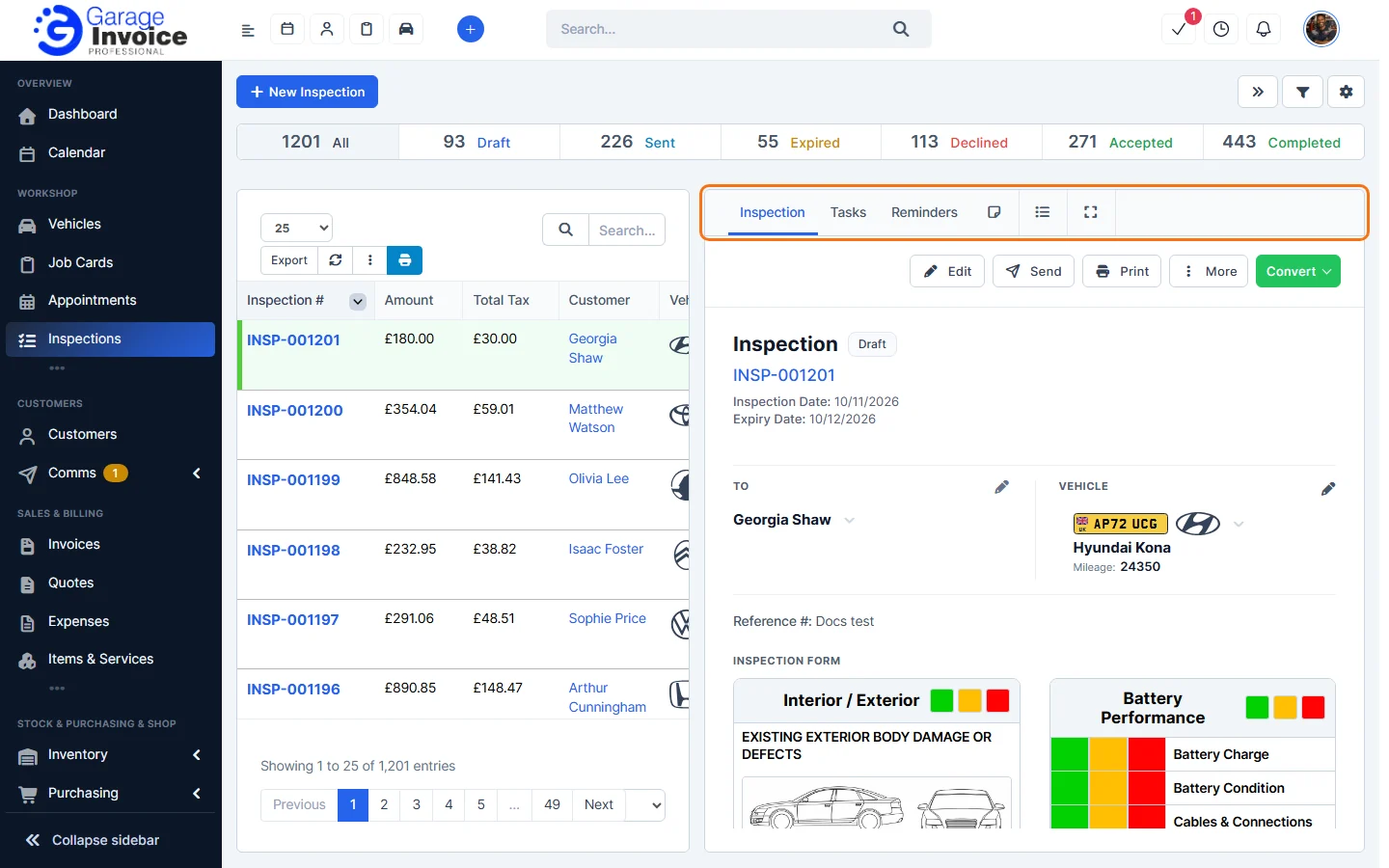
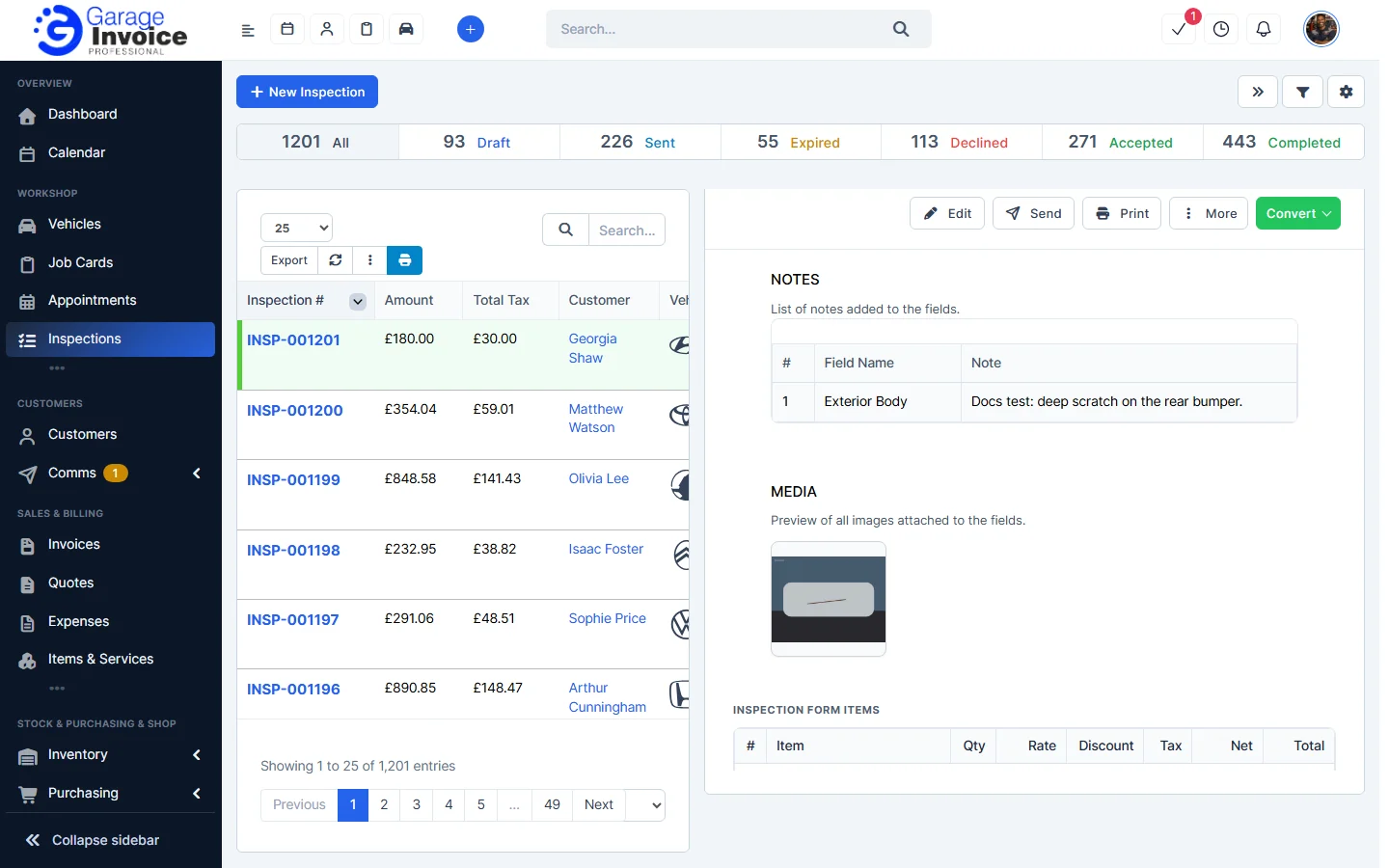
- Use the buttons at the top: Edit (see Carry Out an Inspection), Send (see Send Inspection to Customer), Print, More and Convert (see Convert Inspection to Quote, Invoice or Job Card).
Tip: you can also see and start inspections from a vehicle. See Vehicle Inspections.
Feature Vehicle inspections: see what it does and how it fits your workshop.