
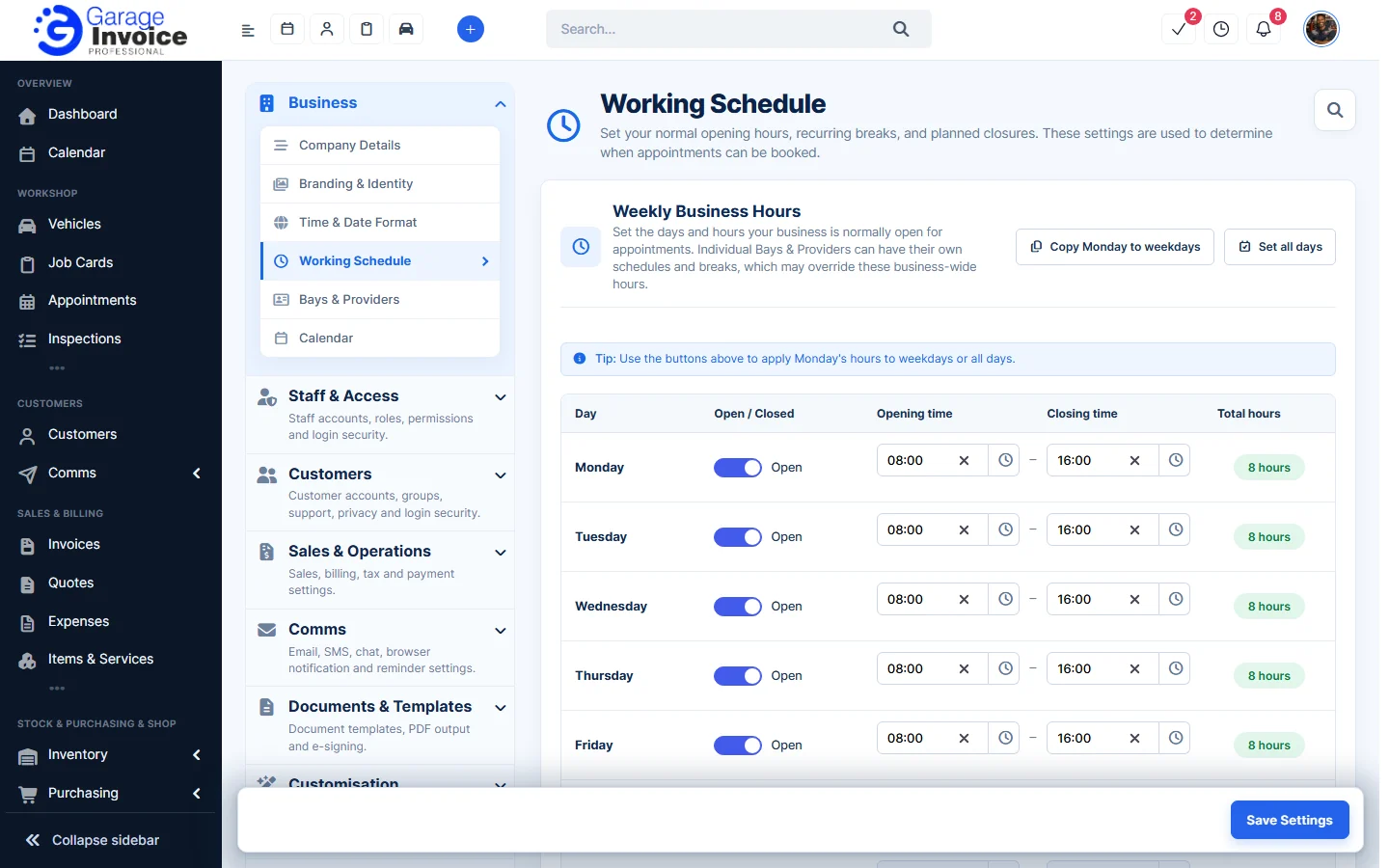
- Click Settings at the bottom of the sidebar, under Administration. In the panel on the left, open Business and click Working Schedule.
- Under Weekly Business Hours, switch each day Open or Closed and set the Opening time and Closing time. Use Copy Monday to weekdays or Set all days to copy Monday’s hours.
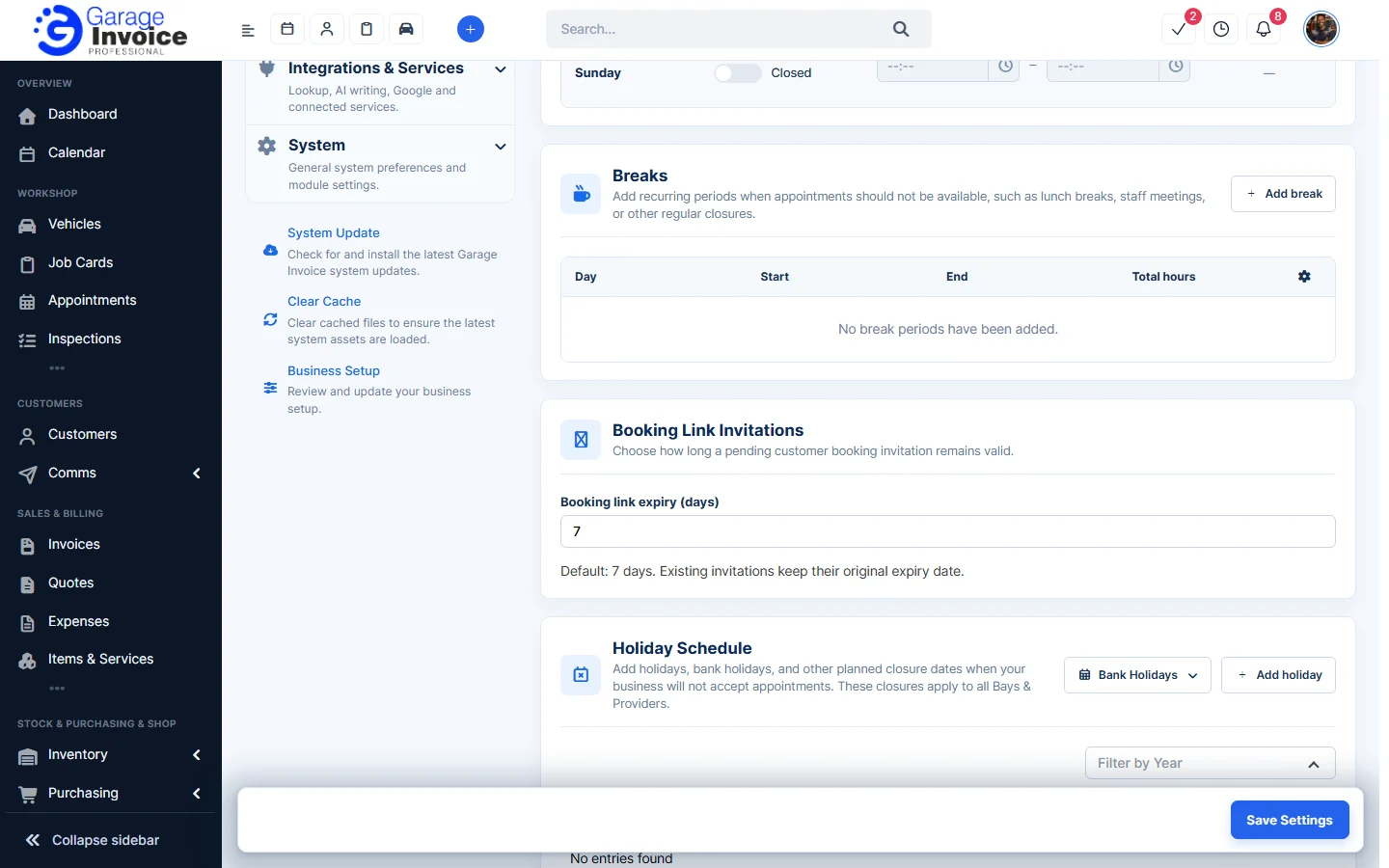
- Under Breaks, click Add break to add a regular time when appointments can’t be booked, such as a lunch break. Choose the day, start and end.
- Under Booking Link Invitations, set Booking link expiry (days): how long a booking invitation sent to a customer stays valid. The default is 7 days.
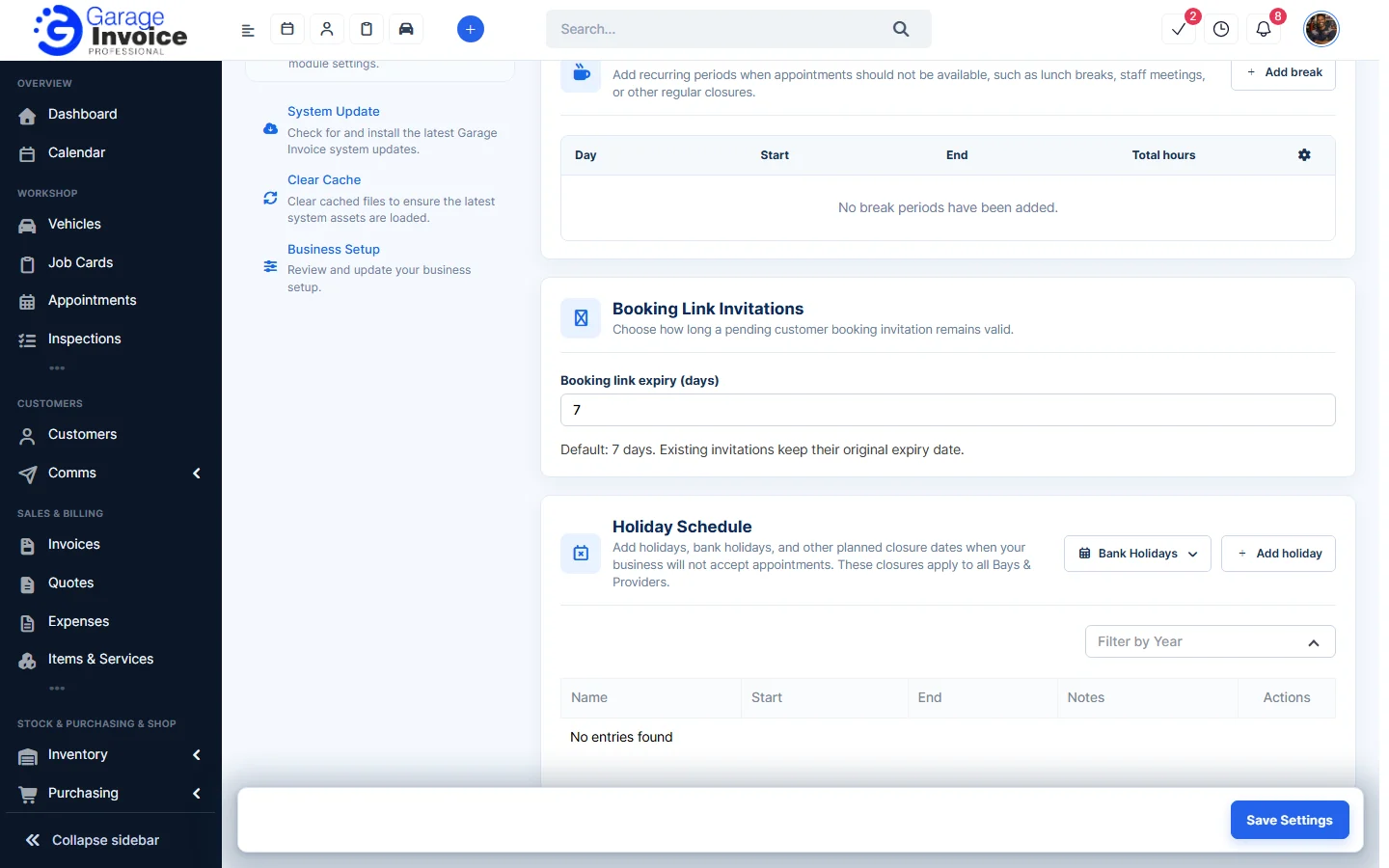
- Under Holiday Schedule, add days when you’re closed. Click Bank Holidays to add bank holidays, or Add holiday to add your own.
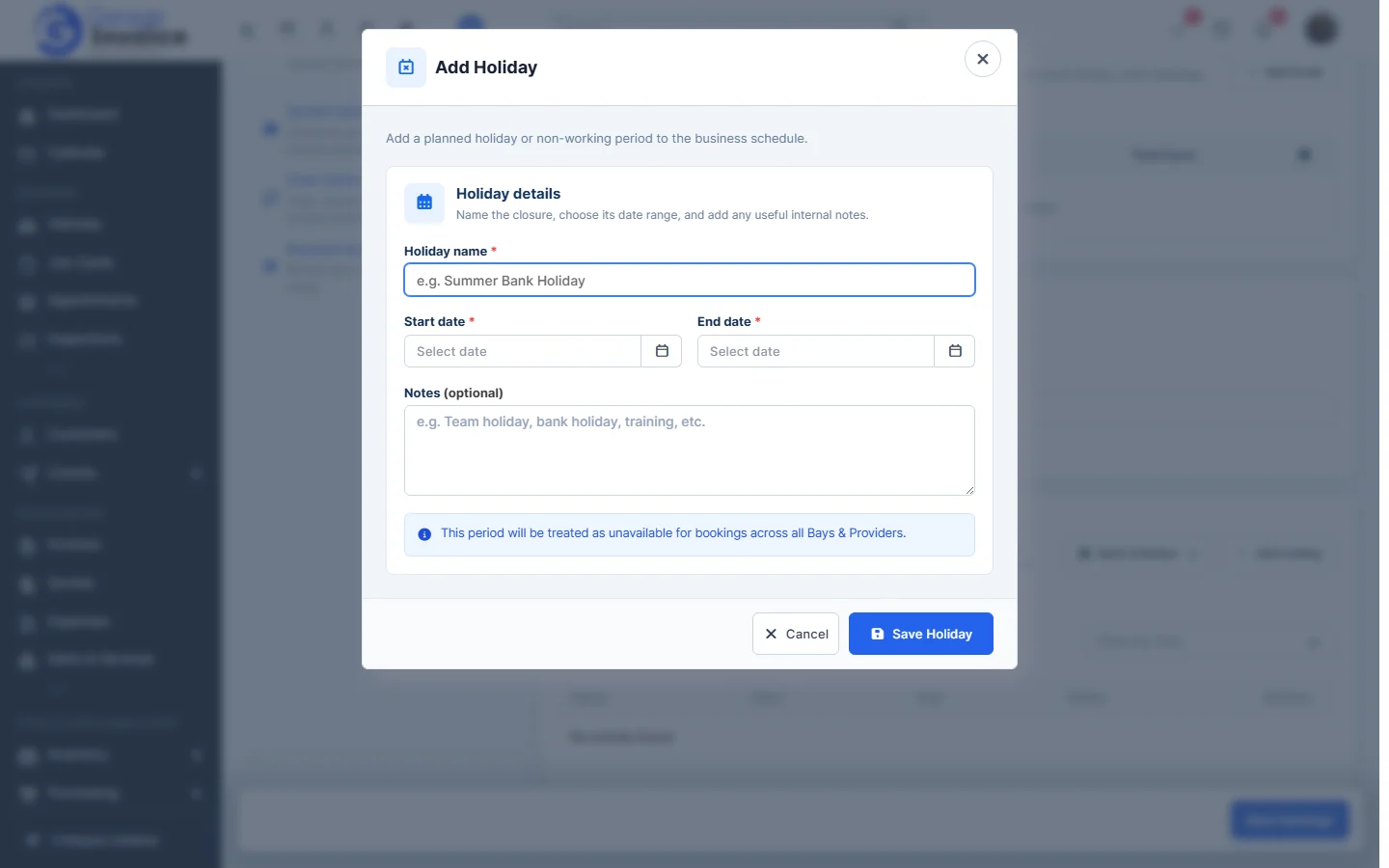
- In Add Holiday, enter the Holiday name, Start date, End date and any notes, then click Save Holiday.
- Click Save Settings at the bottom right.
Note: holidays apply to all Bays & Providers. Each bay or provider can also have its own hours and breaks, which may override these business-wide hours.
Tip: for online booking settings, see Booking Appointments Settings.