
- Click Settings at the bottom of the sidebar, under Administration. In the panel on the left, open Comms and click Email. Click the Email Templates tab, open a group and click Edit next to the email (or click its name).
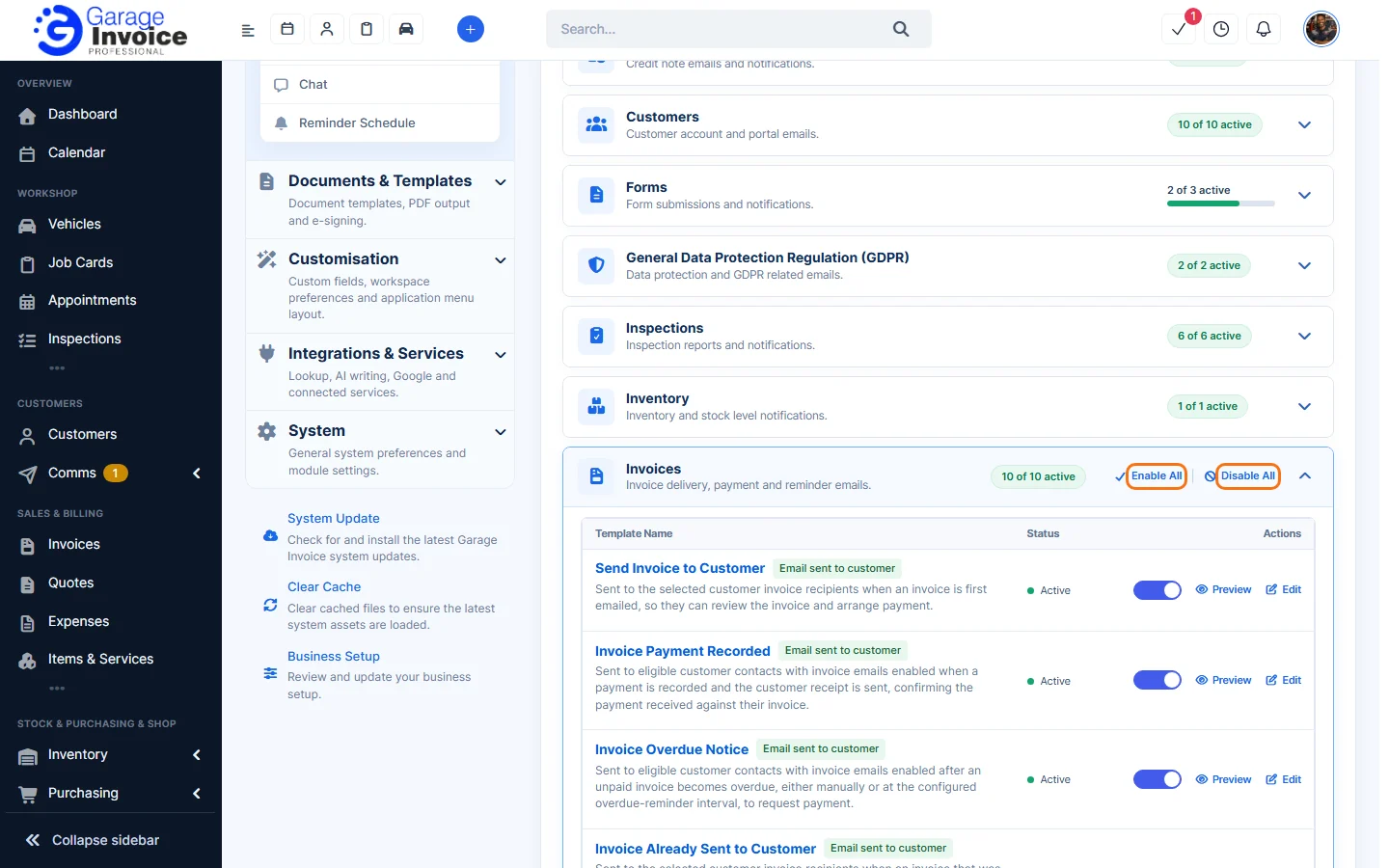
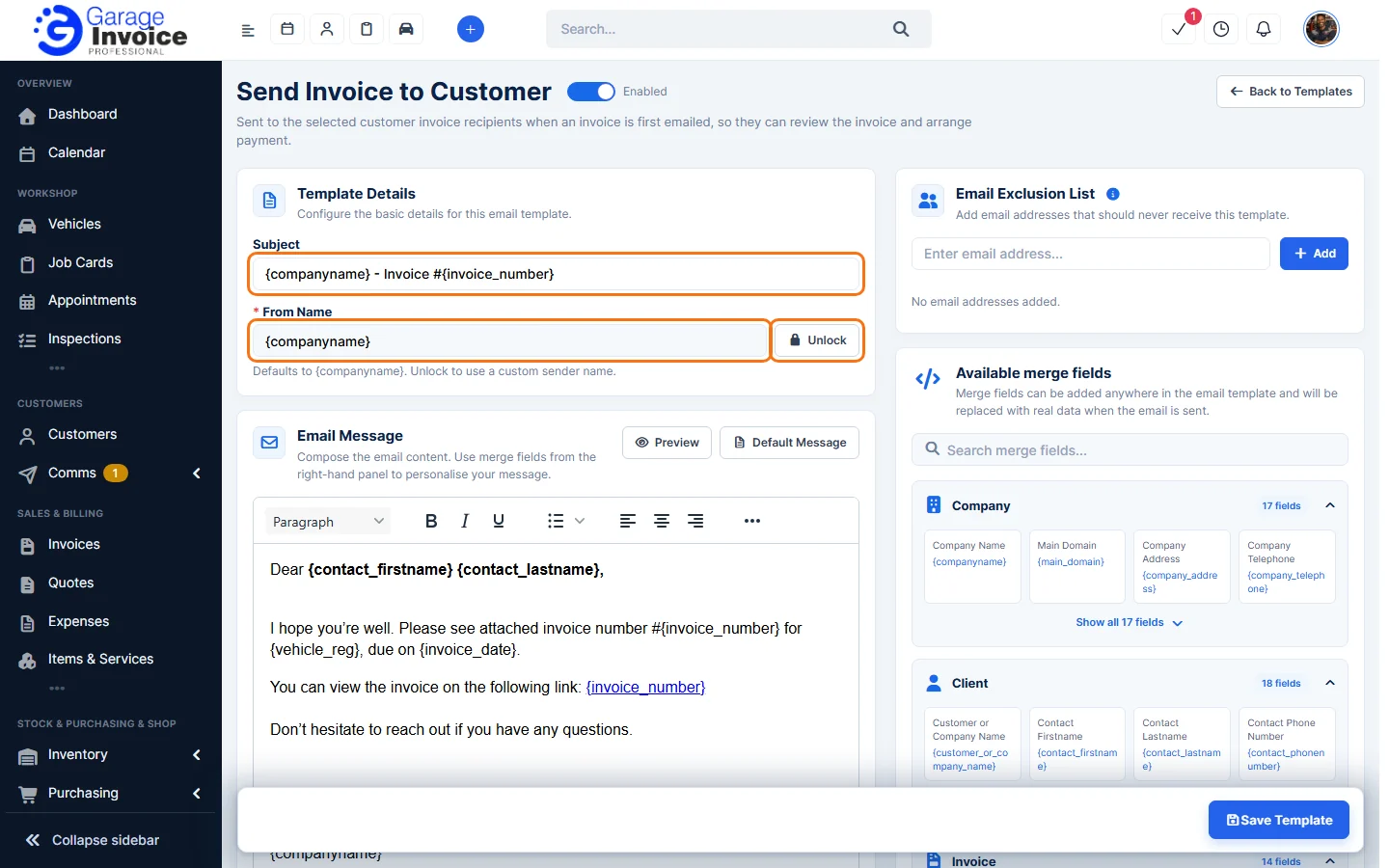
- At the top, the switch shows whether the email is Enabled. Under Template Details:
- Subject: the subject line. You can use merge fields, for example {invoice_number}.
- From Name: the sender name customers see. It defaults to {companyname} (your business name). Click Unlock to type a different sender name.
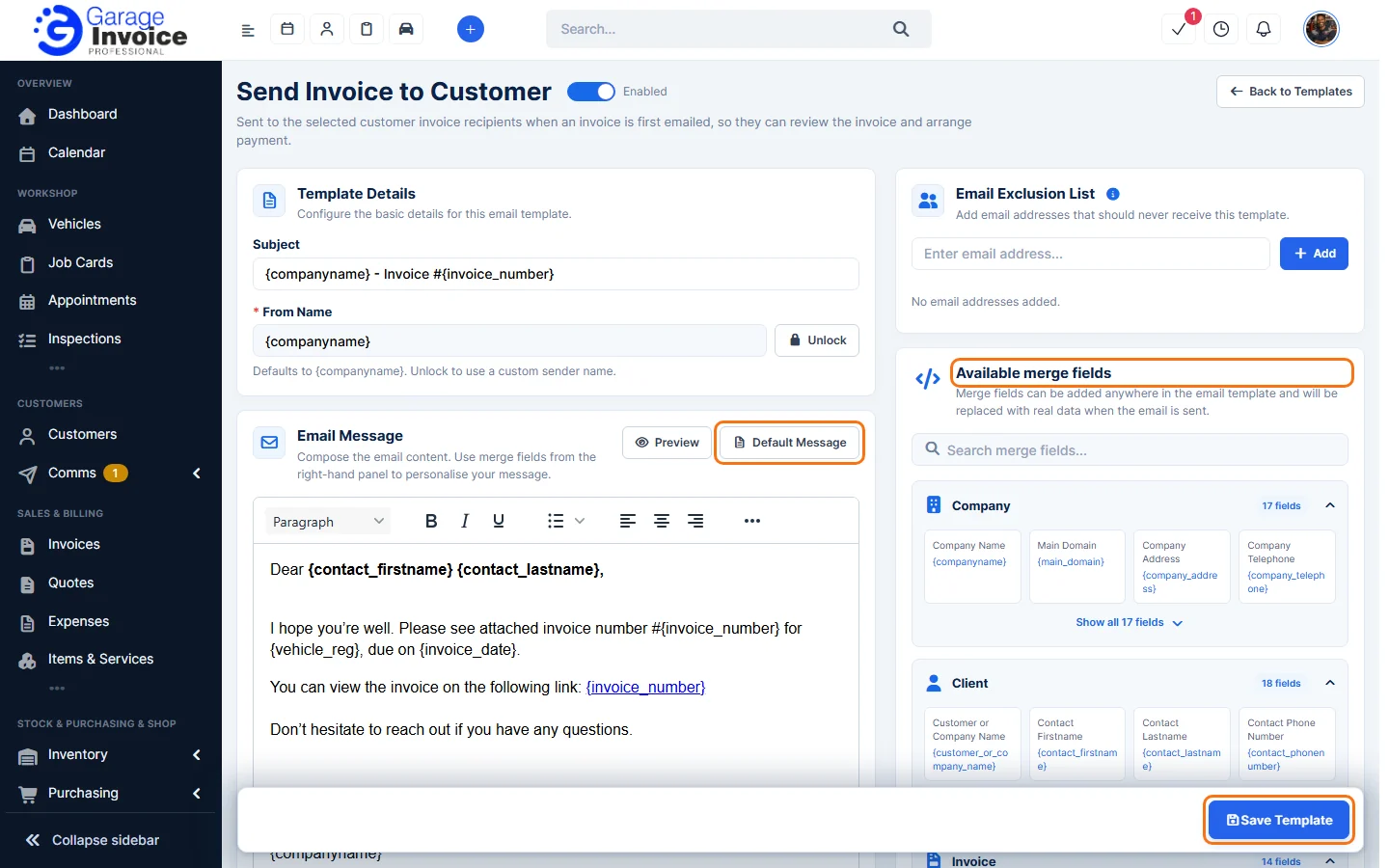
- Change the text under Email Message. Use the toolbar to format it, and click a merge field in Available merge fields on the right to insert it where the cursor is. Click Preview to check the email, or Default Message to go back to the standard text.
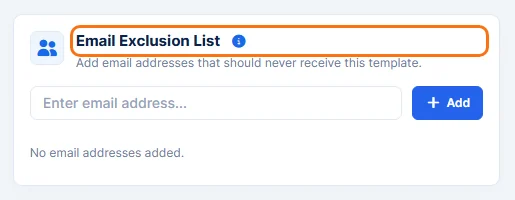
- Under Email Exclusion List, add any email addresses that should never get this email, and click Add.
- Click Save Template. Click Back to Templates to return to the list.
Tip: see How to Use Merge Fields in Email Templates. To change the look of all emails, see Email Designer.
Feature Email and SMS notifications: see what it does and how it fits your workshop.