
Purchasing helps you buy parts and services from your suppliers and keep track of what you ordered, received and paid for.
Where to find it
- Click Purchasing in the sidebar, under Stock & Purchasing & Shop. The menu opens with all purchasing pages.
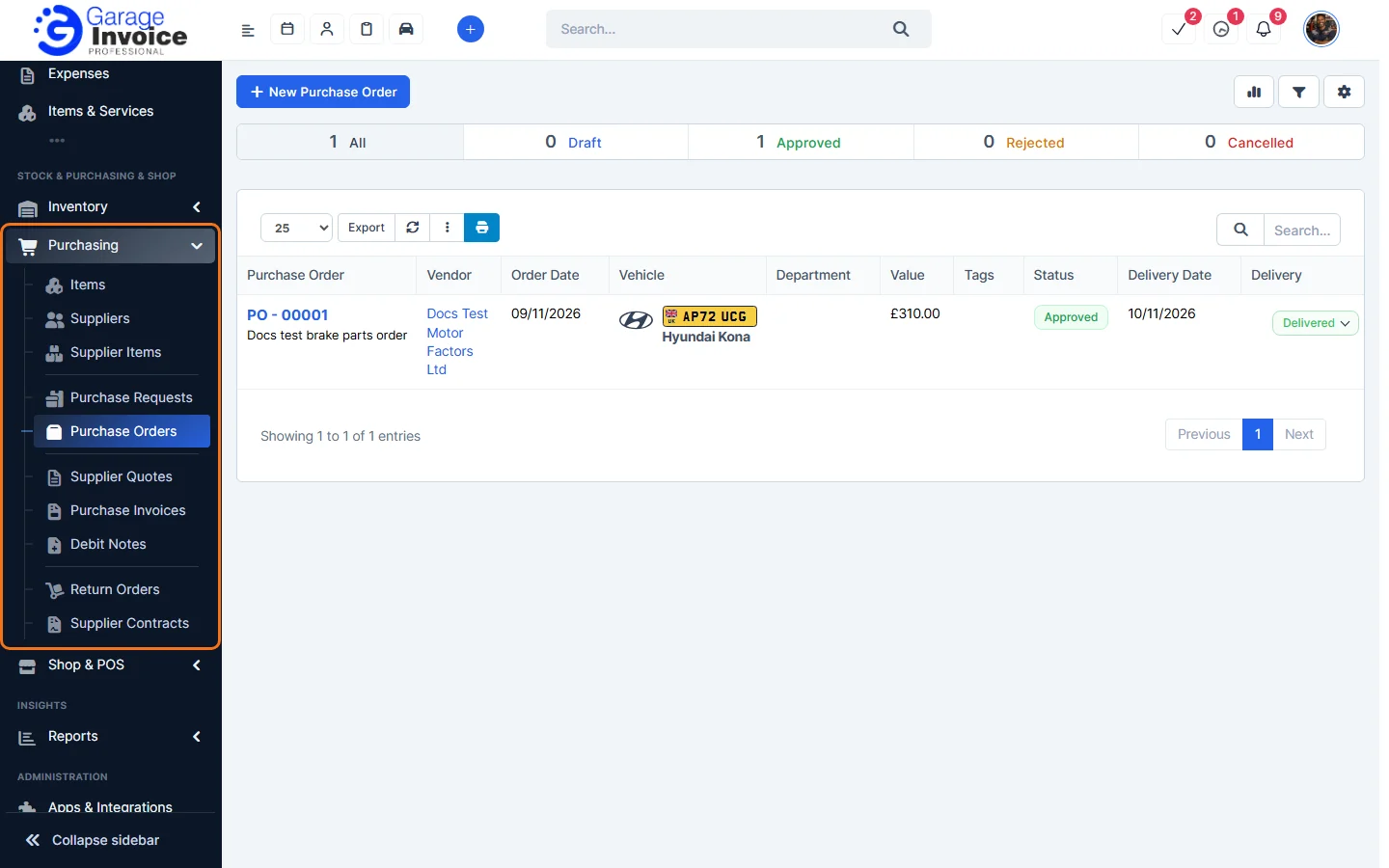
- Items: the parts, labour and other items you buy and sell. See Purchasing Items.
- Suppliers: the companies you buy from. See Suppliers Overview.
- Supplier Items: which items each supplier sells. See Supplier Items.
- Purchase Requests: a list of what you need, which you can send to suppliers for prices. See Purchase Requests Overview.
- Purchase Orders: the order you place with a supplier. See Purchase Orders Overview.
- Supplier Quotes: prices a supplier gave you. See Supplier Quotes.
- Purchase Invoices: the supplier’s bills and what you paid. See Purchase Invoices.
- Debit Notes: money a supplier owes you back. See Debit Notes.
- Return Orders: goods you send back. See Return Orders.
- Supplier Contracts: longer agreements with a supplier. See Supplier Contracts.
A typical purchase, step by step
- Add the supplier.
- Create a purchase request for the parts you need and send it to your suppliers.
- Enter the prices they give you as supplier quotes and compare the quotes.
- Create a purchase order and send it to the supplier.
- When the goods arrive, update the delivery status.
- Record your payment. A purchase invoice is created for the order.
- If something is wrong, create a return order or a debit note.
Note: some screens still say Vendor instead of supplier (for example New vendor and Vendor Code). They mean the same thing.
Feature Stock and inventory control: see what it does and how it fits your workshop.