
- Click Settings in the sidebar, open Sales & Operations and click Appointments. The Appointment Settings tab opens.
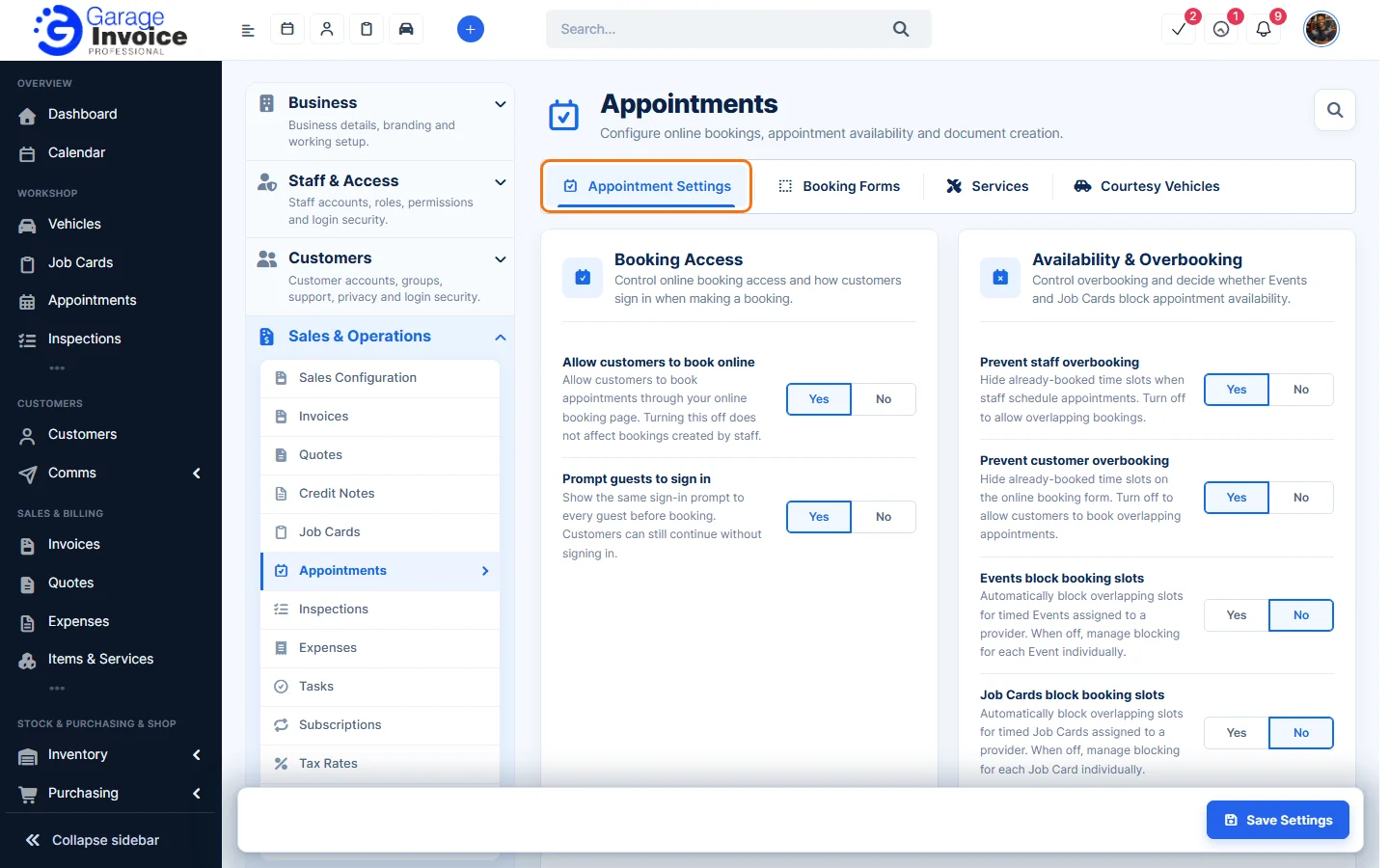
- Change what you need (Each option is Yes or No.) and click Save Settings.
Booking Access
- Allow customers to book online: lets customers book appointments through your online booking page. Turning this off doesn’t affect bookings made by staff.
- Prompt guests to sign in: shows the same sign-in prompt to every guest before booking. Customers can still continue without signing in.
Availability & Overbooking
- Prevent staff overbooking: hides time slots that are already booked when staff schedule appointments. Turn it off to allow overlapping bookings.
- Prevent customer overbooking: hides time slots that are already booked on the online booking form. Turn it off to let customers book overlapping appointments.
- Events block booking slots: automatically blocks overlapping slots for timed events assigned to a provider. When it’s off, you choose whether each event blocks slots.
- Job Cards block booking slots: automatically blocks overlapping slots for timed job cards assigned to a provider. When it’s off, you choose whether each job card blocks slots.
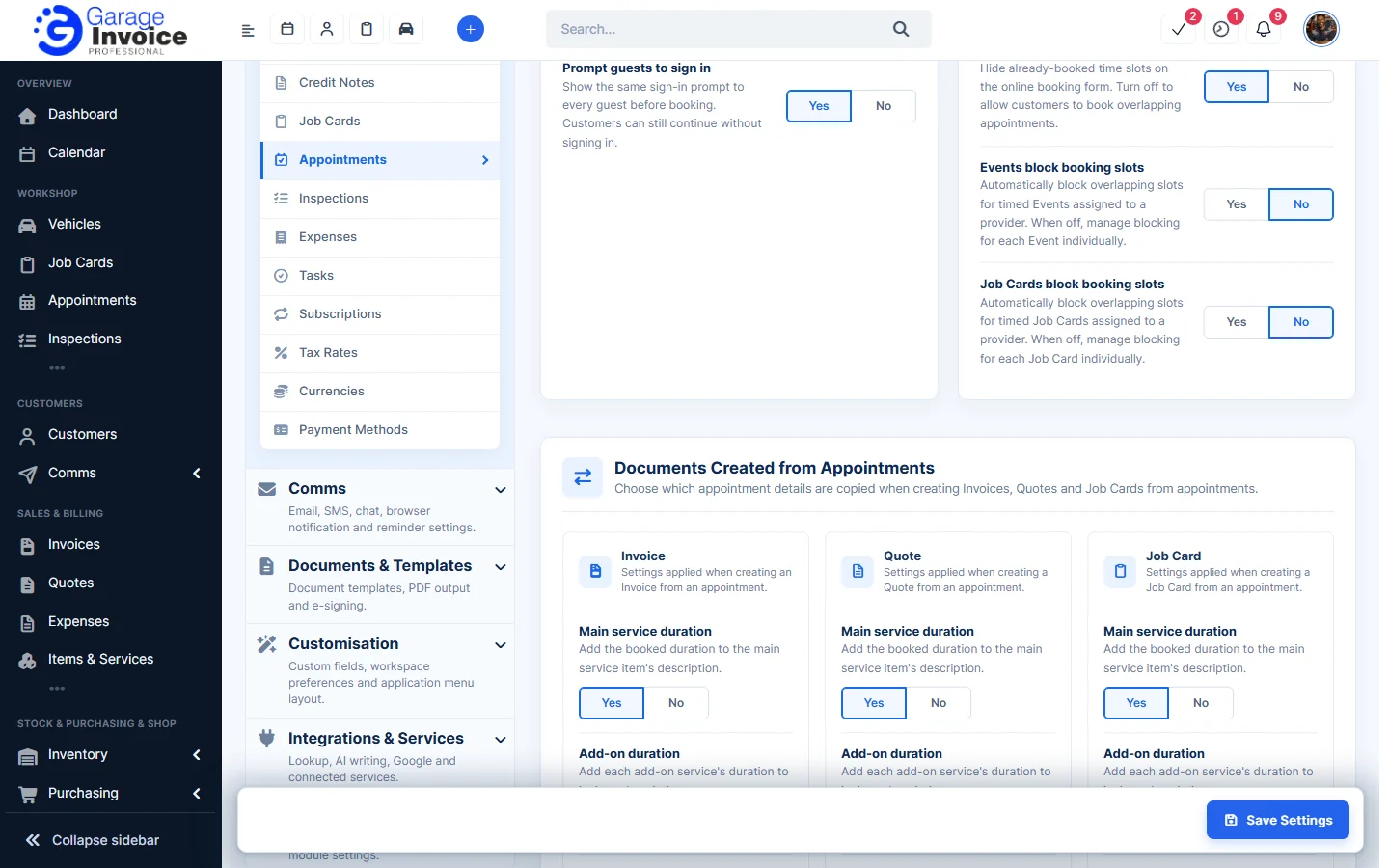
Documents Created from Appointments
Set these separately for Invoice, Quote and Job Card (see Create Job Card, Quote or Invoice from an Appointment):
- Main service duration: adds the booked duration to the main service item’s description.
- Add-on duration: adds each add-on service’s duration to its item description.
- Additional work request: adds any extra work the customer asked for as a separate item line.
- Admin note: copies the appointment’s admin note to the main service item as an admin note.
The other tabs are covered in Booking Forms, Services and Courtesy Vehicles. Providers are set up in Bays & Providers.
Feature Online booking and appointments: see what it does and how it fits your workshop.