
Quotes (estimates) let you price a job before you start it. When the customer agrees, you turn the quote into an invoice or a job card.
- Click Quotes in the sidebar, under Sales & Billing.
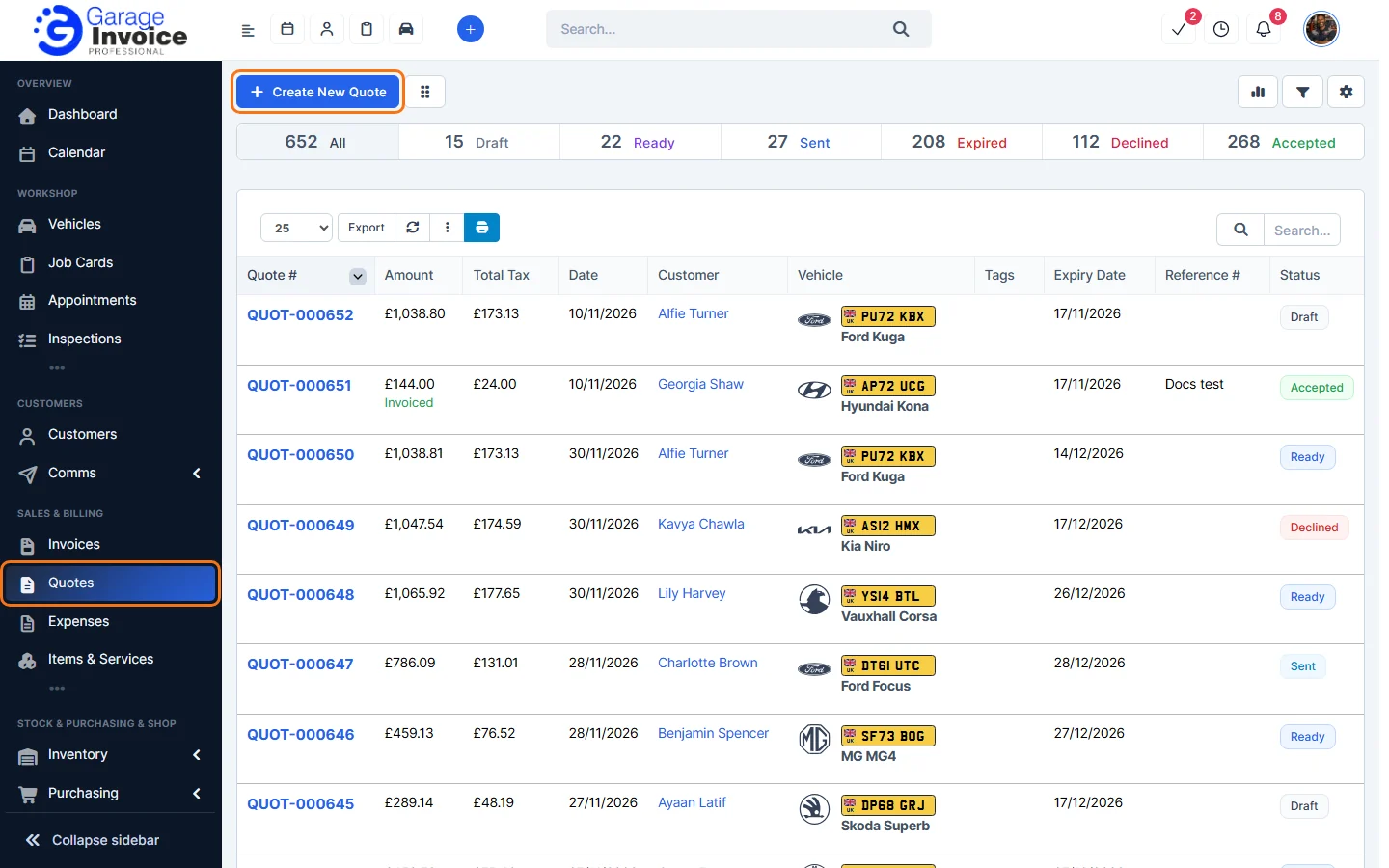
- The bar at the top shows how many quotes you have in each status: All, Draft, Ready, Sent, Expired, Declined and Accepted. Click a status to show only those quotes. See Quote Status Explained.
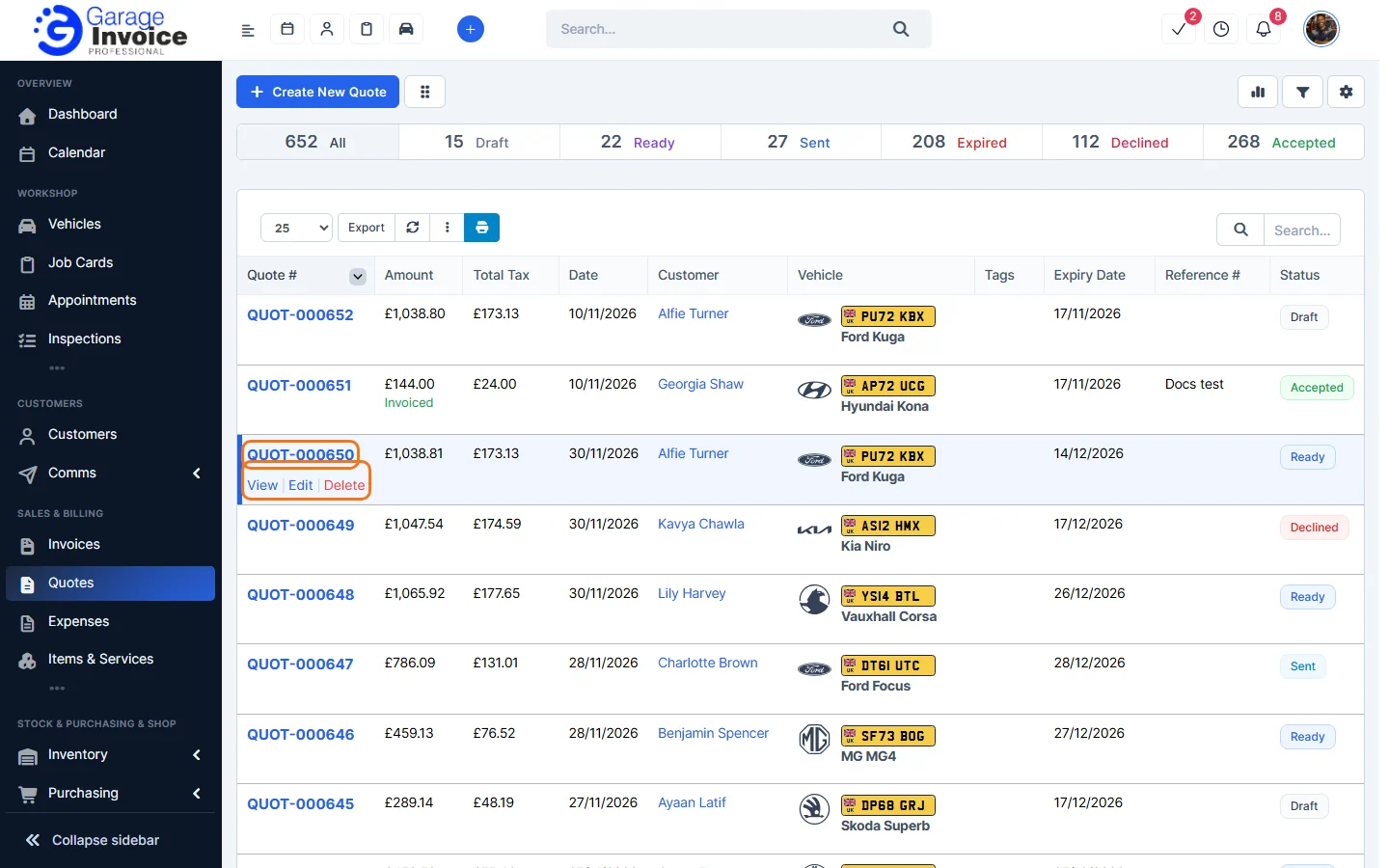
- The list shows the Quote #, Amount, Total Tax, Date, Customer, Vehicle, Tags, Expiry Date, Reference # and Status. Hover over a quote to View, Edit or Delete it.
- Click a quote number to open the quote on the right. The tabs are Quote, Tasks and Reminders. The buttons along the top are:
- Edit: change the quote. See Edit Quote.
- Send: email the quote to the customer. See Send Quote to Customer.
- Print: print the quote. See Print Quote.
- More: view it as the customer sees it, PDF options, change the status, copy, attach a file or delete. Create Appointment opens a new appointment with the quote’s customer and vehicle filled in.
- Convert: turn the quote into an Invoice or a Job Card.
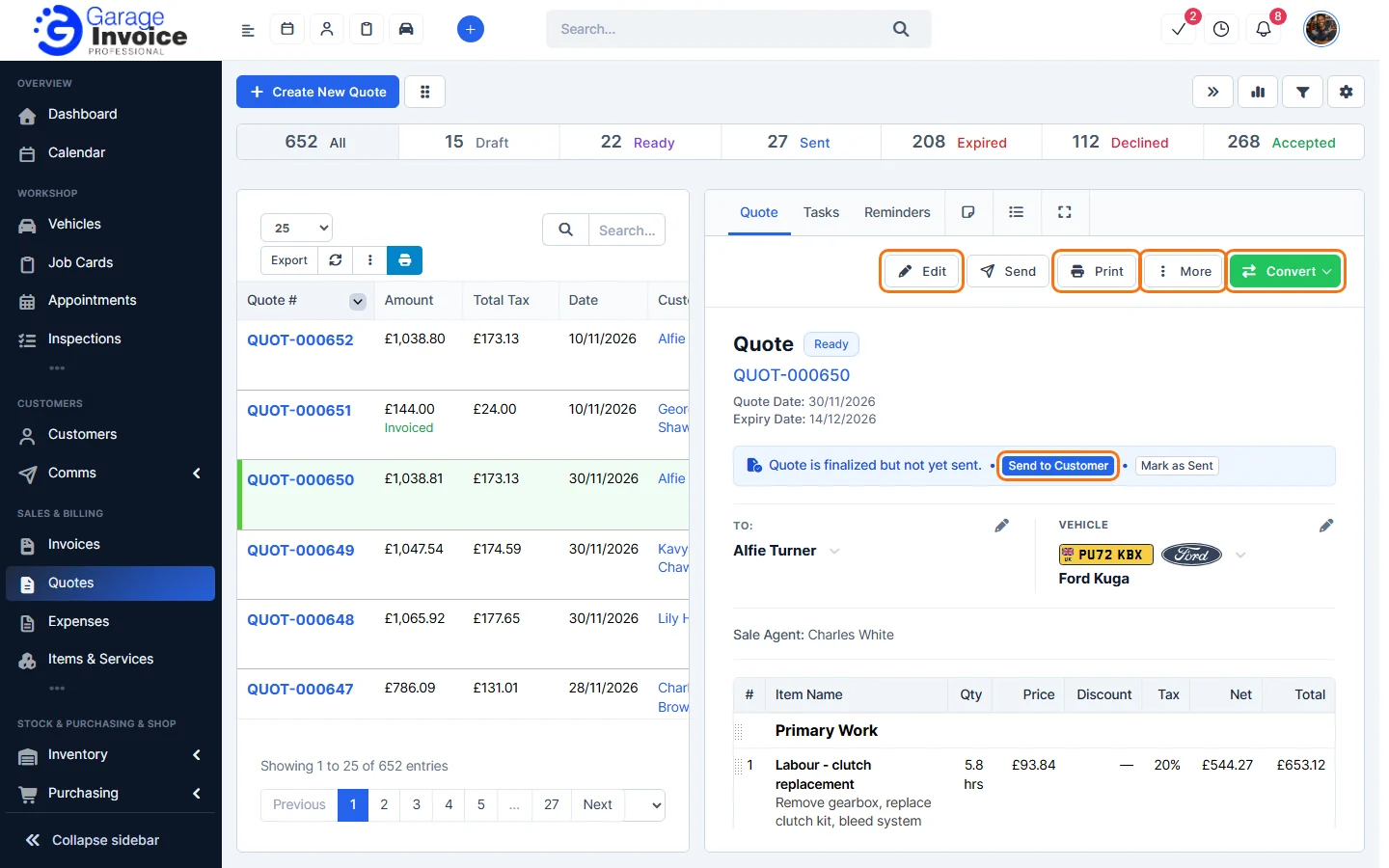
- The buttons at the top right of the page are, from left to right: hide the preview panel, quick stats, filter and the cog menu (filter bar, columns, PDF settings, quote settings, import and export).
- The grid button next to Create New Quote switches to the pipeline view. See Quote Pipeline View.
Next: Create Quote · Send Quote to Customer · Convert Quote to Invoice
Feature Garage quoting software: see what it does and how it fits your workshop.