
- Click Inventory in the sidebar (under Stock & Purchasing & Shop) and click Internal Transfers. The list shows each transfer’s date, From and To warehouses, Qty Transferred, who created and delivered it, and its status.
- Click the transfer number, or hover over it and click View. It opens on the right with the items, warehouses and quantities.
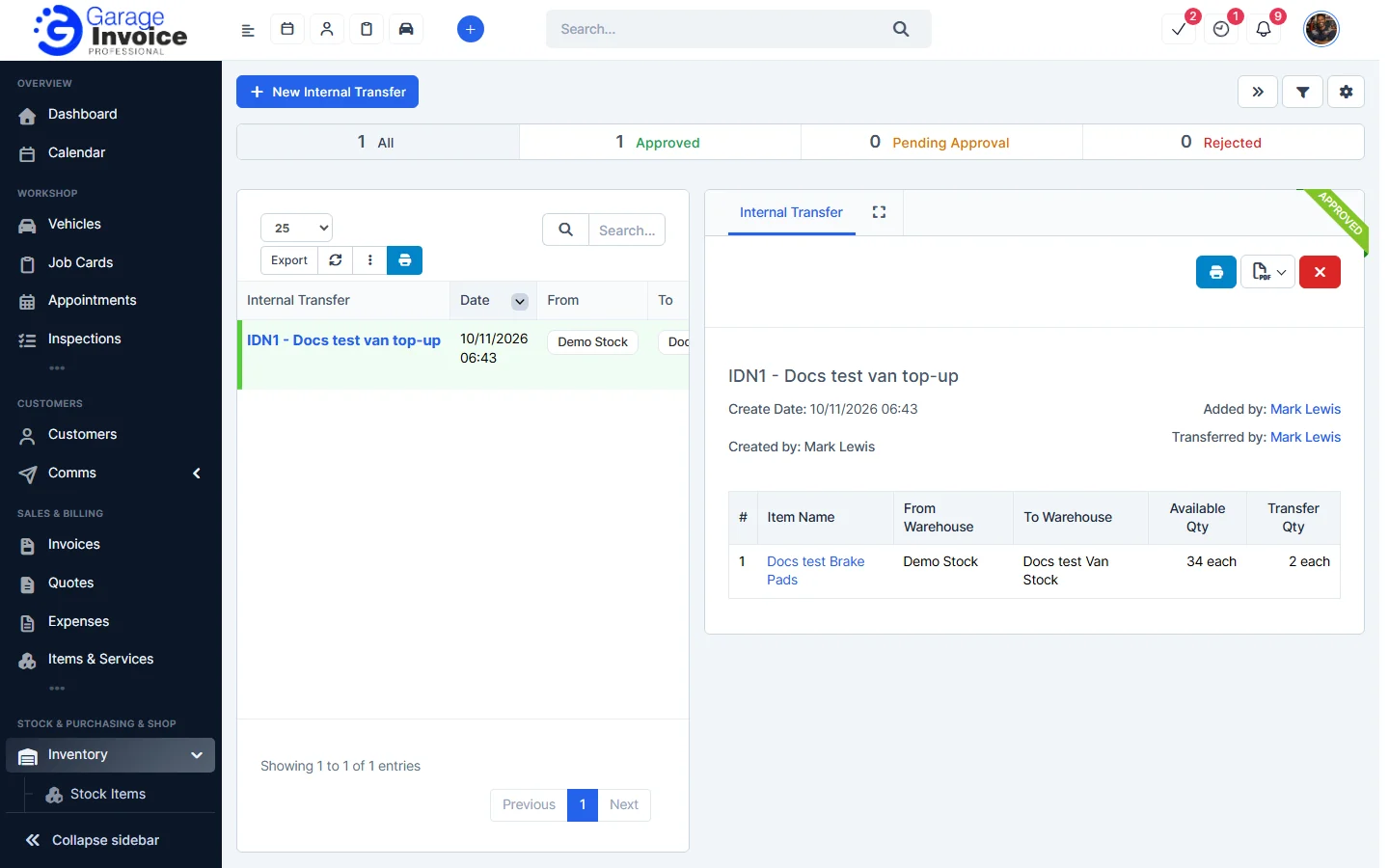
- Use the buttons at the top:
- The blue printer button prints the document.
- The PDF button opens a menu with View PDF, View PDF in New Tab, Download and Print.
Delete an internal transfer
- Open the transfer and click the red delete button at the top.
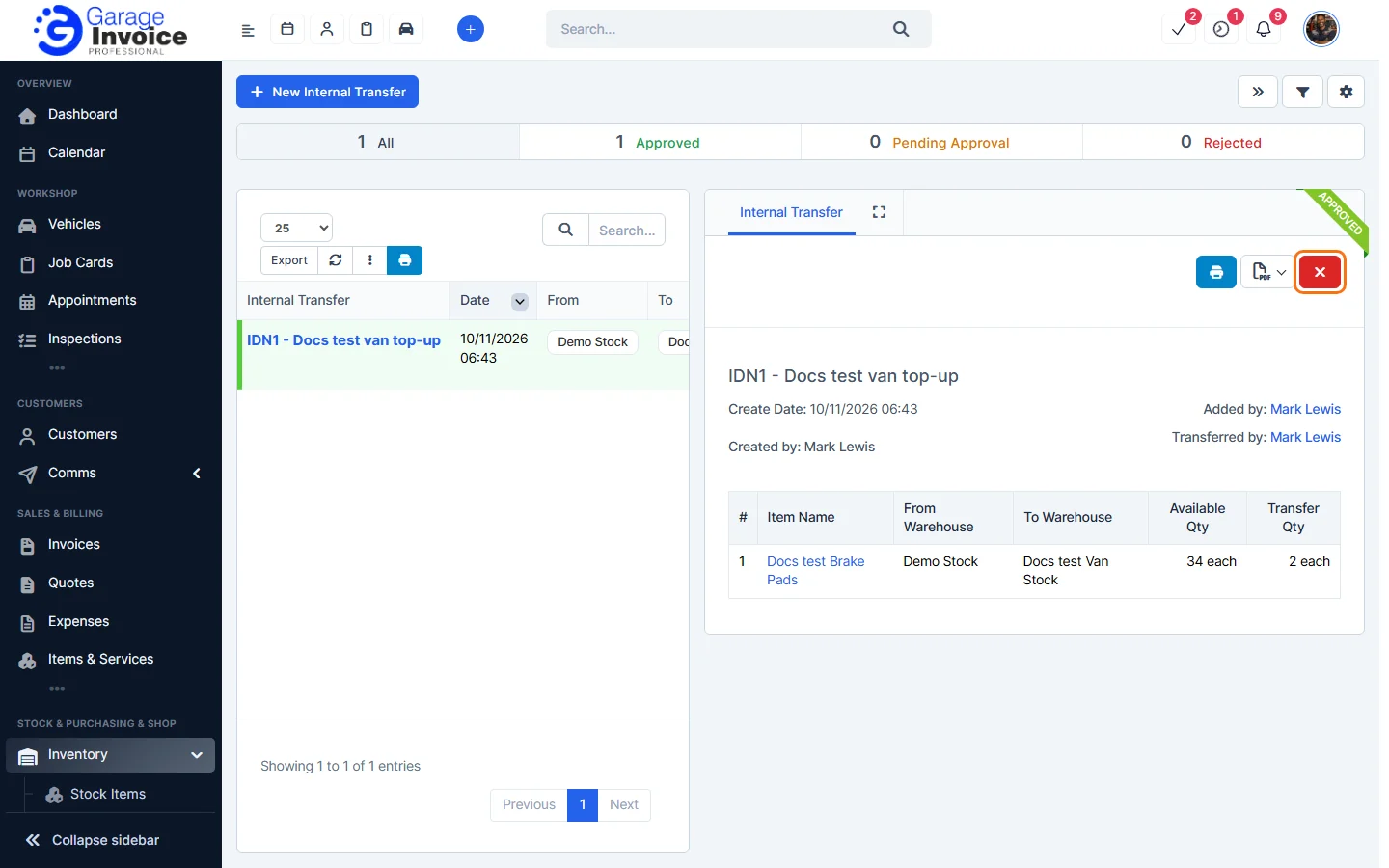
- Click OK to confirm.
Note: approved transfers can’t be edited. If the app shows “Deletion Failed”, the transfer can’t be removed. To undo it, create a new transfer that moves the stock back.
Feature Stock and inventory control: see what it does and how it fits your workshop.