
Merge fields are placeholders in curly brackets, such as {contact_firstname}. When the email is sent, each one is replaced with the real information, for example the customer’s first name.
- Open the email template (see Edit Email Template).
- Click in the Email Message where you want the information to appear.
- In Available merge fields on the right, click a field to insert it. The fields are grouped, for example Company, Client and Invoice; the groups depend on the email. Click Show all … fields to see every field in a group, or type in Search merge fields.
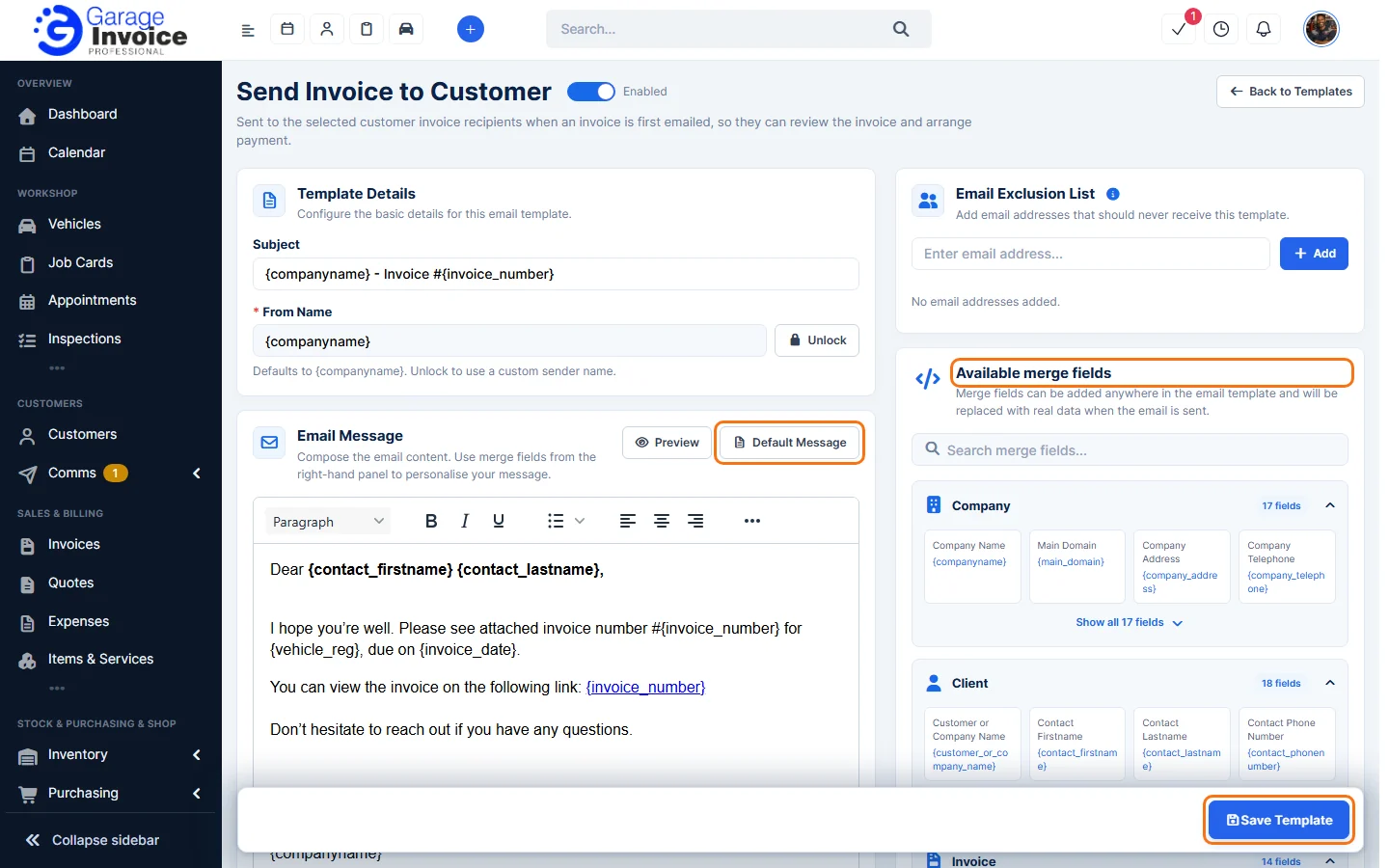
- Click Save Template.
Note: you can also type merge fields into the Subject and From Name. Copy them exactly, including the curly brackets.
Feature Email and SMS notifications: see what it does and how it fits your workshop.