
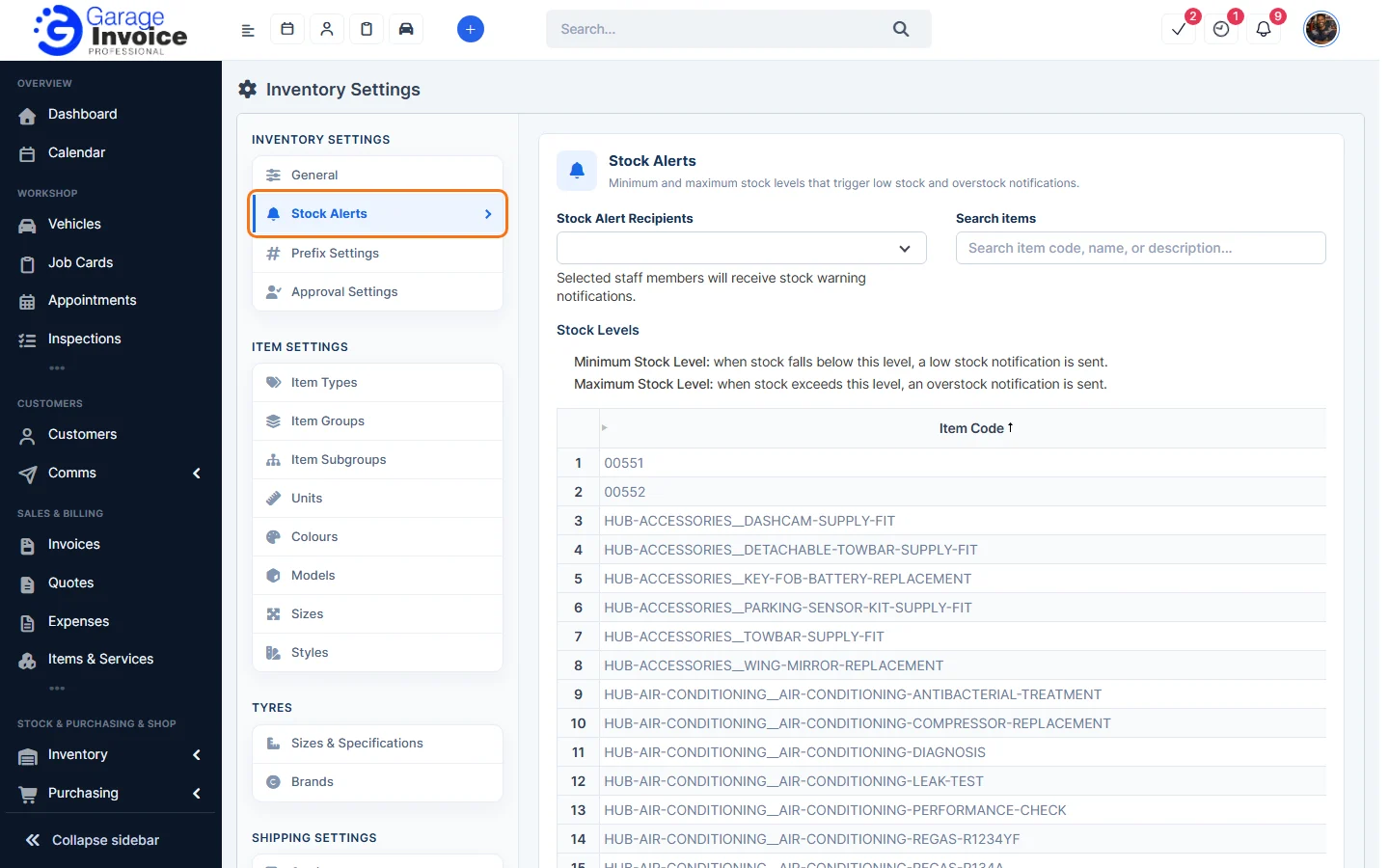
- Click Inventory in the sidebar (under Stock & Purchasing & Shop) and click Stock Items. Click the gear button at the top right to open Inventory Settings, then click Stock Alerts on the left.
- Choose the Stock Alert Recipients. These staff members receive the stock warnings.
- In the Stock Levels table, enter the Minimum Stock Level and Maximum Stock Level for each item. Use Search items to find an item.
- When stock falls below the minimum, a low stock notification is sent.
- When stock goes above the maximum, an overstock notification is sent.
- Click Save.
The Low Stock and Overstock counts on the Stock Items page use these levels.
Feature Stock and inventory control: see what it does and how it fits your workshop.