
Sales Configuration holds the settings shared by invoices, quotes, job cards and other sales documents.
- Click Settings in the sidebar, open Sales & Operations and click Sales Configuration.
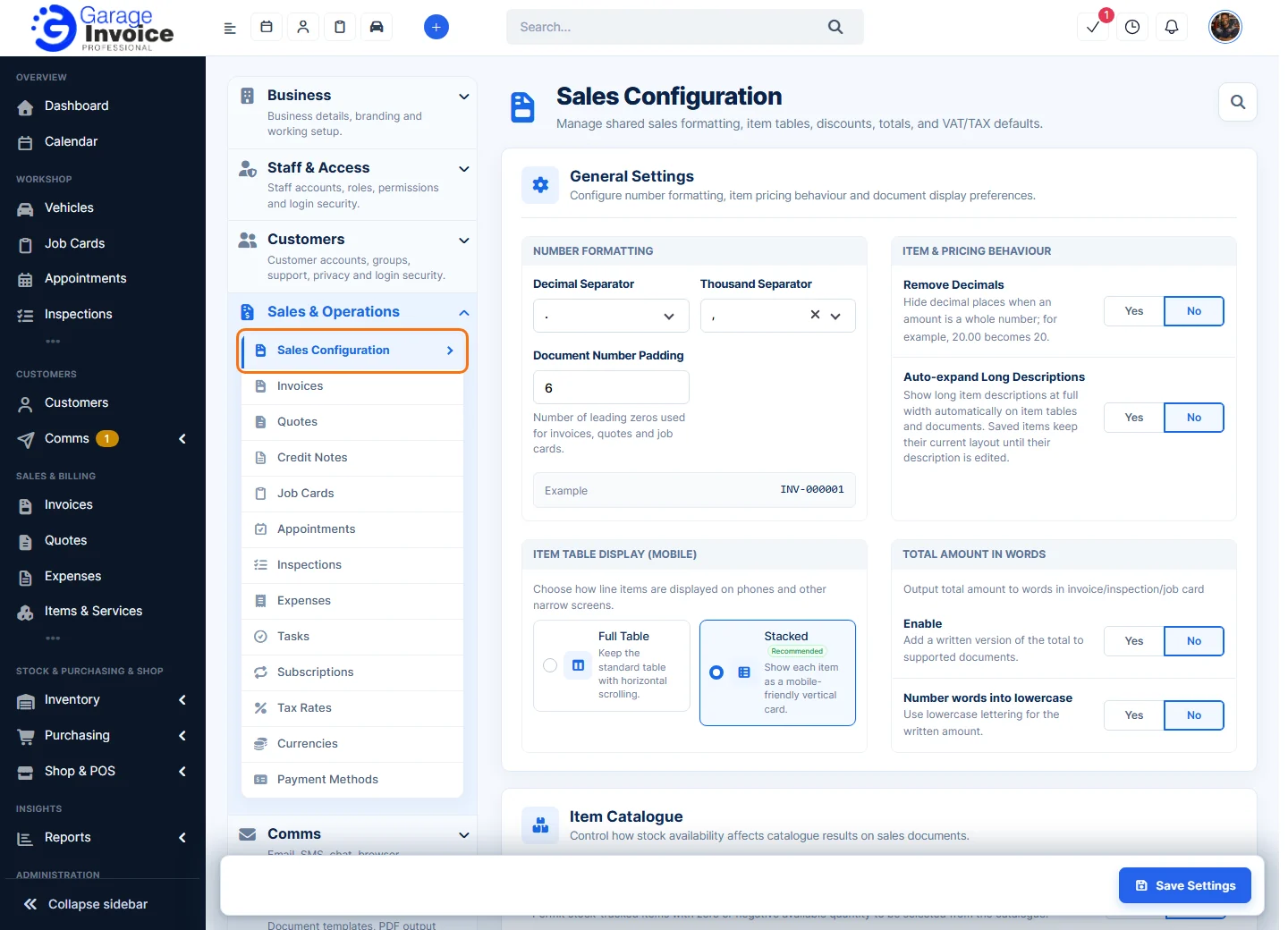
- Under General Settings, Number Formatting:
- Decimal Separator: the character before the pence, . or ,.
- Thousand Separator: the character between thousands, for example , in 1,000.
- Document Number Padding: how many digits invoice, quote and job card numbers have, filled with leading zeros. Example shows the result, for example 6 gives INV-000001.
- Item & Pricing Behaviour:
- Remove Decimals: hide the decimal places when an amount is a whole number, so 20.00 shows as 20.
- Auto-expand Long Descriptions: show long item descriptions at full width on item tables and documents. Saved items keep their layout until their description is edited.
- Item Table Display (Mobile): how item lines look on phones and narrow screens.
- Full Table: keep the normal table and scroll sideways.
- Stacked (recommended): show each item as a card, one under another.
- Total Amount in Words: Enable adds the total written in words to supported documents; Number words into lowercase writes it in lowercase. See Display Total Amount in Words.
- Under Item Catalogue (how stock affects the item search on sales documents):
- Allow out-of-stock items to be added to documents: let staff pick stock-tracked items with zero or negative stock.
- Hide out-of-stock items from the catalogue: leave stock-tracked items with zero or negative stock out of the search results.
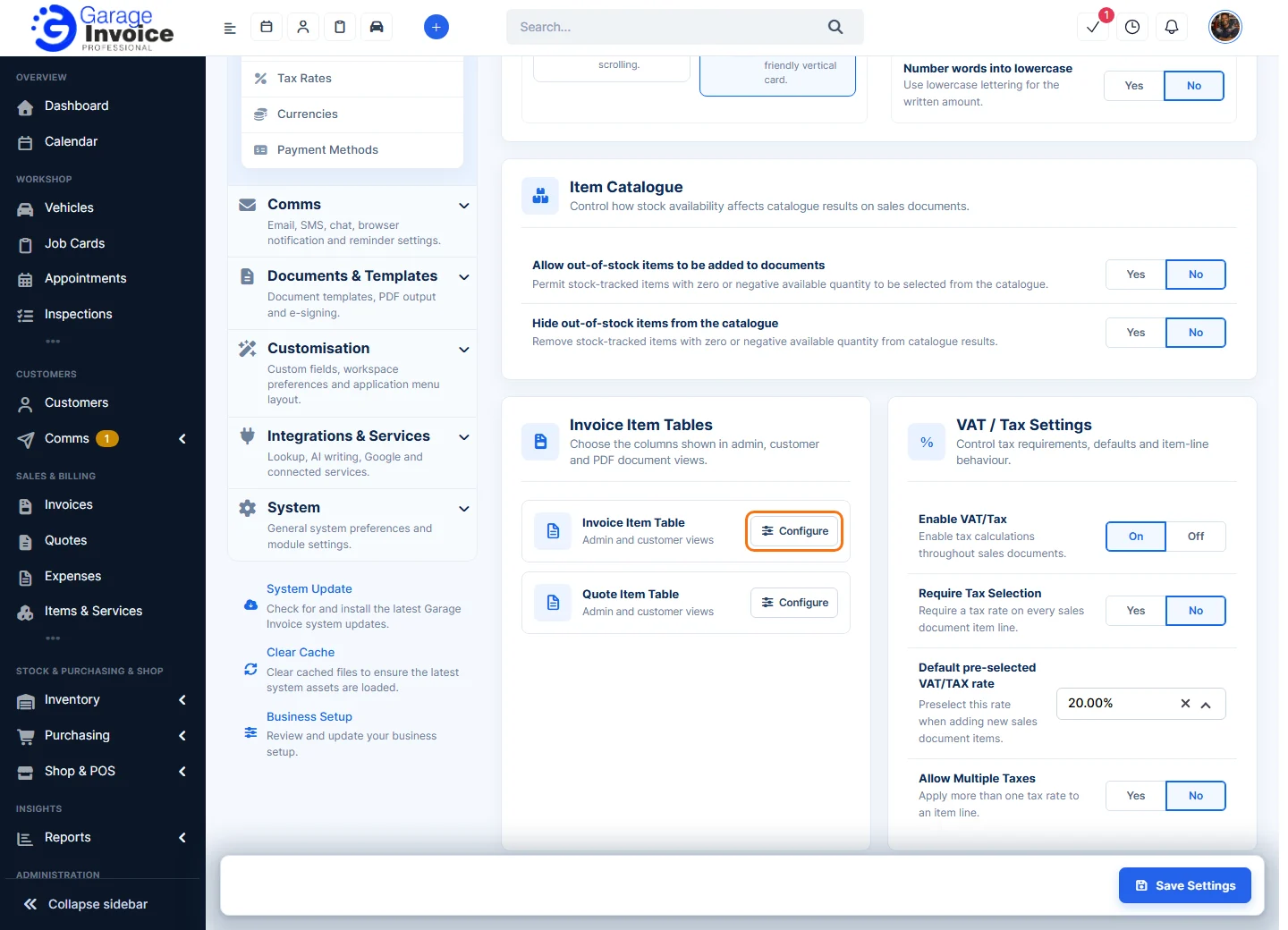
- Under Invoice Item Tables, click Configure next to Invoice Item Table or Quote Item Table to choose the columns shown.
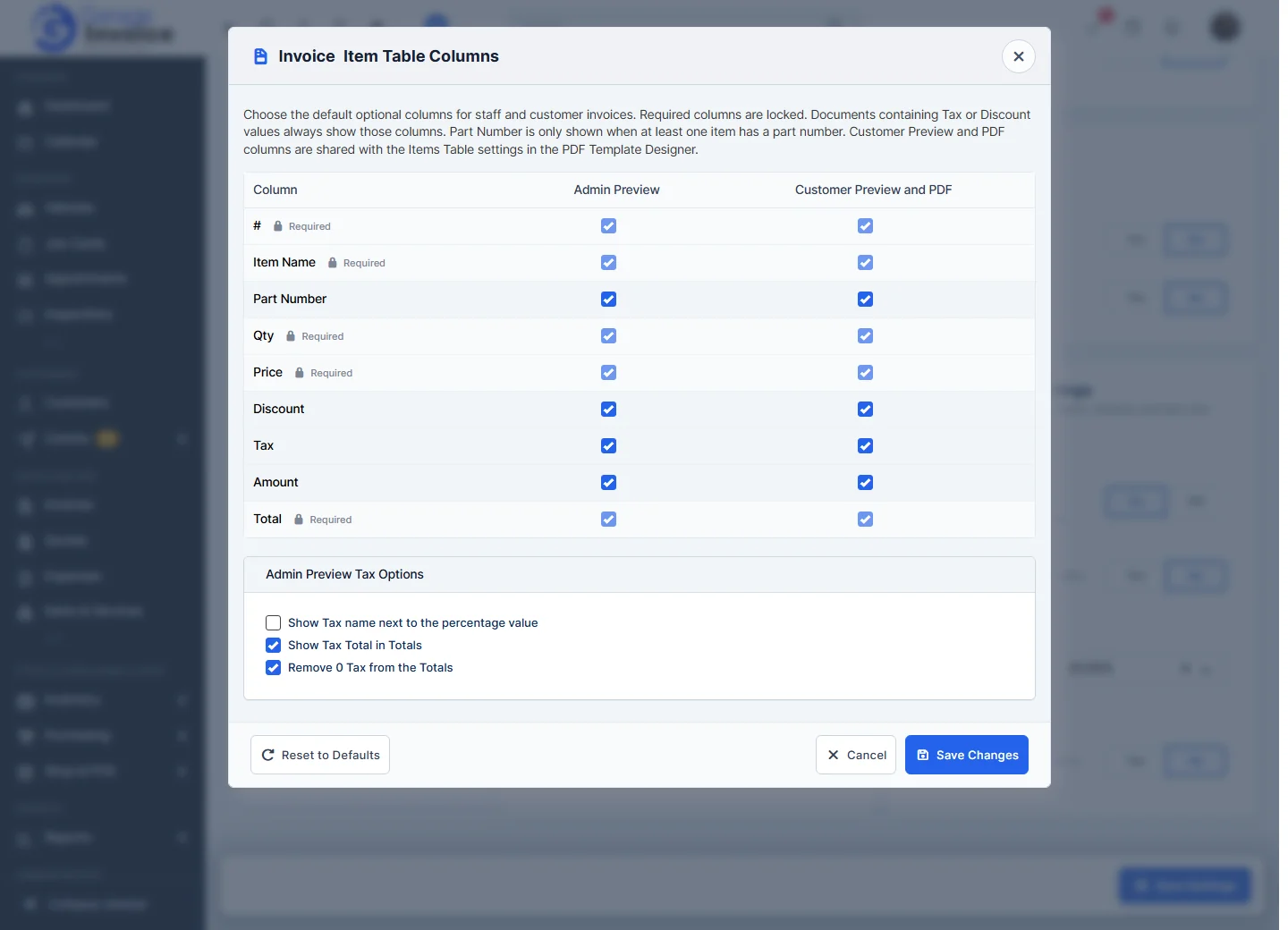
- Tick or untick each column (#, Item Name, Part Number, Qty, Price, Discount, Tax, Amount, Total) for Admin Preview (what staff see) and Customer Preview and PDF. Required columns are locked.
- Documents with tax or discount values always show those columns. Part Number only shows when at least one item has a part number.
- Admin Preview Tax Options: Show Tax name next to the percentage value, Show Tax Total in Totals and Remove 0 Tax from the Totals.
- The Customer Preview and PDF columns are shared with the Items Table settings in the PDF Template Designer.
Click Save Changes, or Reset to Defaults to undo your choices.
- Under VAT / Tax Settings:
- Enable VAT/Tax: turn tax calculations on or off throughout sales documents.
- Require Tax Selection: every item line must have a tax rate.
- Default pre-selected VAT/TAX rate: the rate filled in when you add a new item line.
- Allow Multiple Taxes: apply more than one tax rate to an item line.
See Set Default Tax and Add New TAX/VAT Rate.
- Click Save Settings at the bottom right.
Tip: currency symbols and their number format are set per currency. See Add New Currency.