
- Click Shop & POS in the sidebar (under Stock & Purchasing & Shop) and click Orders. The status bar shows how many orders are Draft, Pending Payment, Processing, On Hold, Completed, Cancelled and Refunded. Click one to filter the list.
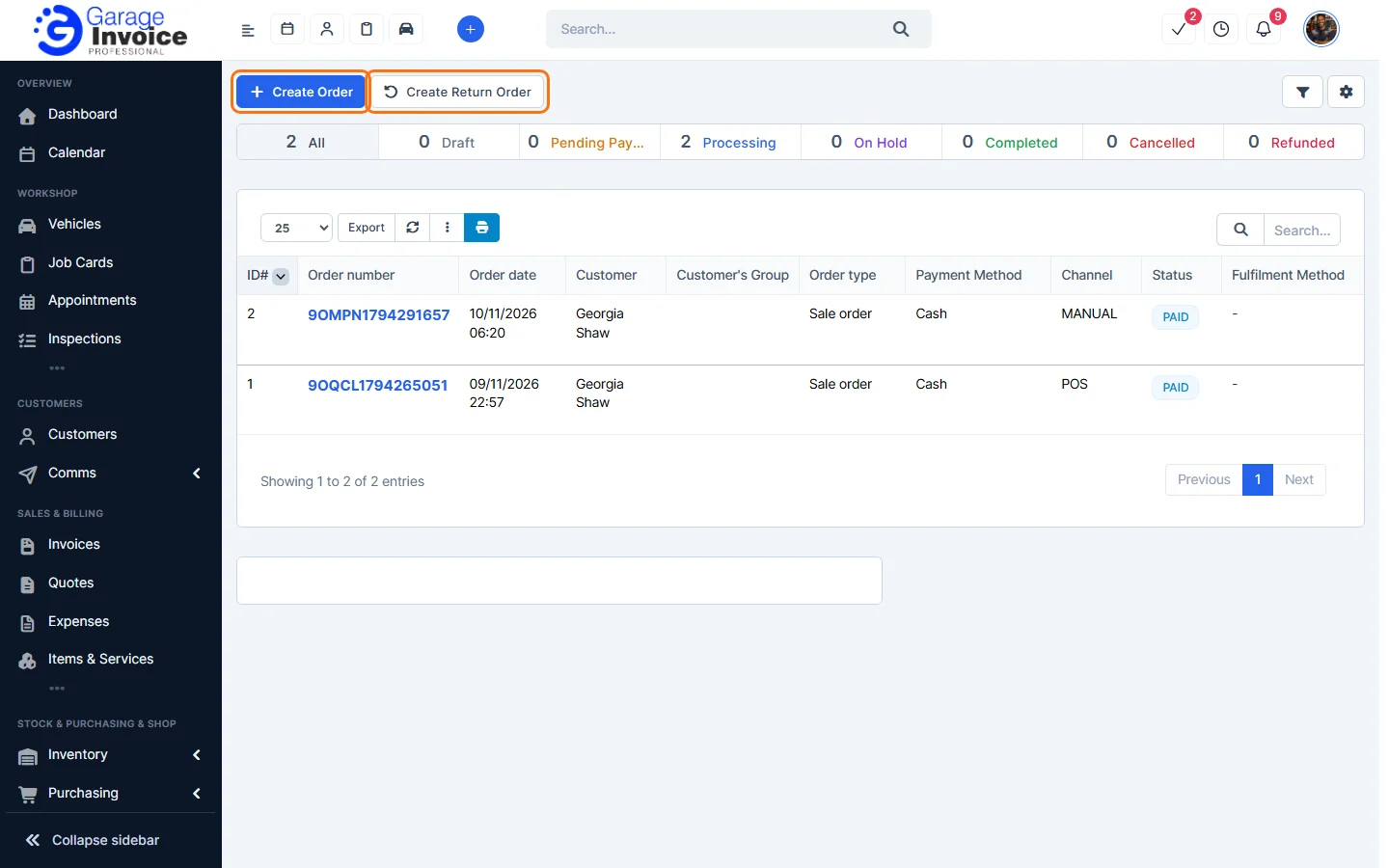
- Each row shows the order number and date, customer, order type (sale or return), payment method, Channel (POS, Online Shop or MANUAL), status, fulfilment method and invoice. Click the filter button at the top right to filter by status, channel, type, seller, customer, invoice, date or total.
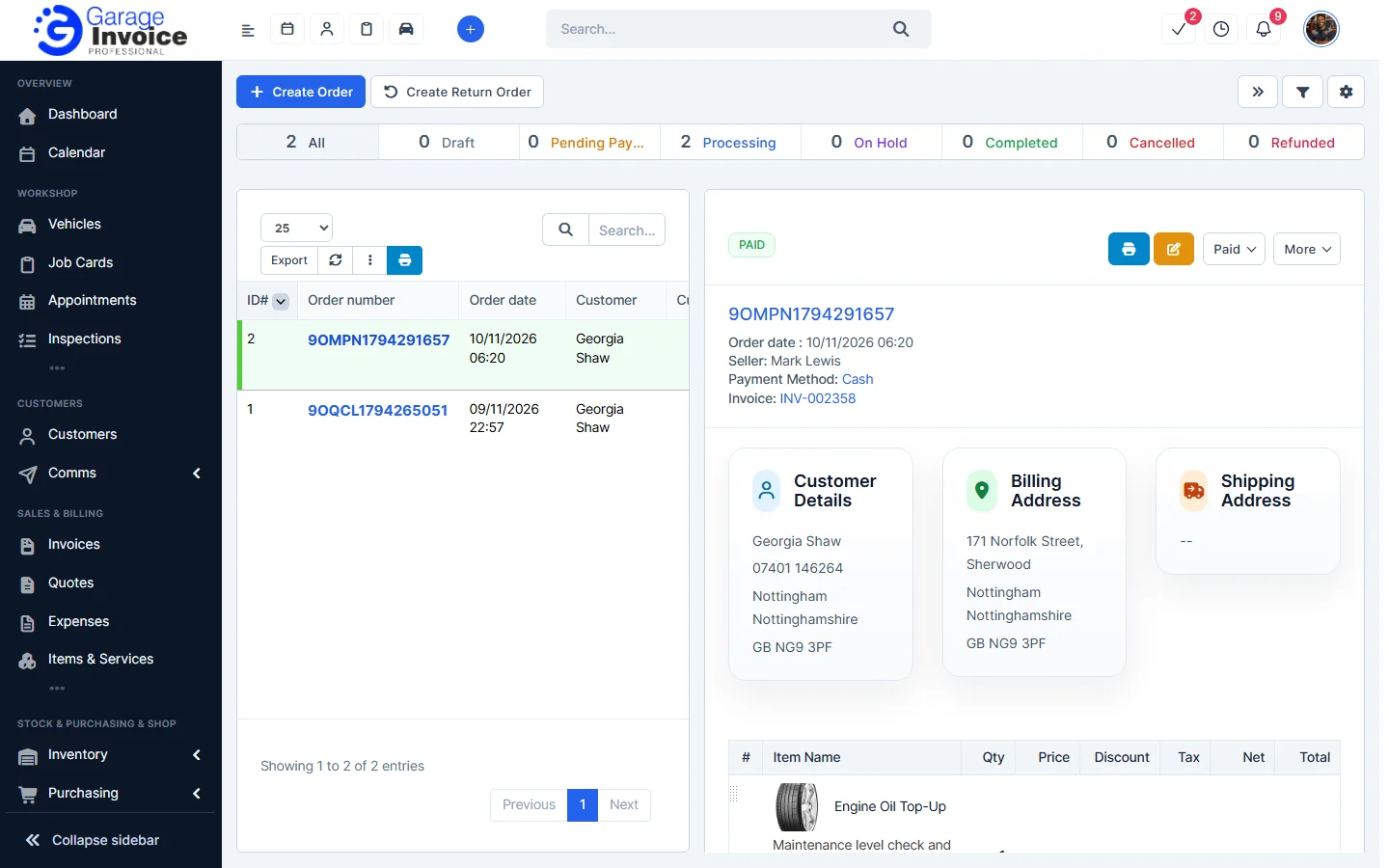
- Click an order number to open its details on the right: order date, seller, payment method, invoice, customer, billing and shipping address and items. Use the buttons at the top to print it, edit it or change its status.
See also: Create a Manual Order · Create a Return Order
Feature Online shop and POS: see what it does and how it fits your workshop.