
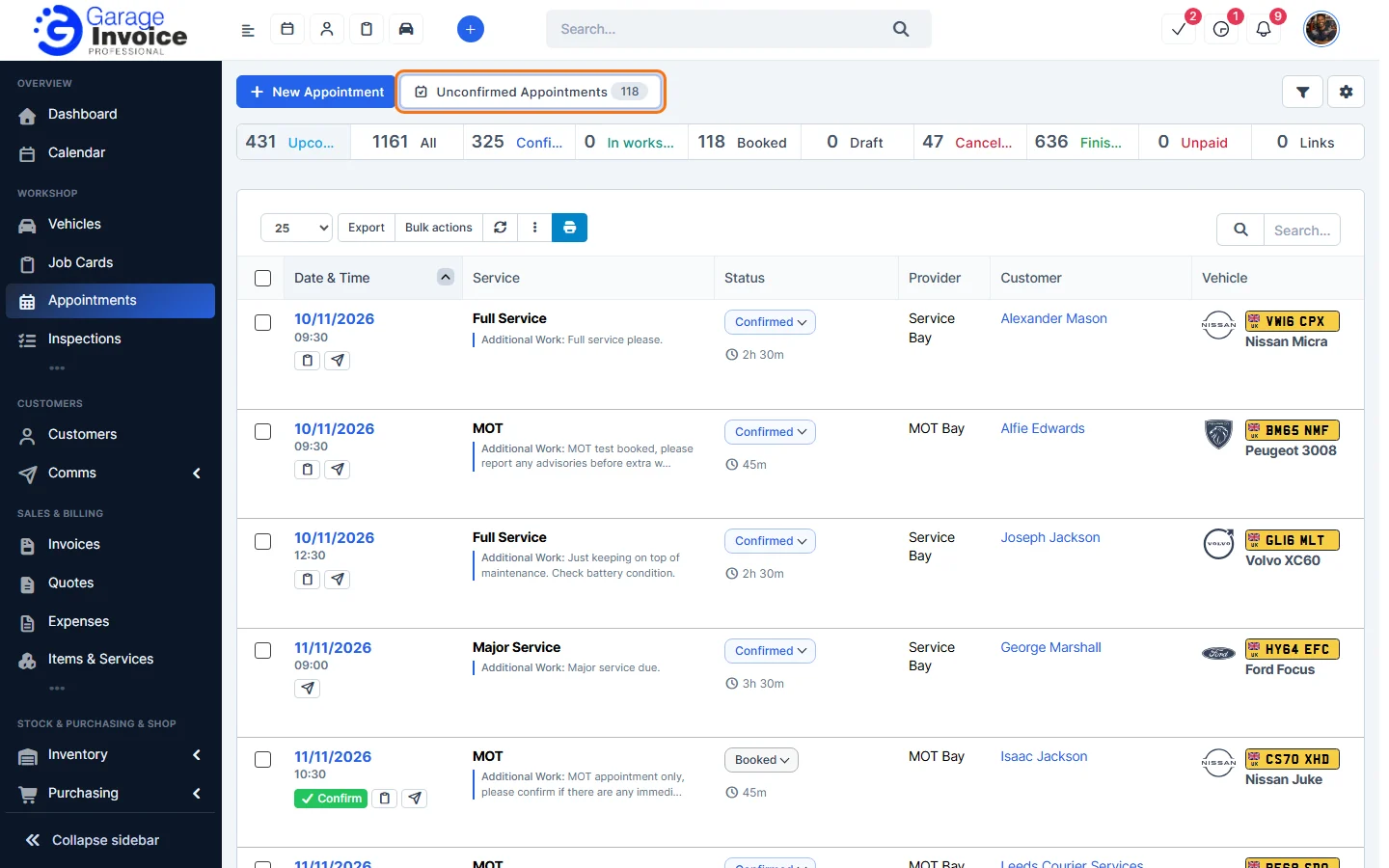
- Click Appointments in the sidebar and click Unconfirmed Appointments. The number shows how many bookings are waiting.
- In Review Unconfirmed Appointments, the list on the left (Waiting for Review) shows each booking with the customer, vehicle, requested time and any additional work requested. Click a booking to select it. Use Call or Email to contact the customer.
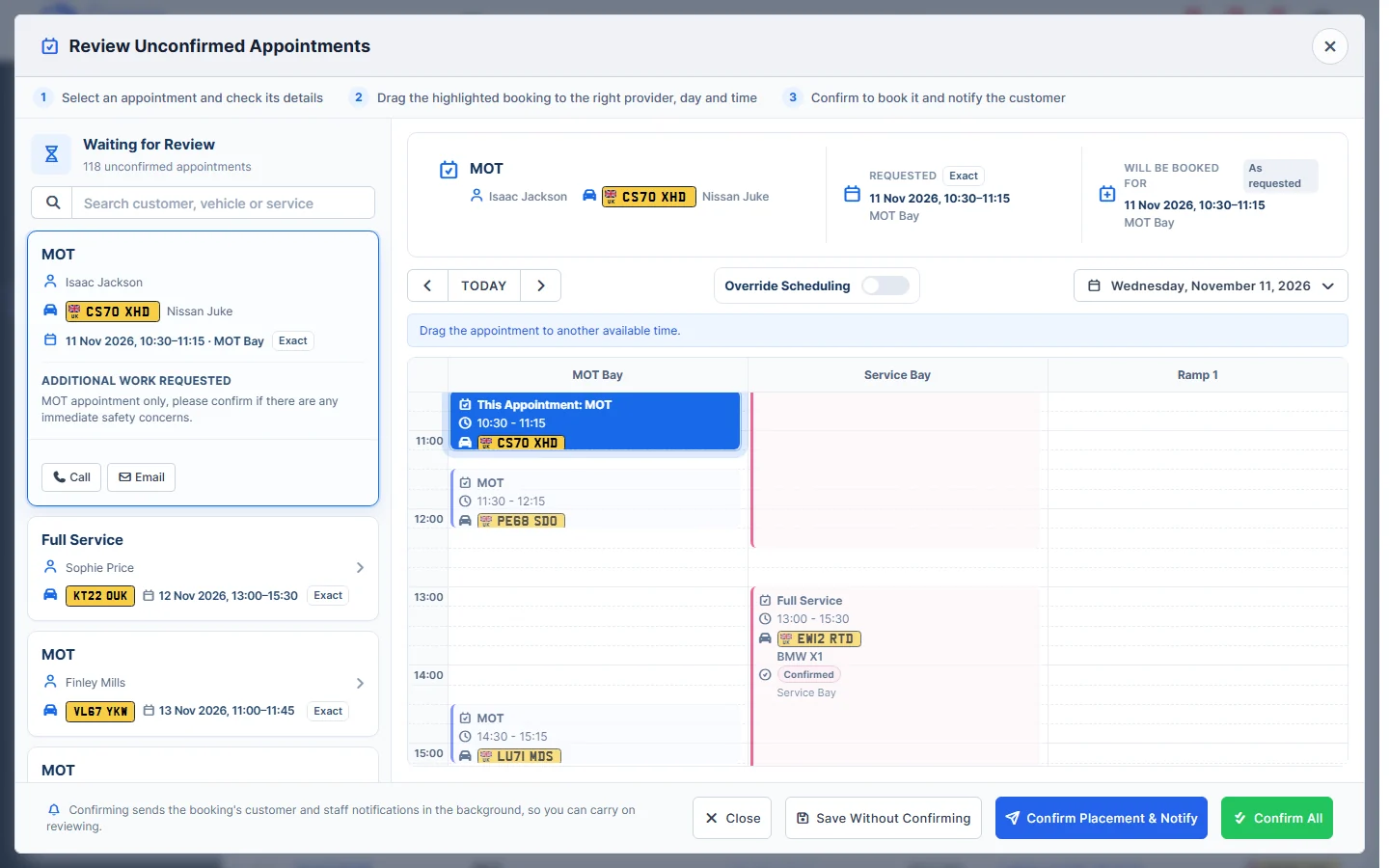
- The calendar shows the day by provider with the selected booking highlighted. Drag it to another provider, day or time if needed. Turn on Override Scheduling to place it in a slot that is normally unavailable.
- Click one of the buttons at the bottom:
- Confirm Placement & Notify: confirms this booking and notifies the customer.
- Save Without Confirming: keeps your changes but leaves it unconfirmed.
- Confirm All: confirms every booking in the list.
Note: confirming sends the customer and staff notifications in the background, so you can carry on reviewing.
Related: Change Appointment Status · Booking Forms
Feature Online booking and appointments: see what it does and how it fits your workshop.