
- Click Inventory in the sidebar (under Stock & Purchasing & Shop) and click Internal Transfers. Click New Internal Transfer.
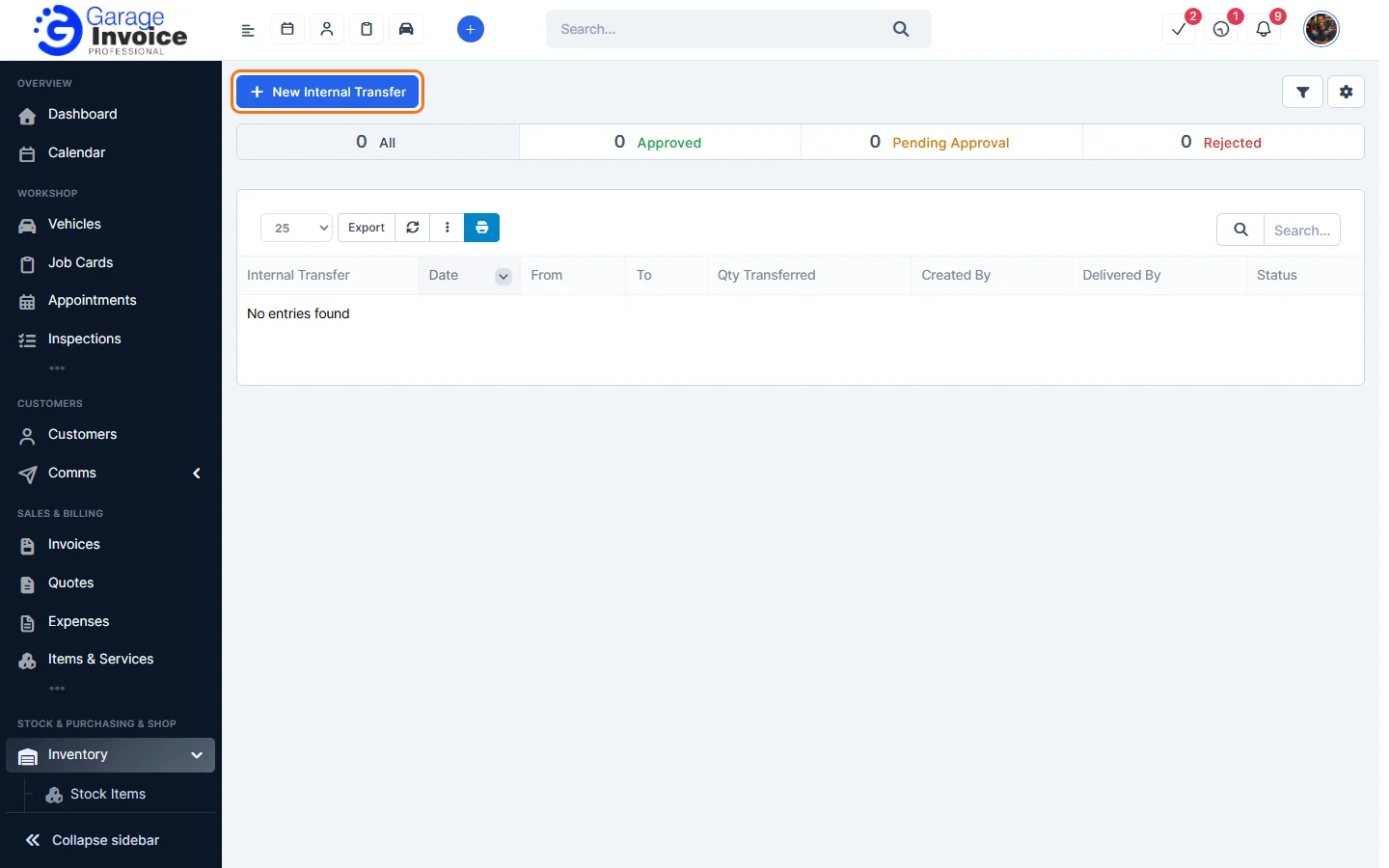
- Enter an Internal Transfer Note name, for example “Van top-up”, and choose who it is Delivered By. The Internal Transfer Note number and Voucher Date are filled in for you.
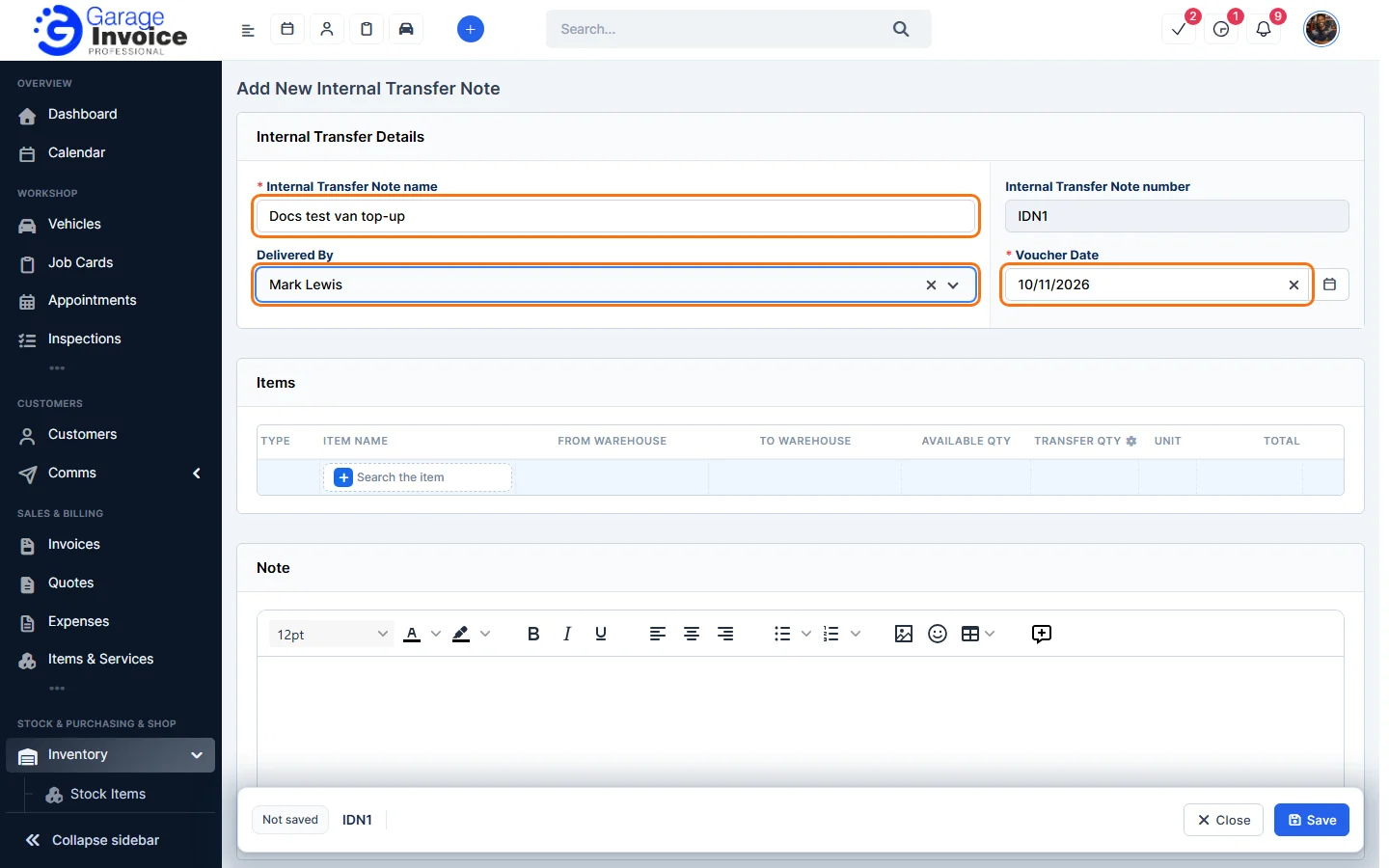
- Under Items, click Search the item, type part of the item name and click it in the results.
- Choose the From Warehouse and the To Warehouse. Check the Available Qty and enter the Transfer Qty.
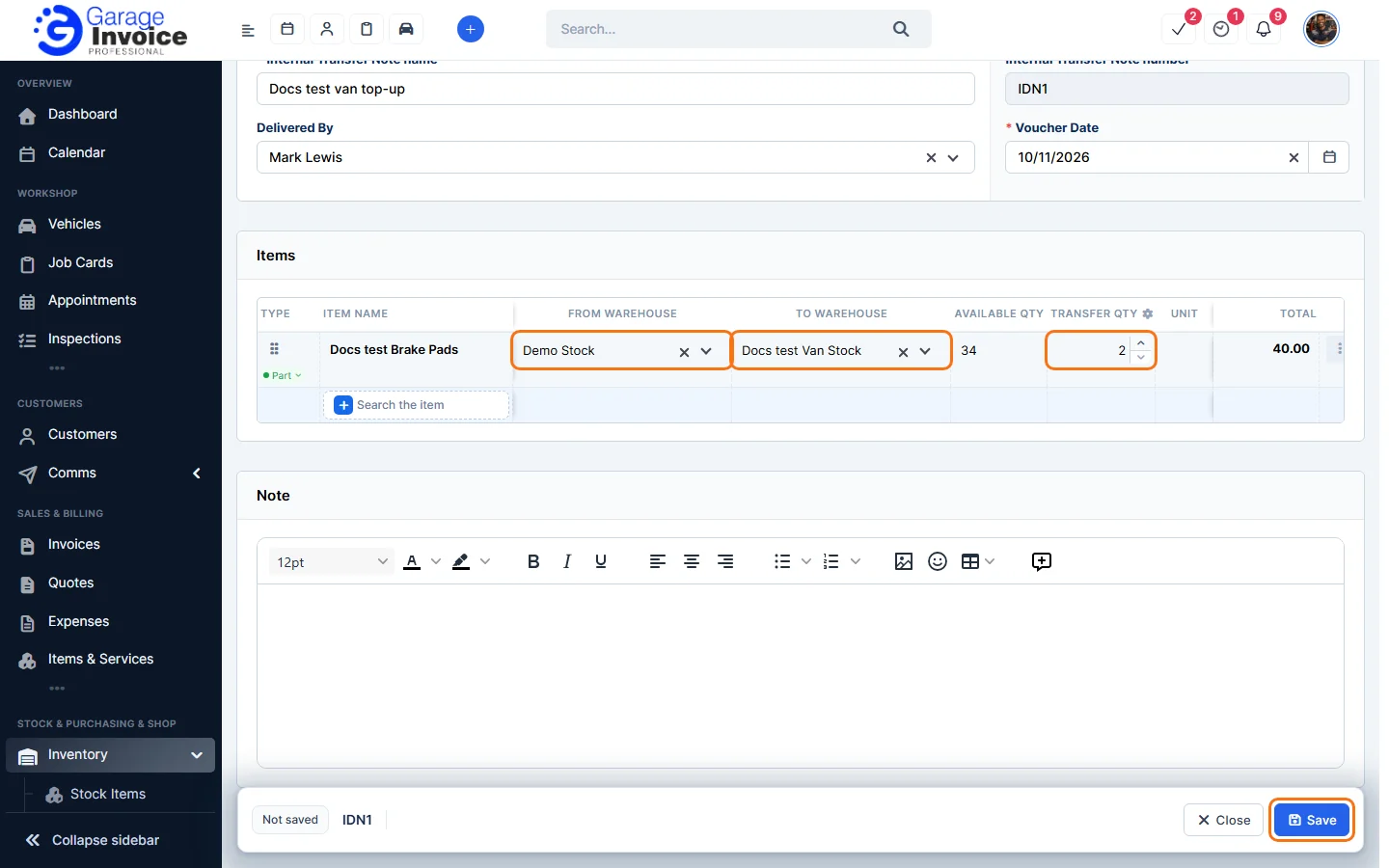
- Click Save in the bar at the bottom of the screen.
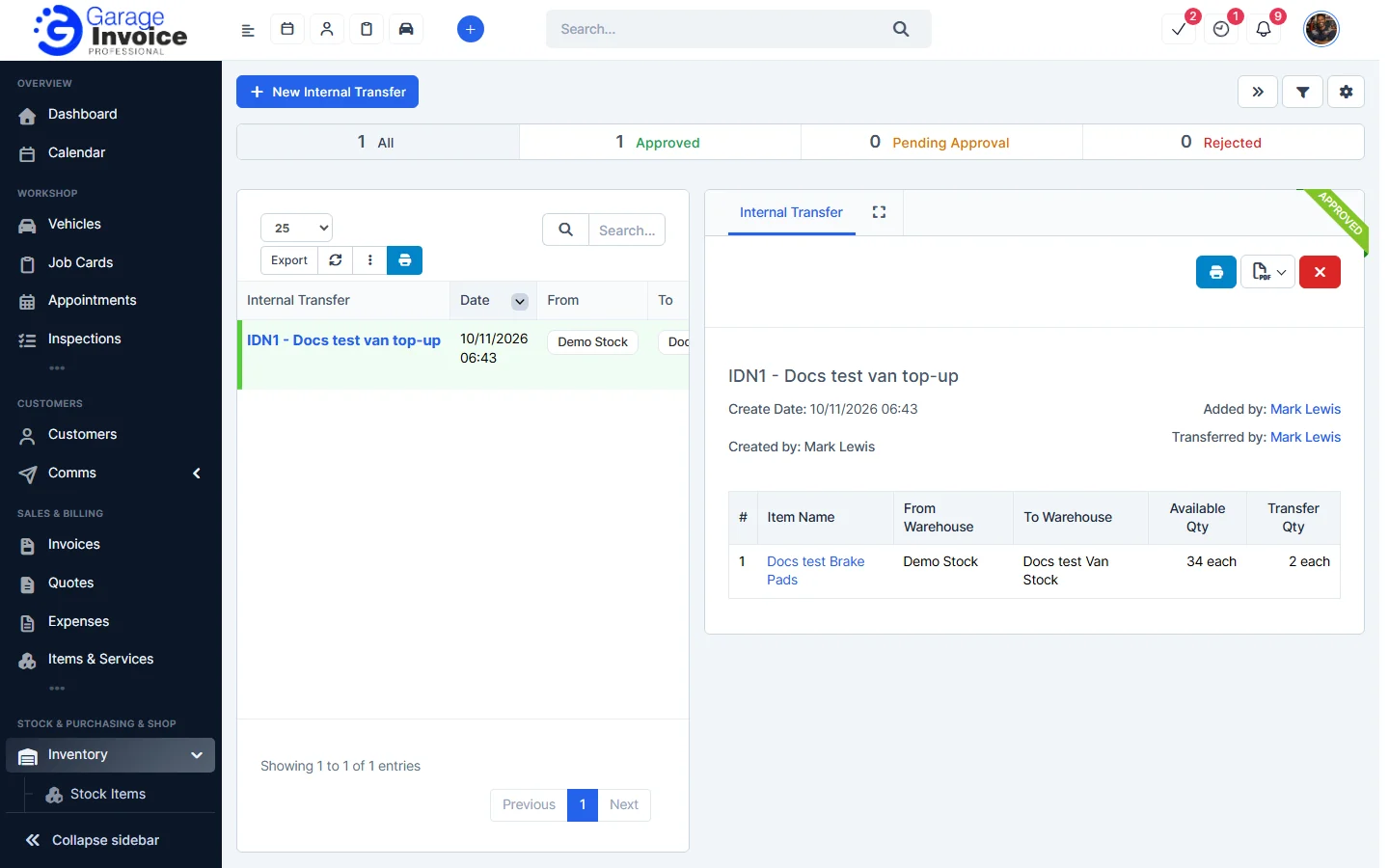
The transfer opens on the right and the stock moves straight away. The item shows its new quantity in each warehouse.
Note: you need at least two warehouses. See Add New Warehouse.
Feature Stock and inventory control: see what it does and how it fits your workshop.