
Garage Invoice runs in your web browser. Work through this checklist to get your workshop ready, then start booking work and sending invoices.
Set up your business
- Sign in. See Sign In to Garage Invoice.
- Run the Business Setup wizard. It checks your account, your business profile and the features you want to use. See Business Setup Wizard.
- Check your company details. Your business name, address and VAT number appear on invoices, quotes and other documents. See Company Details.
- Add your logo. See Company Logo, PDF Logo and Browser Icon.
- Set the time and date format. See Time & Date Format.
- Set your opening hours. See Working Schedule.
- Check your tax rates. See Add New TAX/VAT Rate.
- Add your staff. See Add New Staff Member.
Start working
- Learn the screen. See Find Your Way Around.
- Add a customer and their vehicle. See Add New Customer and Add New Vehicle. To bring in records from another system, see Data Import.
- Book the vehicle in. See Add New Appointment.
- Open a job card for the work. See Create Job Card.
- Send an invoice. See Add New Invoice.
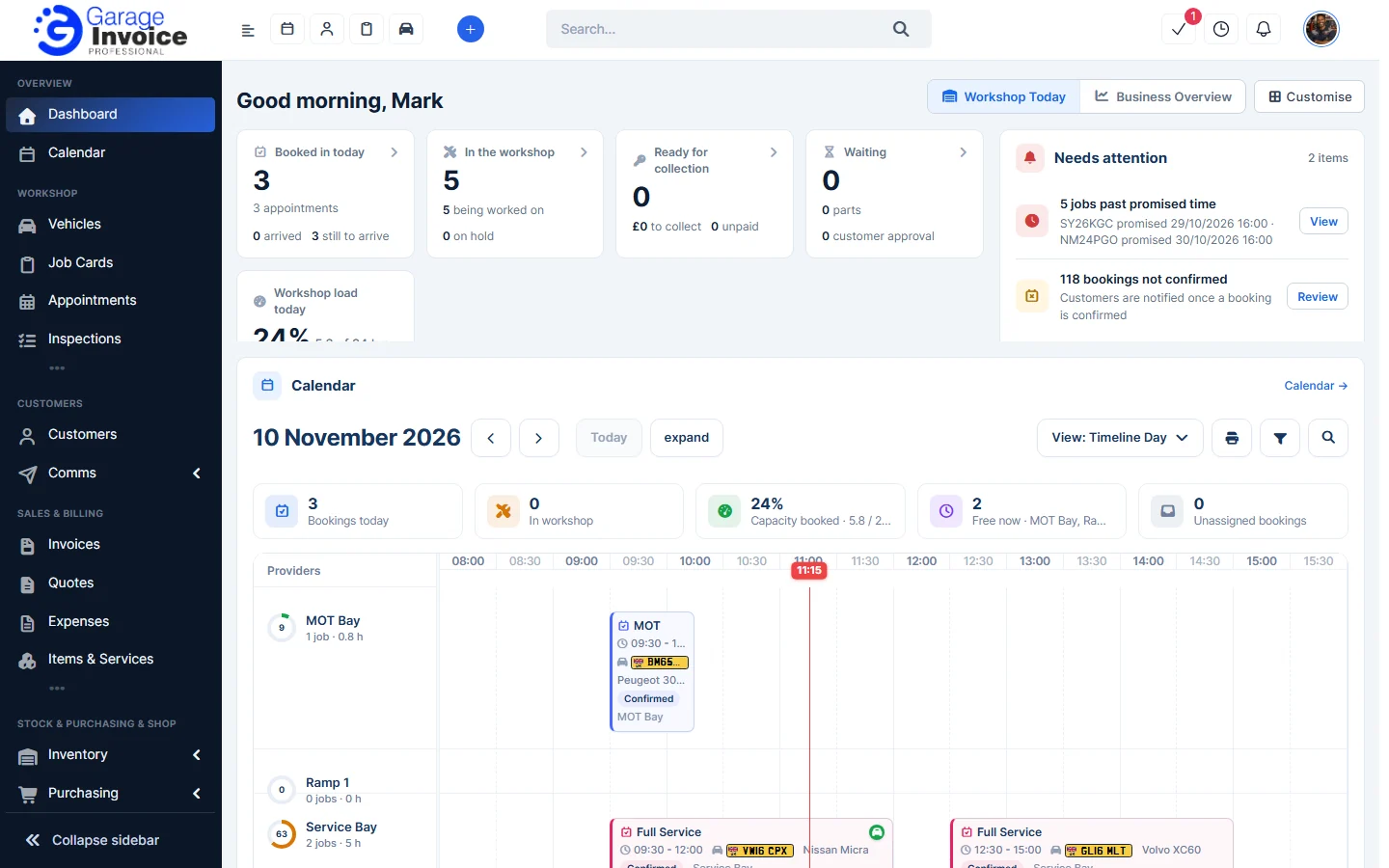
- Check your day. See Dashboard Overview and Your Day (Daily Briefing).
Tip: every setting is listed in Settings Overview.