
A document template is a ready-made job, for example Full Service or Front Brake Pads & Discs, with its groups, item lines, prices and labour time. Insert it into an invoice, quote or job card instead of adding every line by hand. Garage Invoice comes with templates for servicing, brakes, maintenance, air conditioning and tyres, which you can change.
See your templates
- Click Settings in the sidebar (under Administration), open Documents & Templates and click Document Templates.
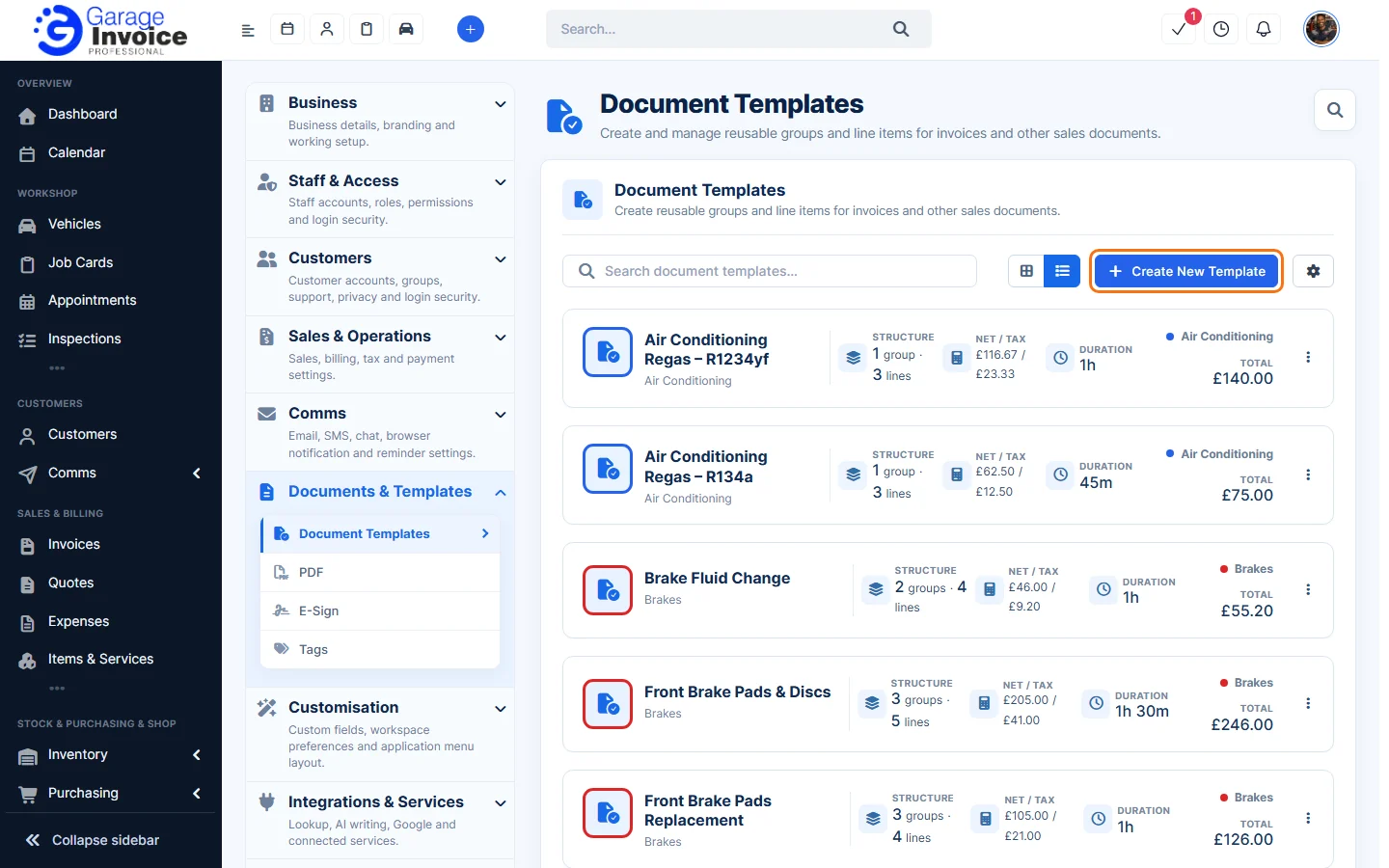
- Each template shows its category, Structure (number of groups and lines), Net / Tax, Duration (labour time) and Total. Use Search document templates to find one, and the two buttons next to it to switch between a grid and a list.
Create a template
- Click Create New Template.
- Enter a Template Name (required) and choose a Category. You can type in the category list to search, or choose Add a new category….
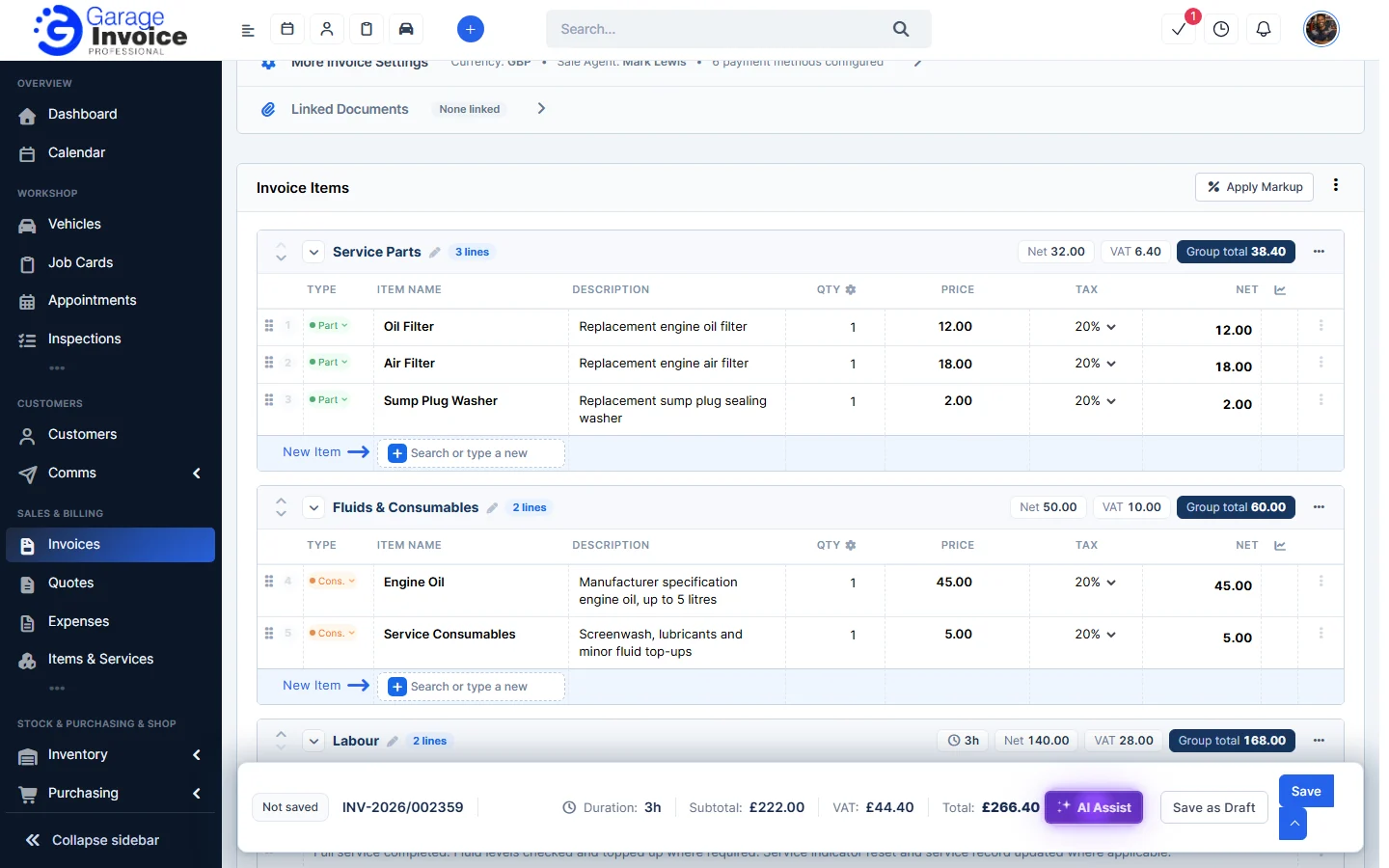
- Add the lines the same way as on an invoice: type in Search or type a new item… to pick an item from Items & Services or type a new one, then fill in the Description, Qty, Price and Tax. The Type label (for example Part, Cons. or Labour) shows what kind of line it is.
- Add Group: adds a group, such as Service Parts, Fluids & Consumables or Labour. Each group shows its own net, VAT and total.
- Document Template: copies the lines of another template into this one.
The Template Summary on the right shows the Net, VAT, Duration and Total.
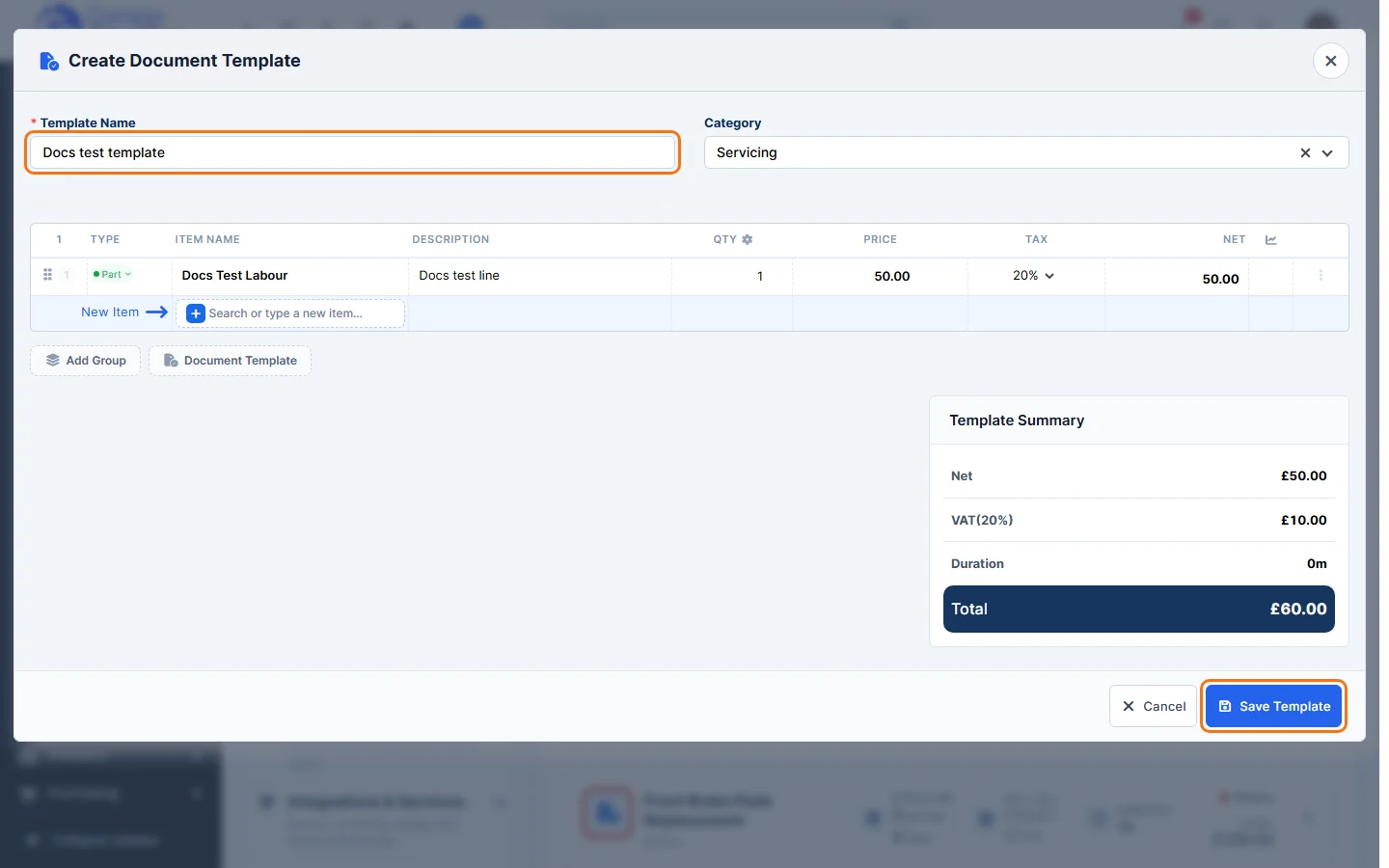
- Click Save Template. You’ll see Document template created successfully.
Edit a template
- Click the template, or click its ⋮ button and choose Edit template. The Edit Document Template window opens.
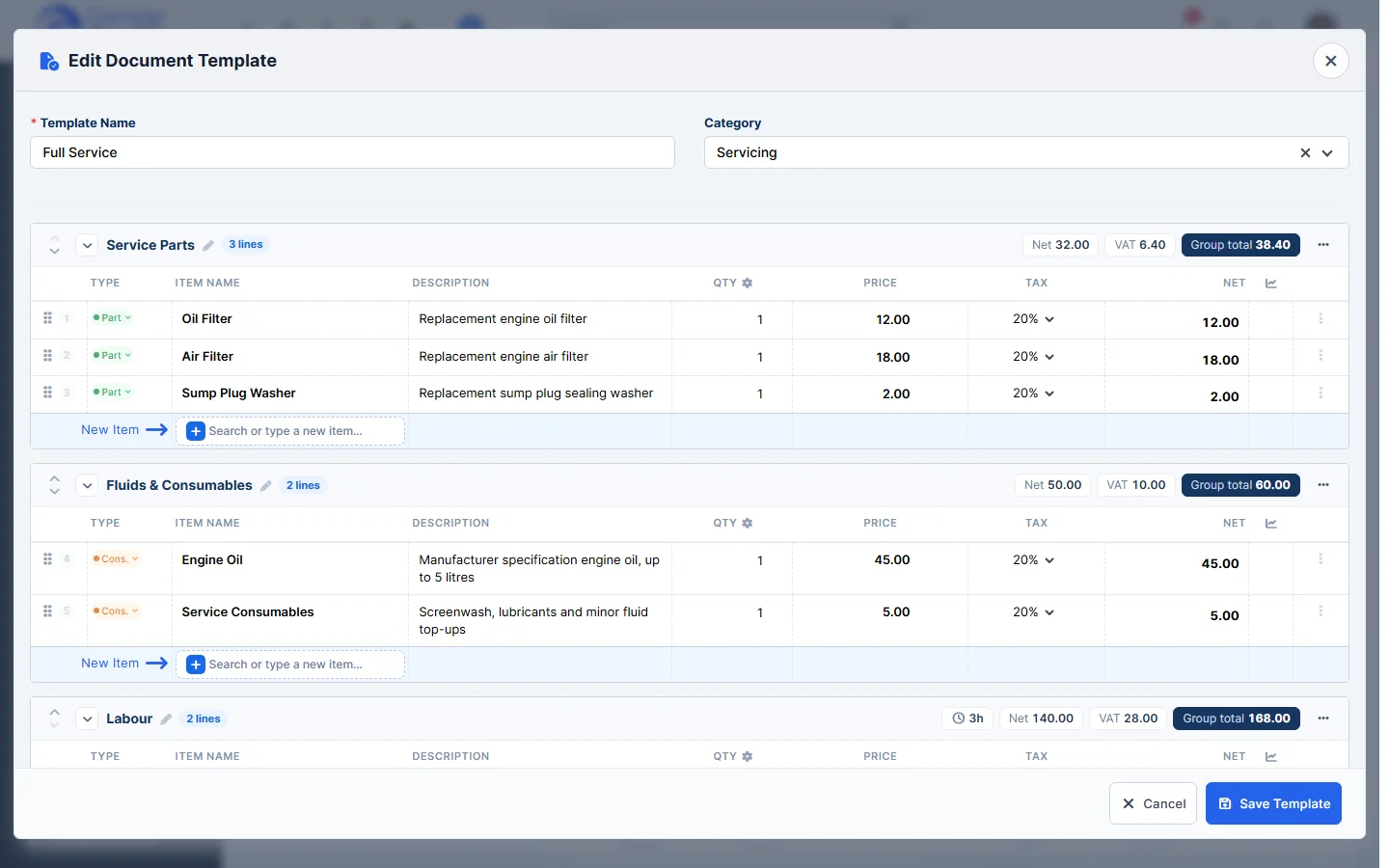
- Change the name, category, groups or lines. Drag a line by its handle to move it, and use the arrows next to a group to move the group up or down.
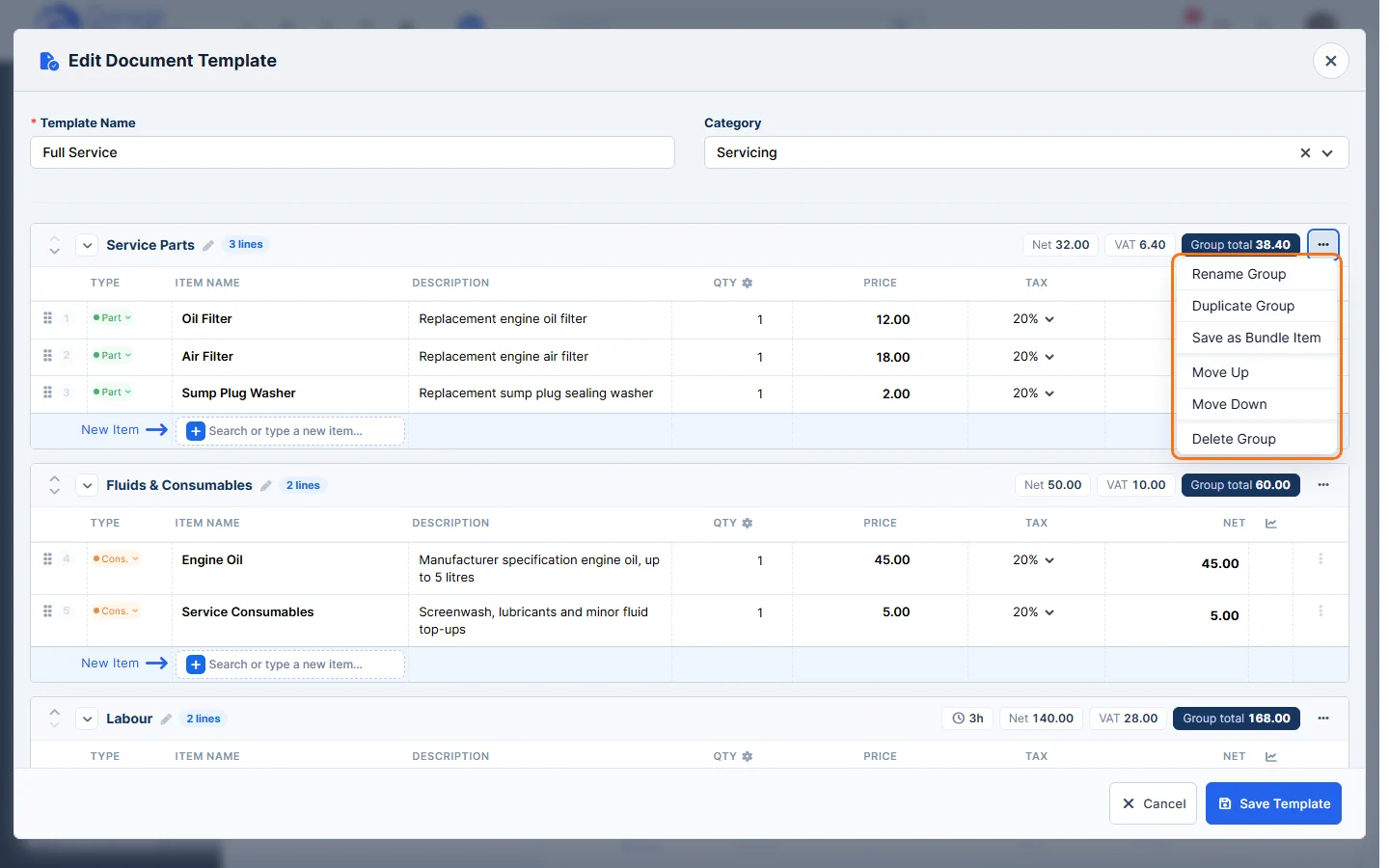
- Click ••• on a group for more options: Rename Group, Duplicate Group, Save as Bundle Item (saves the group as one bundle item in Items & Services), Move Up, Move Down and Delete Group.
- Click Save Template.
Template categories
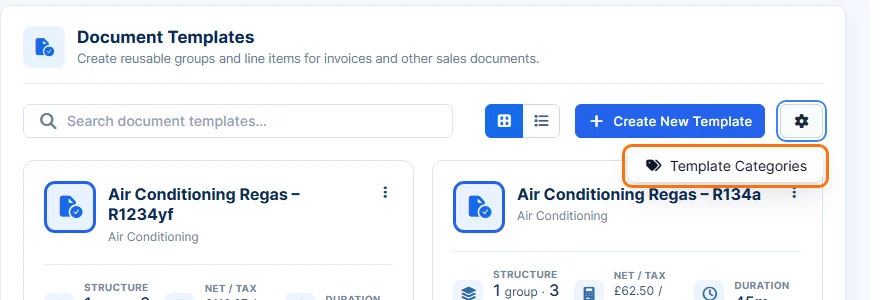
- Click the settings (cog) button next to Create New Template and choose Template Categories.
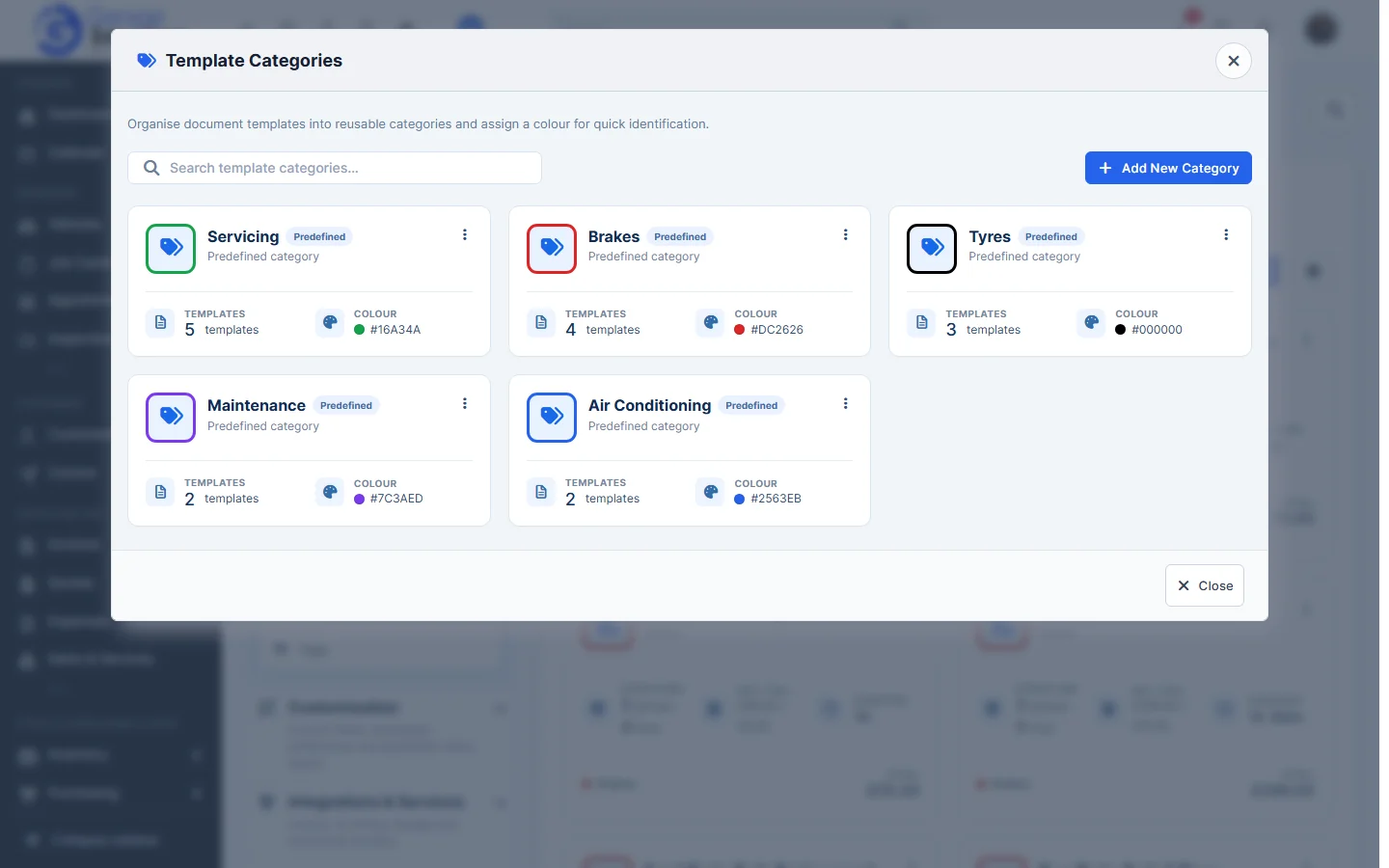
- You’ll see each category with the number of Templates in it and its Colour. The built-in ones are marked Predefined. Click Add New Category to add your own, or use the ⋮ button on a category to change it. The colour helps you spot the category in the template list.
Use a template on an invoice, quote or job card
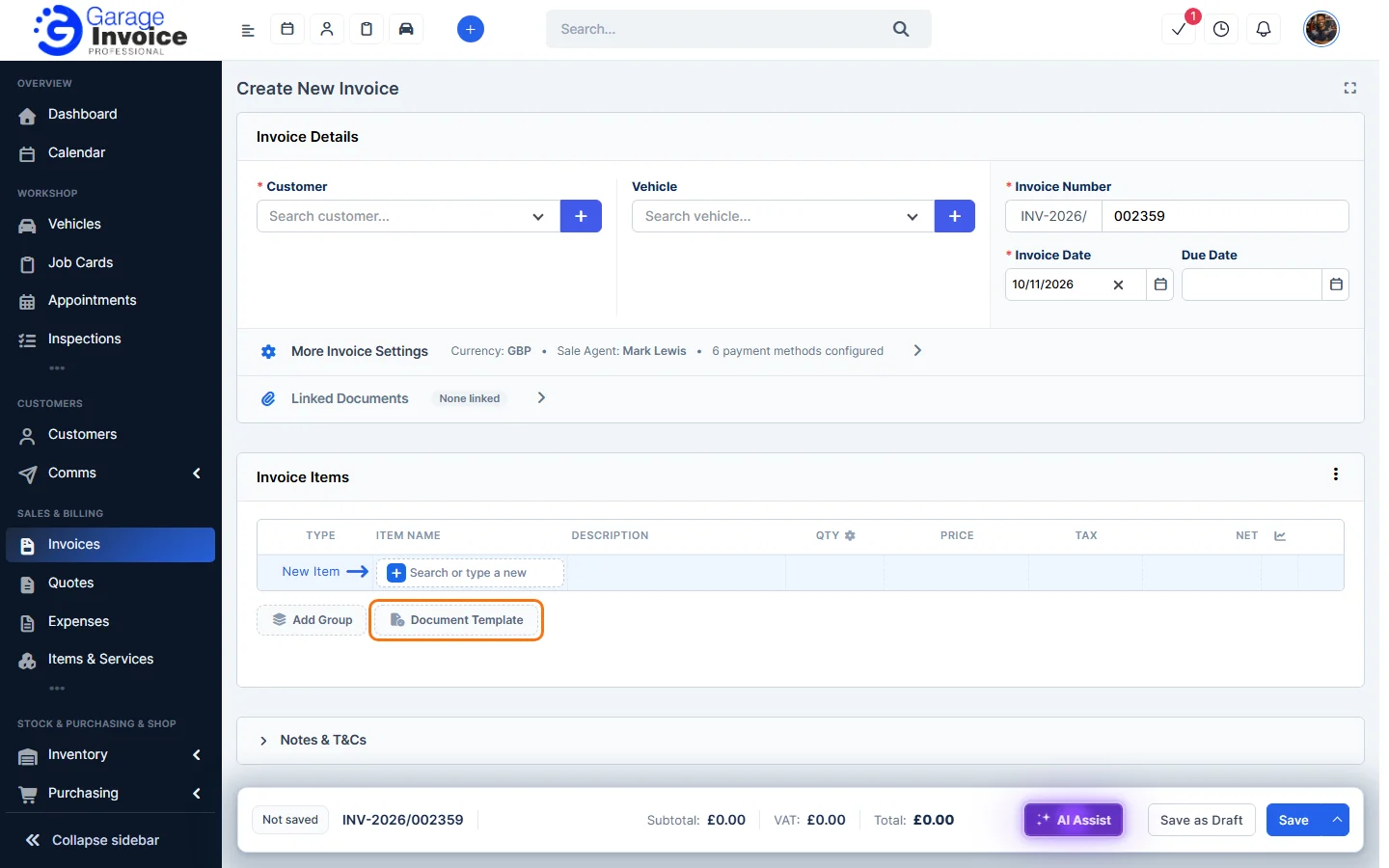
- Open a new or existing invoice, quote or job card and click Document Template under the items (next to Add Group).
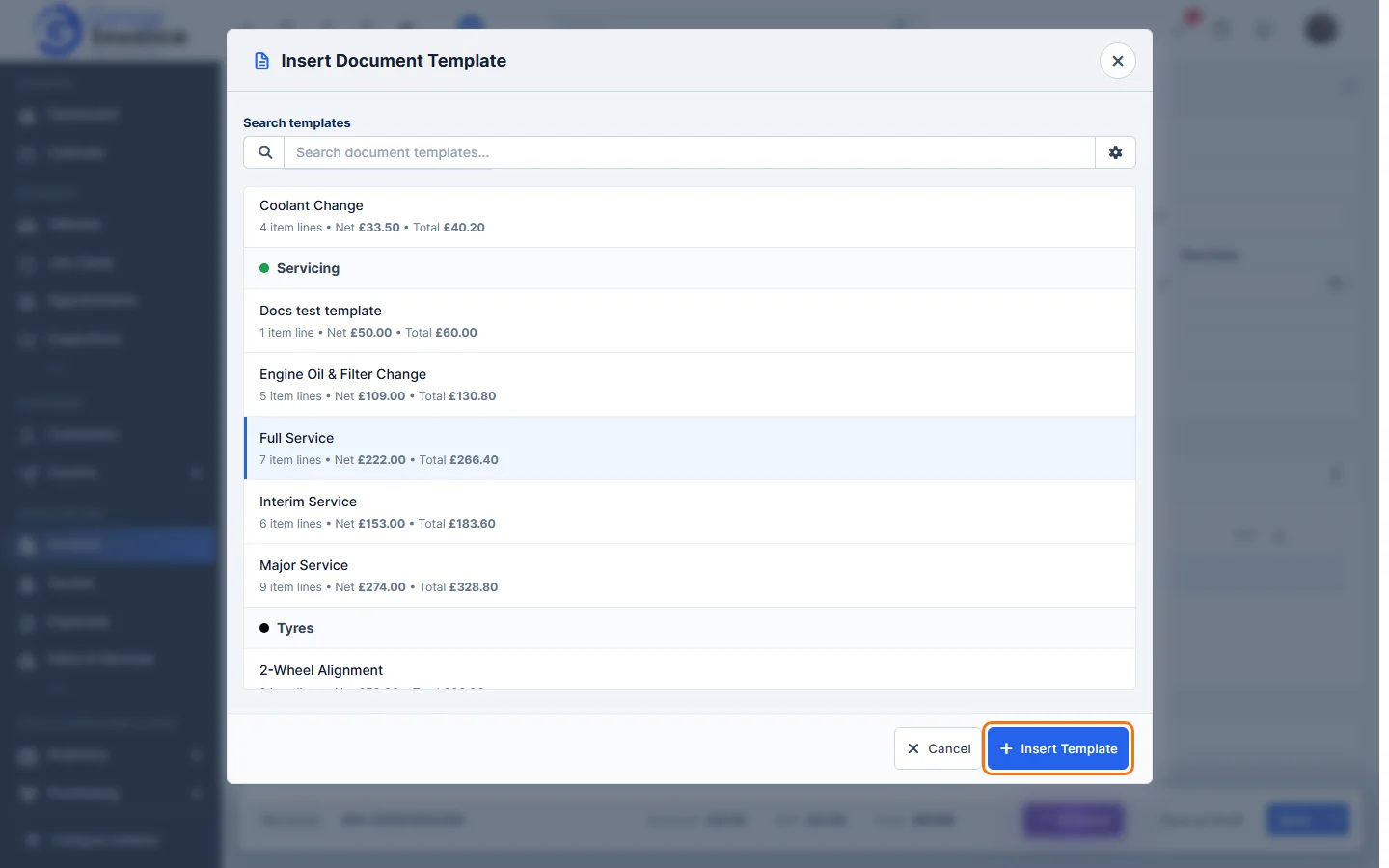
- In Insert Document Template, search or scroll the list (templates are grouped by category and show the number of item lines, net and total), click the template and click Insert Template.
- The template’s groups and lines are added to the document, together with the labour duration. Change any line if this job is different, then save the document as usual.
Delete a template
- Click the template’s ⋮ button and choose Delete.
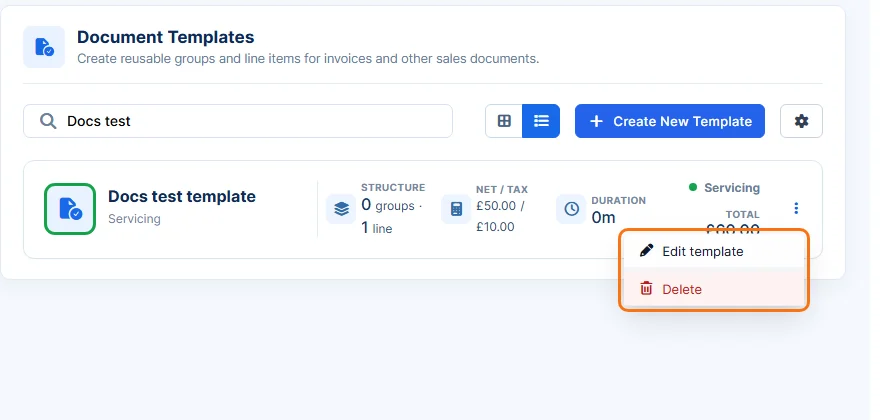
- Your browser asks “Are you sure you want to delete this?” Click OK. This can’t be undone.