
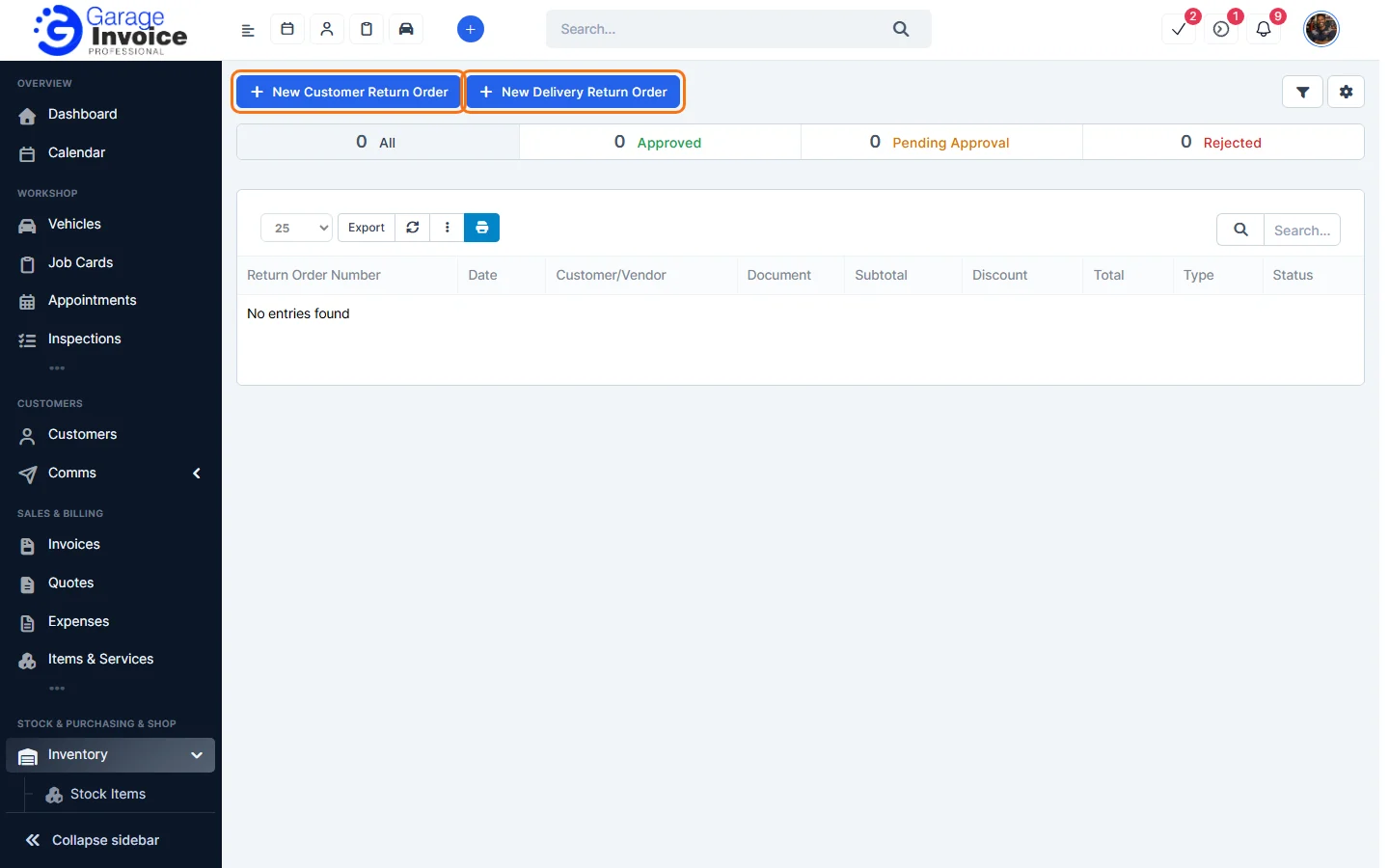
- Click Inventory in the sidebar (under Stock & Purchasing & Shop) and click Return Orders. Click New Delivery Return Order.
- Click Goods Received Note, type the note number and choose the note the items came in on. Check the Vendor, Vendor Email and Vendor Phone Number. The Return Order Number and Date created are filled in for you.
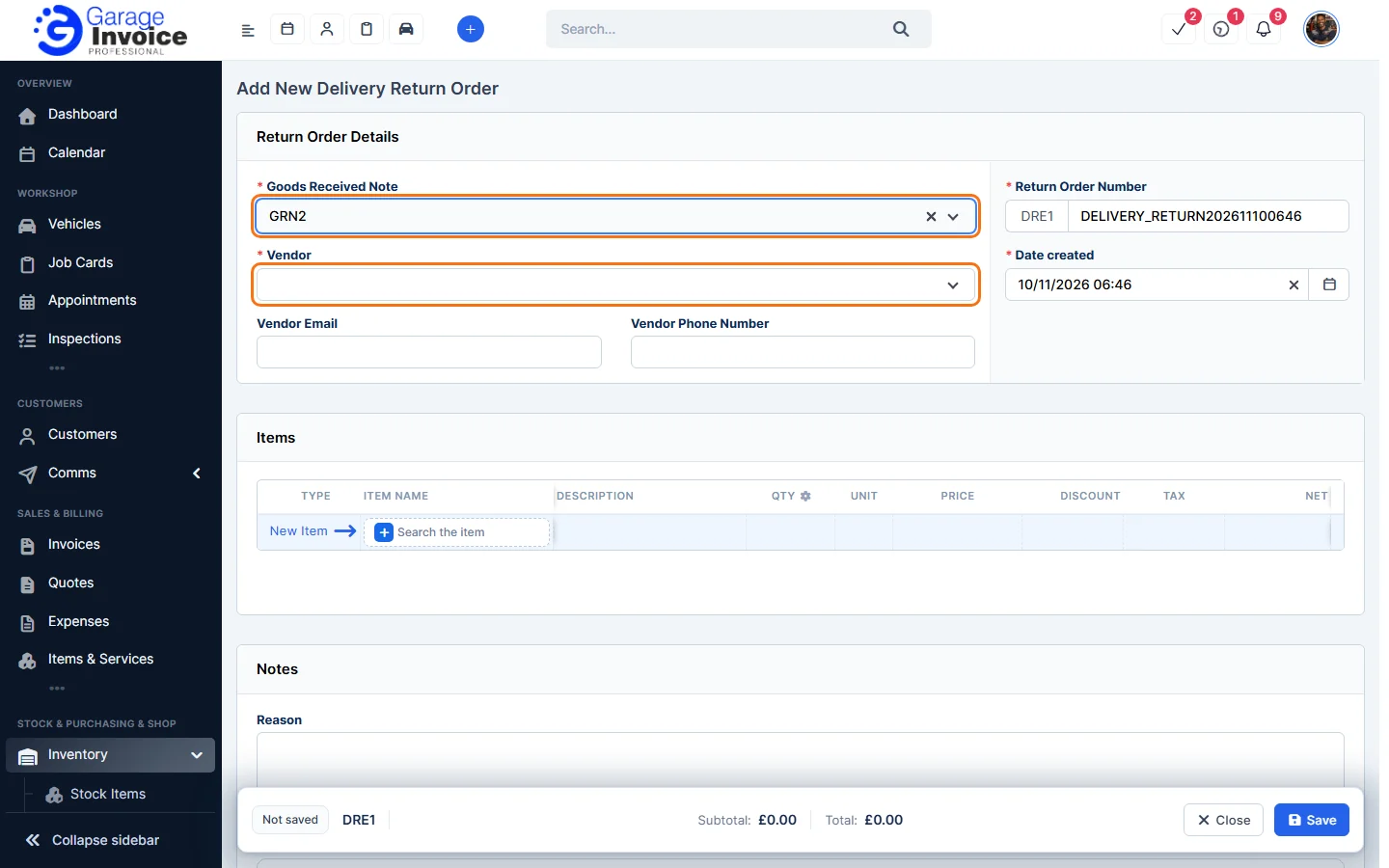
- Check the items and quantities you’re returning.
- Type the Reason, for example “Wrong part supplied”. You can add an Admin note and Return policies information.
- Click Save in the bar at the bottom of the screen.
Note: the Vendor is required, so choose a Goods Received Note that was recorded with a vendor. See Add New Goods Received Note.
Feature Stock and inventory control: see what it does and how it fits your workshop.