
PDF settings control how your documents look when you print, download or email them: invoices, quotes, job cards, credit notes, payment receipts, customer statements and inspections.
Open PDF settings
- Click Settings in the sidebar (under Administration), open Documents & Templates and click PDF.
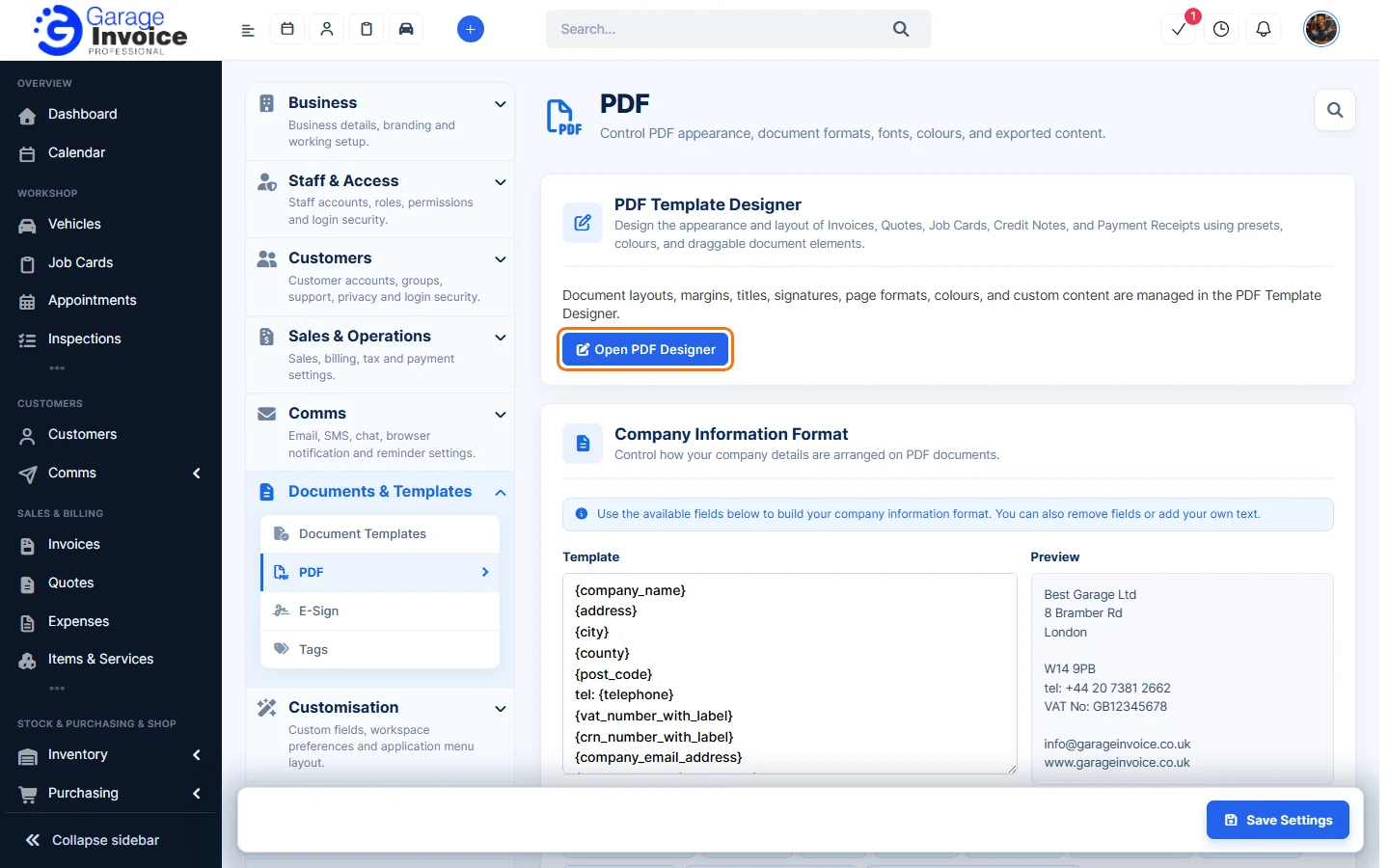
- The page has three parts:
- PDF Template Designer: layouts, margins, titles, signatures, page formats, colours and custom content. Click Open PDF Designer.
- Company Information Format: how your business details are arranged on PDFs.
- Customer Information Format: how your customer’s details are arranged.
Company and customer information format
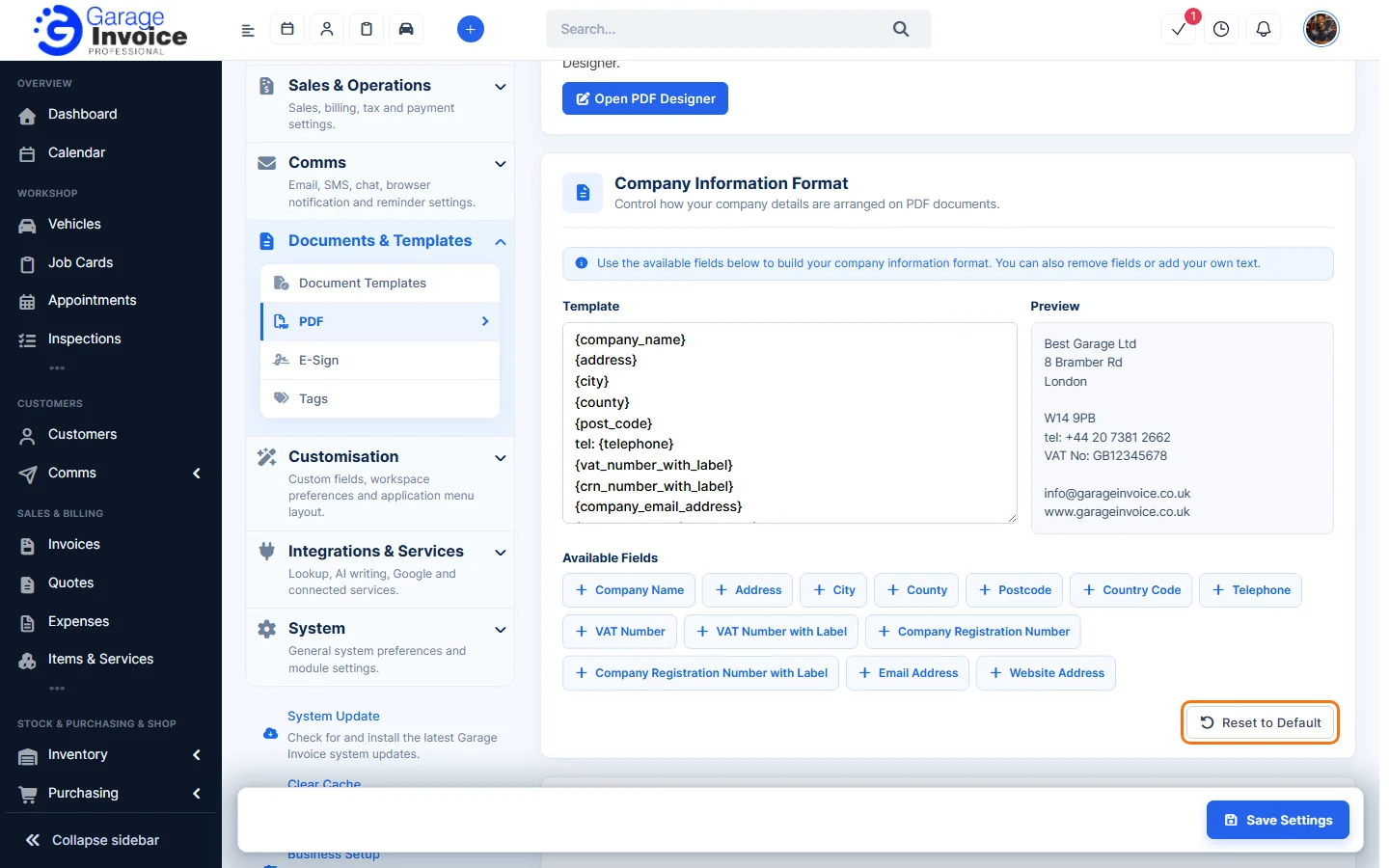
- The Template box holds merge fields such as
{company_name}and{address}, one per line. The Preview next to it shows the result. - Click a field under Available Fields to add it (for example VAT Number with Label, Company Registration Number, Email Address or Website Address). Delete a field from the box to remove it, or type your own text, for example
tel:before the phone number. - Click Reset to Default to go back to the original format, then click Save Settings.
More: Change Company Information Format displayed on PDFs · Change Customer Information Format displayed on PDFs
PDF Template Designer
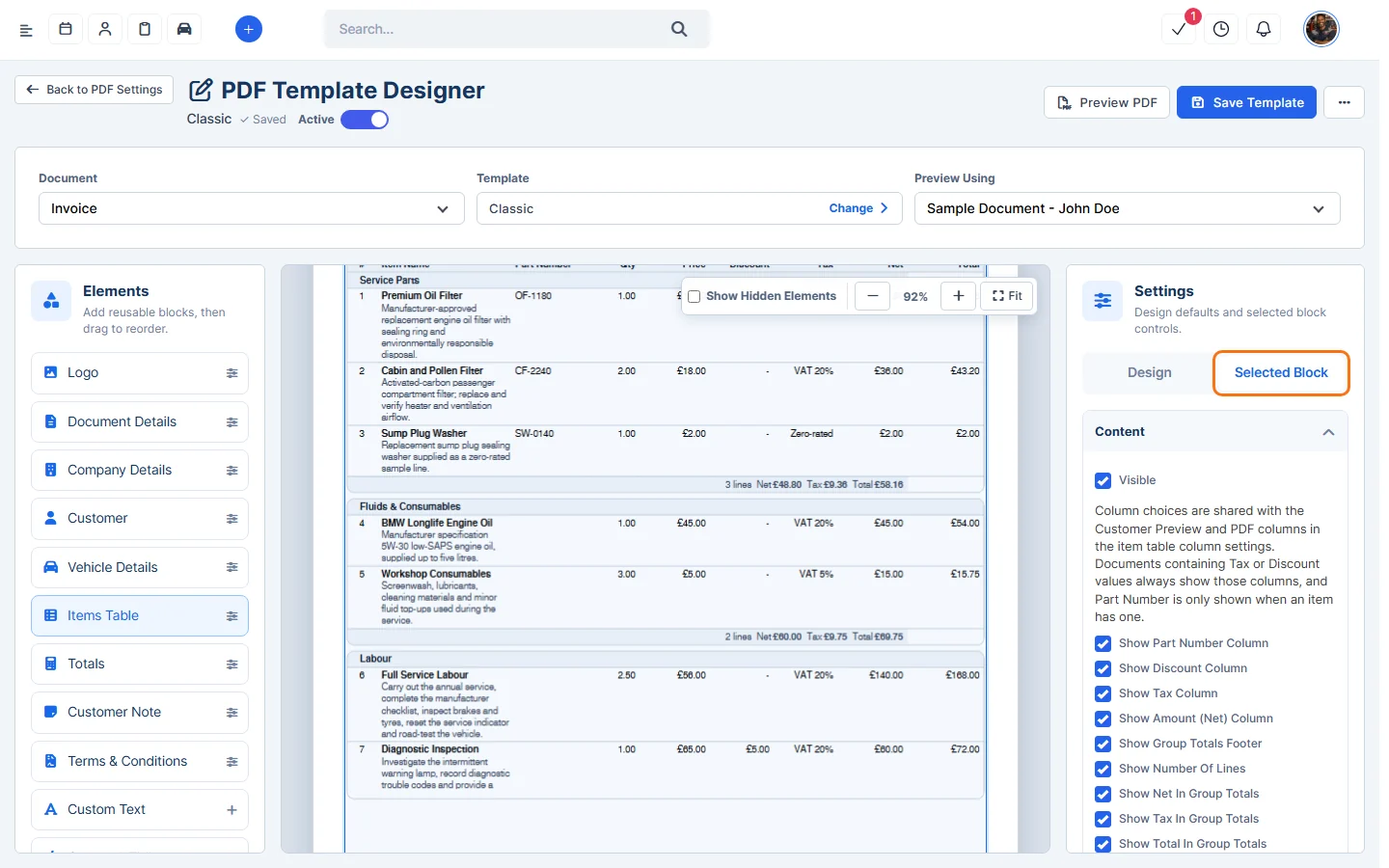
- Click Open PDF Designer. At the top, choose:
- Document: Invoice, Quote, Job Card, Credit Note, Payment Receipt, Customer Statement or Inspection. Each document type has its own design.
- Template: the design in use. Click Change to pick another.
- Preview Using: a Sample Document or one of your real documents, so you can see the design with your own data.
The Active switch under the title shows whether this design is in use.
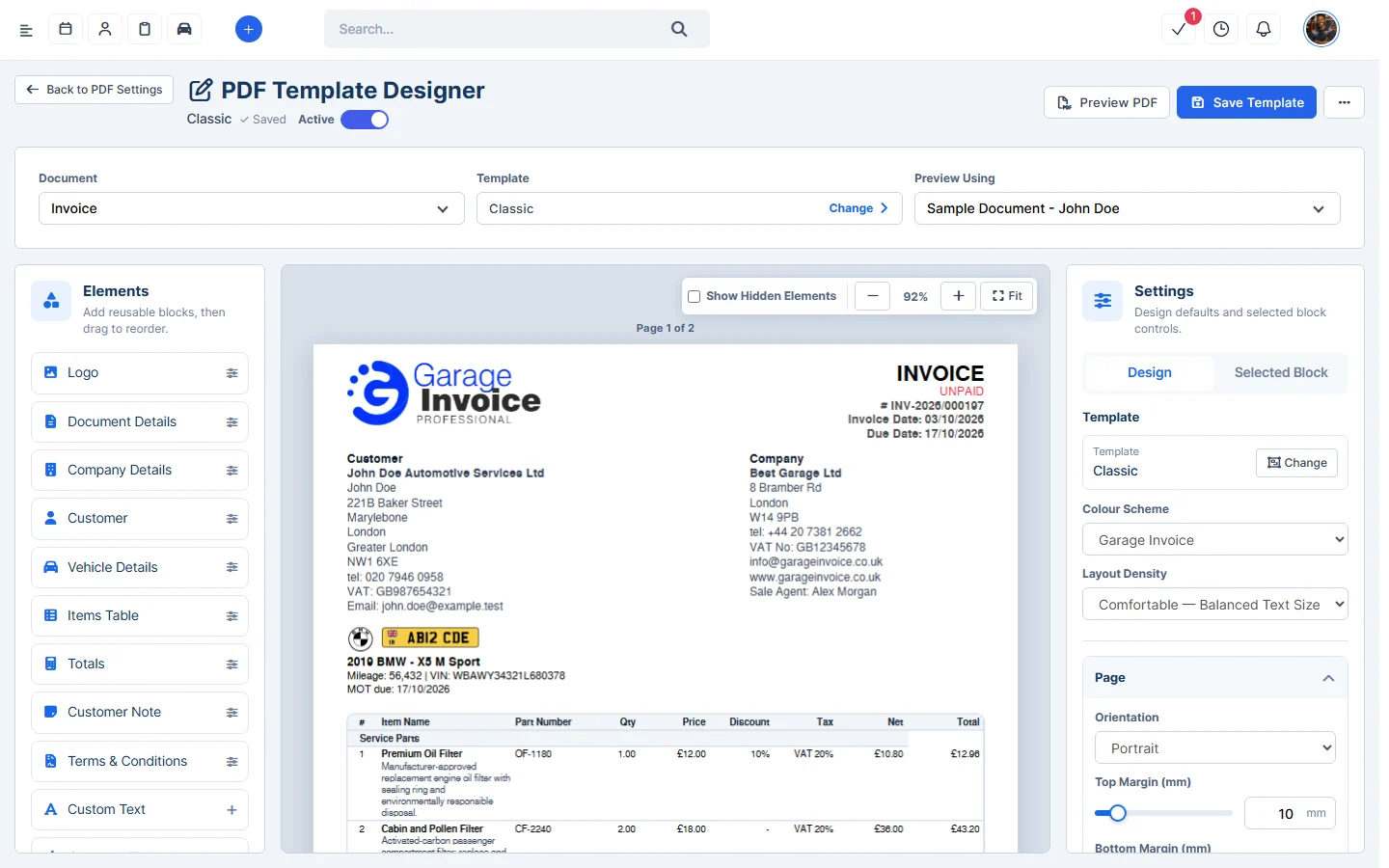
- The three columns are:
- Elements (left): the blocks on the PDF, such as Logo, Document Details, Company Details, Customer, Vehicle Details, Items Table, Totals, Customer Note, Terms & Conditions, Signature, Payment Details and Payments. Drag them to reorder. Click + to add extra blocks: Custom Text, Custom HTML, Custom Image, Social Links, QR Code, Divider, Spacer or Page Break.
- Preview (middle): the PDF page by page. Zoom with −, + and Fit. Tick Show Hidden Elements to see blocks you’ve hidden.
- Settings (right): the Design tab for the whole document and the Selected Block tab for the block you clicked.
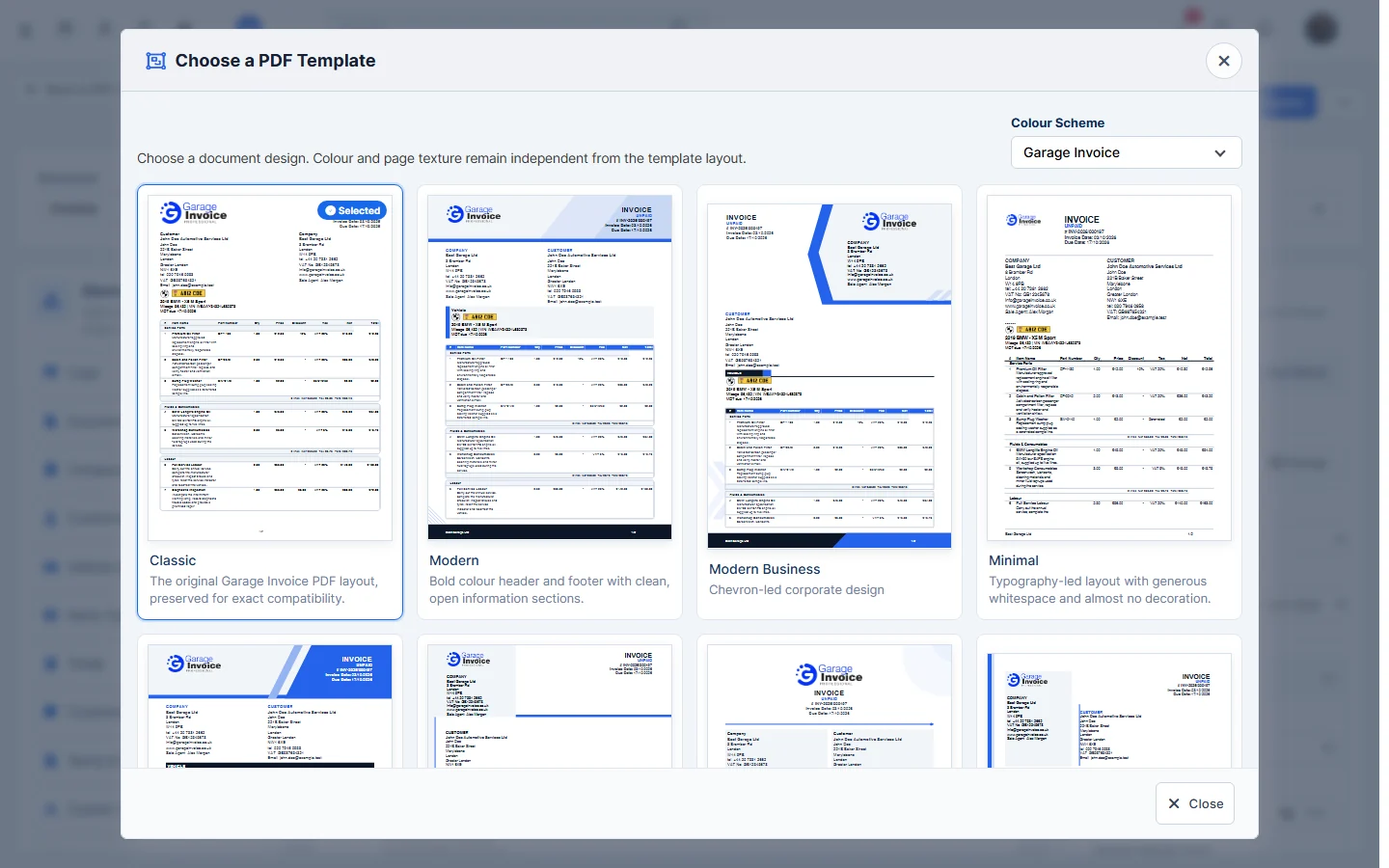
Choose a template
Click Change next to the template. In Choose a PDF Template, click a design: Classic (the original Garage Invoice layout), Modern, Modern Business, Minimal, Banner, Business, Clean, Edge, Editorial, Geometric, Ledger, Studio, Metro, Horizon, Columnar, Executive Ribbon, Construct or Verdant. The colour scheme and page texture stay the same when you change the layout.
Design tab
- Colour Scheme: Garage Invoice, Professional Blue, Slate, Graphite, Emerald, Purple, Warm Grey, Slate Blue, Burgundy, Navy Gold, Teal, Copper, Ocean Steel or Custom.
- Layout Density: Extra Compact (smallest text, most content), Compact, Comfortable (balanced, for everyday documents) or Spacious (larger text and more space).
- Page: Orientation (Portrait or Landscape) and the top, bottom, left and right margins in mm.
- Page Background: a subtle texture behind the content, such as Technical Grid, Tyre Tread, Workshop Gears or Chequered Flag, on Every Page or the First Page Only, with a Texture Intensity.
- Header Background Image and Footer Background Image: upload a JPEG or PNG image, choose Image Fit (Fill Area (Crop), Contain Whole Image or Stretch To Area), height, opacity, lightness, sepia, blur and which pages it appears on.
- Colours: set each colour yourself, for example header background and text, body text, accent, links, table header and alternate table rows, and the total highlight.
- Typography: the PDF-Safe Font, Body Size, Heading Size and Line Spacing.
- Spacing: Section Spacing, Block Spacing and Table Cell Padding in mm.
- Items Table: Show Table Header On Every Group.
- Footer: Show Company Name, Show Page Number, Footer Height and Show Booking Banner (a “book your next service” QR code).
Selected Block tab
Click a block in the Elements list or on the preview to see its own options. For example, the Items Table has Visible and options to show the part number, discount, tax and net columns, group totals and the number of lines. Untick Visible to hide a block, such as the signature or payment details.
Preview, save or reset
- Preview PDF: opens the PDF as your customer will see it.
- Save Template: saves your changes. Until you save, nothing changes on your documents.
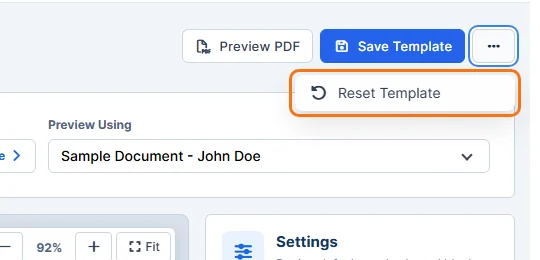
- ••• → Reset Template: puts this document’s design back to its default.
Click Back to PDF Settings when you’re done.
Tip: your logo on PDFs is set in Company Logo, PDF Logo and Browser Icon.
Related: Show/Hide Status on Invoice PDF · Show/Hide Page Numbers on Invoice PDF · Add/Show/Hide Signature on Invoice PDFs · Add/Show/Hide Signature on Quote PDFs