
Customer groups let you sort customers (for example Trade, VIP or Monthly Statement) and give each group its own discounts, notes and terms, payment settings, monthly statements, trade billing and Customer Portal access.
See your groups
- Click Settings at the bottom of the sidebar, under Administration. In the panel on the left, open Customers and click Customer Groups.
- Each card shows how many customers the group has and its Pricing, Payment Terms, Monthly Statement, Trade Billing and Portal settings, and whether it is Active. Use the search box to find a group.
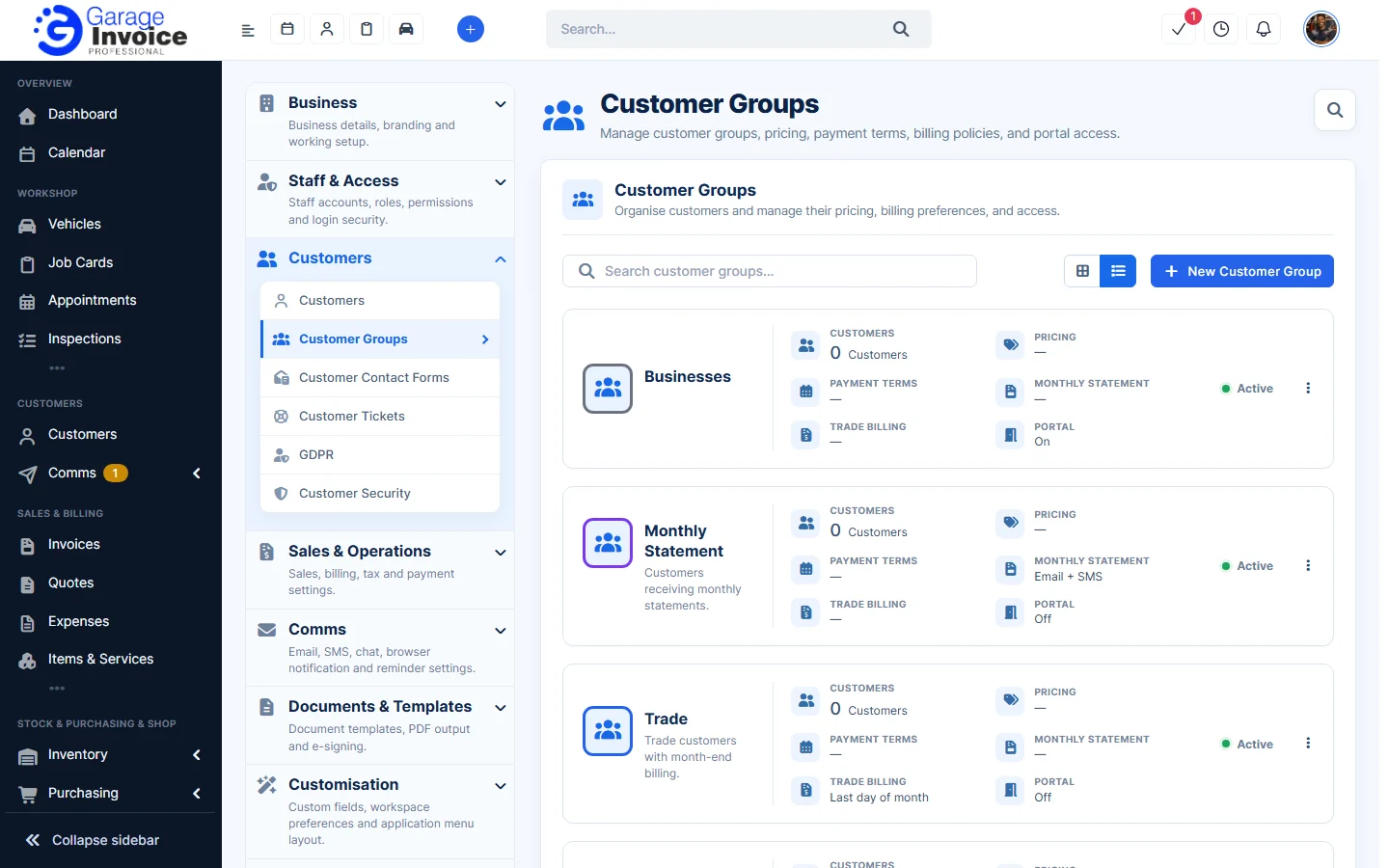
To add a group, see Add New Customer Group. To put customers in a group, see Group Customers | Assign Customer to Group.
Edit a group
- Click ⋮ on the group’s card and choose Edit group.
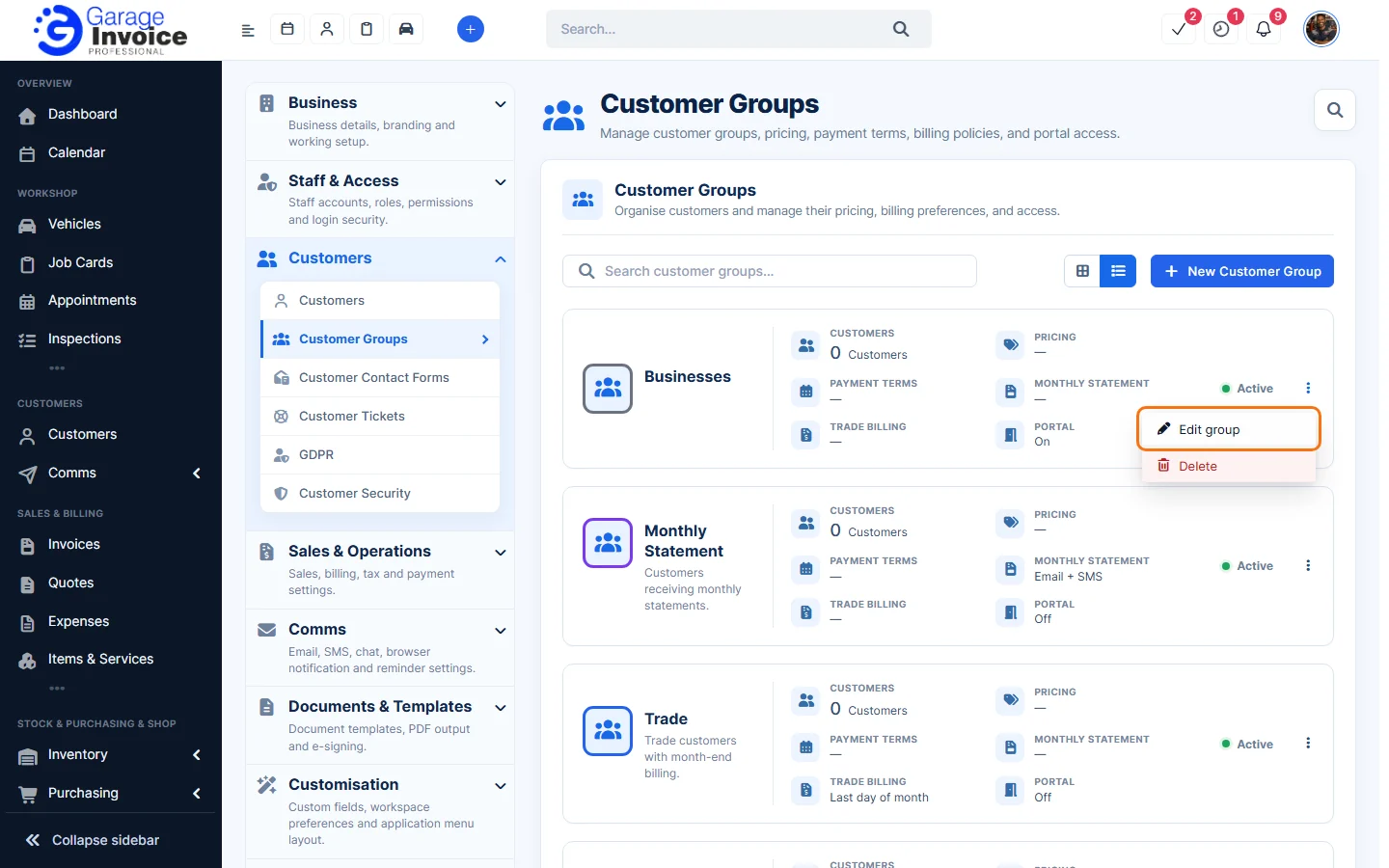
- Make your changes on any tab. The tabs are explained in Add New Customer Group.
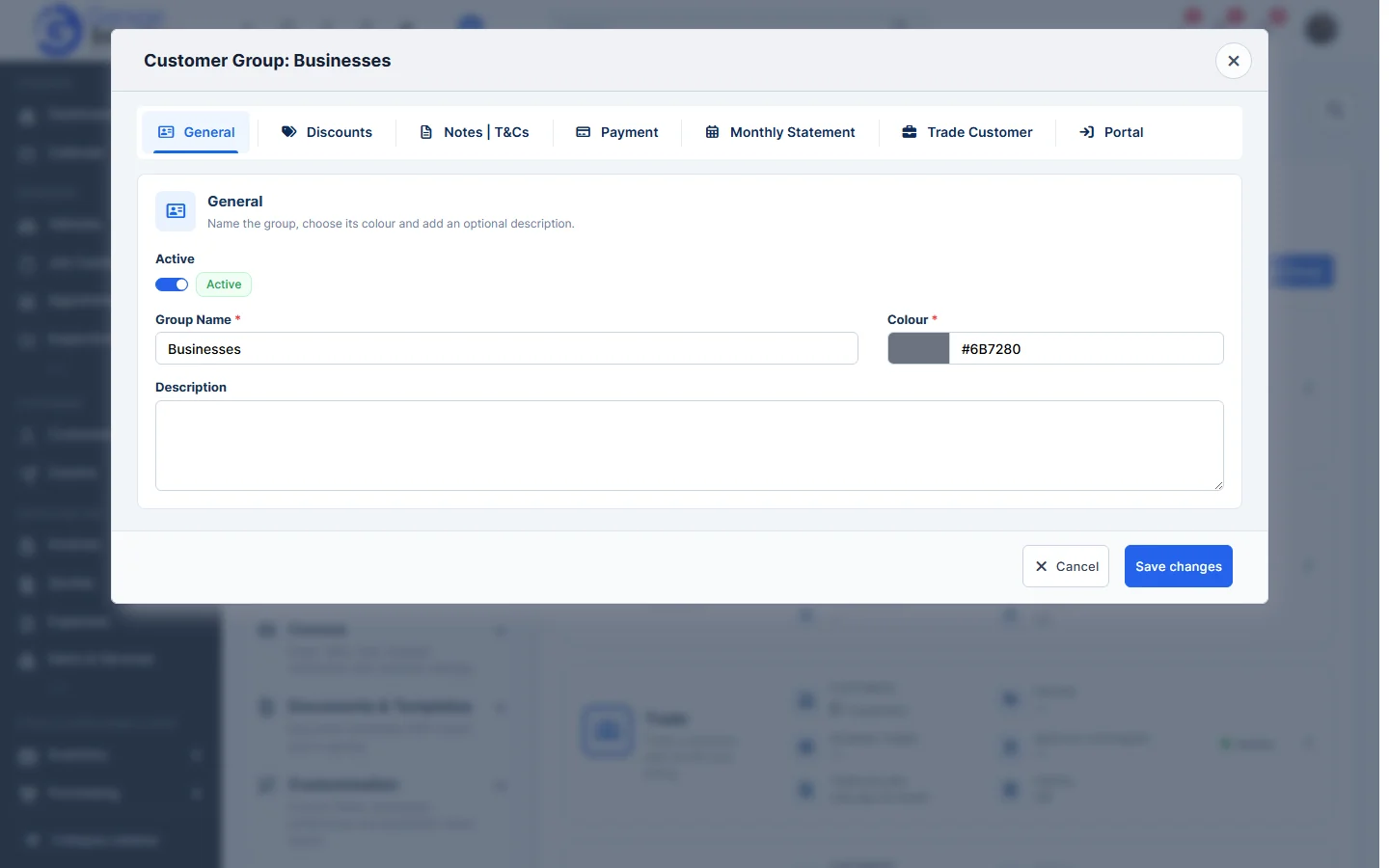
- Click Save changes.
Delete a group
- Click ⋮ on the group’s card and choose Delete.
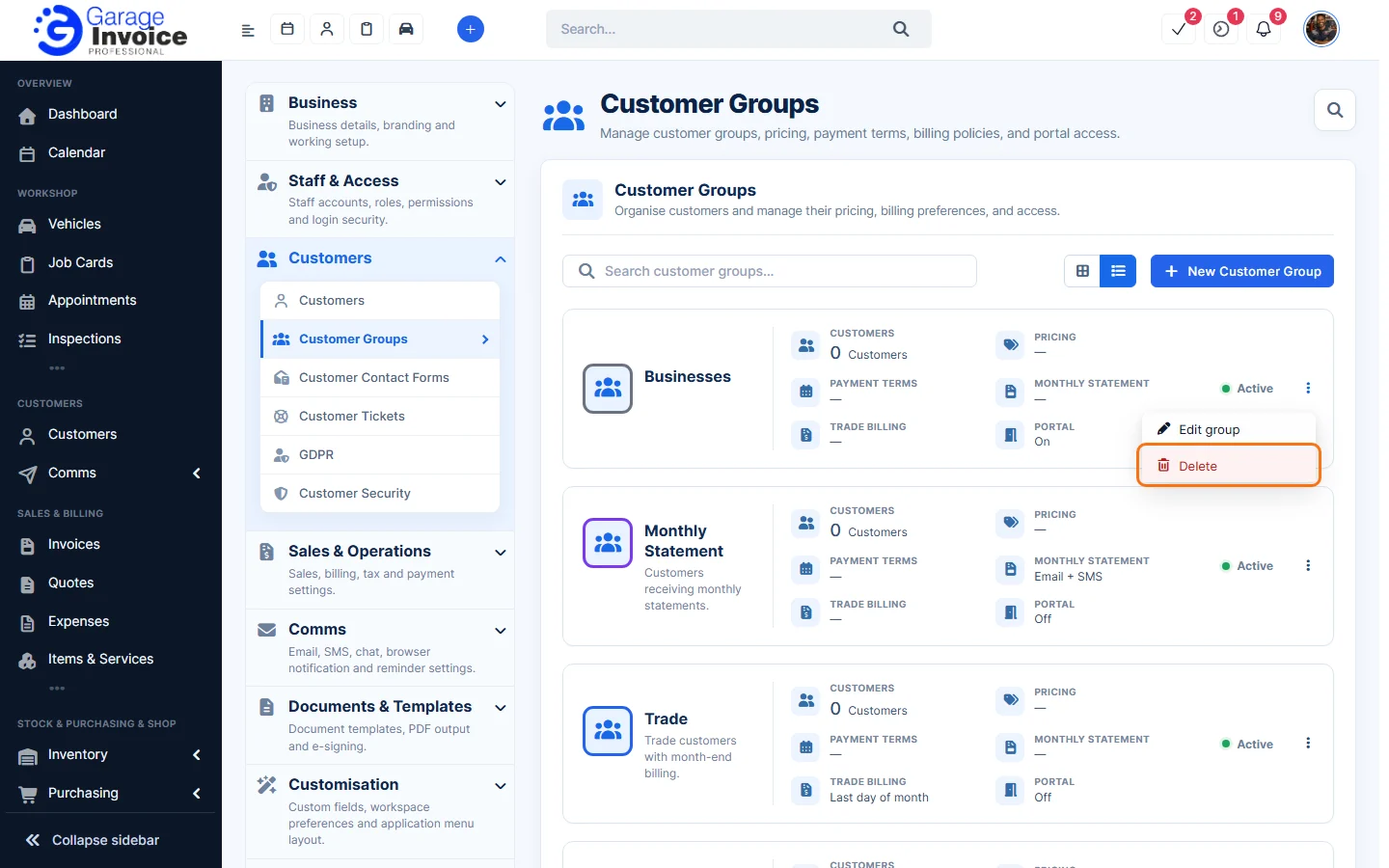
- Your browser asks you to confirm. Click OK.
Tip: to keep a group but stop using it, edit it and turn off Active on the General tab instead.
Feature Customer management: see what it does and how it fits your workshop.