
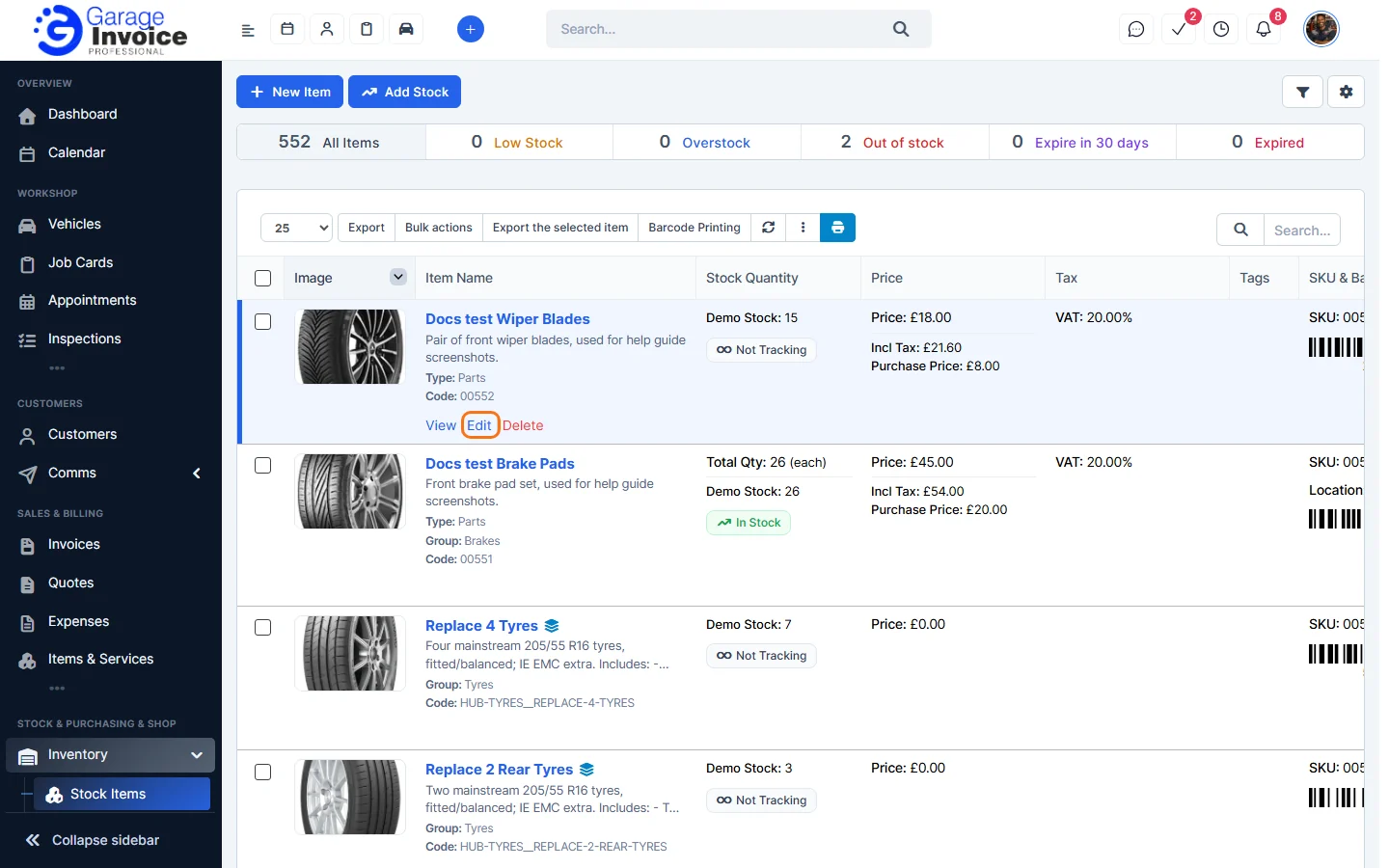
- Click Inventory in the sidebar (under Stock & Purchasing & Shop) and click Stock Items. Hover over the item and click Edit. You can also open the item and click Edit Item.
- The Edit Item window has the same tabs as when you added the item. Change what you need, for example the Price.
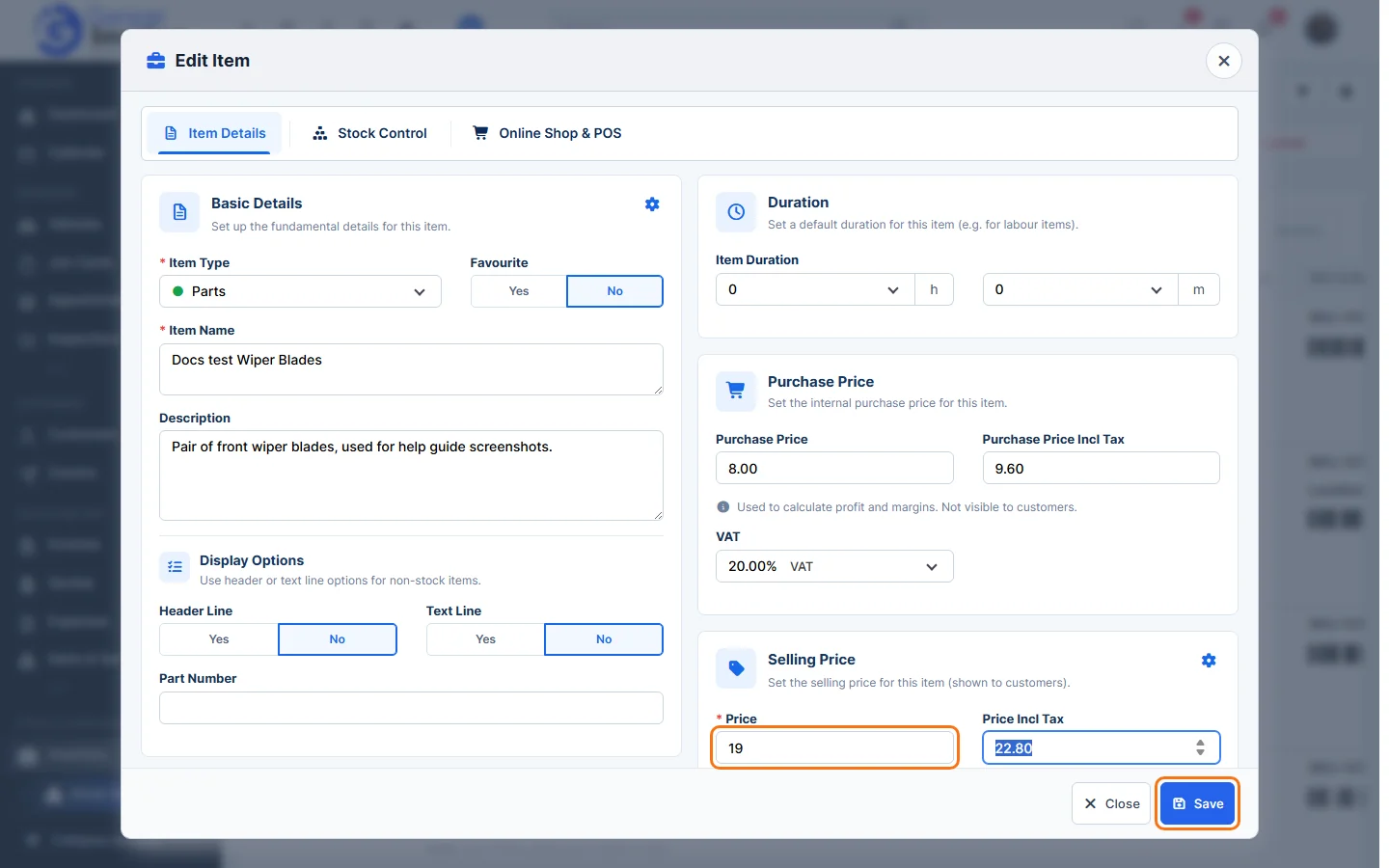
- Click Save.
Change several items at once
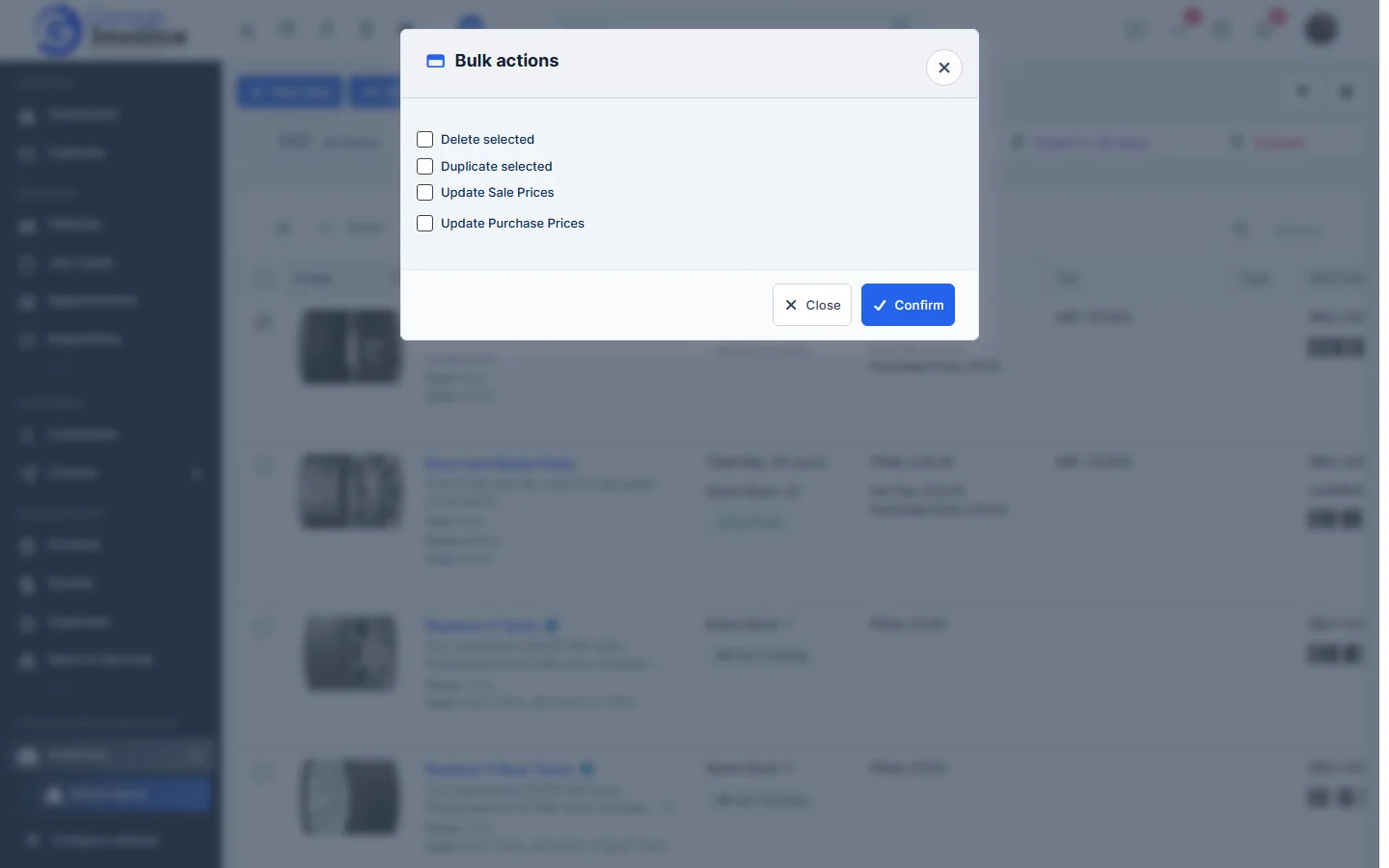
- Tick the items in the list and click Bulk actions.
- Choose Duplicate selected, Update Sale Prices or Update Purchase Prices and click Confirm.
Note: to change the stock quantity, don’t edit the item. Add stock or record a stock adjustment instead. See Add Stock to an Item and Add New Stock Adjustment.
Feature Stock and inventory control: see what it does and how it fits your workshop.