
- Click Shop & POS in the sidebar (under Stock & Purchasing & Shop) and click Orders. and click Create Order.
- Under Customer, start typing and choose the customer (or click + to add a new one). Choose the Allowed payment modes for this Order.
- Click More Order Settings to change the Currency and Sale Agent or add an Admin note.
- Under Order Items, use Add item to pick items, or type a new line in New Item. Change quantities, prices, discounts and tax on each line.
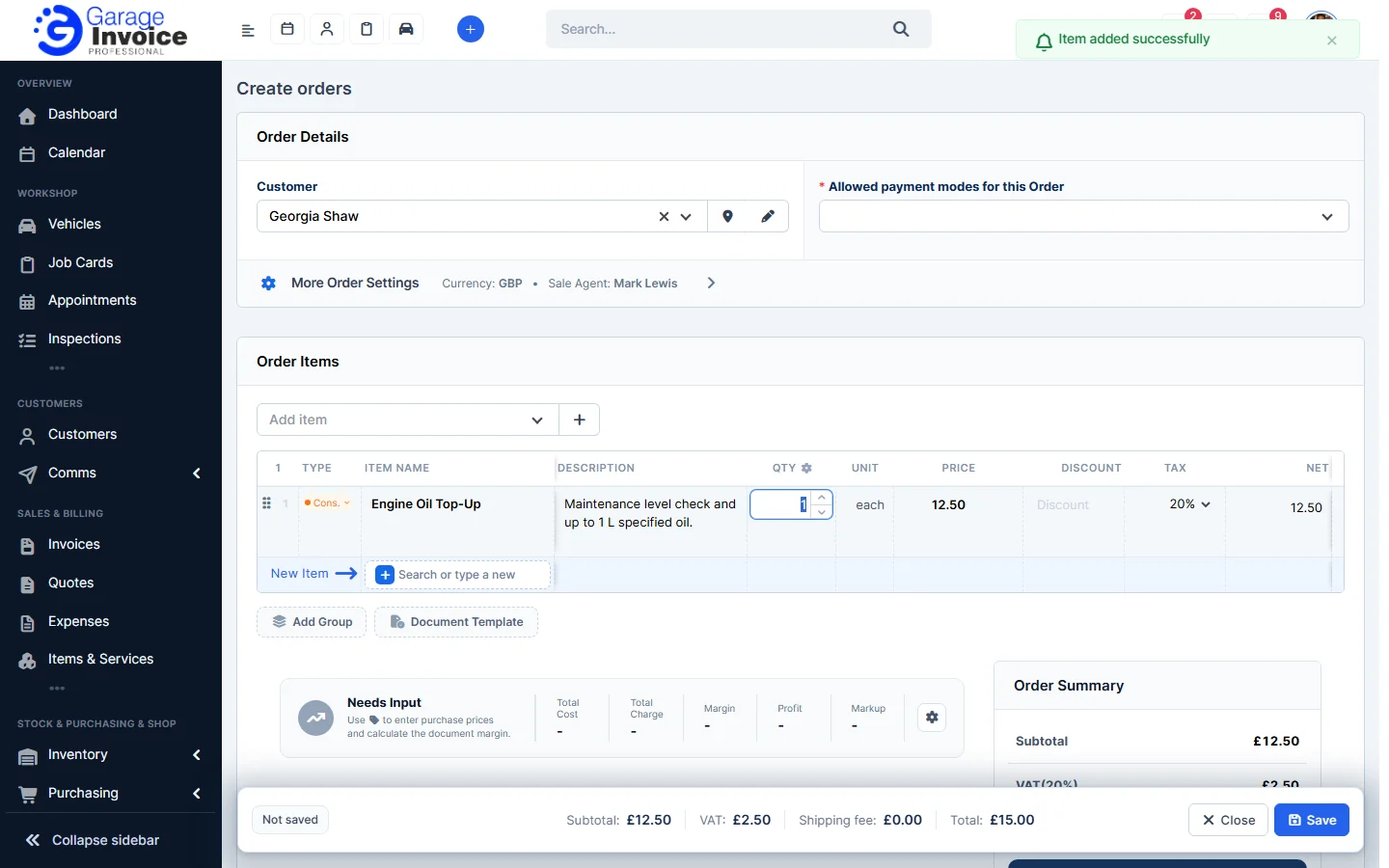
- Check the totals at the bottom and click Save. The order is saved as a Draft with channel MANUAL.
See also: Invoice a Manual Order and Mark it as Paid · Edit an Order
Feature Online shop and POS: see what it does and how it fits your workshop.