
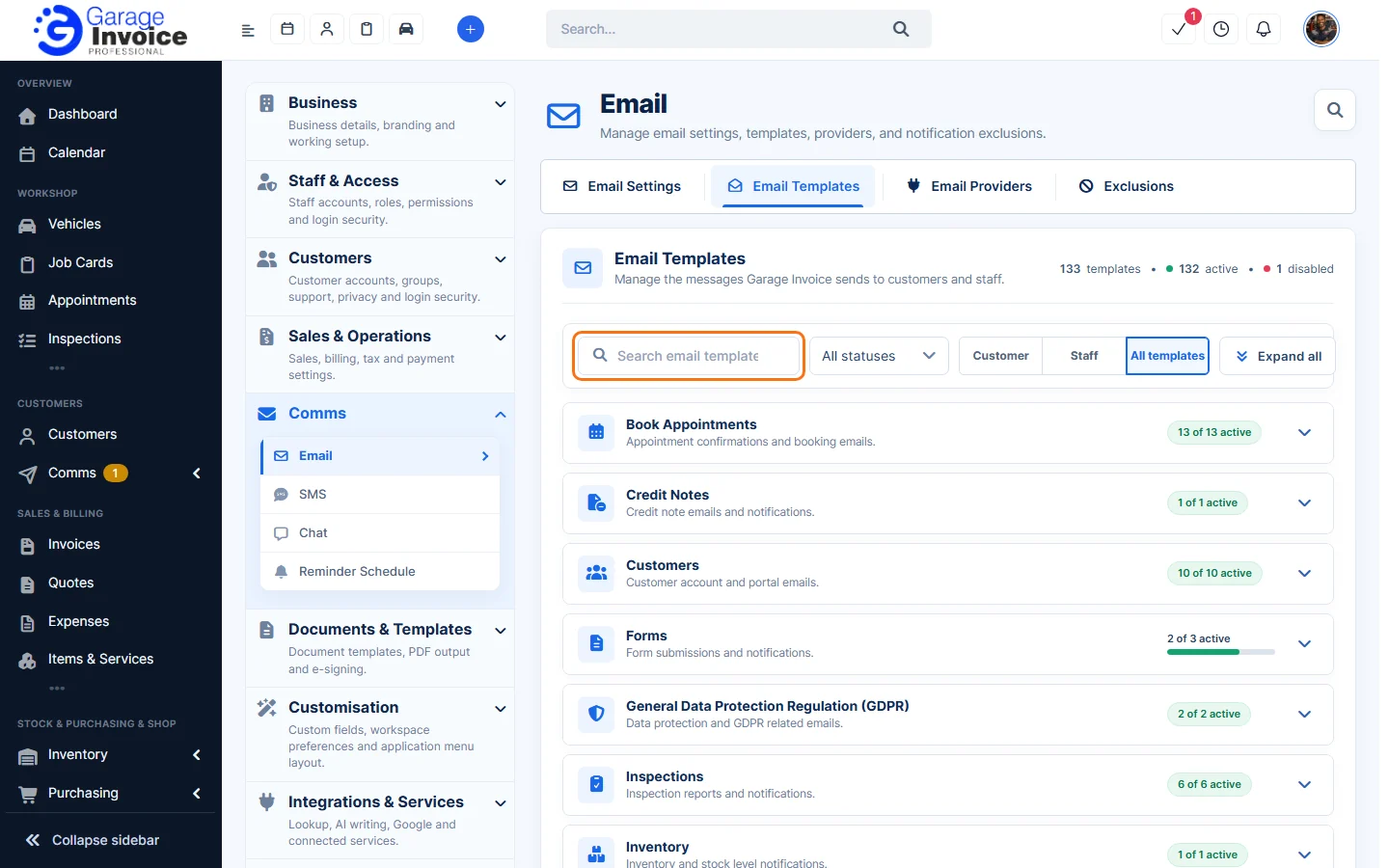
- Click Settings at the bottom of the sidebar, under Administration. In the panel on the left, open Comms and click Email. Click the Email Templates tab. The top shows how many templates there are, and how many are active and disabled.
- Find the email you need:
- Type in Search email templates.
- Use the status filter to show All statuses, Active or Disabled templates.
- Click Customer or Staff to show only emails sent to customers or to staff, or All templates.
- Click Expand all to open every group.
- Click a group, for example Invoices, to open it. Each email has a short description of when it is sent and who gets it. Click Enable All or Disable All to switch the whole group.
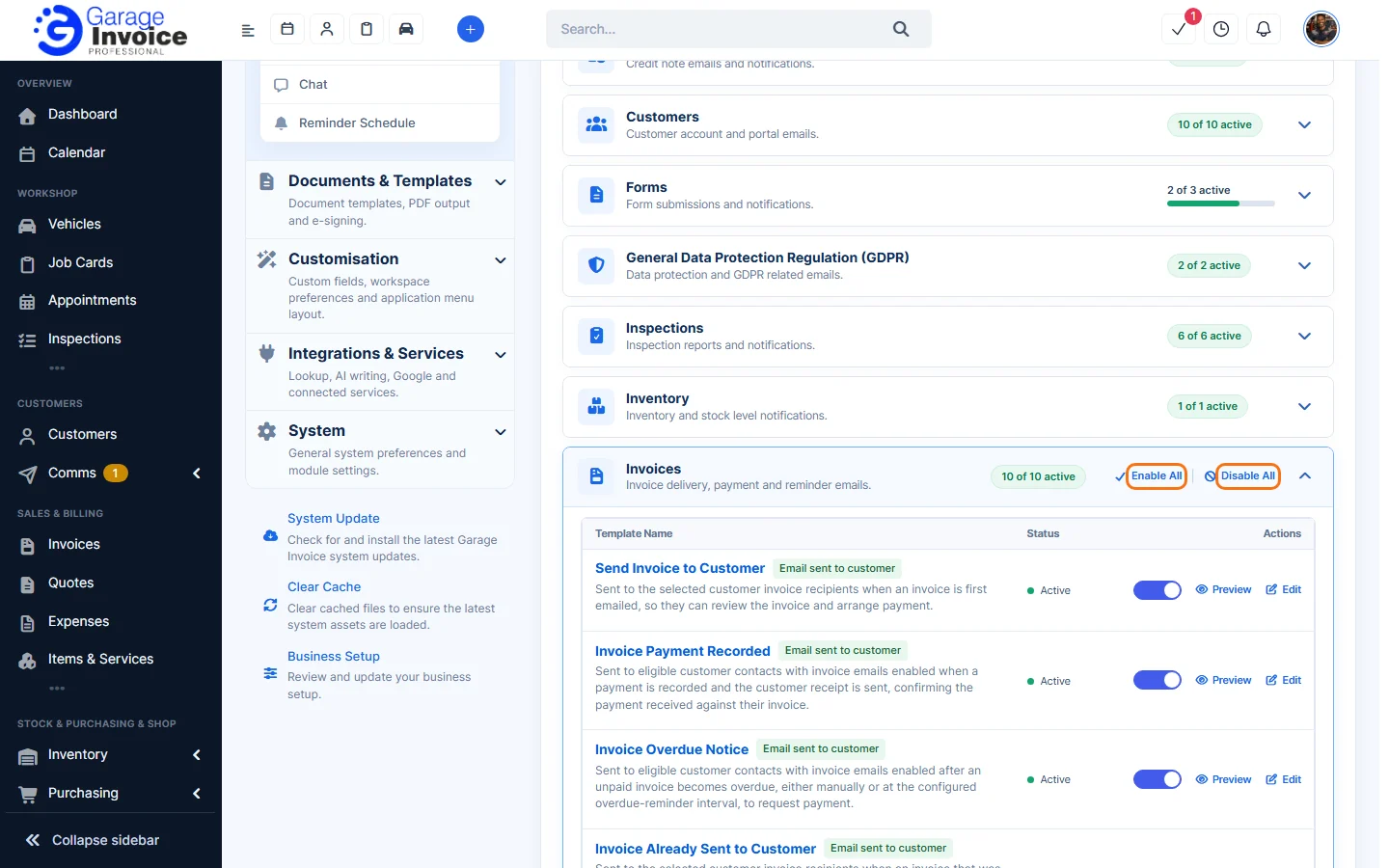
- To switch one email, click the switch in its row. Or click Edit, use the switch next to the template name, and click Save Template.
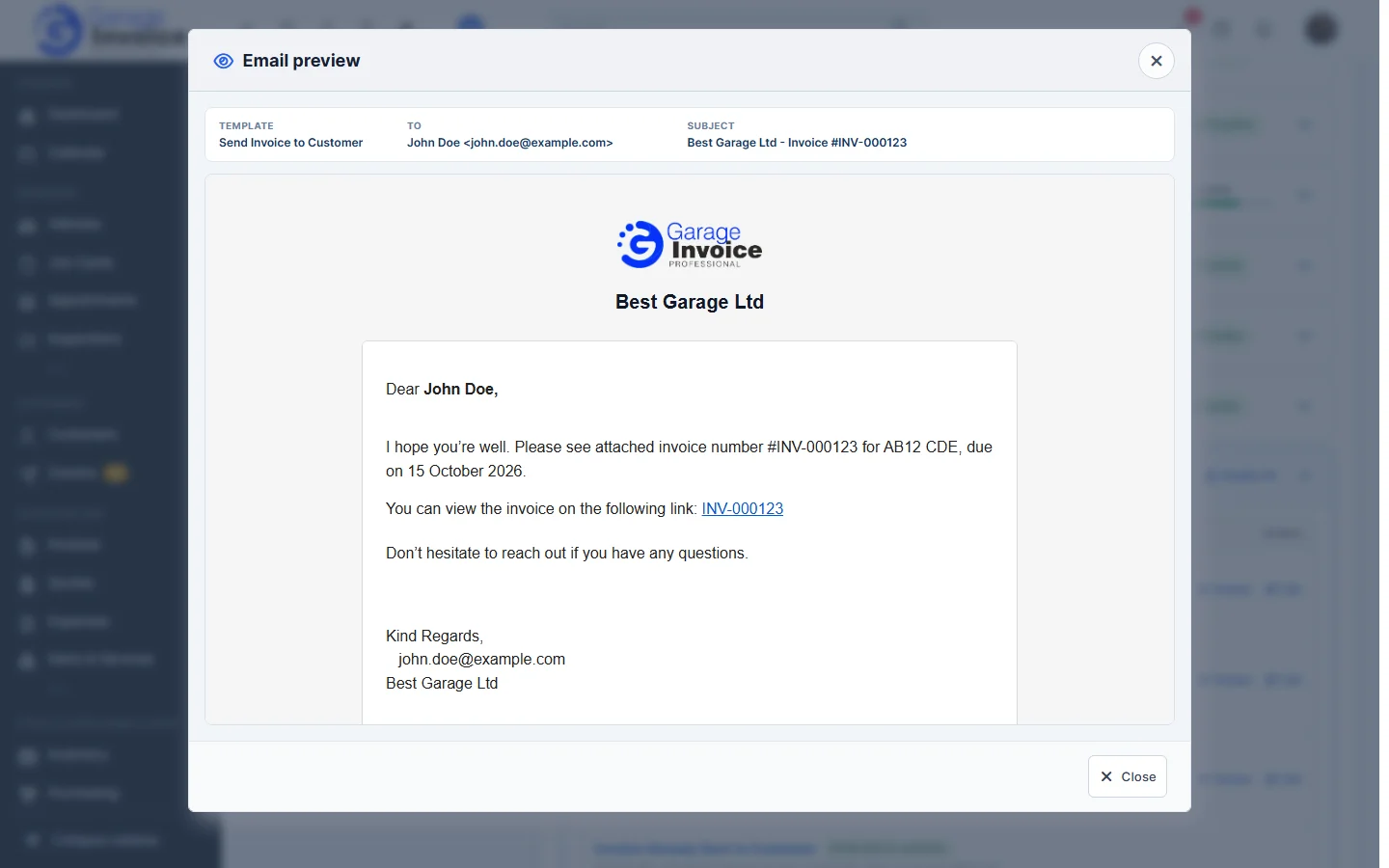
- Click Preview to see an example of the email, with who it goes to and the subject.
Note: a disabled email is not sent at all, even when you would normally send it by hand.
See also: Edit Email Template
Feature Email and SMS notifications: see what it does and how it fits your workshop.