
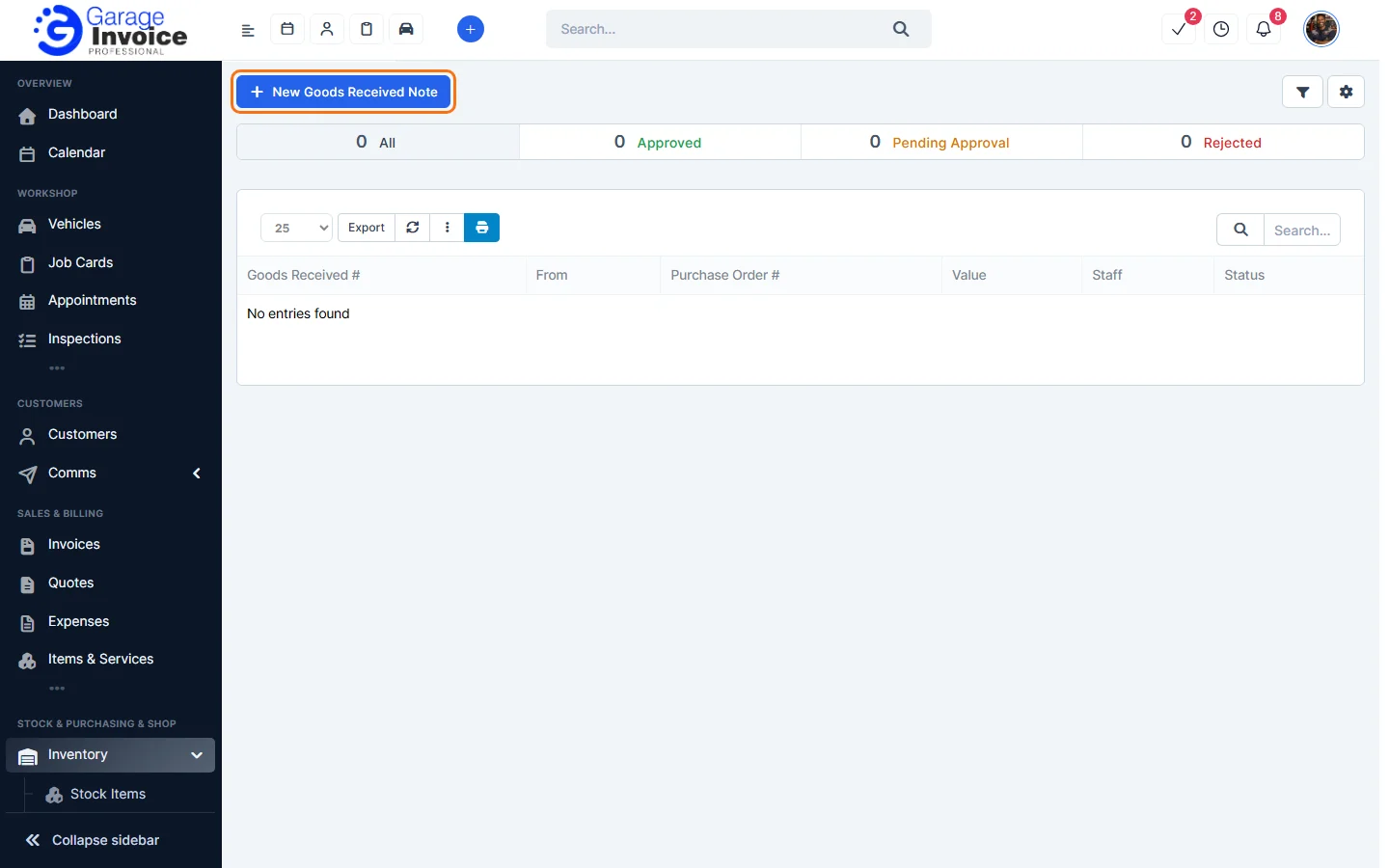
- Click Inventory in the sidebar (under Stock & Purchasing & Shop) and click Goods Received. Click New Goods Received Note.
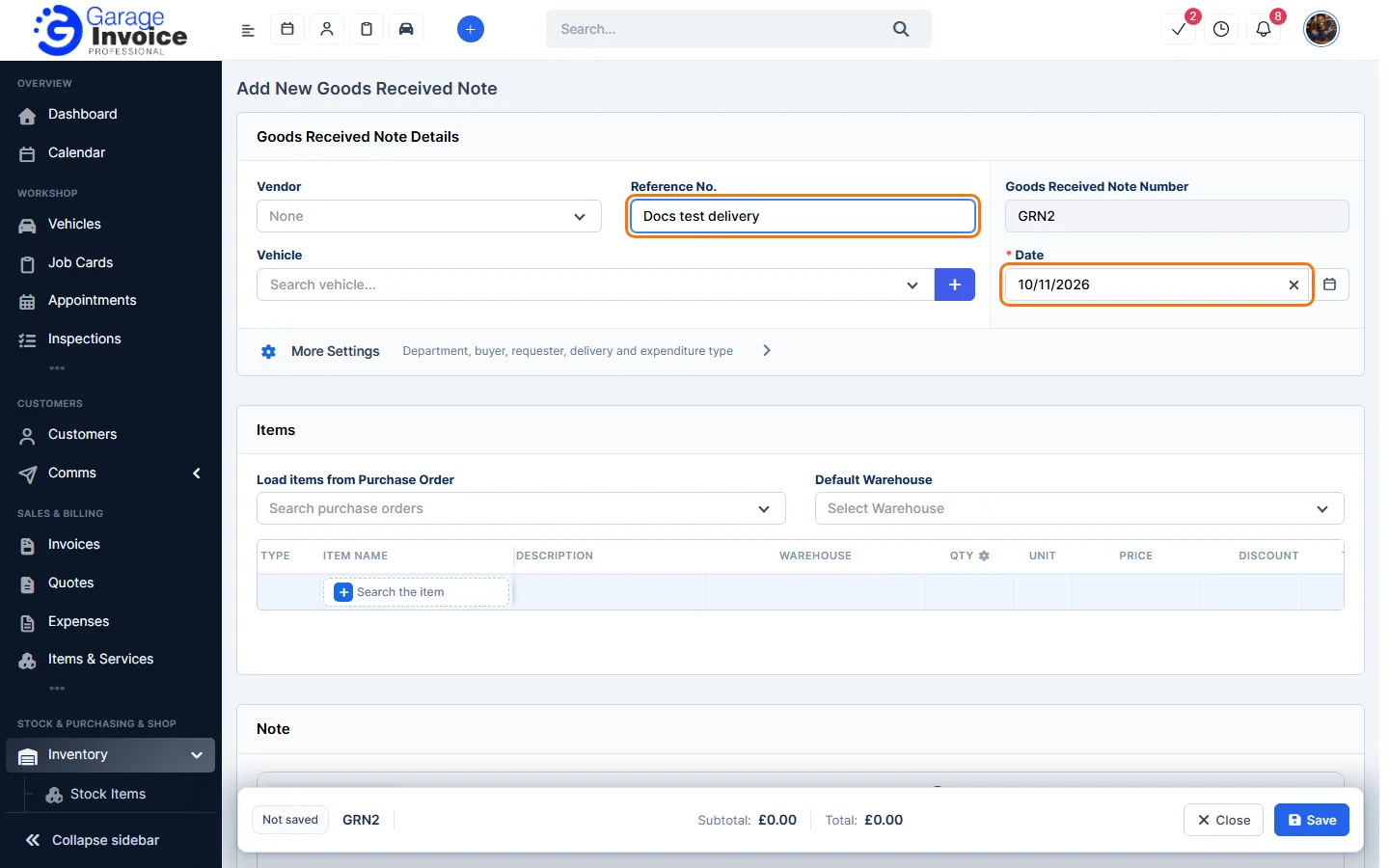
- Under Goods Received Note Details, choose the Vendor and add a Reference No., for example the supplier’s delivery note number. You can link a Vehicle. The Goods Received Note Number and Date are filled in for you. Click More Settings for the department, buyer, requester, delivery and expenditure type.
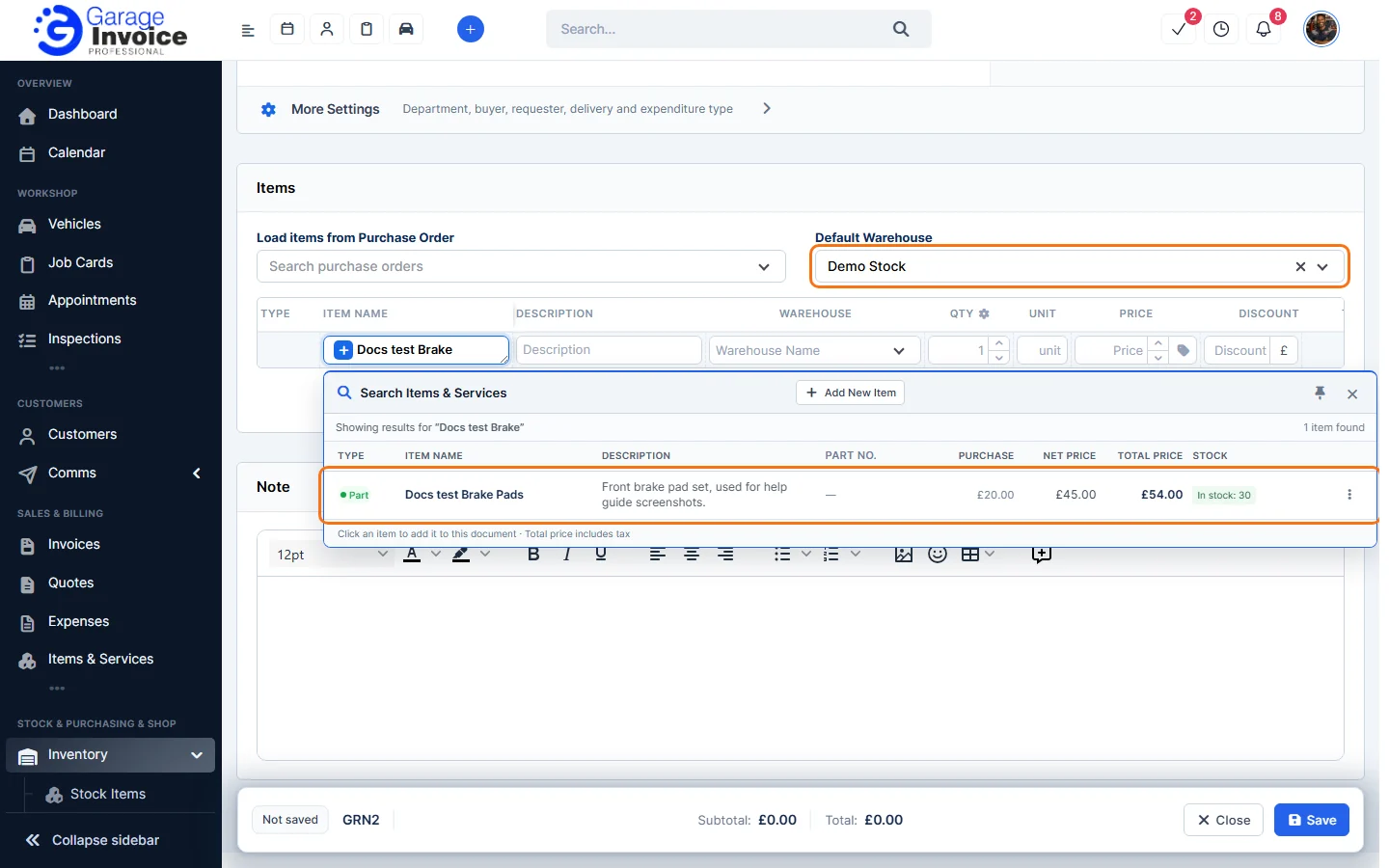
- Under Items, choose the Default Warehouse the stock goes into. To copy the items from a purchase order, choose it in Load items from Purchase Order.
- To add an item yourself, click Search the item, type part of its name and click it in the results.
- Check the Warehouse and enter the Qty and Price. Add a discount or change the tax if needed. The Summary shows the totals.
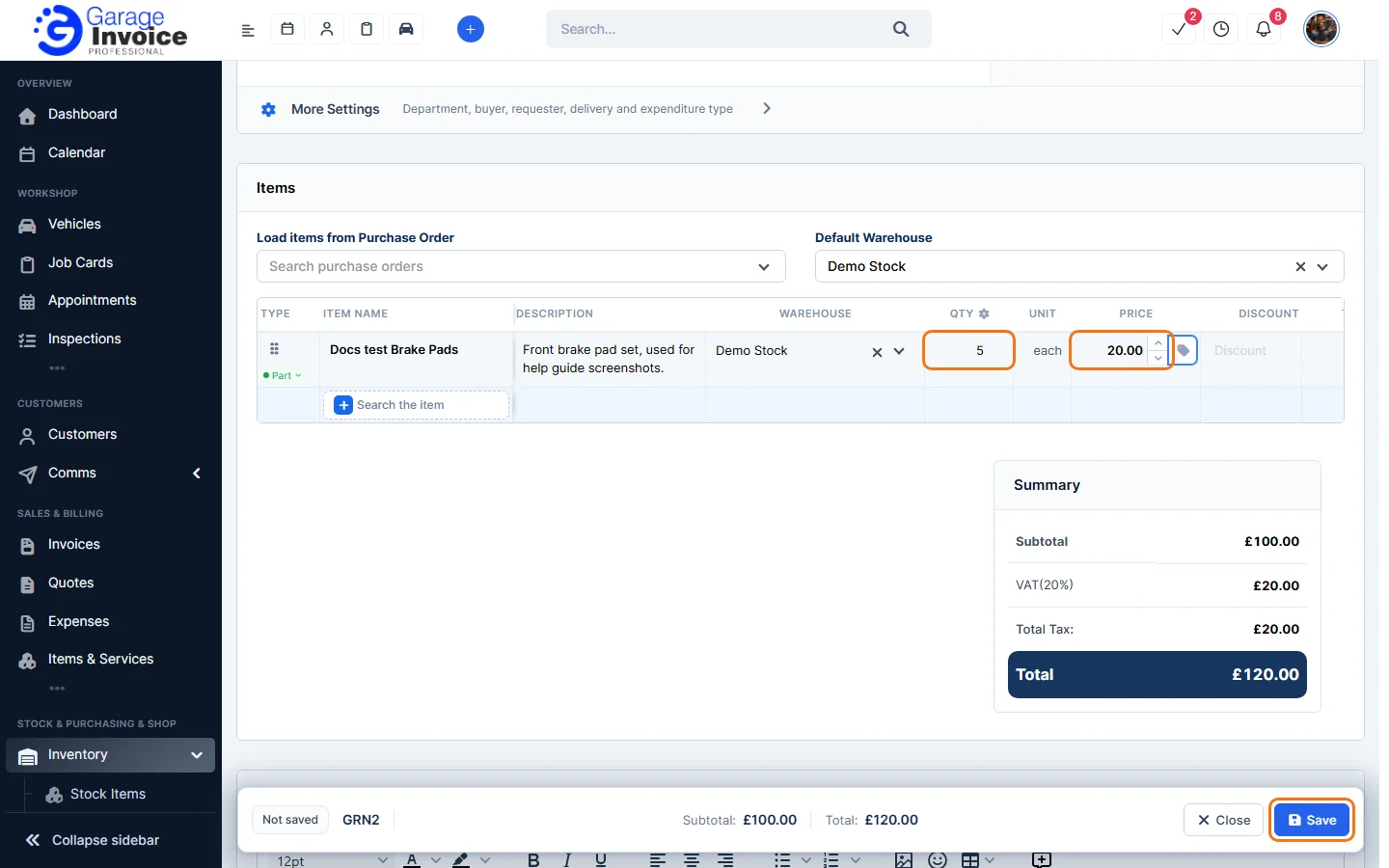
- Click Save in the bar at the bottom of the screen.
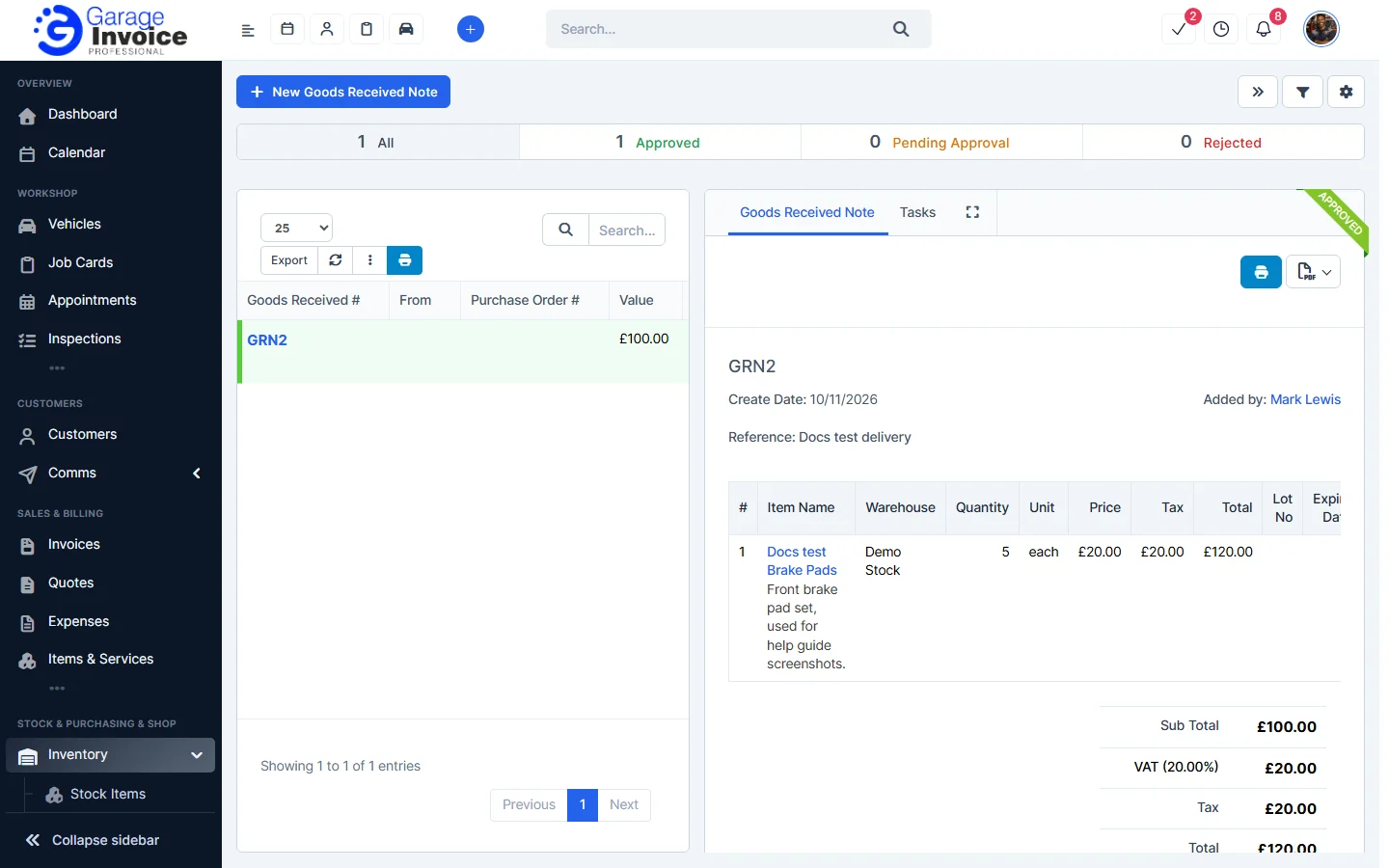
The note opens on the right of the Goods Received list and the stock goes up straight away. See View Goods Received Note.
Tip: you can have a Goods Received Note created automatically when you add a purchase order, or allow notes to be created only from purchase orders. See Inventory General Settings and Purchase Orders.
Feature Stock and inventory control: see what it does and how it fits your workshop.