
- Click Job Cards in the sidebar and click the job card number. The job card opens on the right, with Edit, Send, Print, More and Convert at the top.
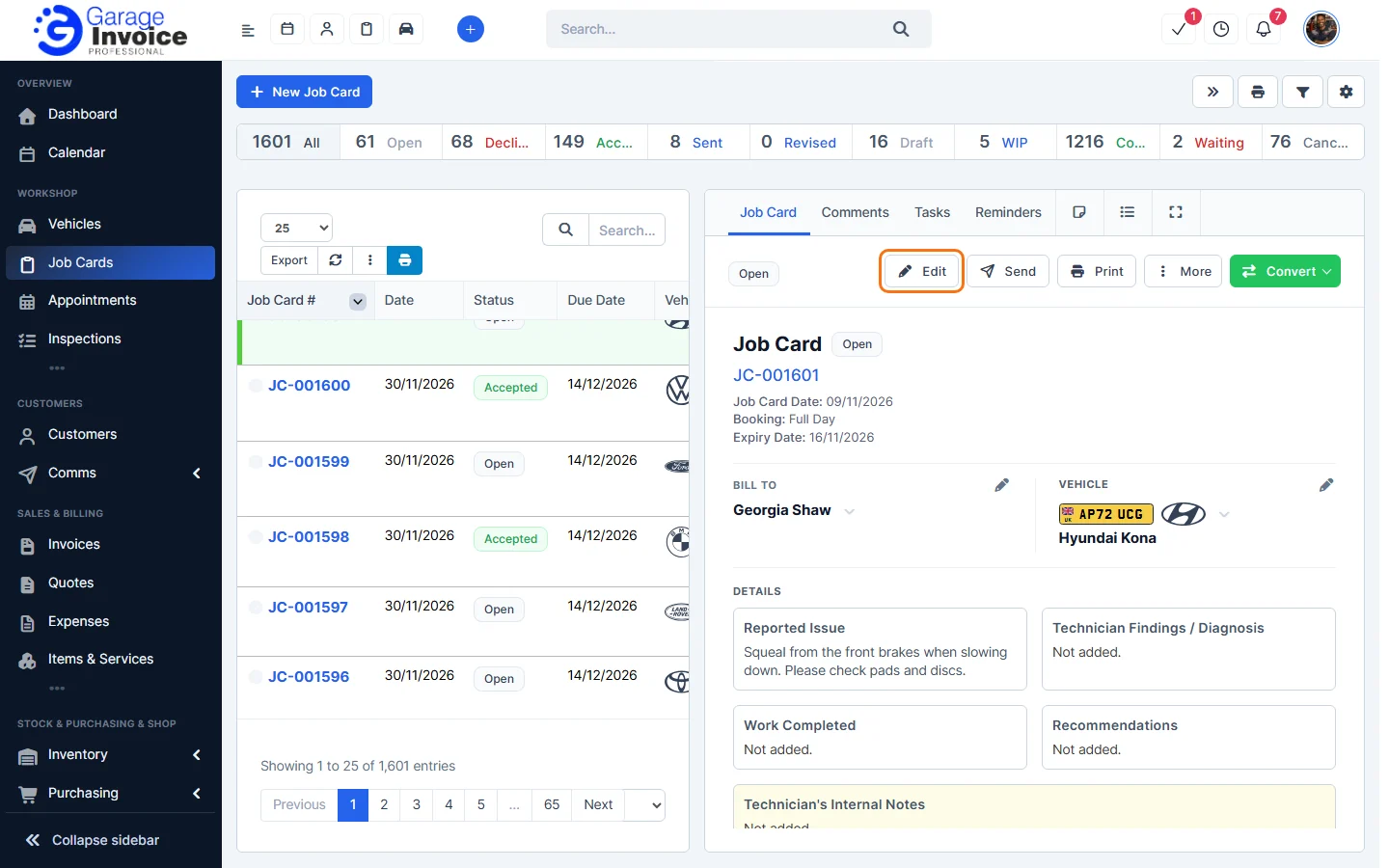
Tip: to see only one vehicle’s job cards, open the vehicle and click the Job Cards tab.
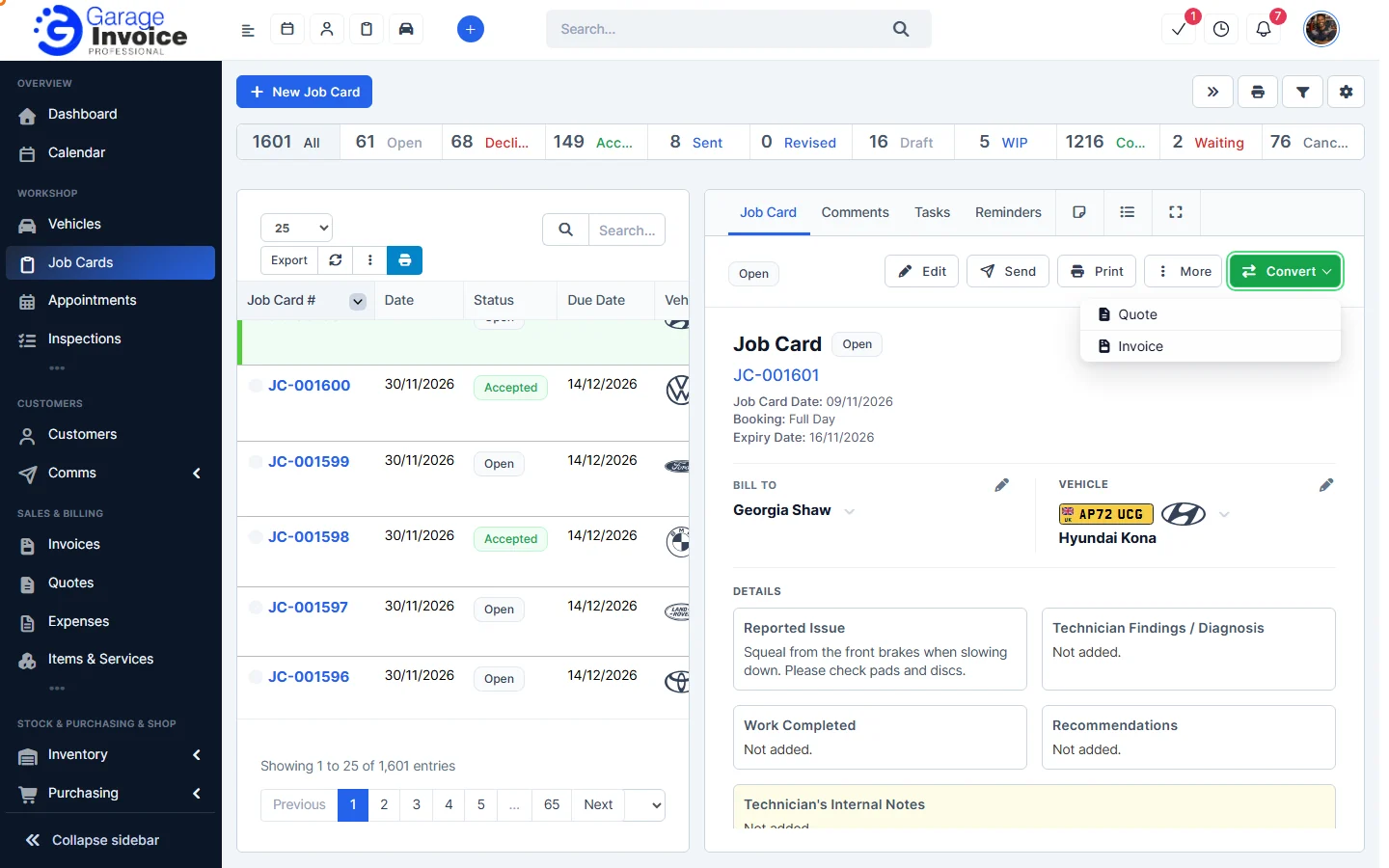
- Click Convert and choose Invoice.
- The Convert to Invoice window opens with the customer, contacts, vehicle and items copied from the job card. Check the Invoice Number, Invoice Date and Due Date, and add the Mileage, MOT No. or Auth. No. if needed.
Open Job Card Conversion Settings to choose what else is copied across.
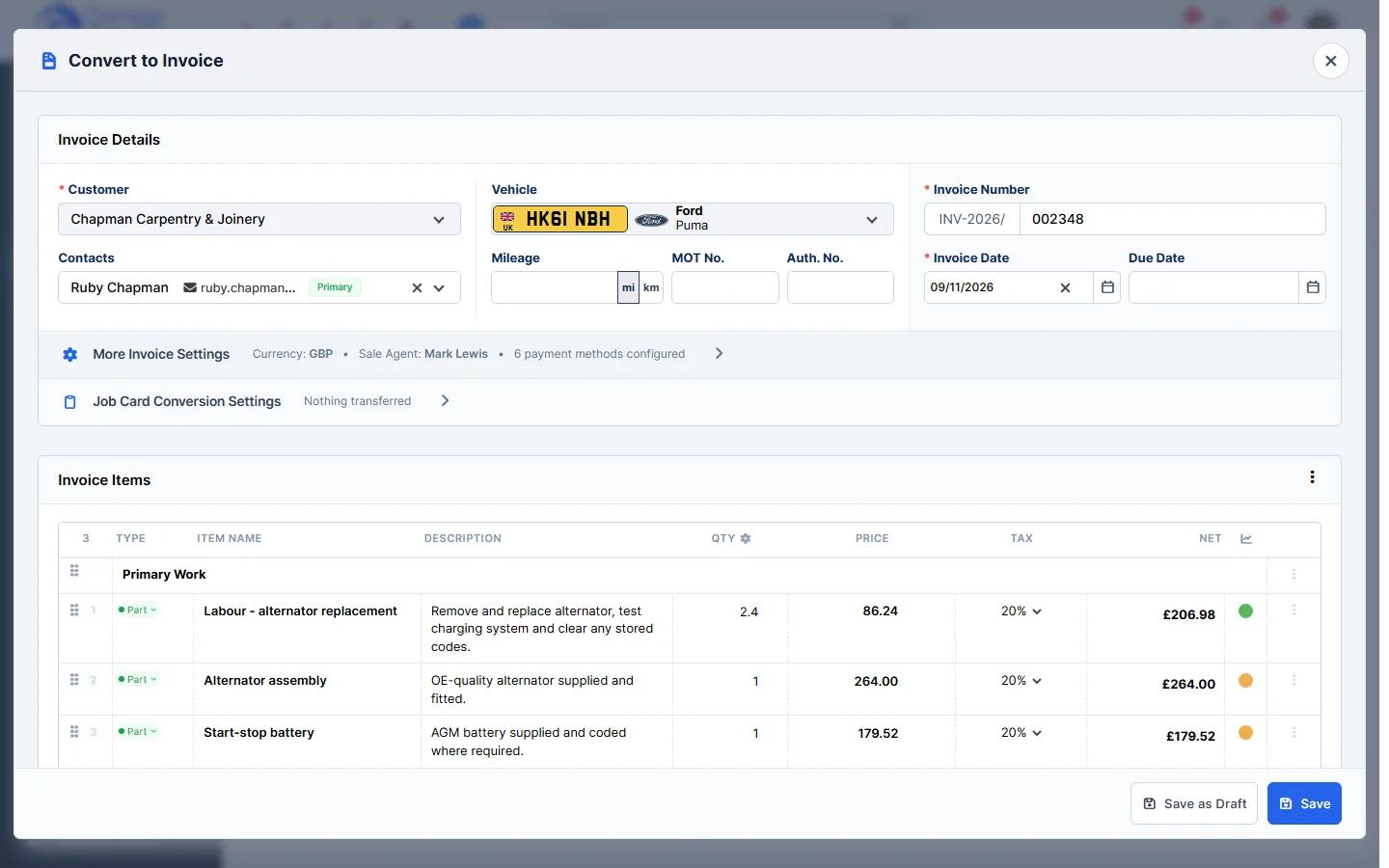
- Click Save, or Save as Draft if it isn’t ready yet.
Feature Digital job cards: see what it does and how it fits your workshop.