
- Click Inventory in the sidebar (under Stock & Purchasing & Shop) and click Stock Items. To print labels for some items only, tick them in the list first.
- Click Barcode Printing above the list.
- Choose All Items with Barcode or Selected Items, and enter the Print Qty (how many labels for each item).
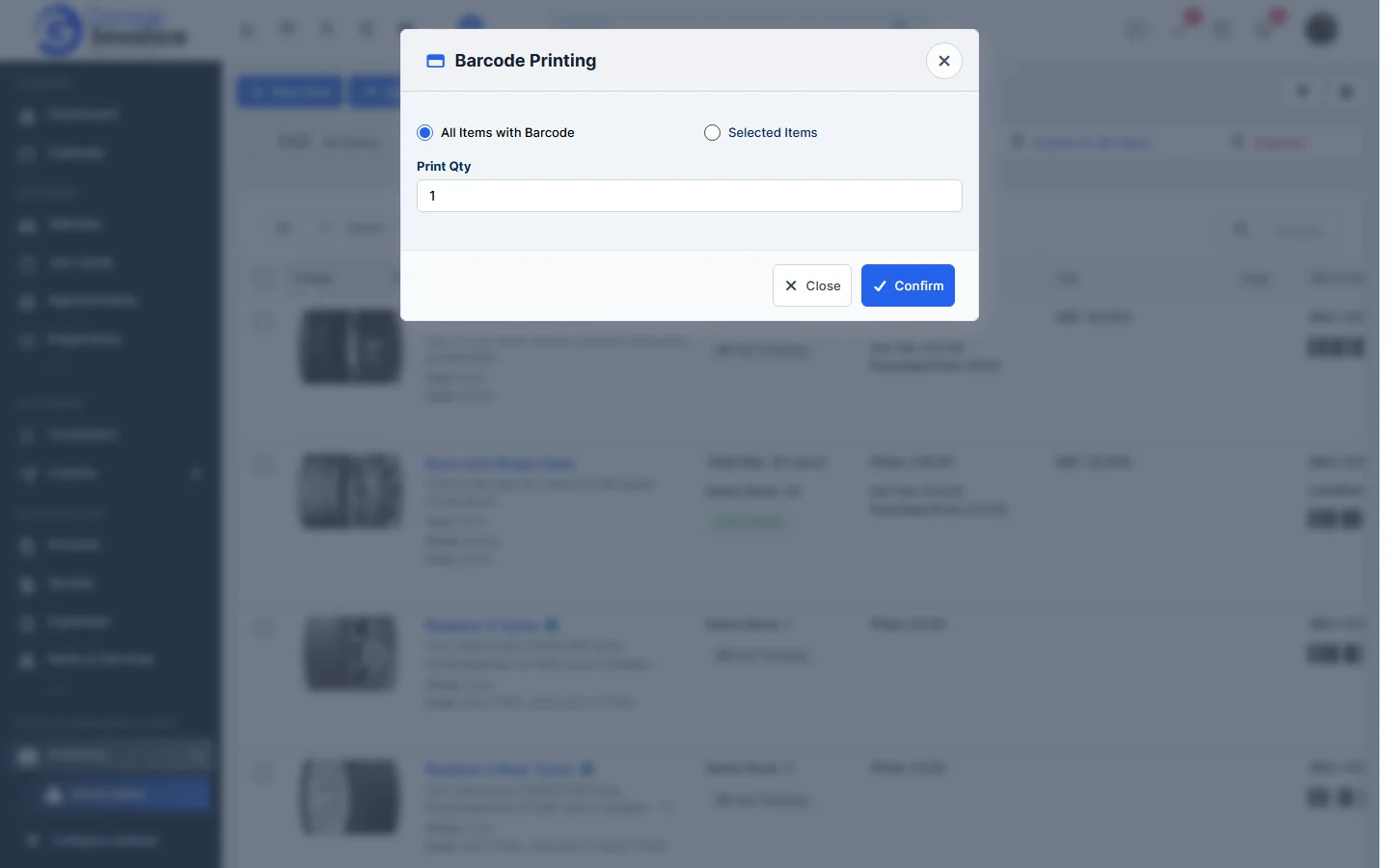
- Click Confirm.
Tip: to show the item description or price on the labels, tick Include Item Description or Include Item Price under Barcodes in the General settings. See Inventory General Settings.
Feature Stock and inventory control: see what it does and how it fits your workshop.