
Some stock documents are created for you, for example a Goods Received Note when you add a purchase order. They use a default warehouse.
- Click Inventory in the sidebar (under Stock & Purchasing & Shop) and click Stock Items. Click the gear button at the top right to open Inventory Settings, then click General on the left.
- Under Goods Received, choose the Default warehouse for automated inventory operations.
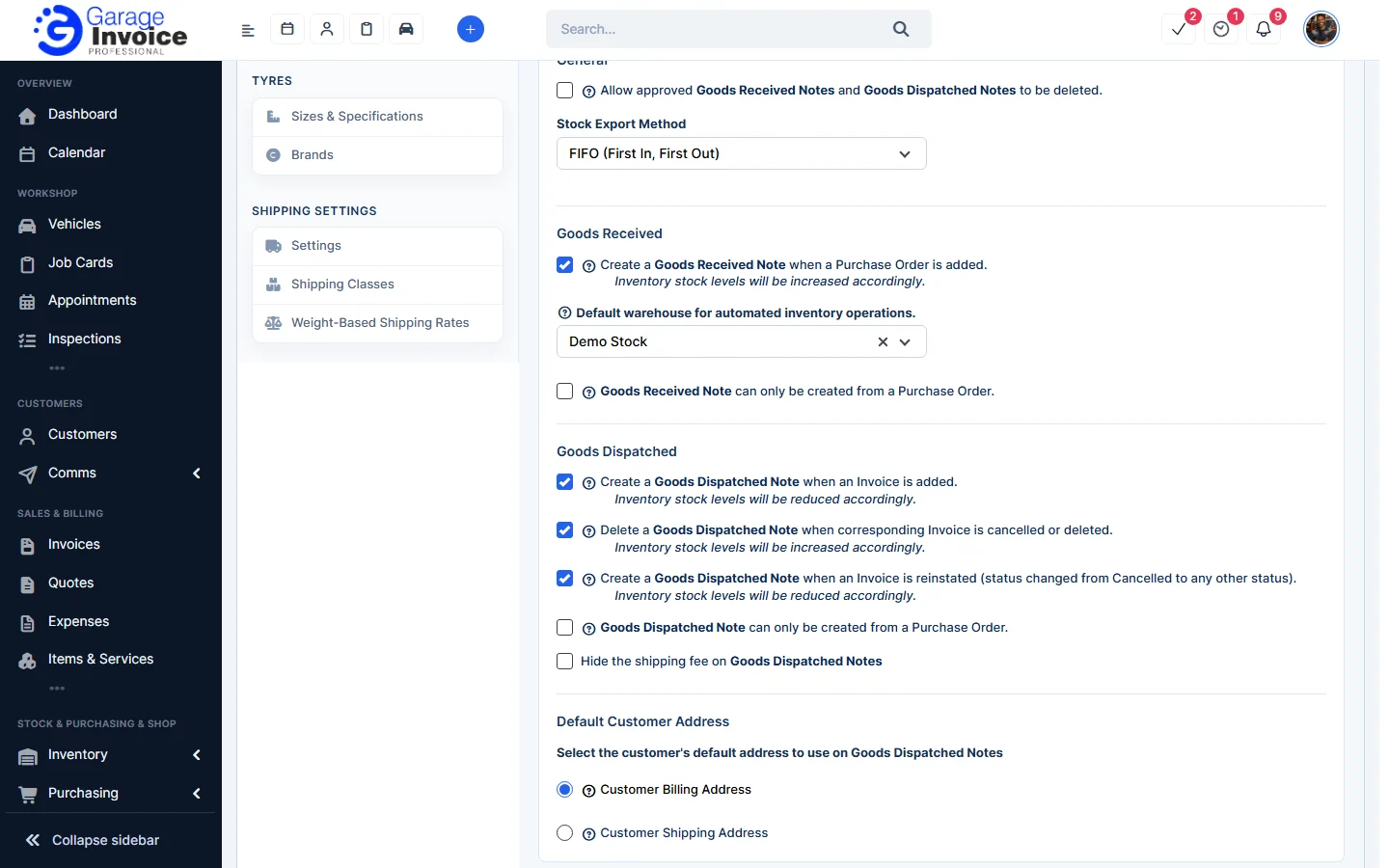
- Under Return Orders, choose the Default warehouse for automated Return Orders operations. Returned items go into this warehouse.
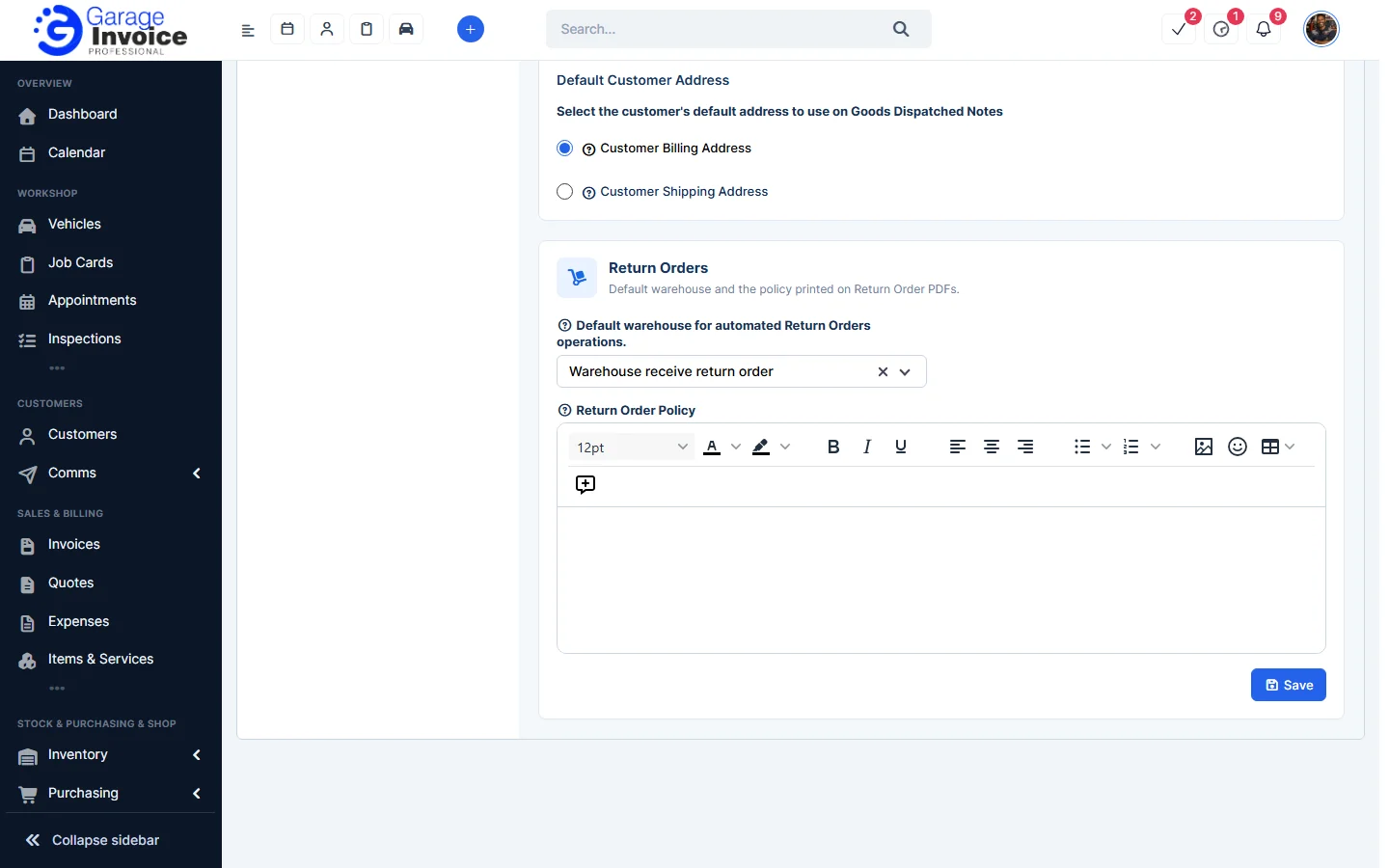
- Click Save.
Tip: on a new Goods Received Note you can also choose a Default Warehouse for all its lines. See Add New Goods Received Note.
Feature Stock and inventory control: see what it does and how it fits your workshop.