
- Click Reports in the sidebar (under Insights) and click Profit & Loss.
- Choose the Period or From / To dates and set the filters:
- Based On: Invoice Date, Payment Date, Created Date or Due Date.
- Category: for example Labour, Parts or Tyres.
- Invoice Status: which invoice statuses to count.
- More filters: show values Excluding VAT, Including VAT or Both, and the currency.
Click Filter.
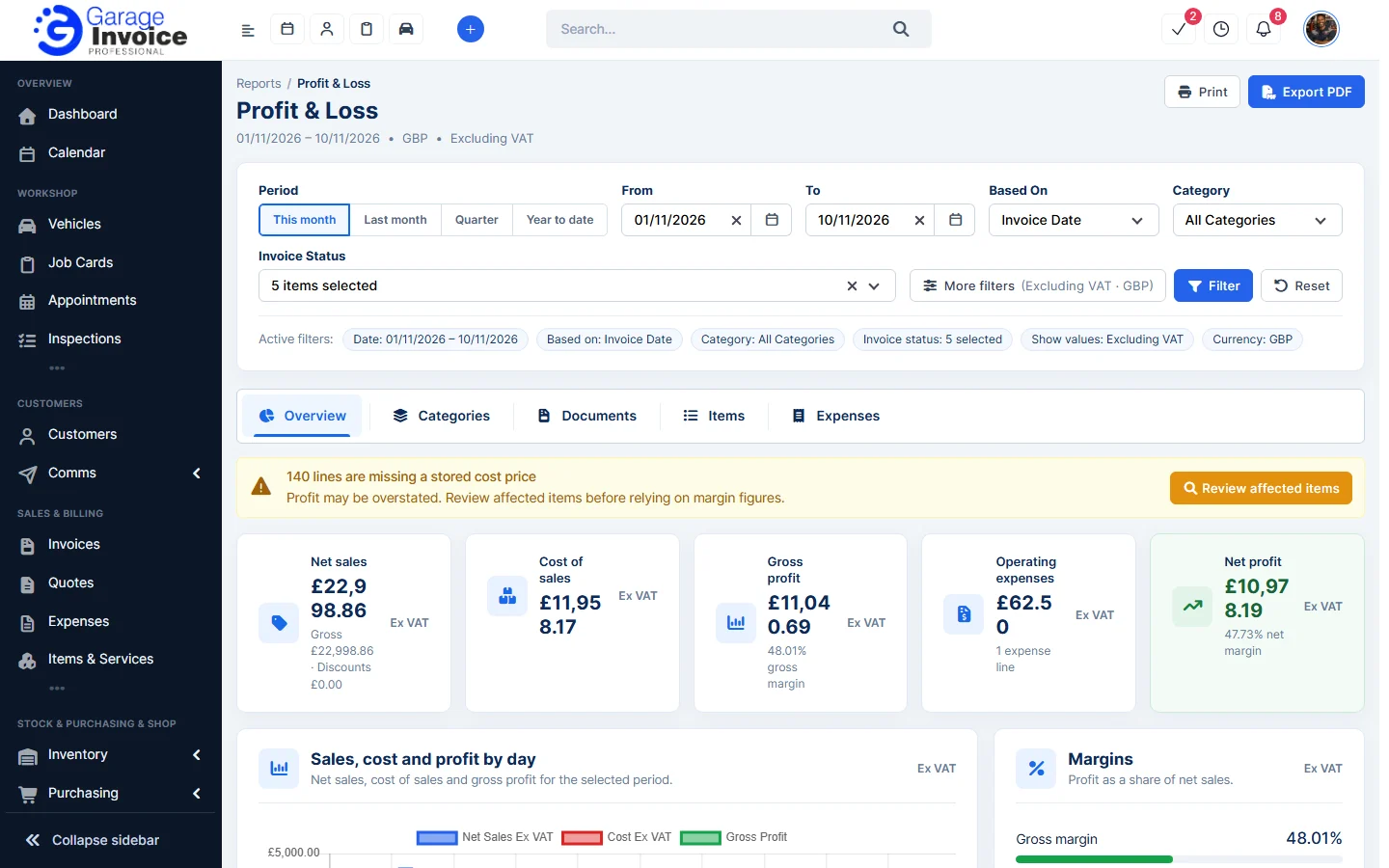
- The cards show Net sales, Cost of sales, Gross profit, Operating expenses and Net profit with margins. Below are a daily chart, margins, credit note adjustments and profit by category.
- Use the tabs Overview, Categories, Documents, Items and Expenses to see the figures behind the totals.
- Scroll down to the P&L statement for the formal summary: gross sales, discounts, net sales, credit notes, cost of sales, gross profit, operating expenses and net profit.
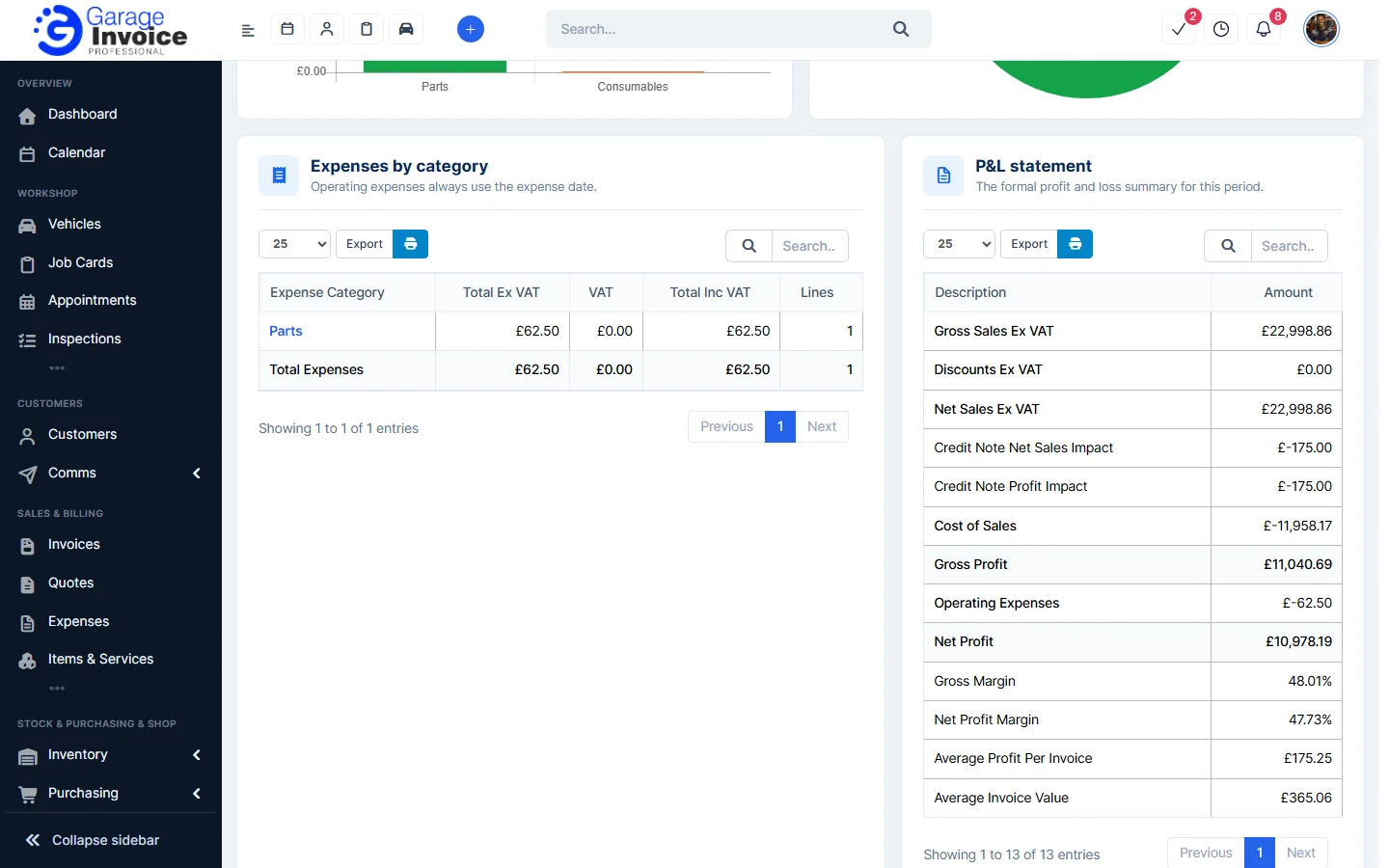
- Click Export PDF or Print at the top right to keep a copy.
Note: if lines have no stored cost price, a yellow warning says profit may be overstated. Click Review affected items to see them and add cost prices to your items.
See also: Profit & Margin Report · VAT Summary · Cashflow Report
Feature Garage reports: see what it does and how it fits your workshop.