
- Open the vehicle (see Search for Vehicle) and click the Reminders tab.
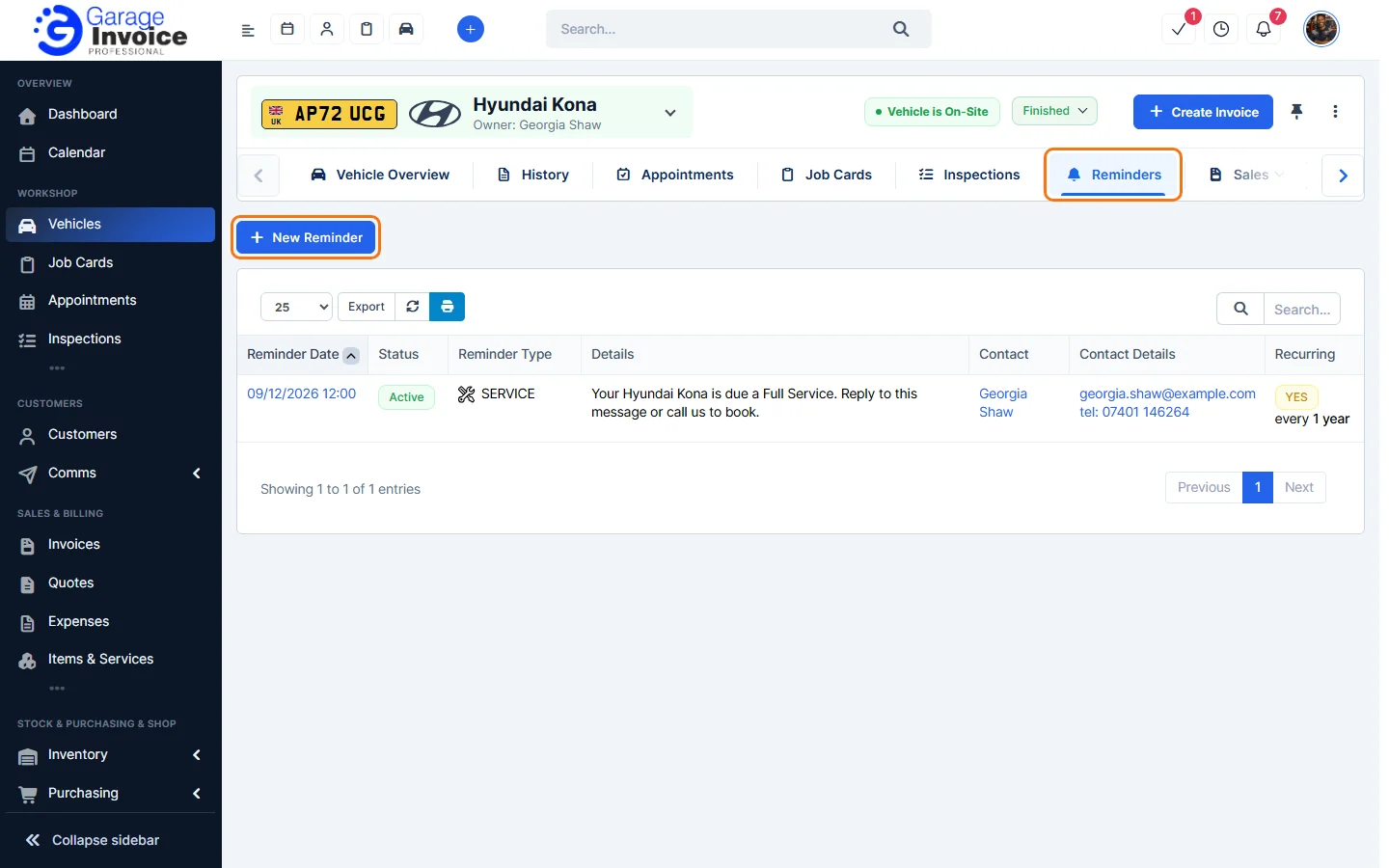
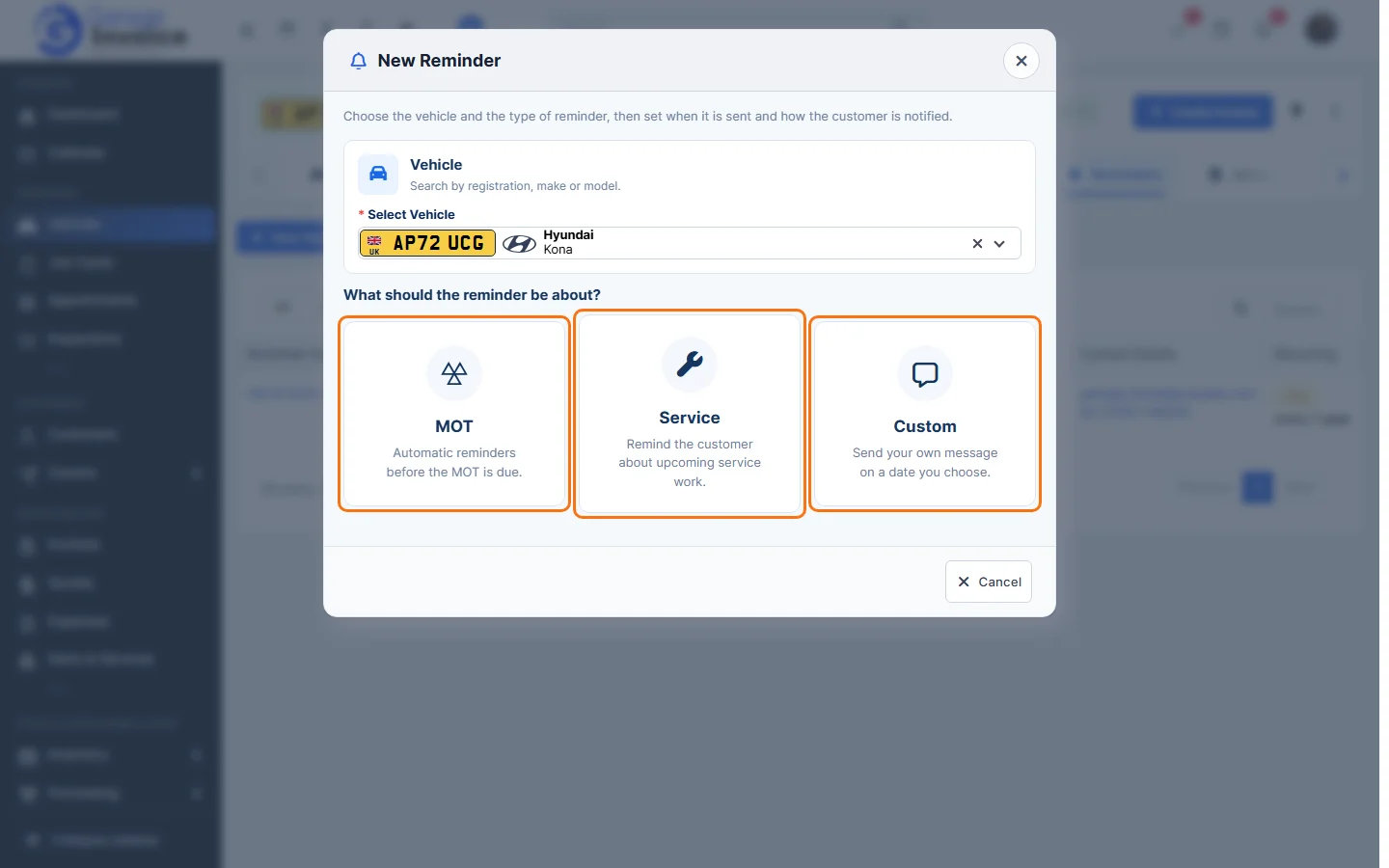
- Click New Reminder. The vehicle is already selected. To choose another one, search by registration, make or model.
Tip: on the vehicle page you can also click + on the Reminders card, or Reminder under Quick actions.
- Choose what the reminder is about: MOT, Service or Custom.
MOT reminder
MOT reminders are sent automatically before the vehicle’s MOT due date. Turn Email Reminders and SMS Reminders on or off, choose when the First reminder goes out (for example 2 weeks before, or Custom for your own timing), and turn on Send second reminder if you want a follow-up. Then click Save Reminder.
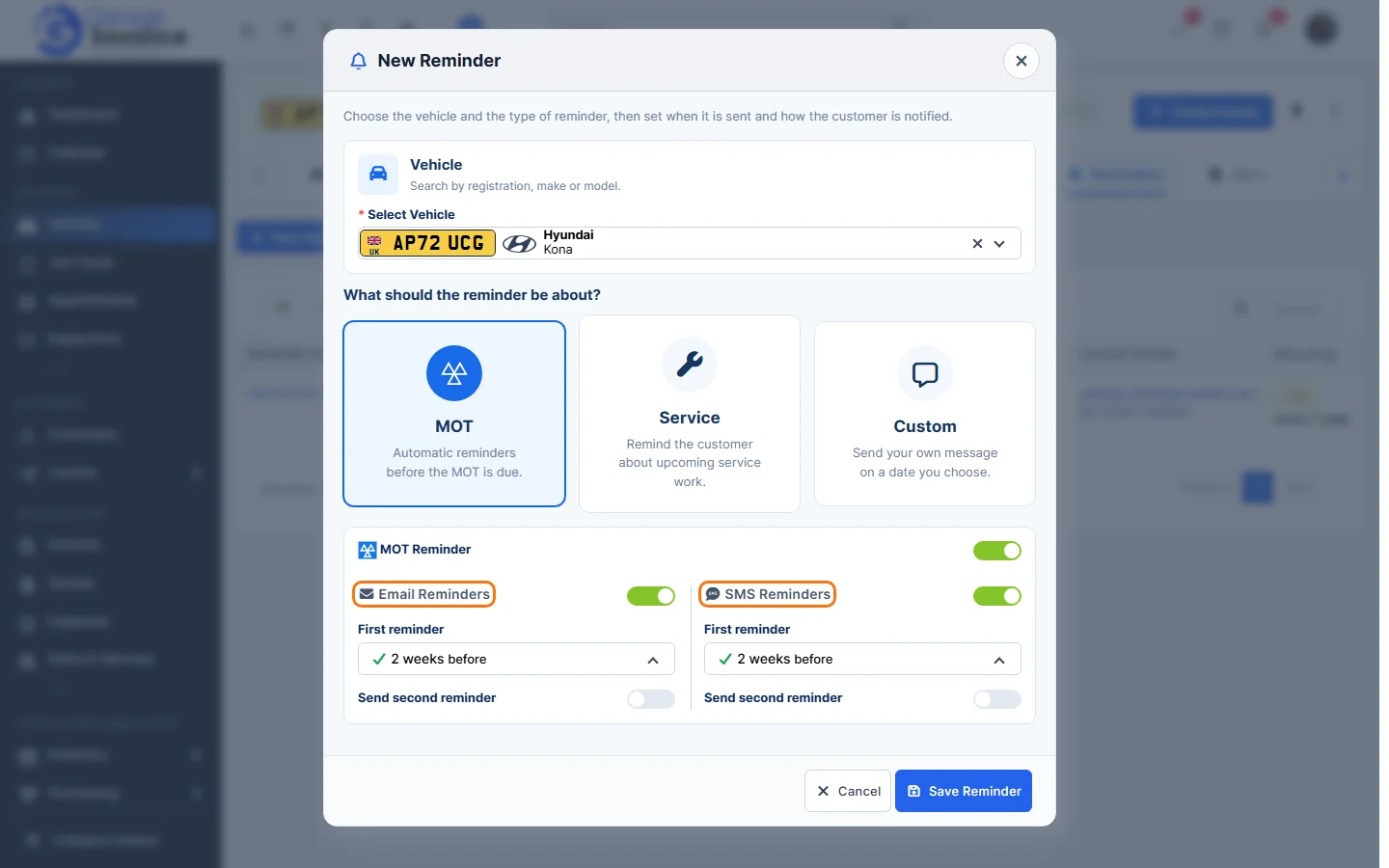
Note: these are the same MOT reminder settings you see on the Edit Vehicle page. See Edit Vehicle.
Service reminder
- Choose one or more services under Select Services (for example Full Service or Brake Fluid Change). They’re added to the message and the Total Amount is filled in for you.
- Check the Message. This is the text the customer reads.
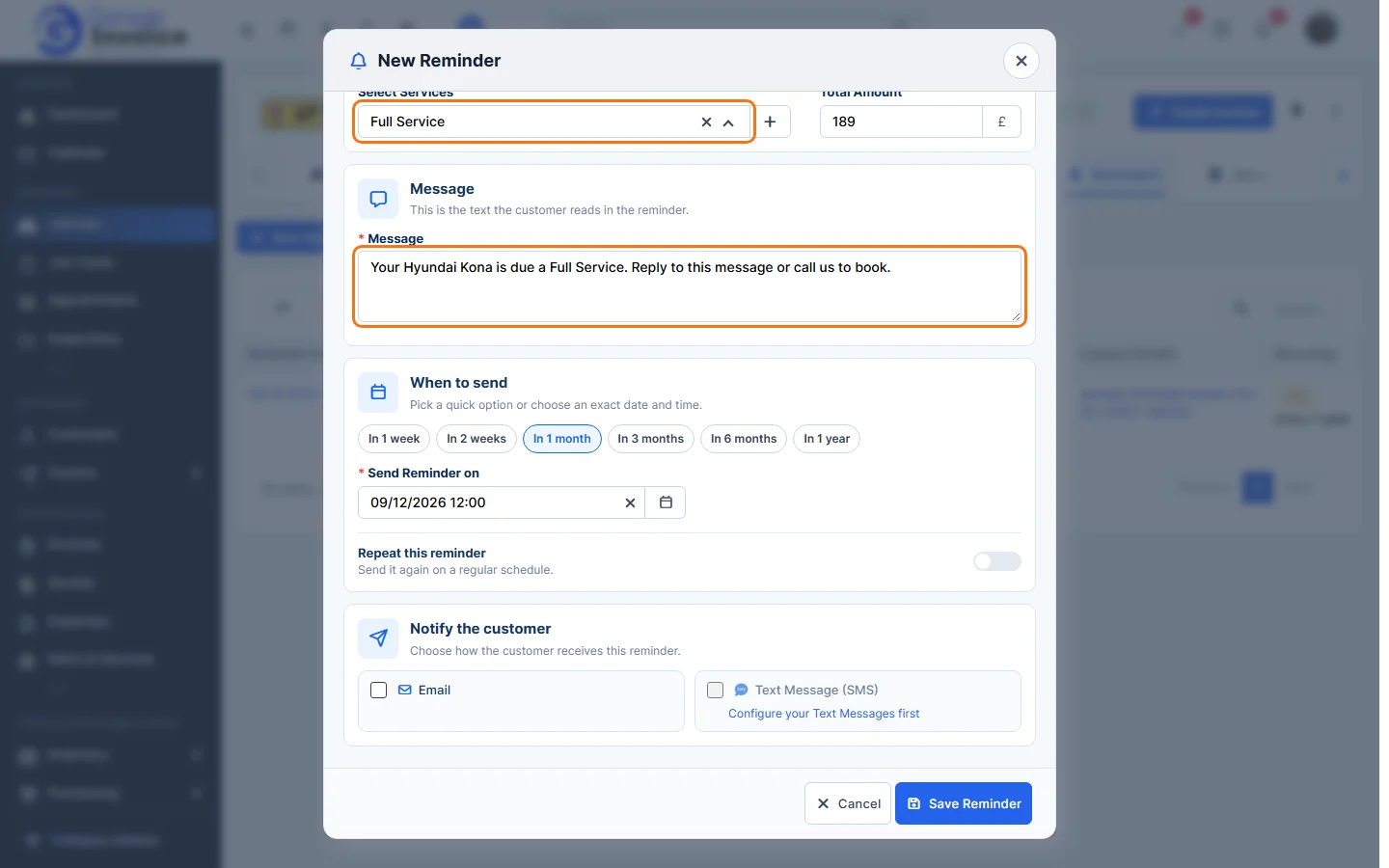
- Under When to send, click a quick option (In 1 week up to In 1 year) or pick the exact date and time in Send Reminder on.
- To send it again on a schedule, turn on Repeat this reminder. See Create Recurring Reminder.
- Under Notify the customer, tick Email, Text Message (SMS) or both. If text messages aren’t set up yet, you’ll see Configure your Text Messages first.
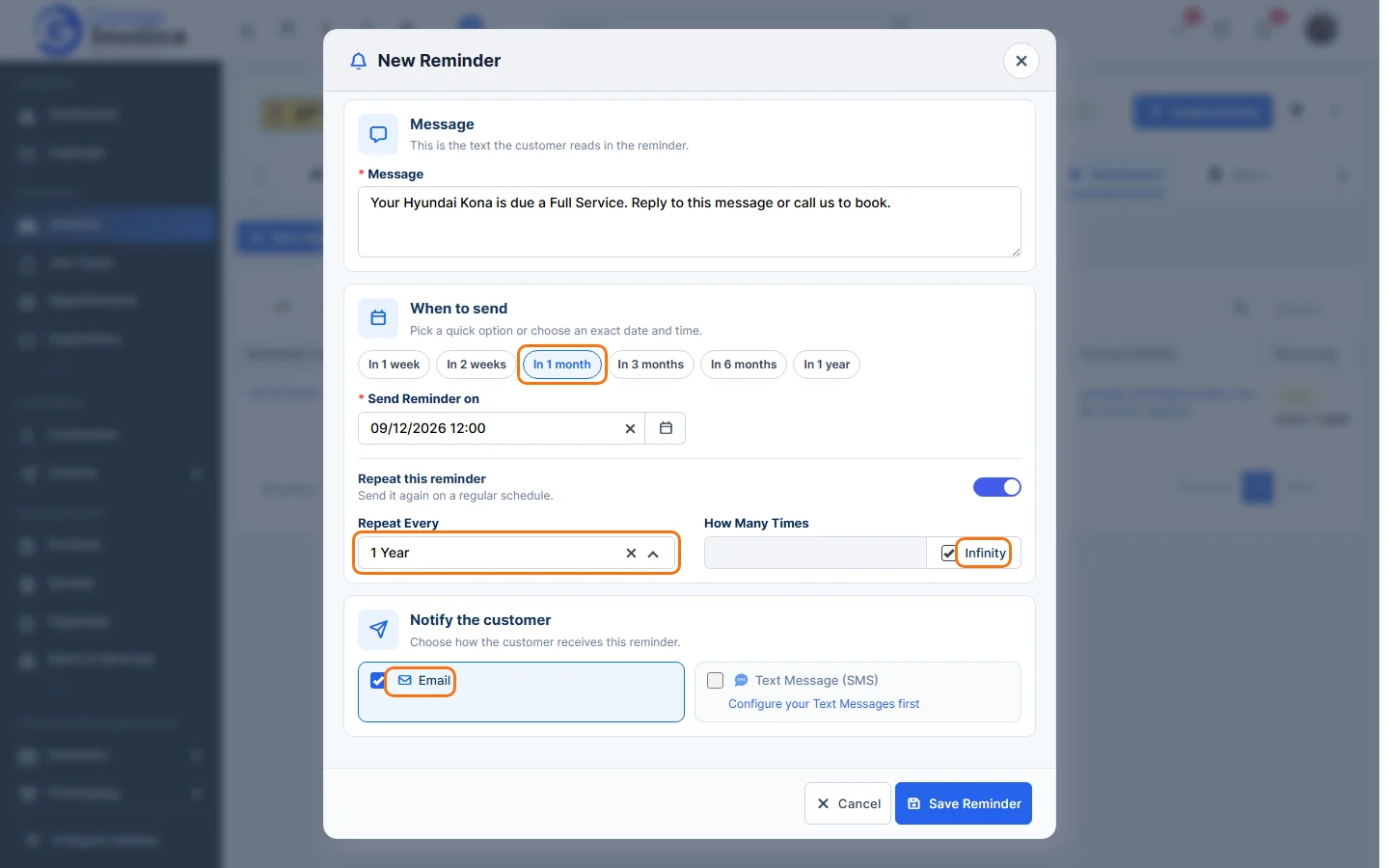
- Click Save Reminder.
Custom reminder
- Type your own Message, for example a seasonal offer or a reminder to collect the vehicle.
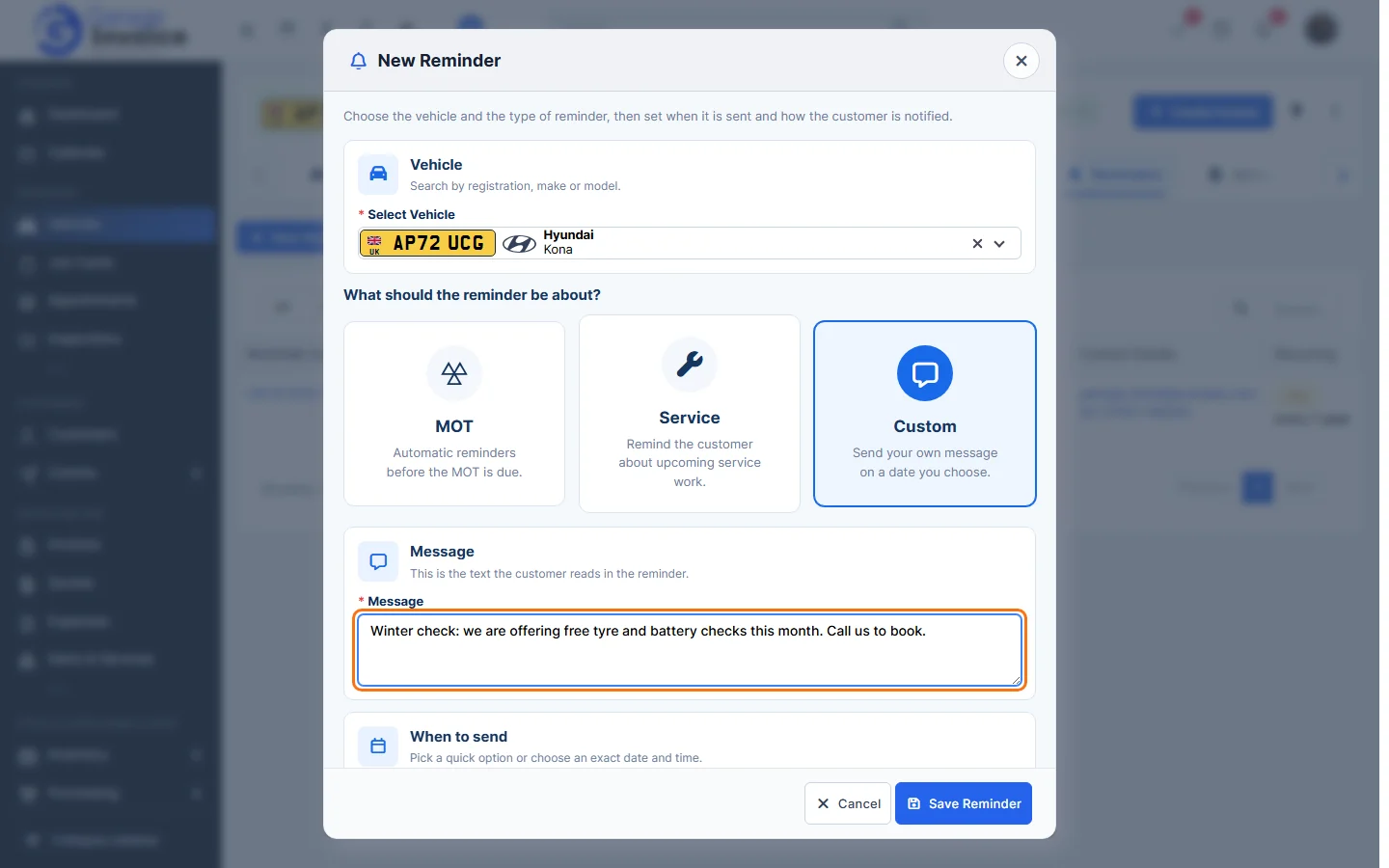
- Choose when to send it, whether it repeats, and how the customer is notified, as for a service reminder.
- Click Save Reminder.
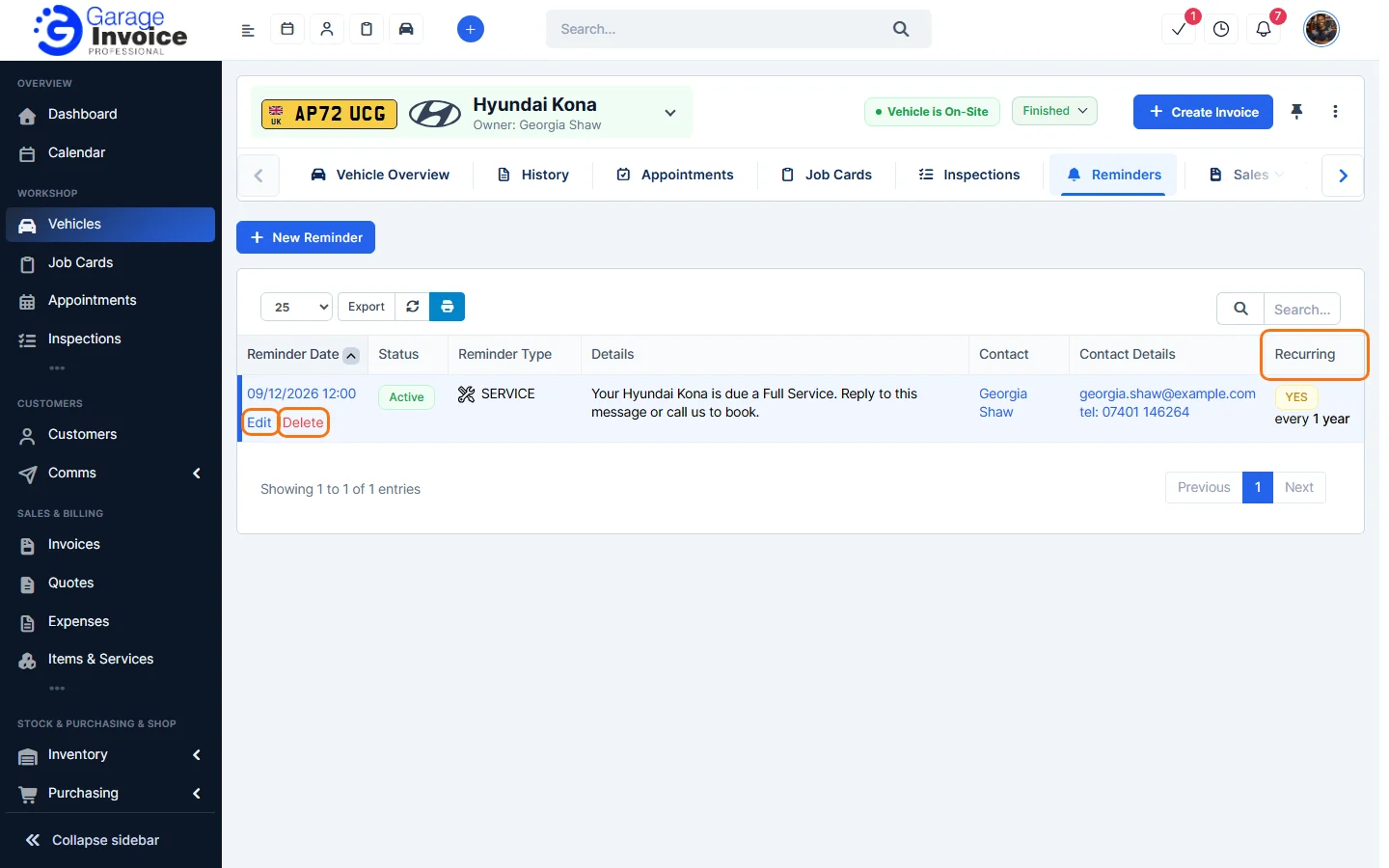
You’ll see Added successfully. The reminder appears in the vehicle’s Reminders tab with its date, status, type, message and contact.
Feature MOT and service reminders: see what it does and how it fits your workshop.