
- Click Shop & POS in the sidebar (under Stock & Purchasing & Shop) and click Sales Channels. and click Channel Products on the POS System card. The POS System Products list opens.
- Click Add Items.
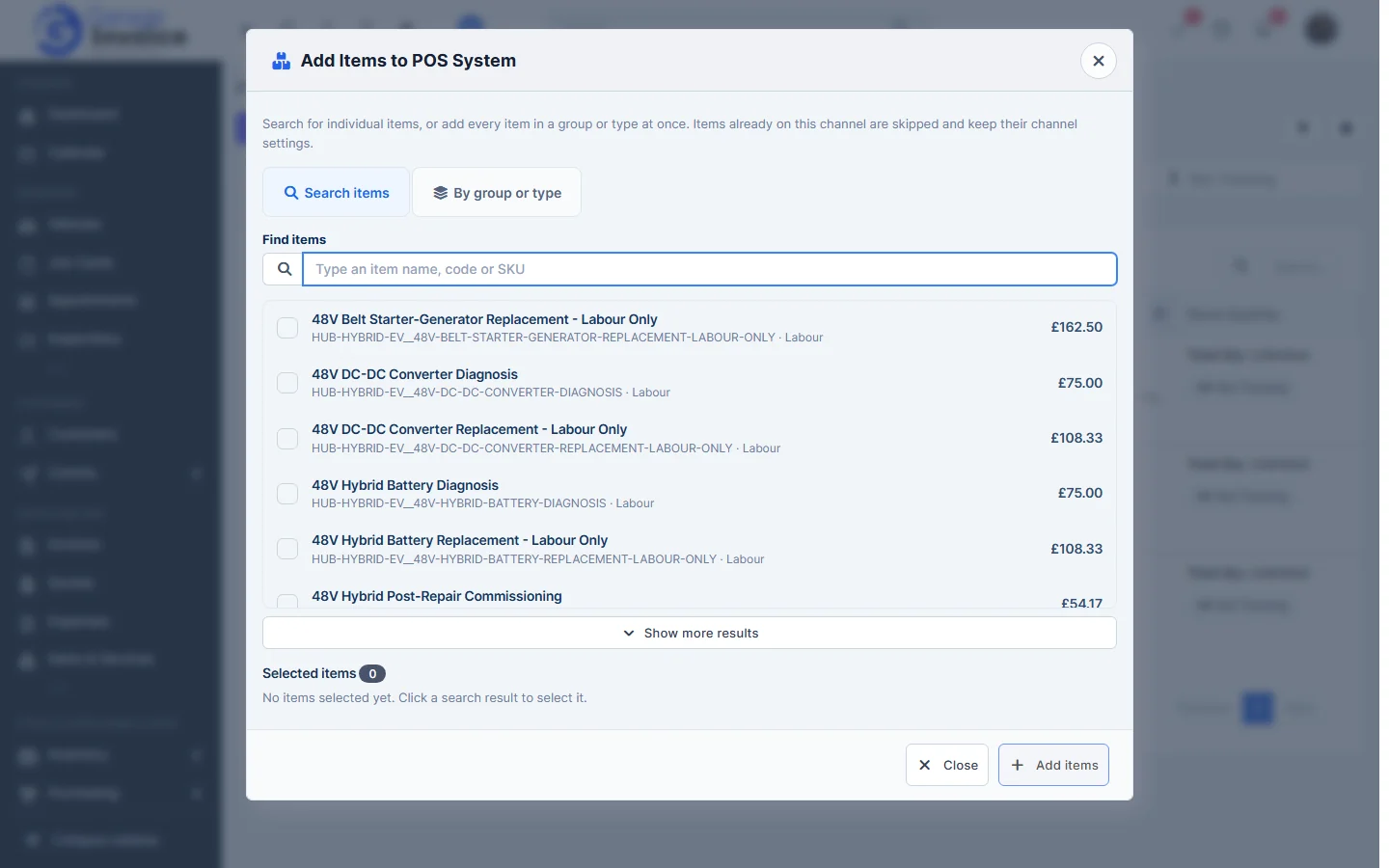
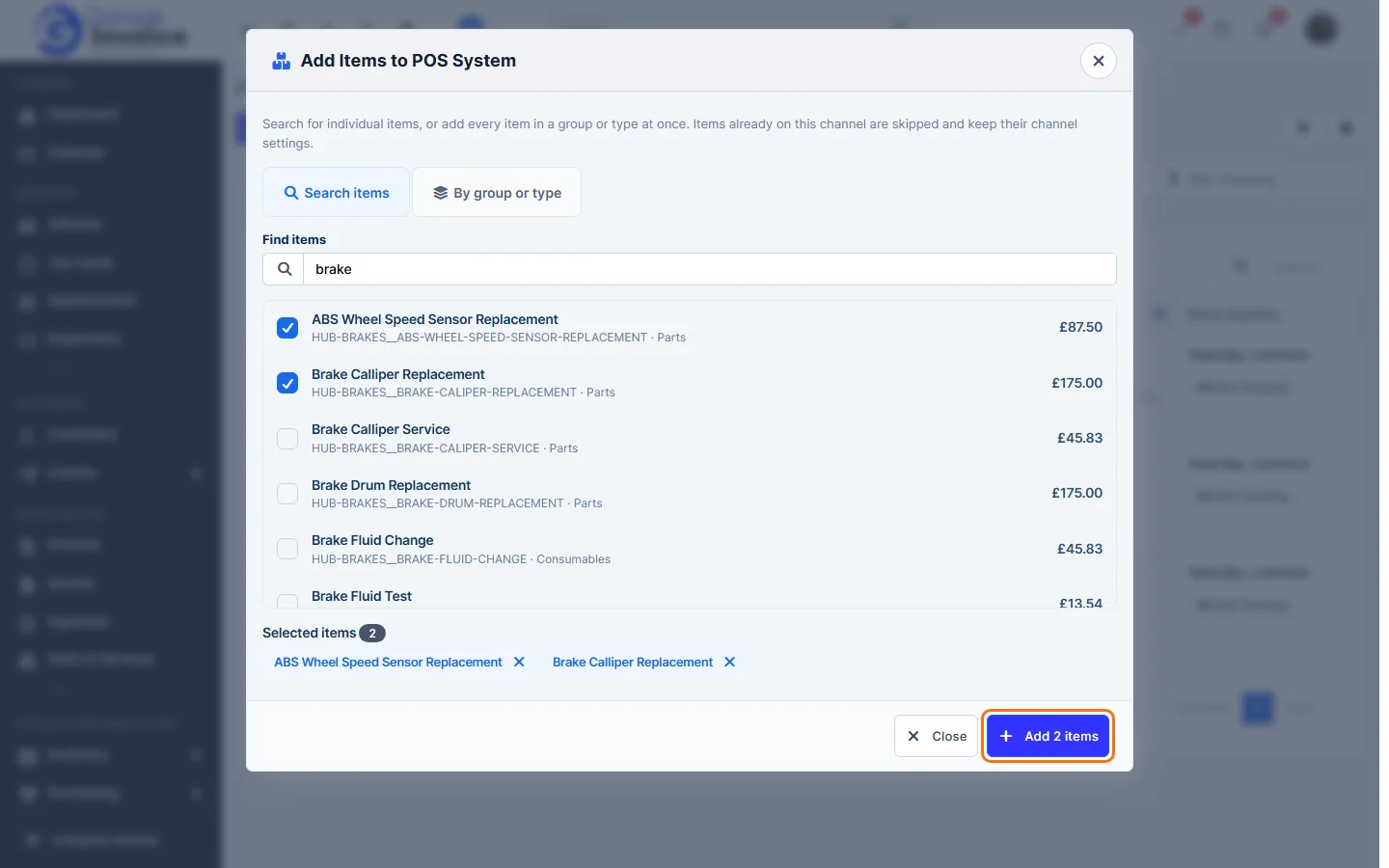
- On Search items, type an item name, SKU or barcode and click each item you want. Selected items are marked. The button at the bottom shows how many you picked.
- Or click By group or type, choose an Item Type and/or Item Group, and the window shows how many items match, how many are already on the channel and how many will be added.
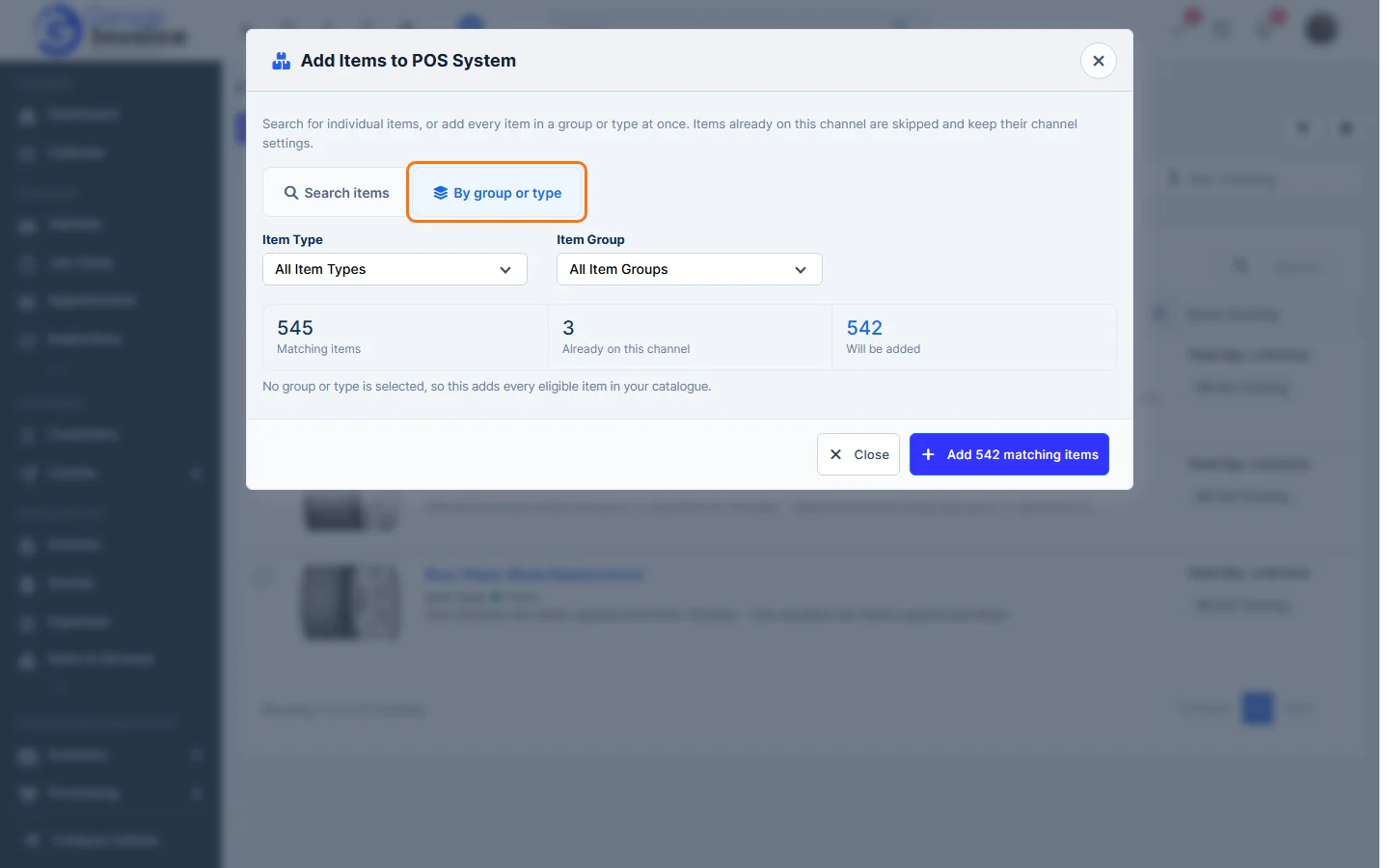
- Click the add button, for example Add 2 items or Add 542 matching items. Items already on the channel are skipped. The new items appear in the list.
Note: items come from Items & Services. To add a new product, create it there first, then add it to the channel.
See also: Manage Products in POS · Sales Channels
Feature Online shop and POS: see what it does and how it fits your workshop.