
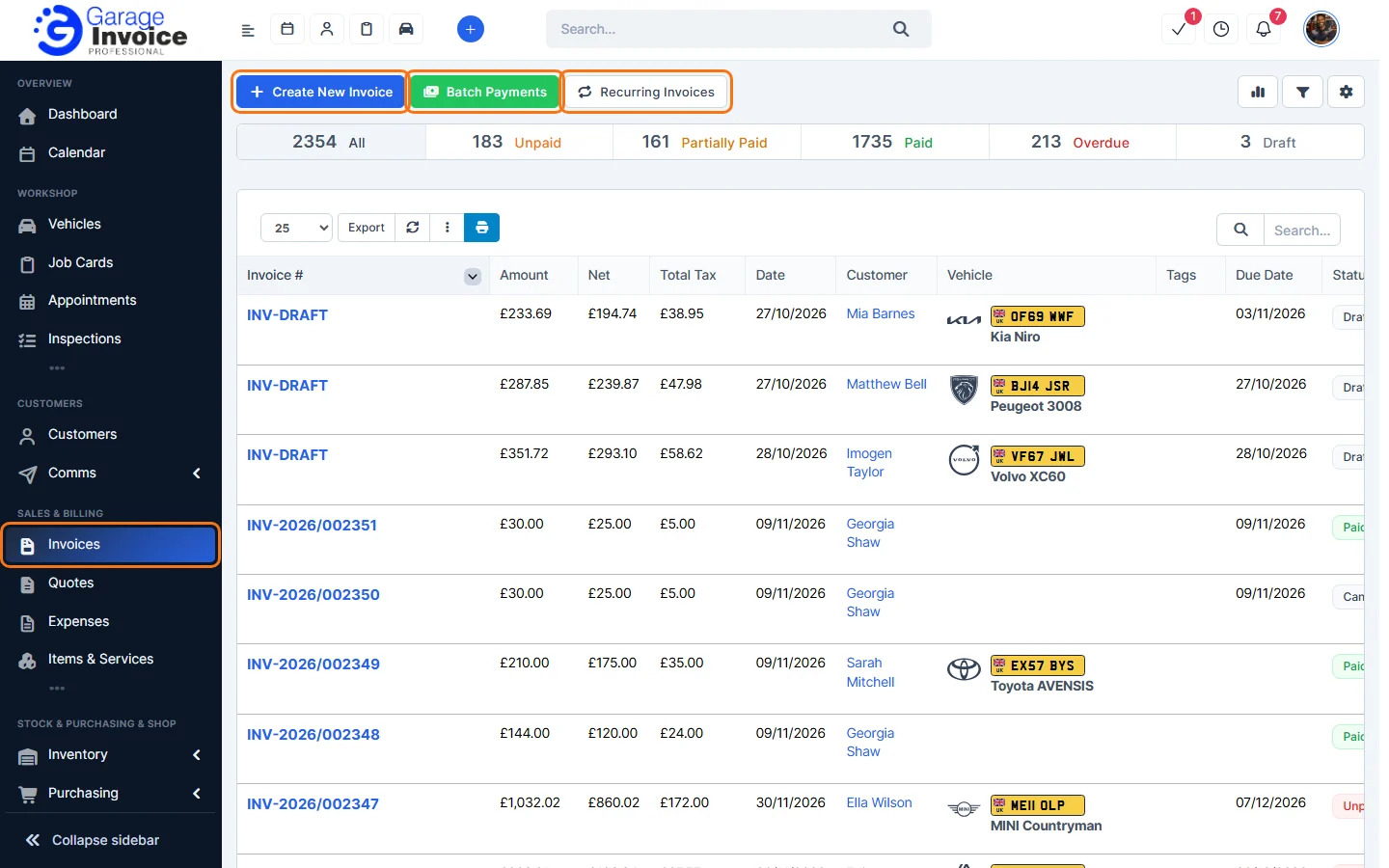
- Click Invoices in the sidebar and click Batch Payments.
- The Add Payments window lists every unpaid invoice. At the top:
- Filter invoices by customer: show only one customer’s invoices.
- Payment Date: the date used for every payment.
- Default Payment Mode: fills in the payment mode on every row.
- For each invoice being paid, enter the Amount received, or click the tick button at the end of the row to insert the full balance. You can change the payment date, payment mode or transaction ID on each row. Total Amount Received adds them up.
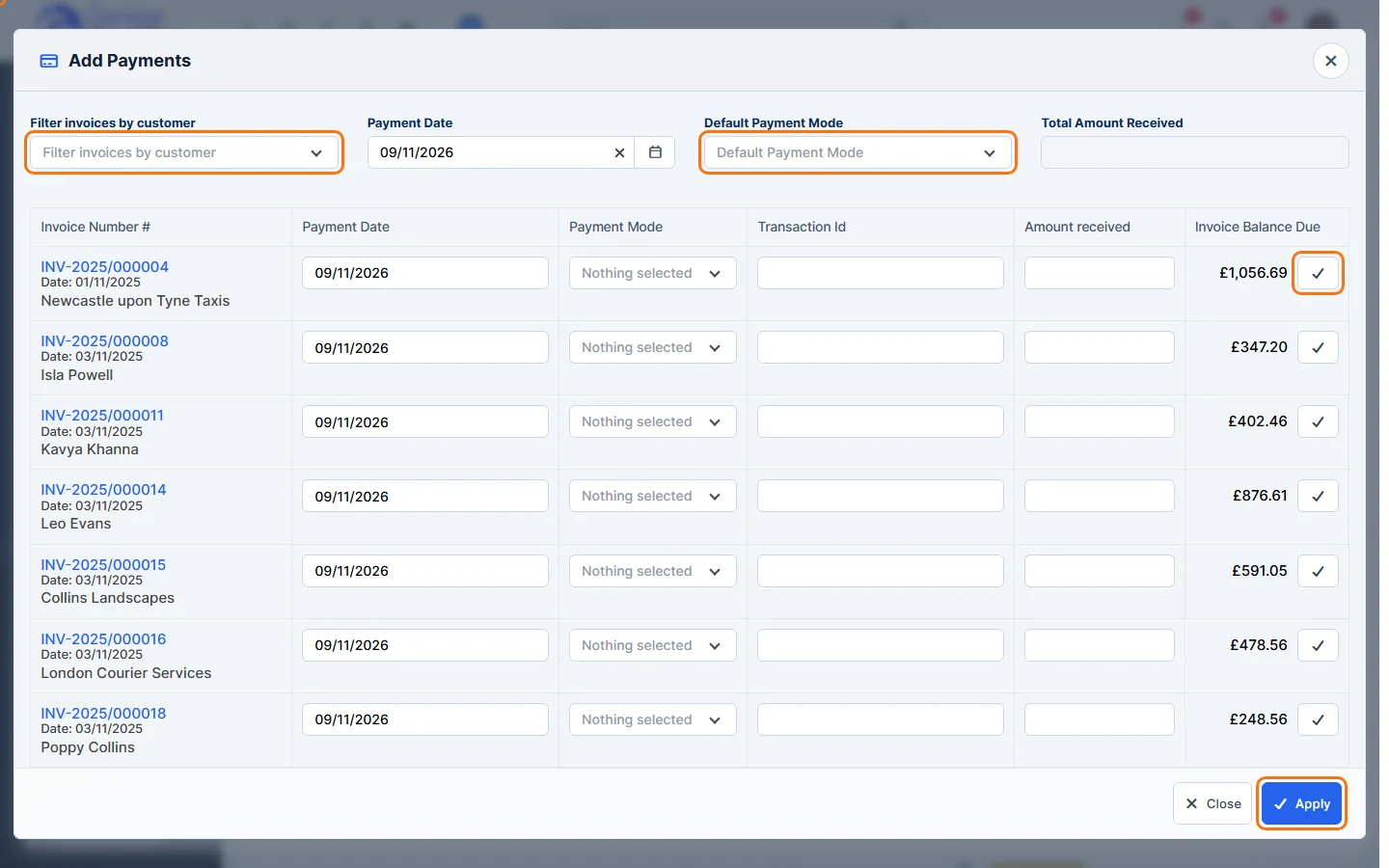
- Click Apply.
You’ll see You have successfully added … payments, and each invoice becomes Paid or Partially Paid.
Feature Garage invoicing software: see what it does and how it fits your workshop.