
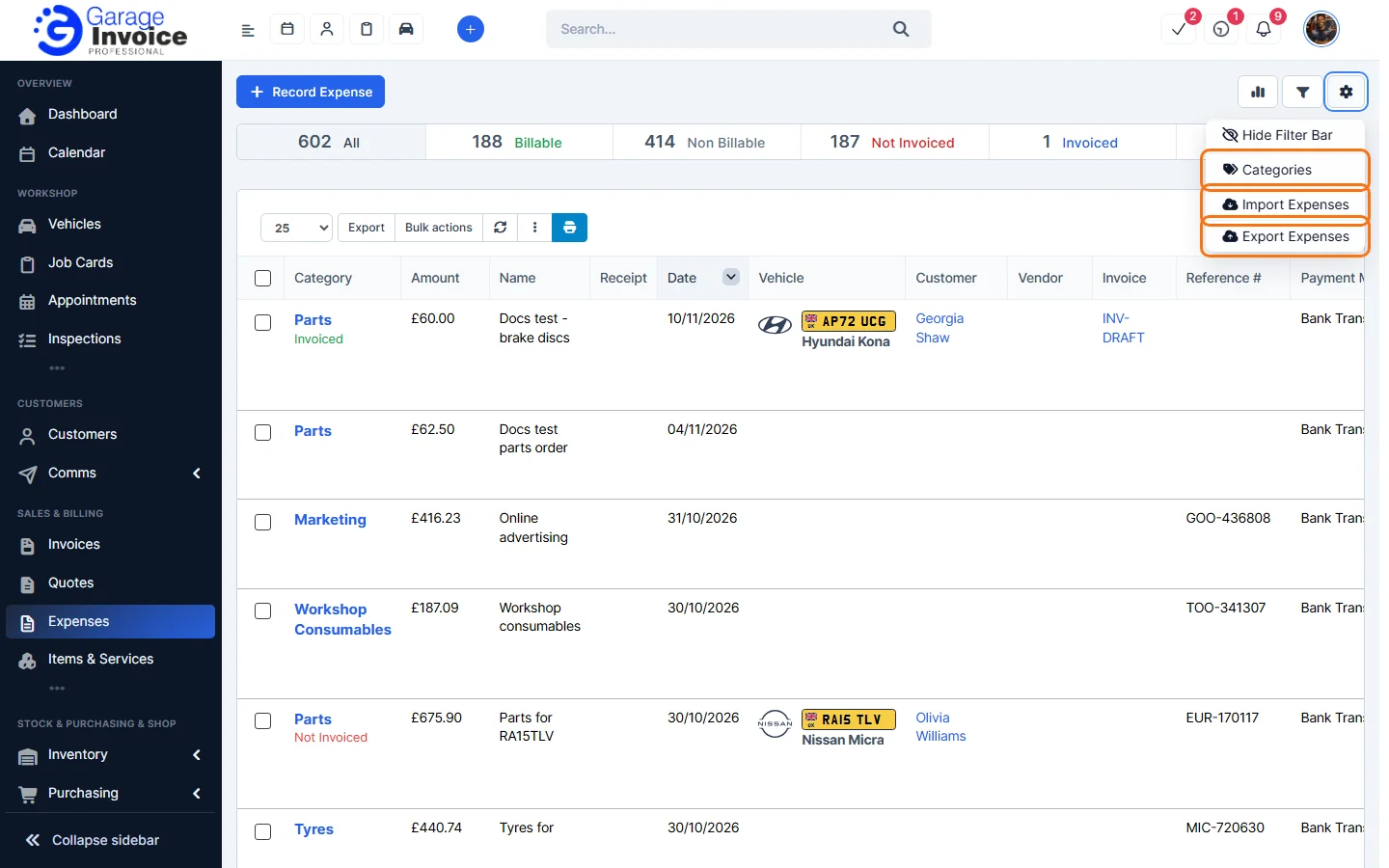
- Click Expenses in the sidebar, under Sales & Billing. Click the cog button at the top right and choose Categories. You can also click Settings in the sidebar, open Sales & Operations and click Expenses.
- Each card under Expense Categories shows how many expenses use it, and whether it is In use. Use the search box or switch between grid and list.
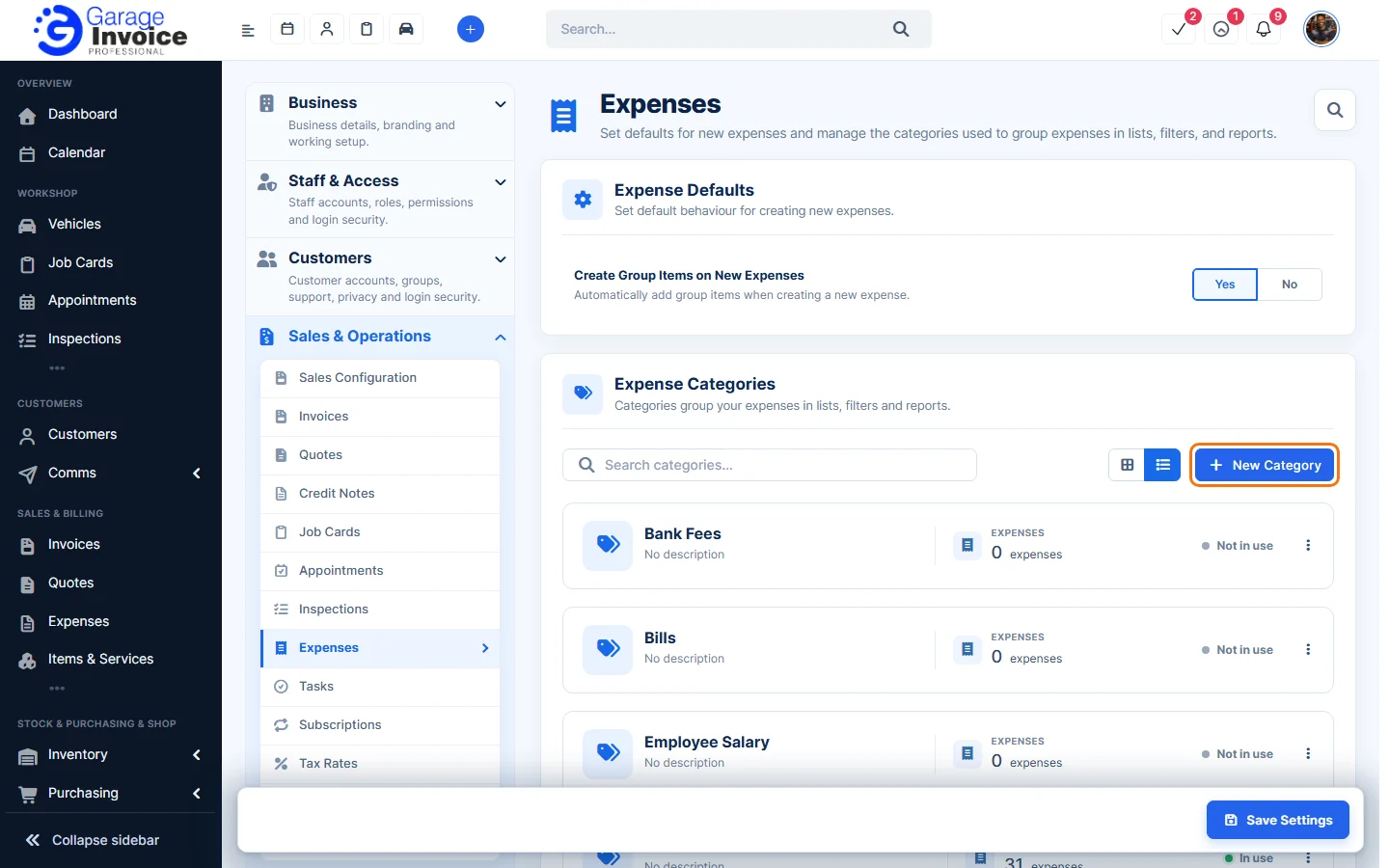
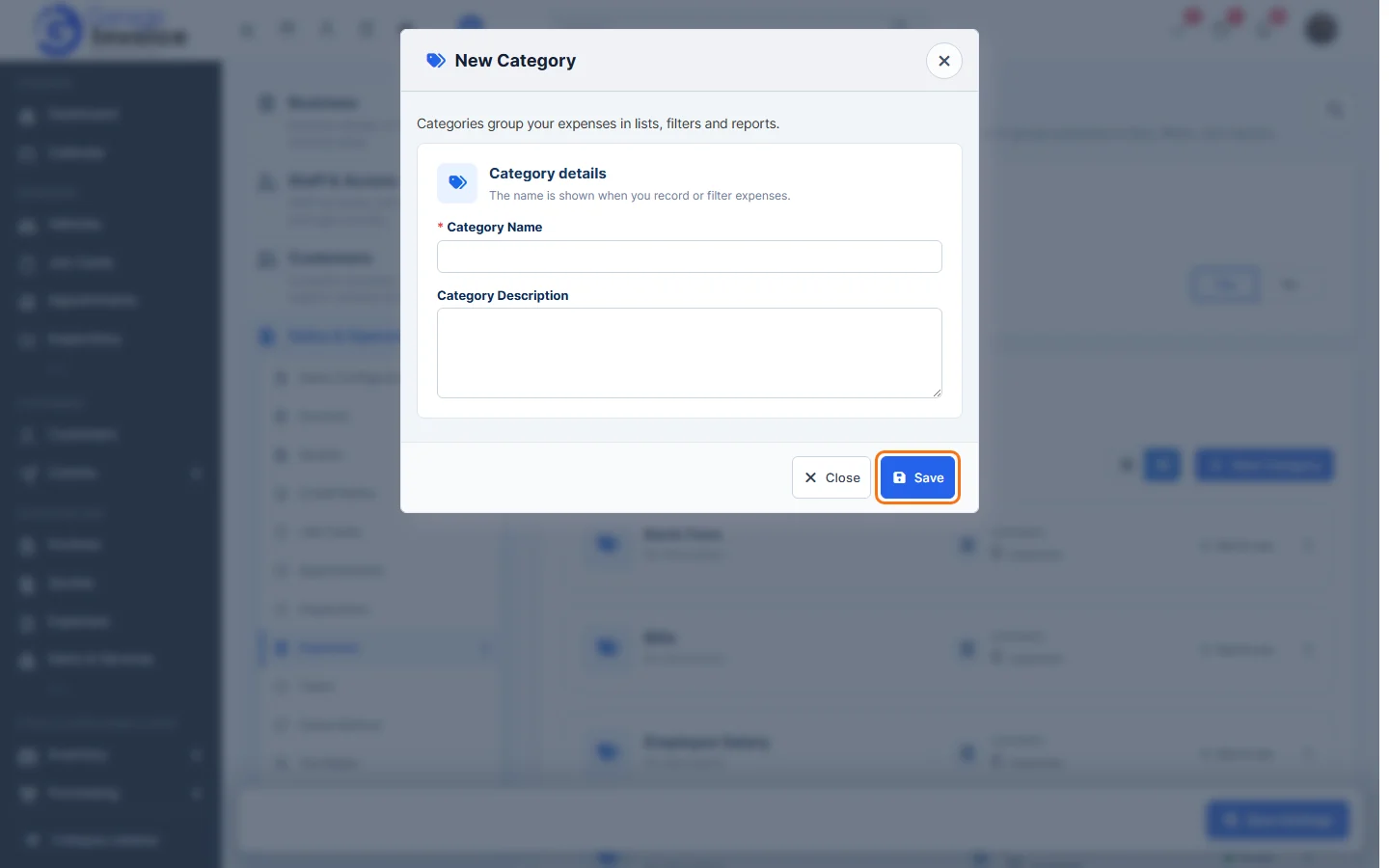
- To add a category, click New Category, enter the Category Name and an optional Category Description, and click Save.
- To rename a category, click ⋮ on its card and choose Edit Category.
Tip: you can also add a category while recording an expense: click + next to Expense Category.
Under Expense Defaults on the same page, Create Group Items on New Expenses adds a group to new expenses.
Feature Expense tracking: see what it does and how it fits your workshop.