
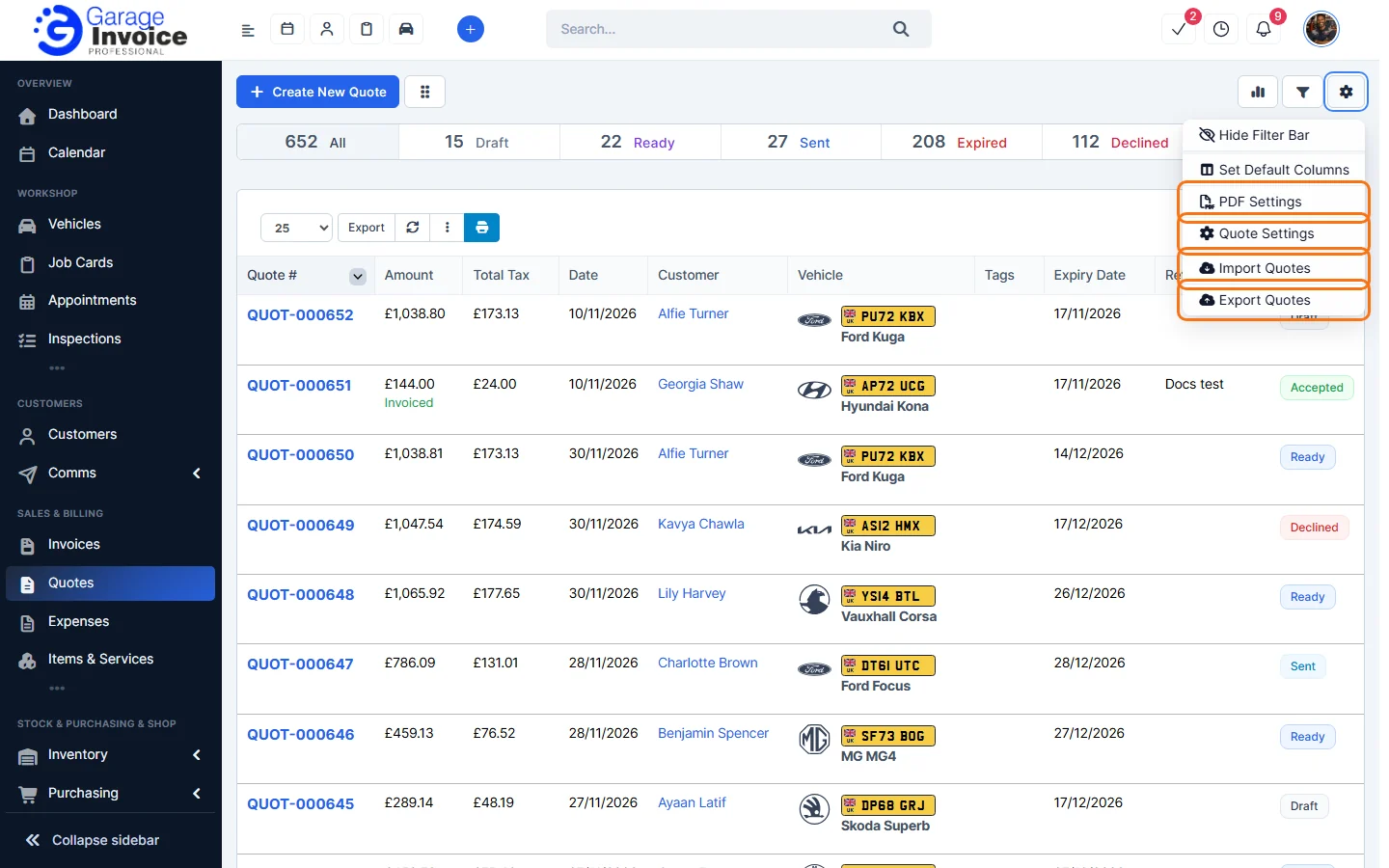
- Click Quotes in the sidebar, under Sales & Billing. Click the cog button at the top right and choose Export Quotes.
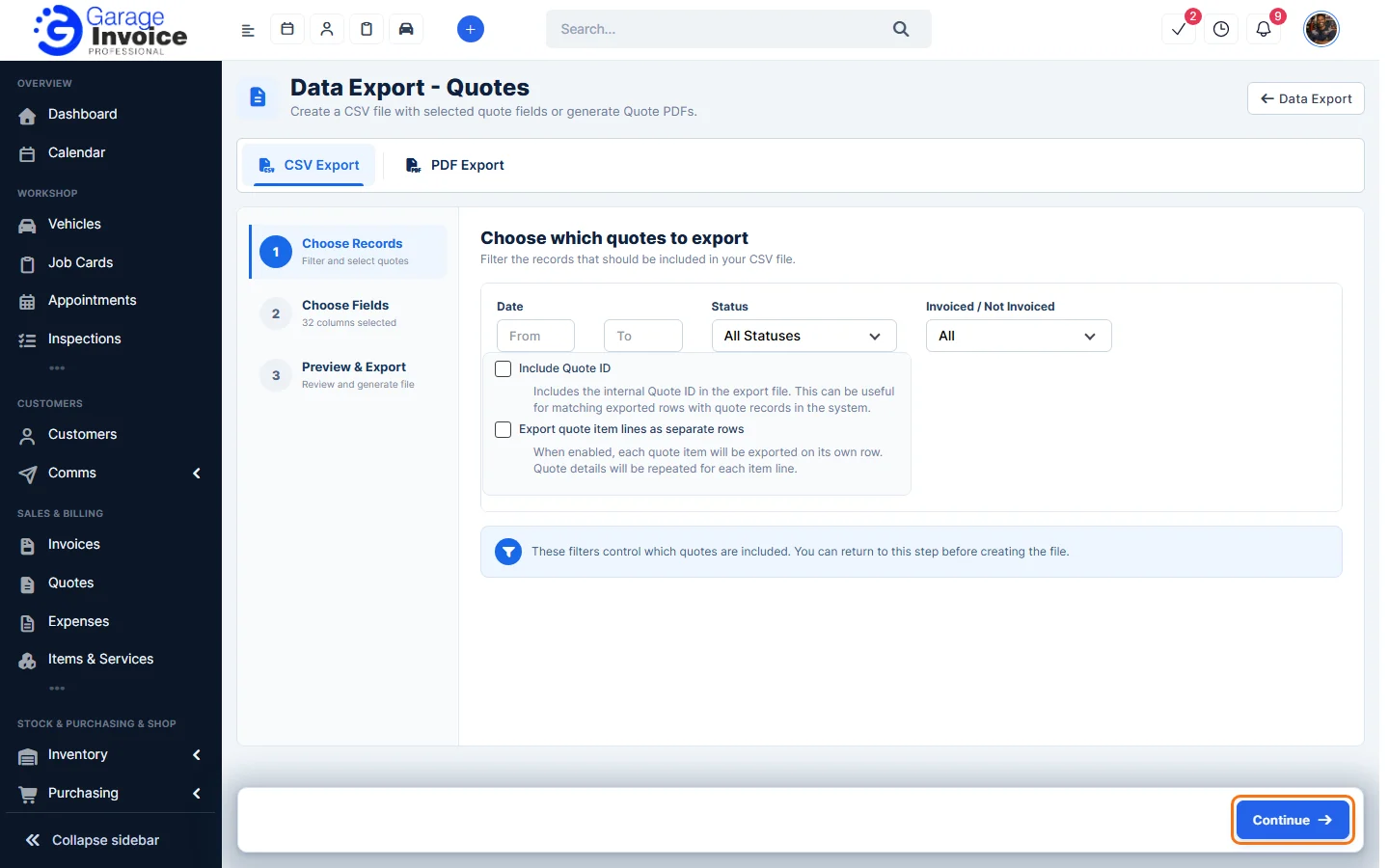
You can also go to Utilities & Data → Data Export and choose Quotes. - Choose which quotes to export: the Date range, Status and Invoiced / Not Invoiced. Turn on Include Quote ID or Export quote item lines as separate rows if you need them. Click Continue.
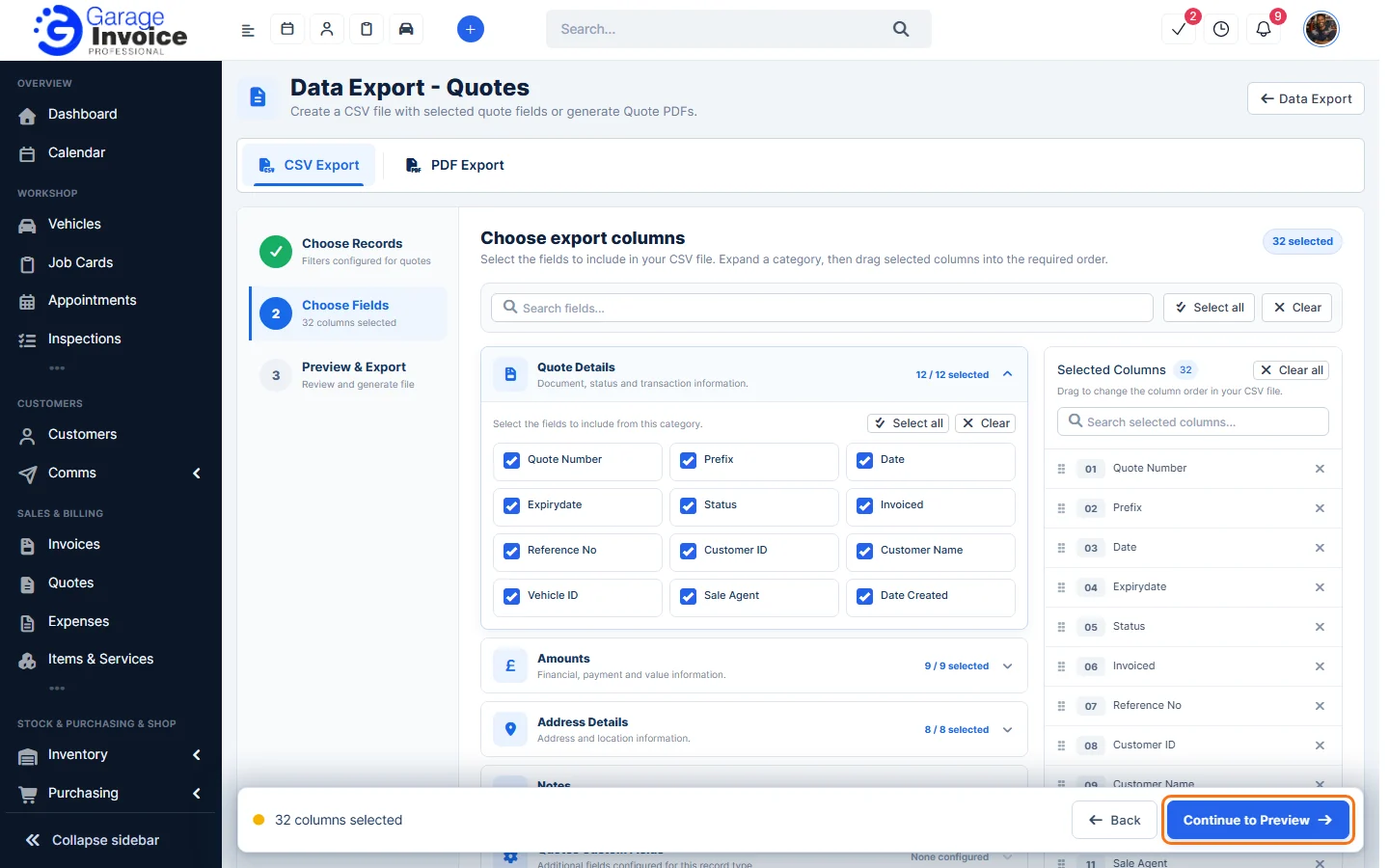
- Tick the columns you want. Drag the selected columns into the order you want, then click Continue to Preview.
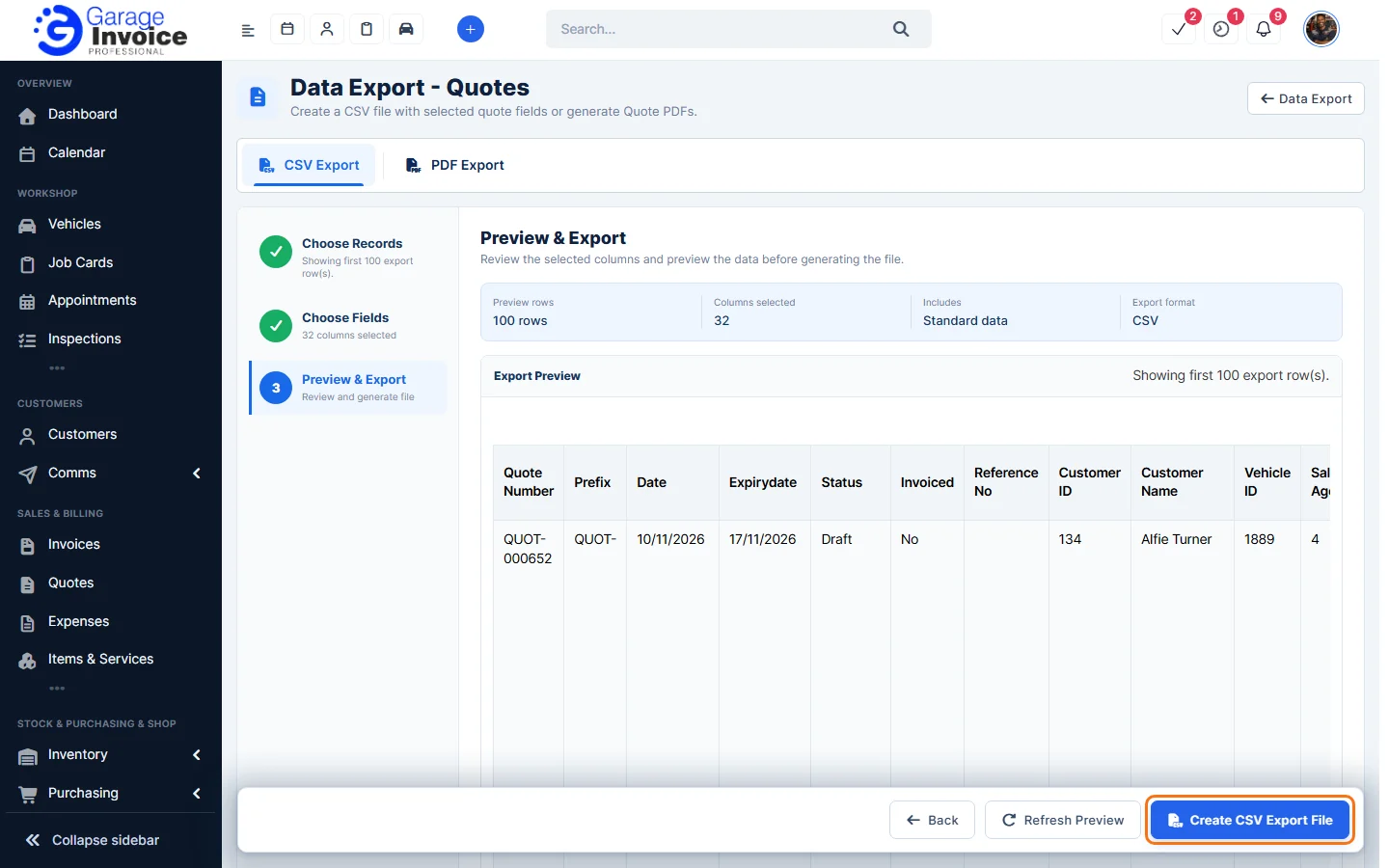
- Check the Export Preview and click Create CSV Export File.
Export quotes as PDFs
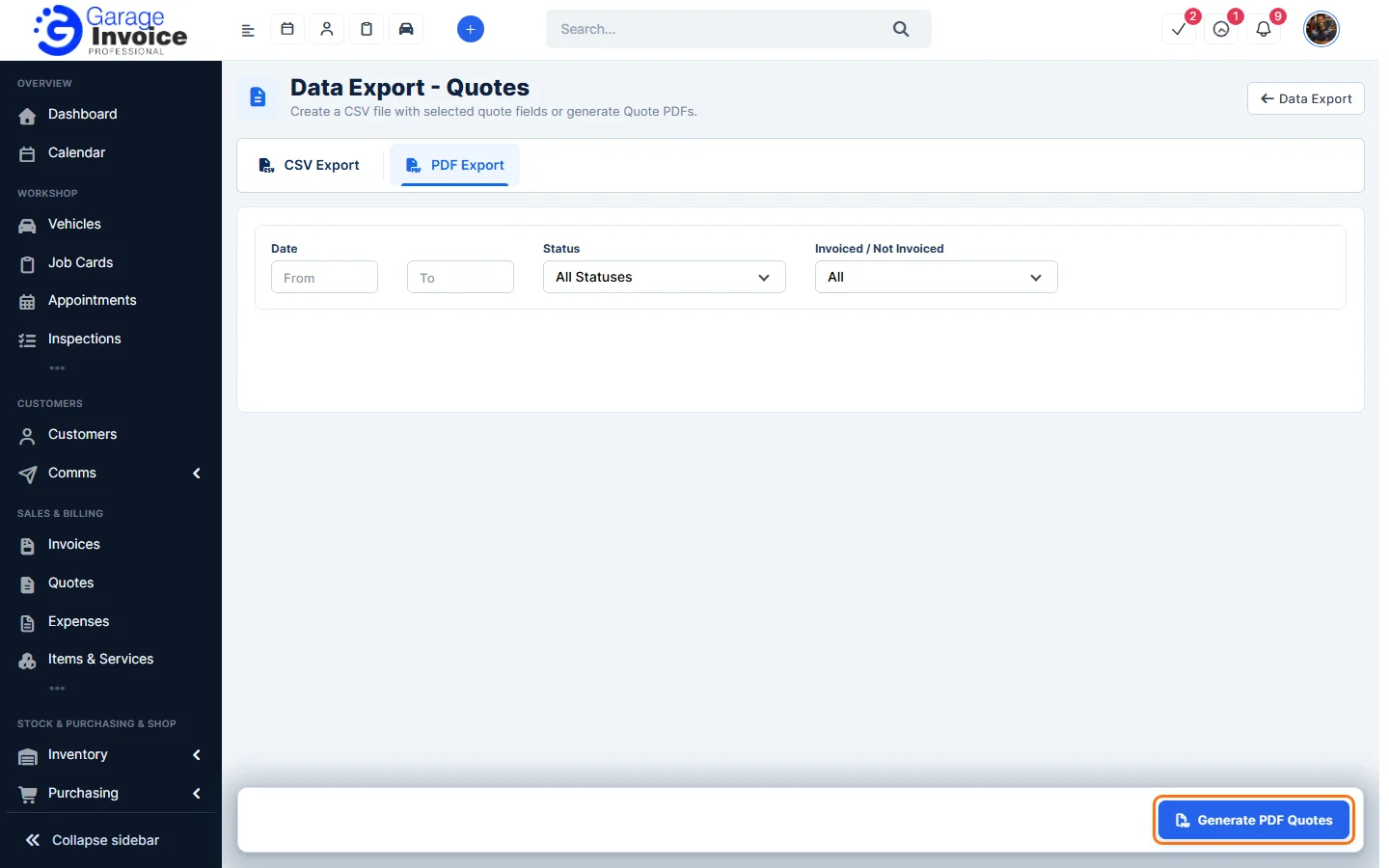
- On the same page, click the PDF Export tab.
- Choose the Date range, Status and Invoiced / Not Invoiced, then click Generate PDF Quotes.
Tip: to save a single quote as a PDF, see Print Quote. For all export options, see Data Export.
Feature Garage quoting software: see what it does and how it fits your workshop.