
By default Garage Invoice sends your emails through its own email service, so it works straight away. You can connect your own email account instead, so customers get emails from your own address and they appear in your sent items.
- Click Settings at the bottom of the sidebar, under Administration. In the panel on the left, open Comms and click Email. Click the Email Providers tab. Email Connections shows which provider is connected. Click Show more to see the full list.
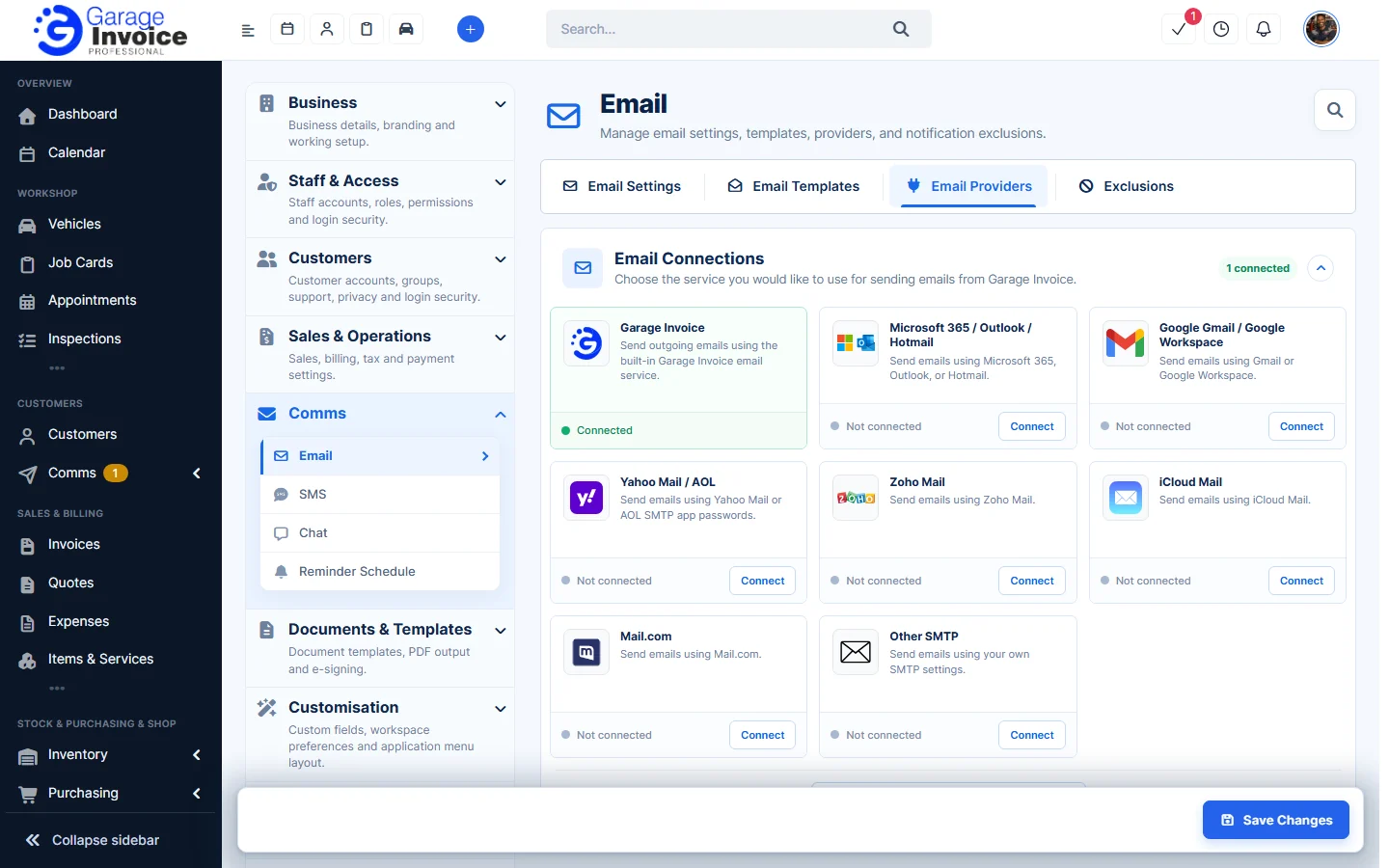
- Click Connect next to your provider:
- Garage Invoice: the built-in service (connected as standard).
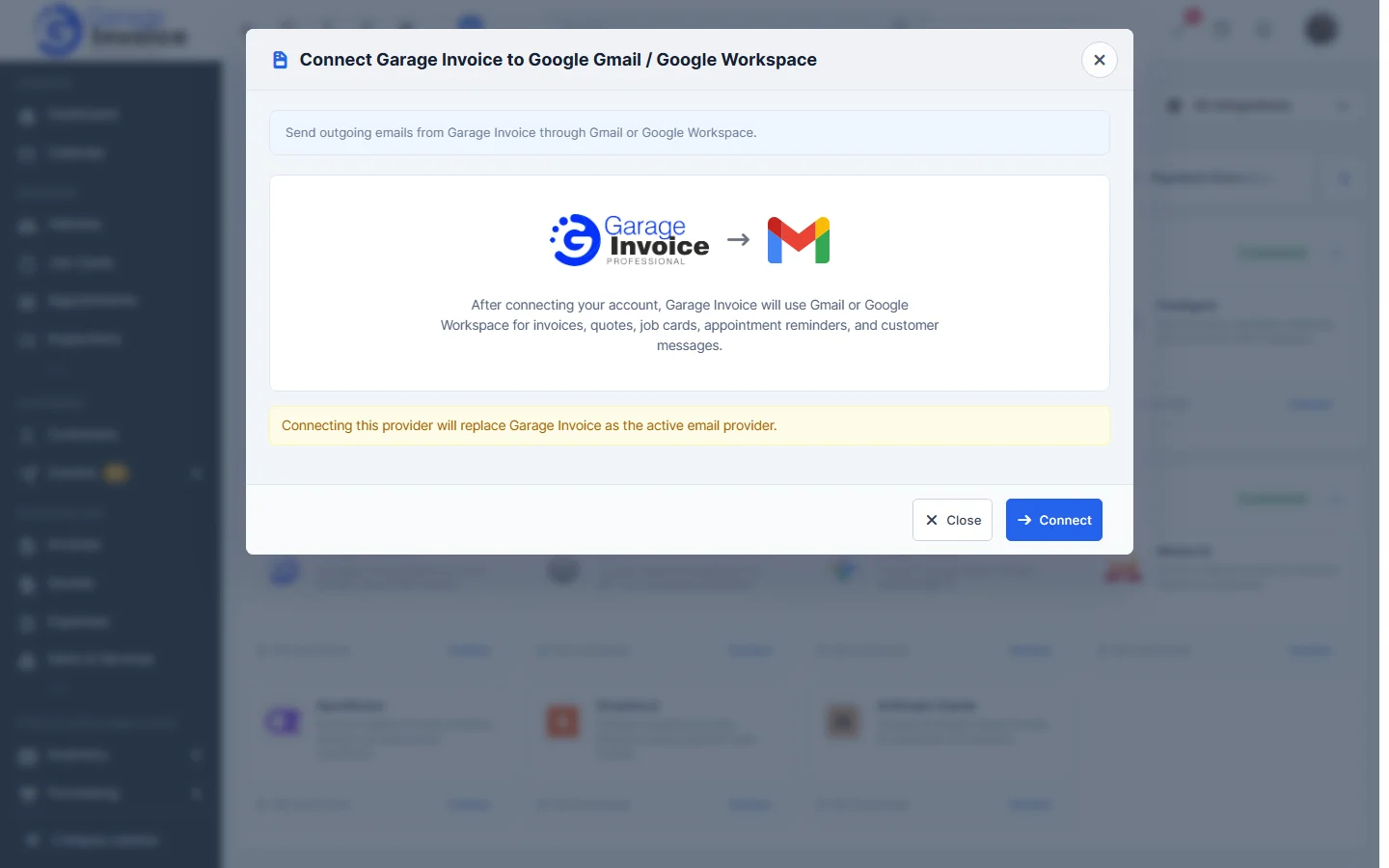
- Microsoft 365 / Outlook / Hotmail and Google Gmail / Google Workspace: click Connect in the window and sign in to your Microsoft or Google account to allow Garage Invoice to send for you.
- Yahoo Mail / AOL, Zoho Mail, iCloud Mail, Mail.com and Other SMTP: you enter your mail server details.
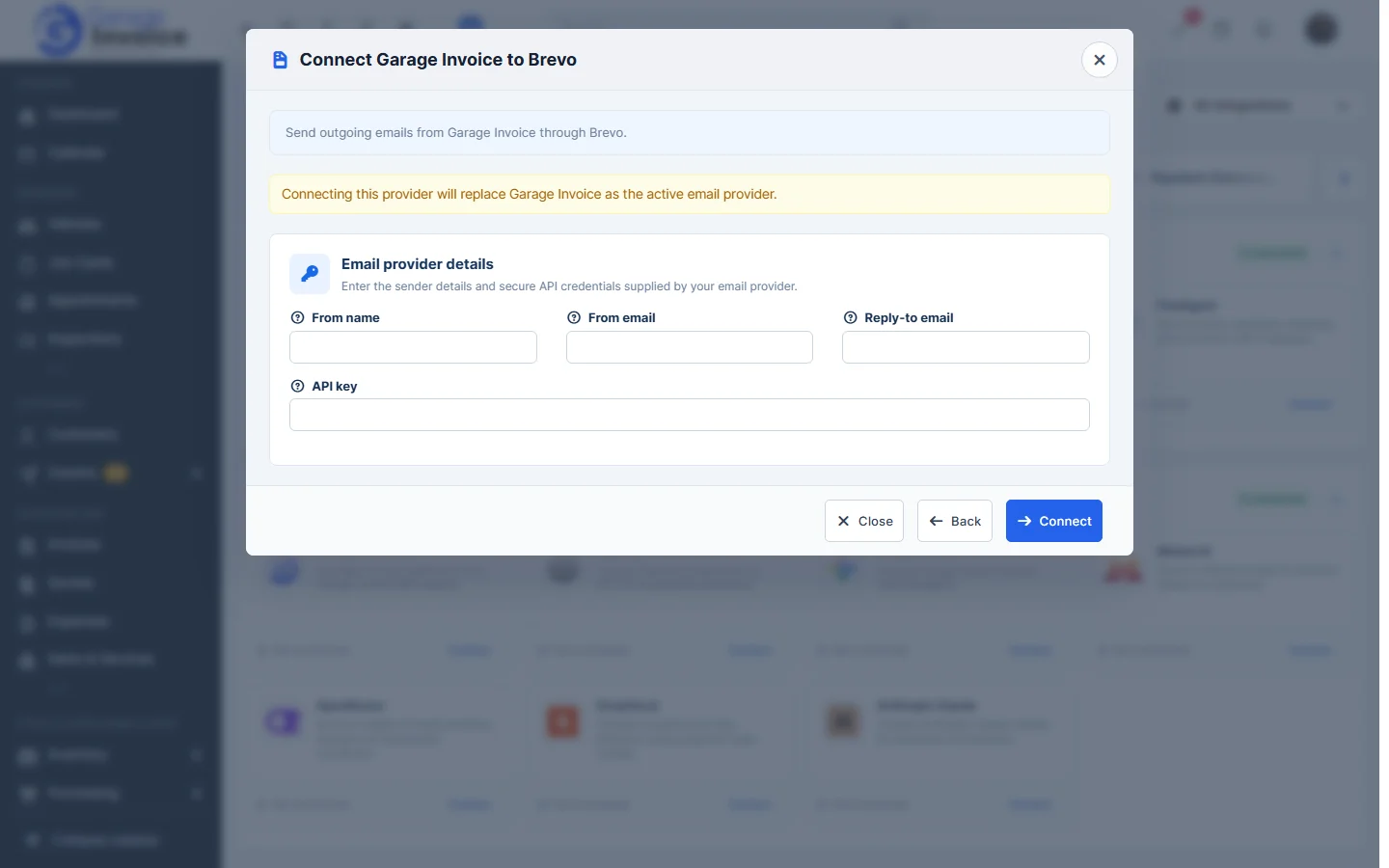
- Email sending services: SendLayer, SMTP.com, Brevo, Amazon SES, Elastic Email, Mailgun, Mailjet, MailerSend, Mandrill, Postmark, Resend, SendGrid and SMTP2GO: you enter the API key from your account with them.
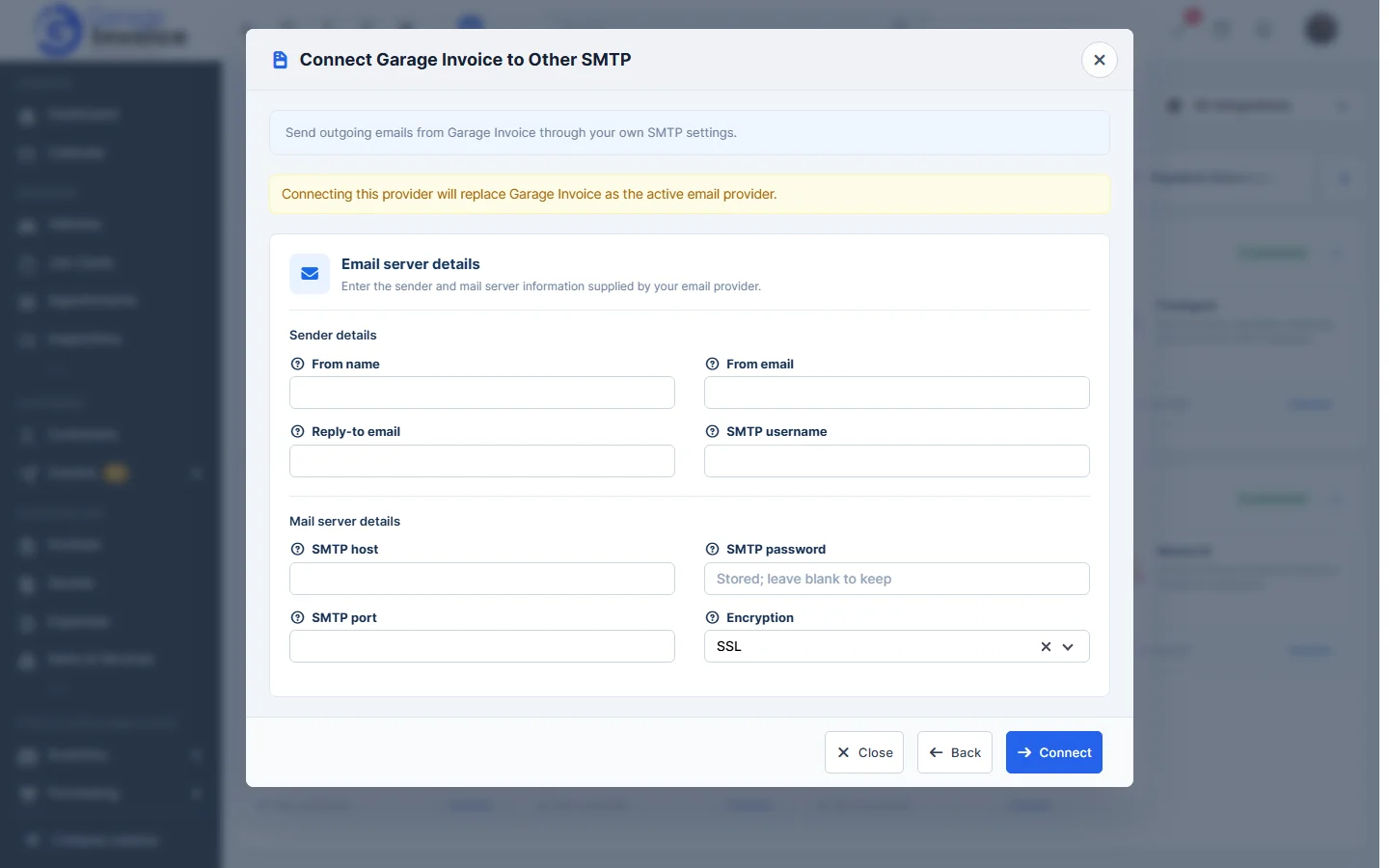
- For a mail server (for example Other SMTP), click Continue and fill in:
- Sender details: From name, From email, Reply-to email and SMTP username.
- Mail server details: SMTP host, SMTP password, SMTP port and Encryption (None, TLS or SSL).
Your email provider gives you these details. For Yahoo or AOL, use an app password; for AOL, change the SMTP host to smtp.aol.com.
- For an email sending service (for example Brevo), click Continue and enter the From name, From email, Reply-to email and API key.
- Click Connect.
Note: connecting a provider replaces Garage Invoice as the active email provider. Only one provider sends your emails at a time. Use Back or Close to leave the window without connecting.
Tip: if emails don’t arrive, see Error when sending emails.
Feature Email and SMS notifications: see what it does and how it fits your workshop.