
- Click Settings at the bottom of the sidebar, under Administration. In the panel on the left, open Comms and click Reminder Schedule.
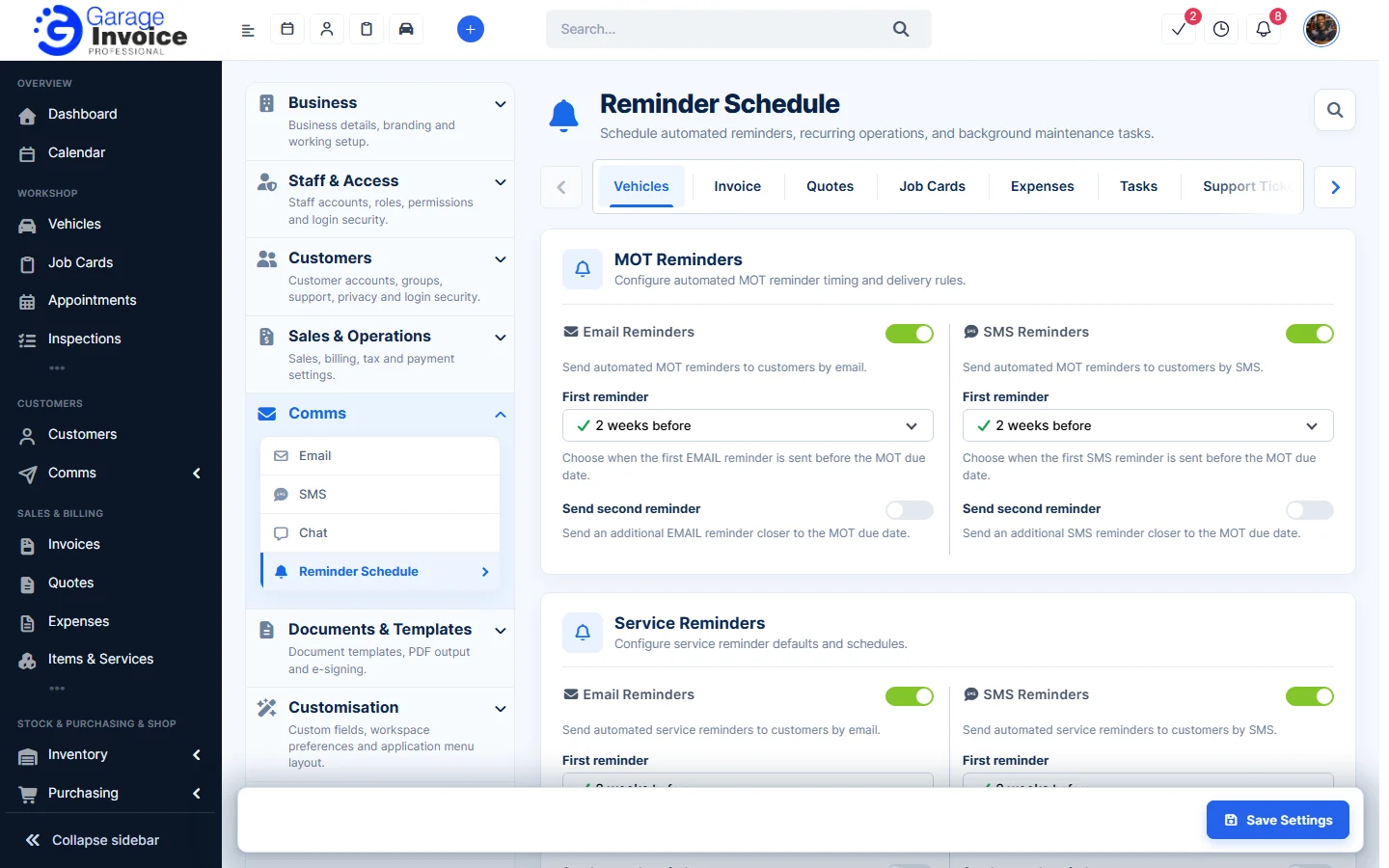
- On the Vehicles tab, set the MOT Reminders and Service Reminders. Turn Email Reminders and SMS Reminders on or off, choose when the First reminder is sent (for example 2 weeks before) and tick Send second reminder to send another one closer to the due date.
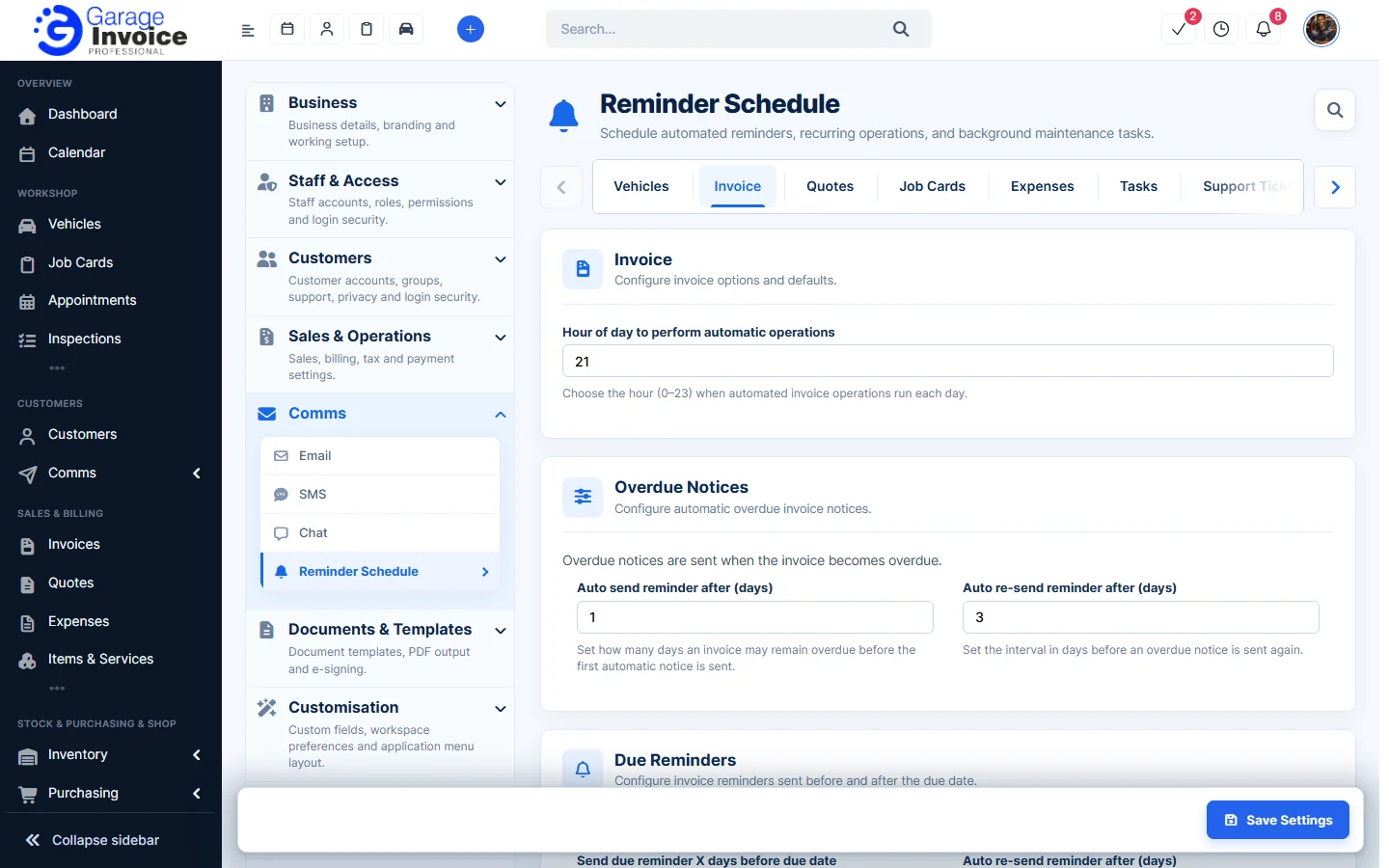
- On the Invoice tab, set the Hour of day to perform automatic operations, the Overdue Notices (Auto send reminder after (days) and Auto re-send reminder after (days)), Due Reminders and how renewed Recurring Invoices are created.
- The other tabs work the same way: Quotes, Job Cards, Expenses, Tasks, Support Tickets (for example Auto close ticket after (Hours)), Appointments and Inventory (expiry notifications).
- Click Save Settings at the bottom right.
Tip: reminders are created on each vehicle, see Create MOT/Service or Custom Reminder.
Feature Email and SMS notifications: see what it does and how it fits your workshop.