
A purchase invoice is the bill you get from a supplier. When you record a payment on a purchase order, a purchase invoice is created for you (see Record a Payment on a Purchase Order). You can also add one yourself.
Add a purchase invoice
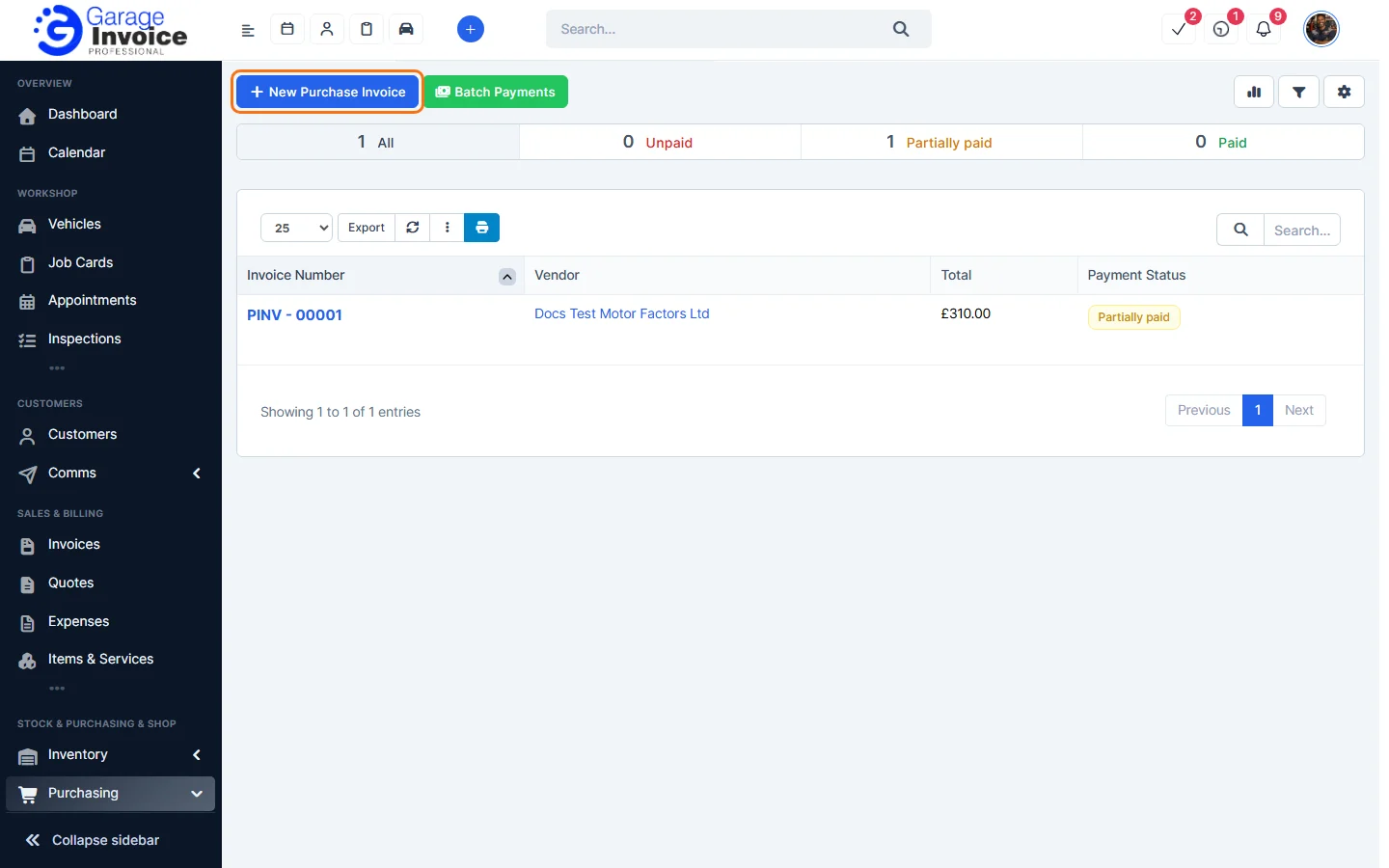
- Click Purchasing in the sidebar (under Stock & Purchasing & Shop) and click Purchase Invoices. The tabs show All, Unpaid, Partially paid and Paid invoices. Click New Purchase Invoice.
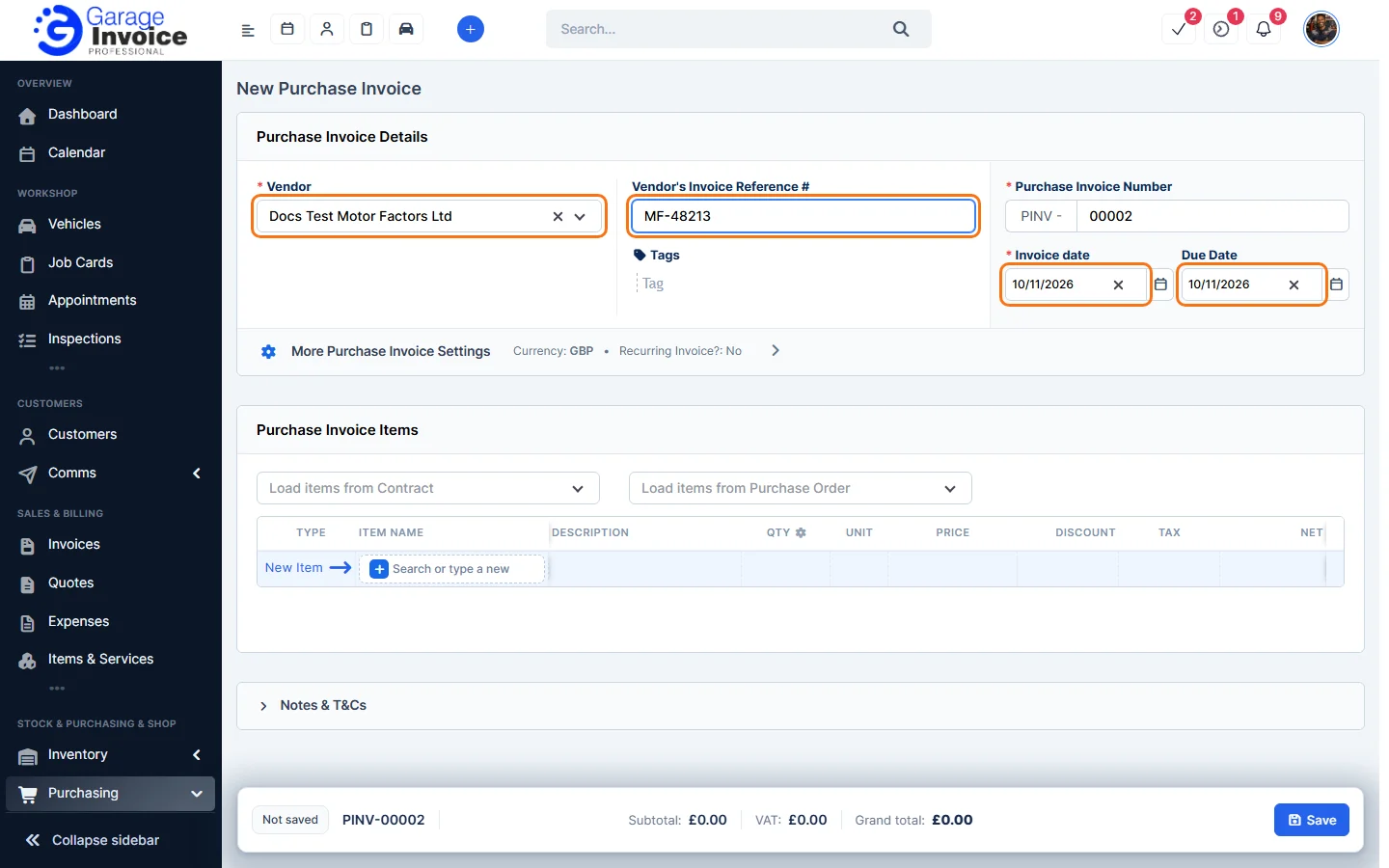
- Choose the Vendor and type the supplier’s own invoice number in Vendor’s Invoice Reference #. Check the Invoice date and Due Date. Under More Purchase Invoice Settings you can change the currency or make it a recurring invoice.
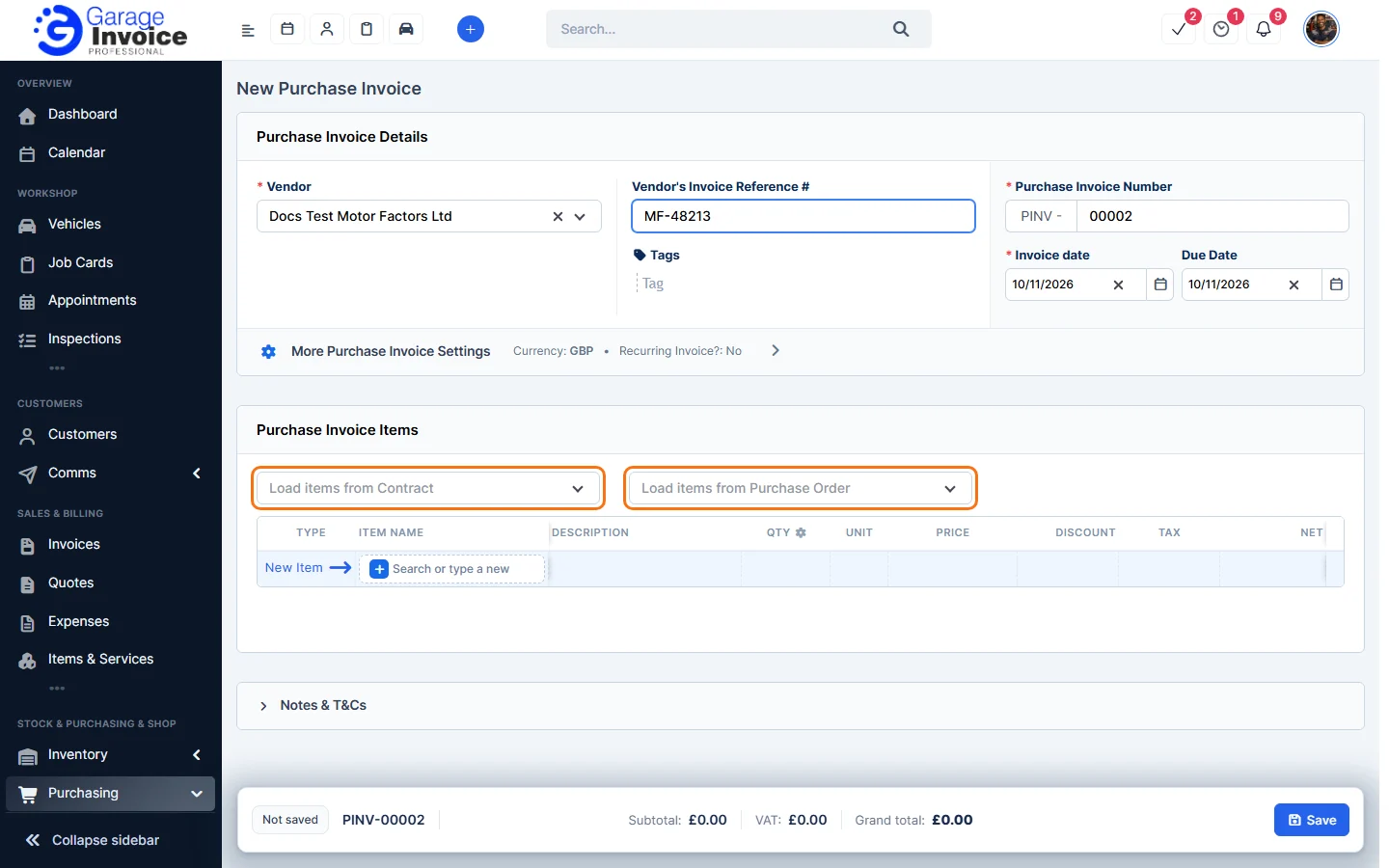
- Under Purchase Invoice Items, use Load items from Contract or Load items from Purchase Order, or add items yourself.
- Click Save.
View and pay a purchase invoice
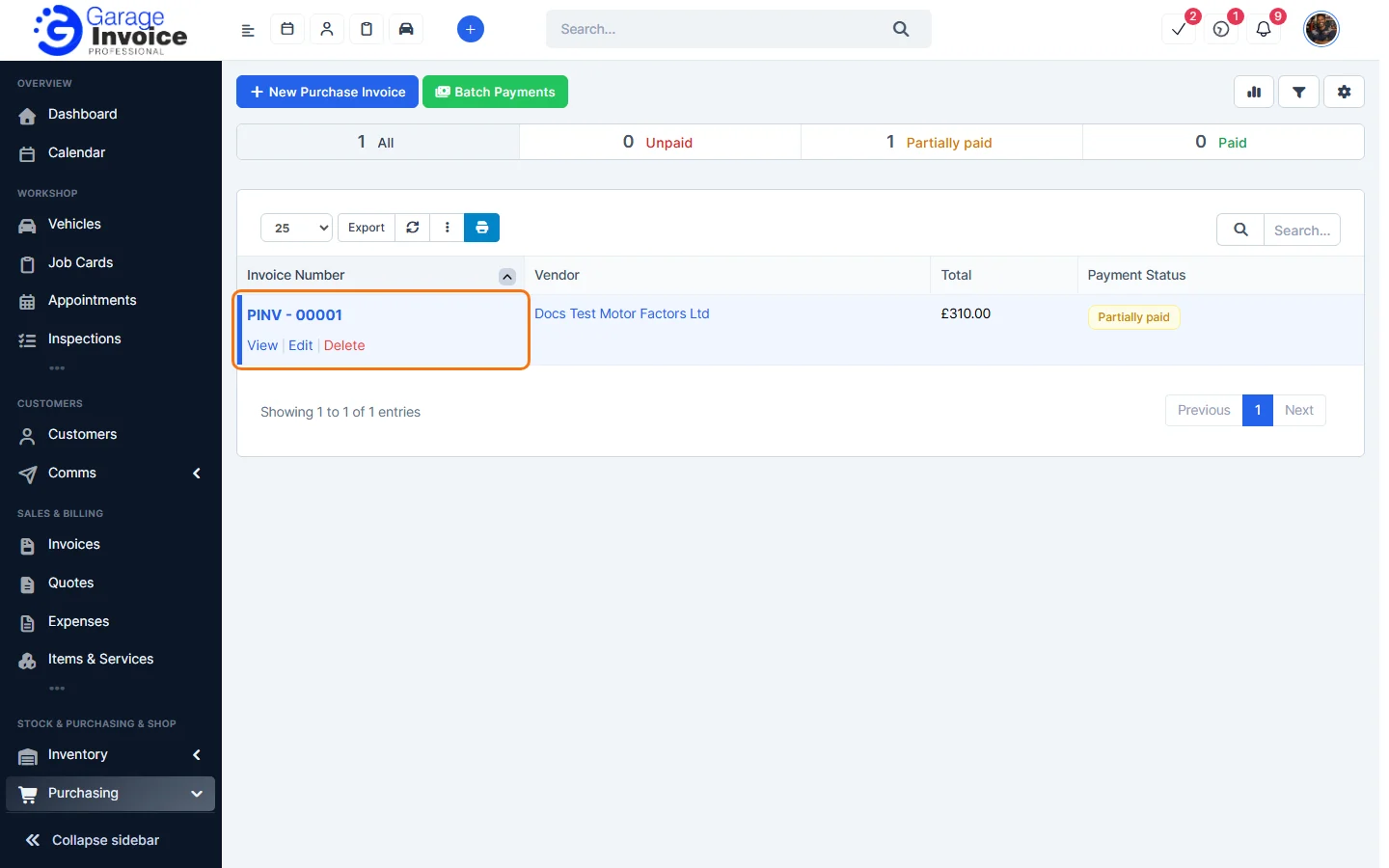
- Click the invoice number, or hover over it and click View. You can also Edit or Delete it here.
- The invoice shows its status, the purchase order it came from and the items. The tabs include Payment record, Applied debits (when a debit note was applied), Reminders, Tasks, Notes, Discuss and Attachment.
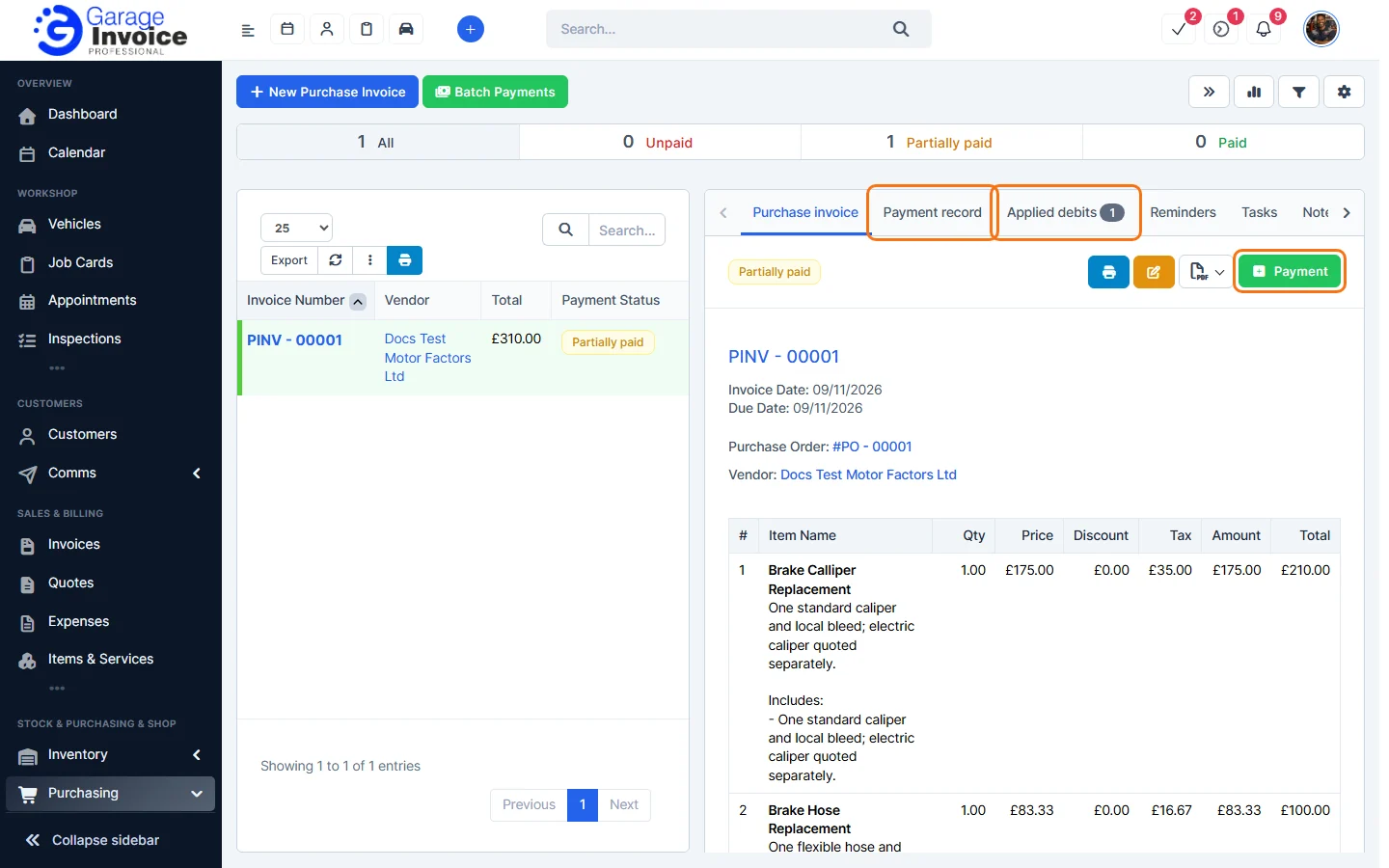
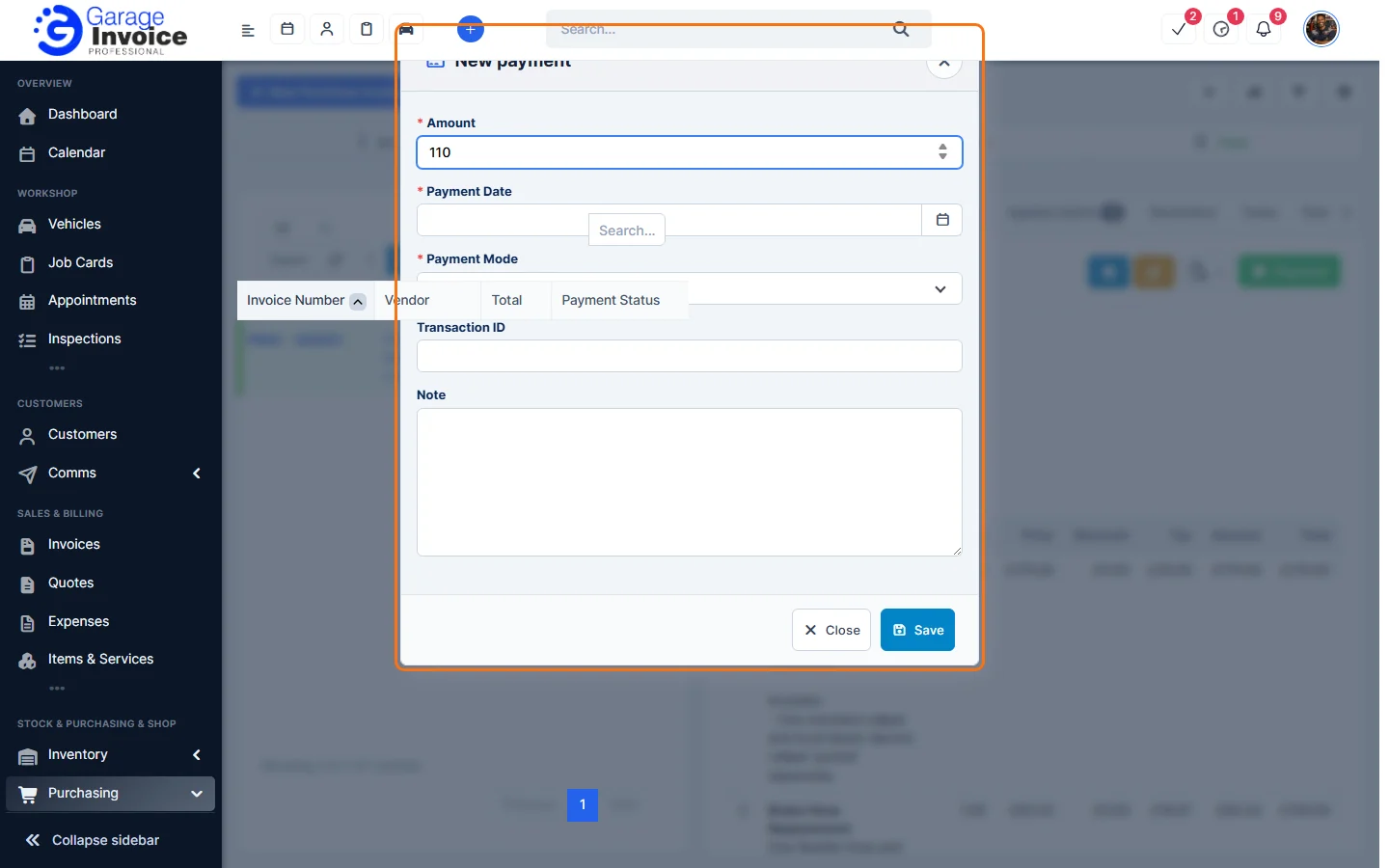
- Click Payment, enter the Amount, Payment Date and Payment Mode (and a Transaction ID or Note if you like), then click Save.
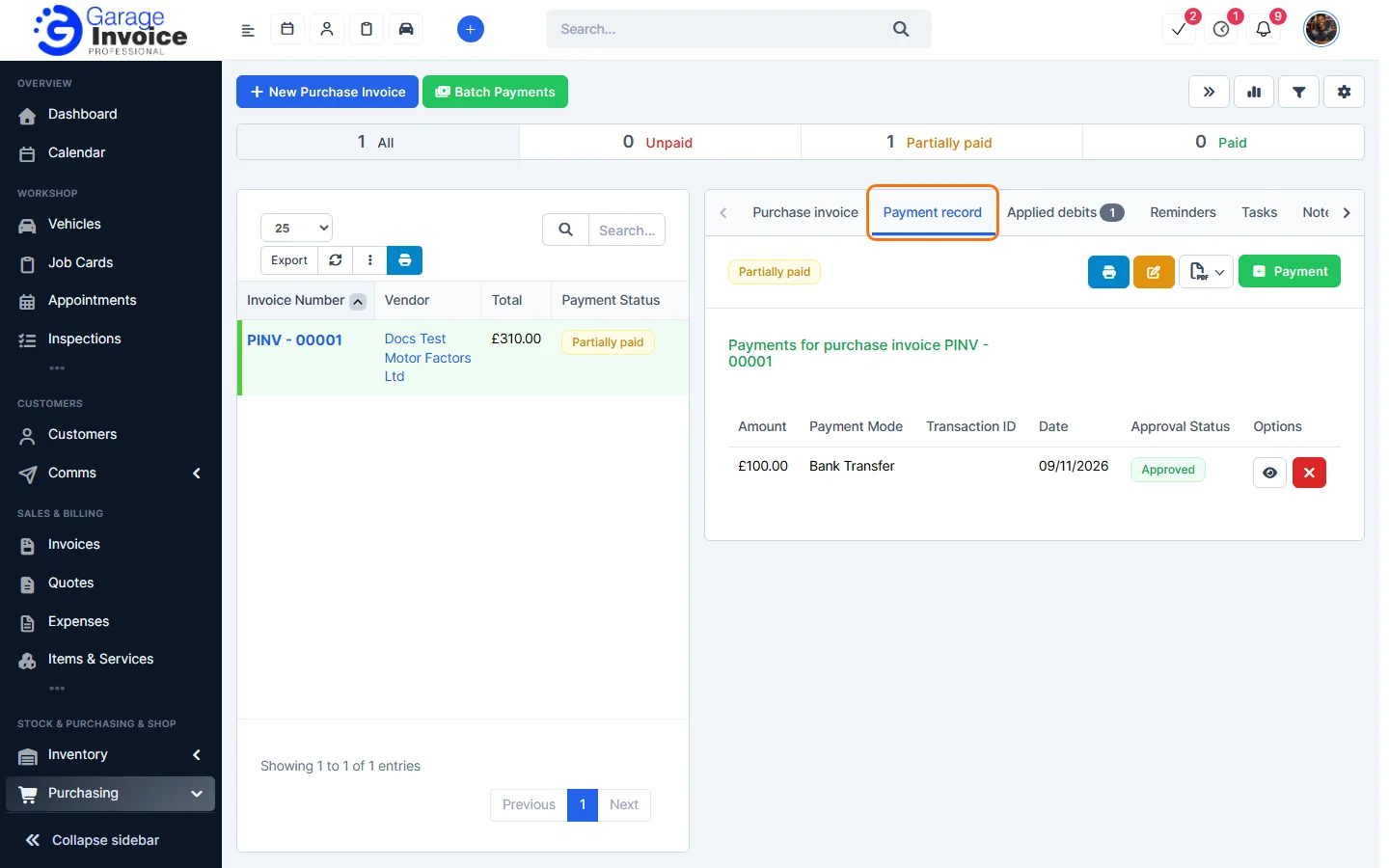
- The Payment record tab lists every payment for the invoice.
Pay several invoices at once
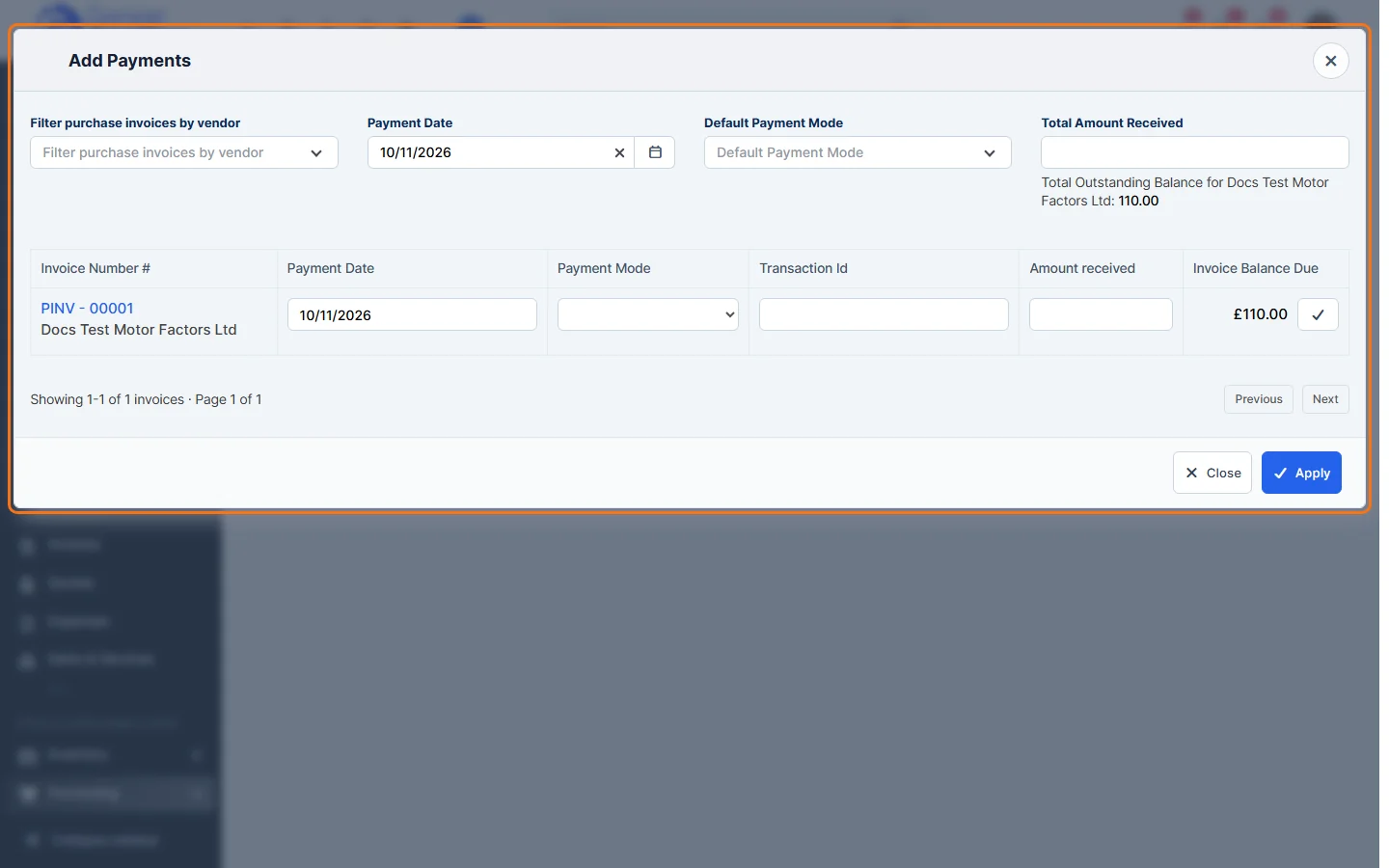
- On the Purchase Invoices list, click Batch Payments.
- Filter by supplier if you like, set the Payment Date and Default Payment Mode, then enter the Amount received for each invoice (the tick button fills in the full balance). Click Apply.
Feature Stock and inventory control: see what it does and how it fits your workshop.