
Open the ticket settings
- Click Settings, open Customers and click Customer Tickets.
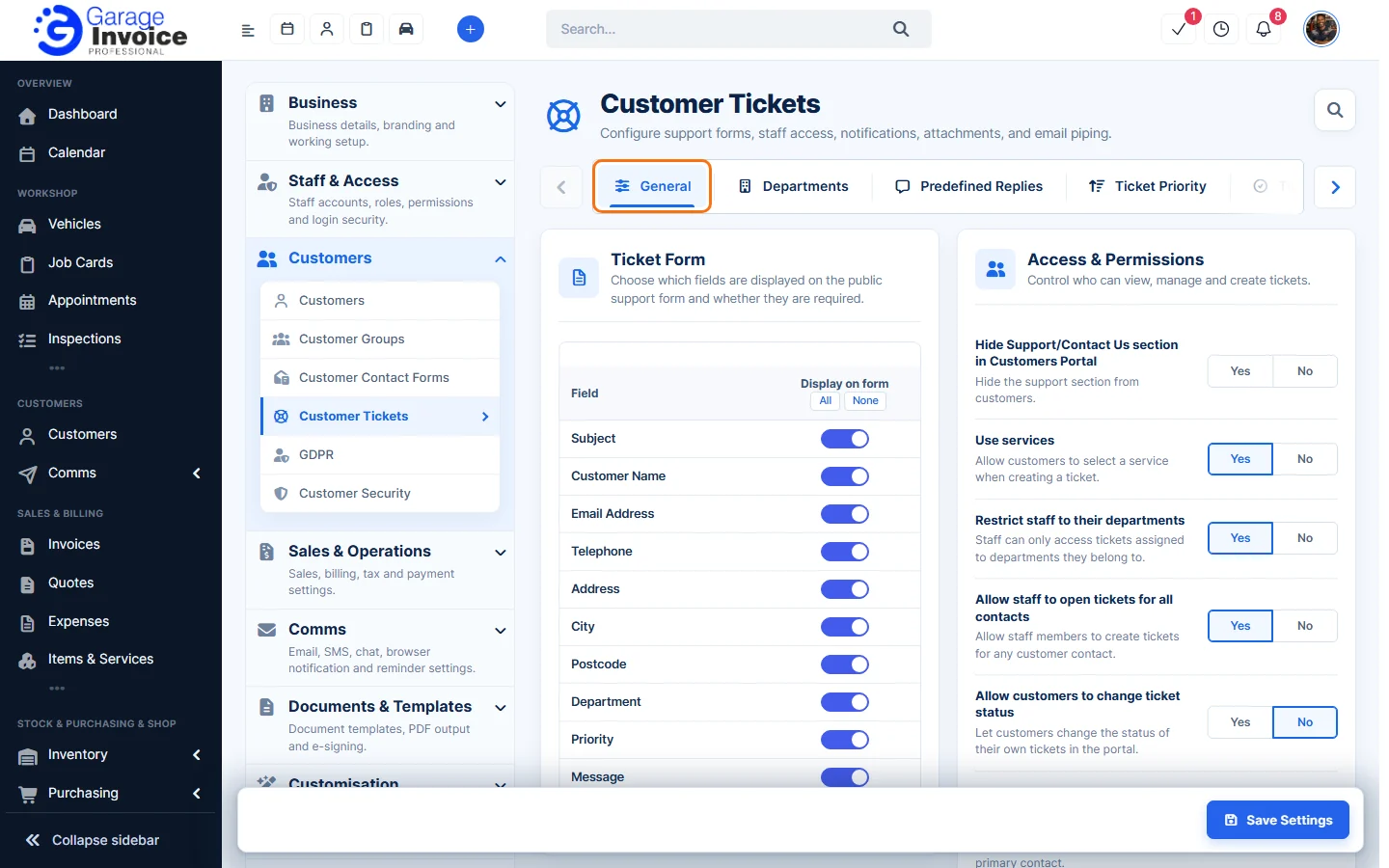
General tab
- Ticket Form: choose which fields are shown on the public support form and which are required.
- Access & Permissions: for example Hide Support/Contact Us section in Customers Portal, Use services, Restrict staff to their departments, Allow staff to open tickets for all contacts and Allow customers to change ticket status.
- Notifications: Send staff-related ticket notifications to assignee only, Receive notification when a new ticket is opened, Receive notification when a customer replies and Automatically assign to the first staff member to reply.
- Attachments: Maximum ticket attachments and Allowed file types.
- Ticket Behaviour: Default status when replying to a ticket (Answered), Ticket replies order (Oldest first or Newest first) and Enable support menu item badge.
Click Save Settings after you change anything.
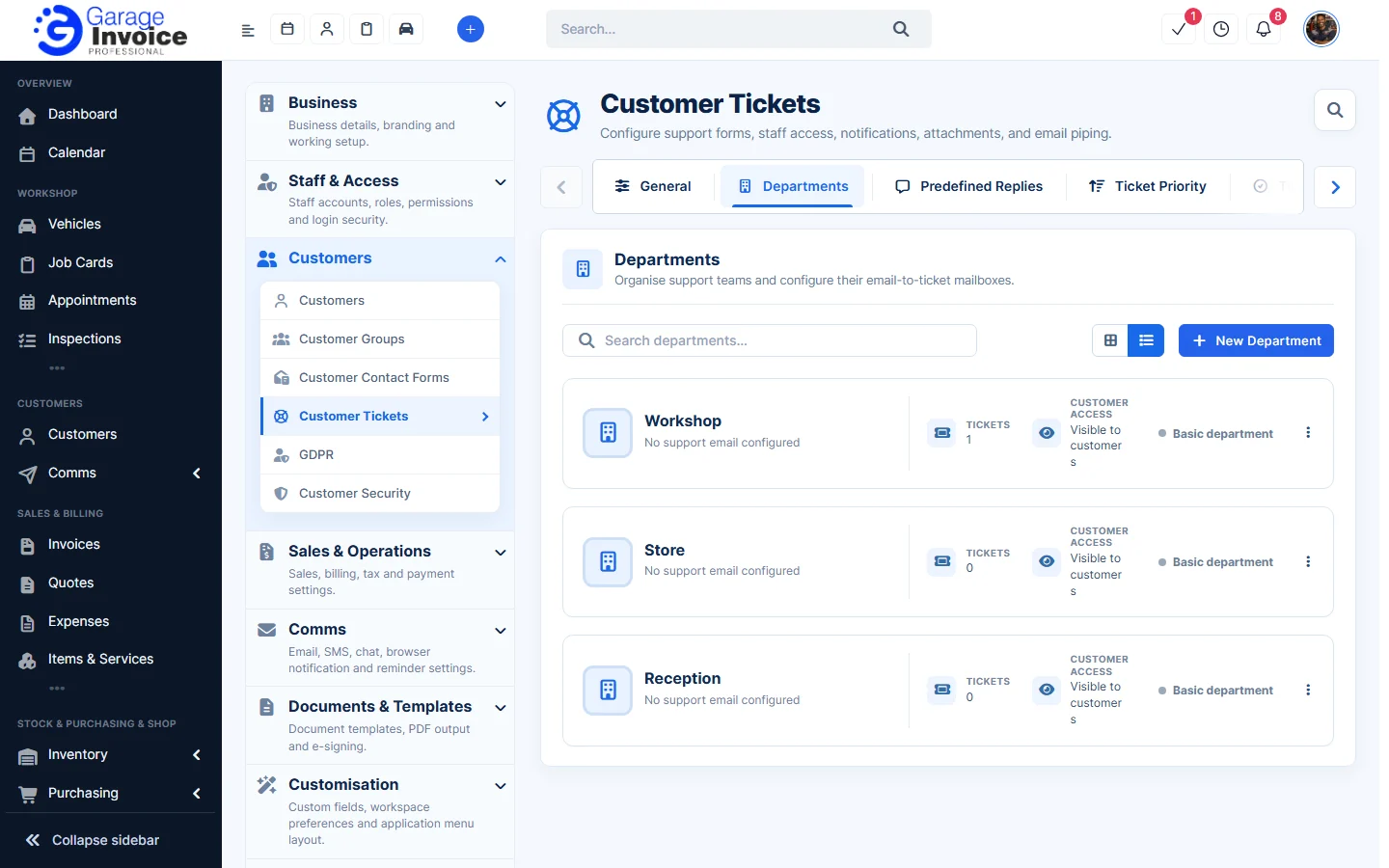
Departments
On the Departments tab, click New Department to add one. Each department shows how many tickets it has. Use the ⋮ menu on a department to change it.
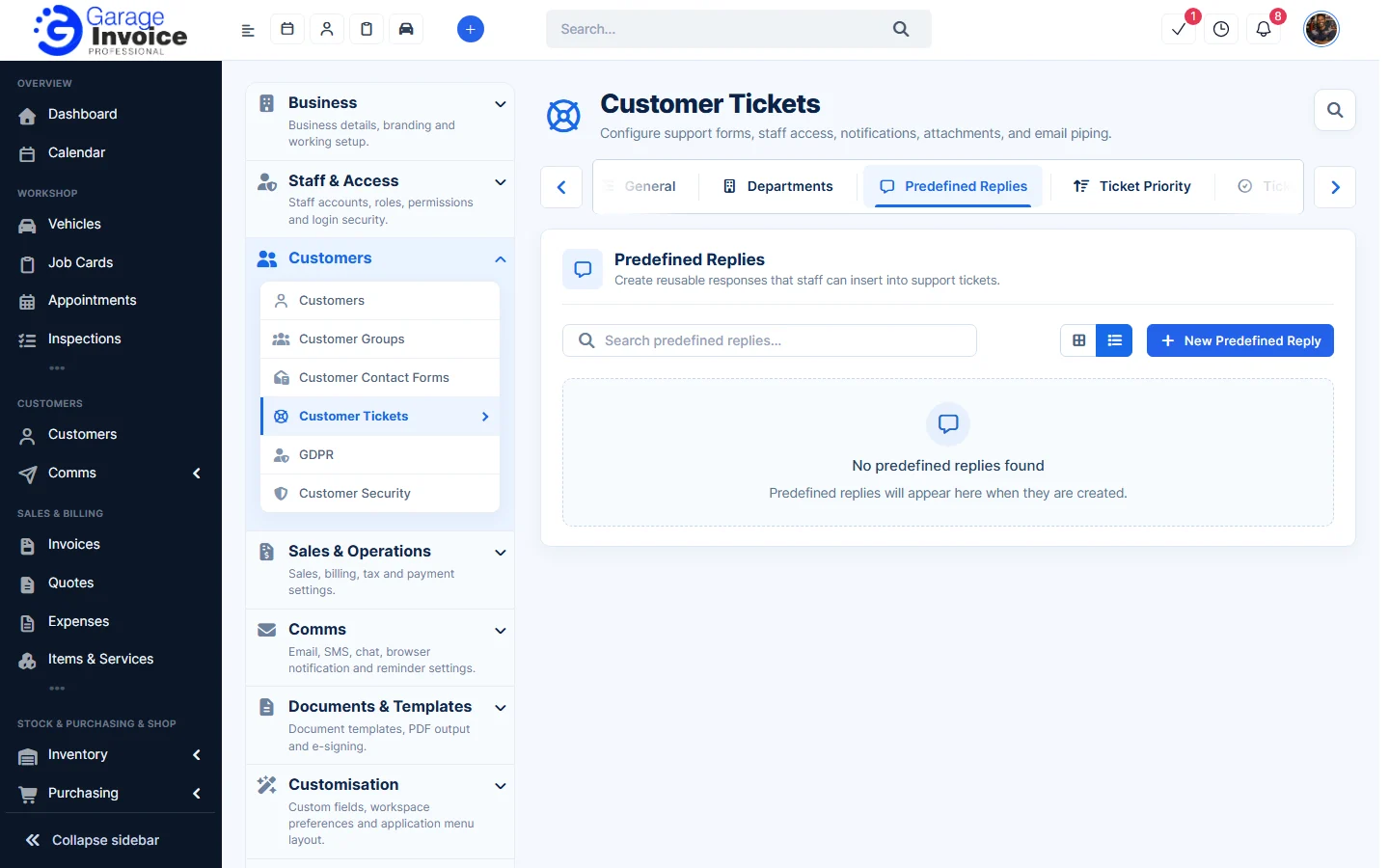
Predefined Replies
On the Predefined Replies tab, click New Predefined Reply to save a text you use often. Staff add it to a reply with Insert predefined reply.
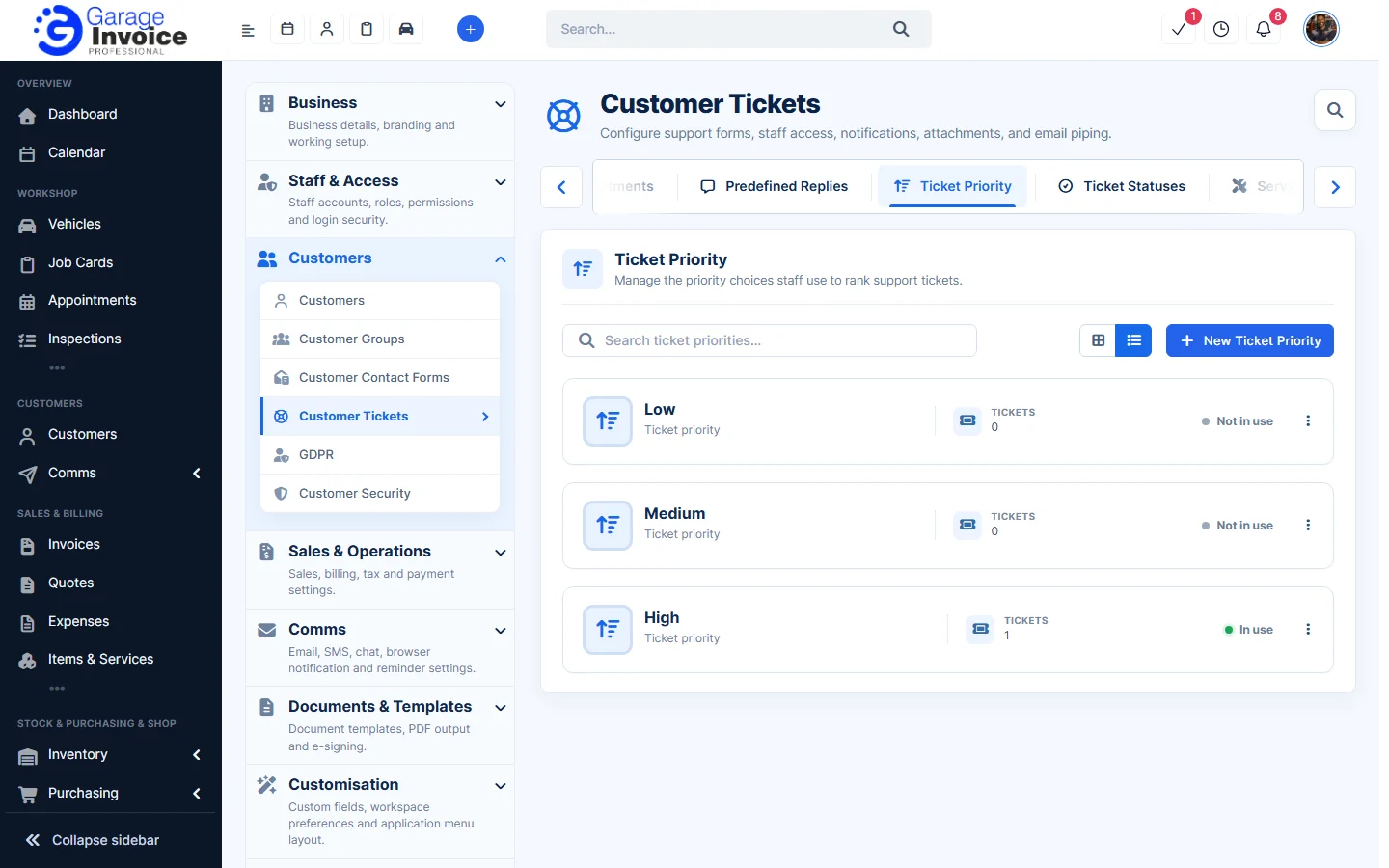
Ticket Priority
The Ticket Priority tab lists Low, Medium and High and shows whether each is in use. Click New Ticket Priority to add one.
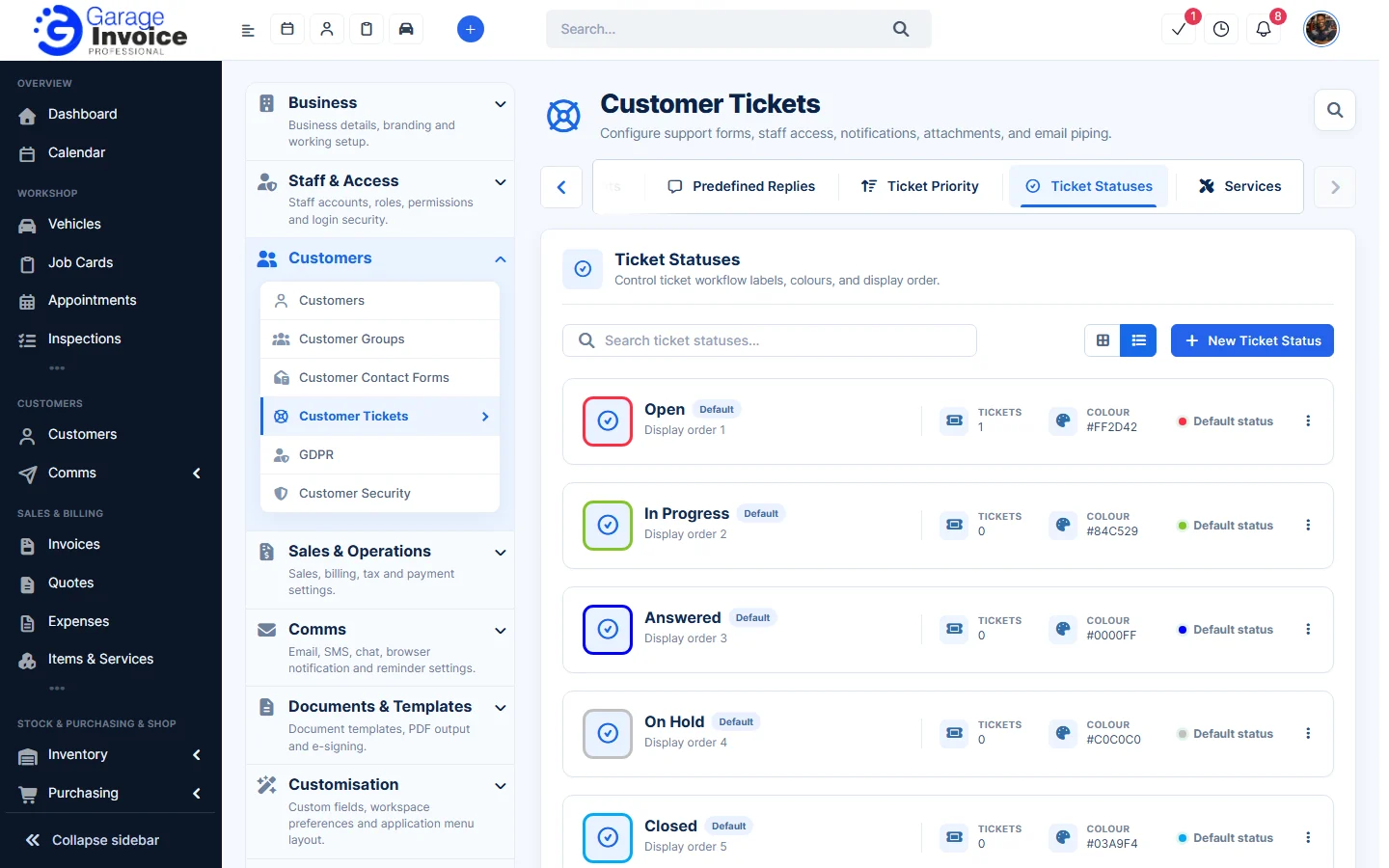
Ticket Statuses
The Ticket Statuses tab lists the statuses with their colour, display order and number of tickets. The five default statuses are marked Default. Click New Ticket Status to add your own.
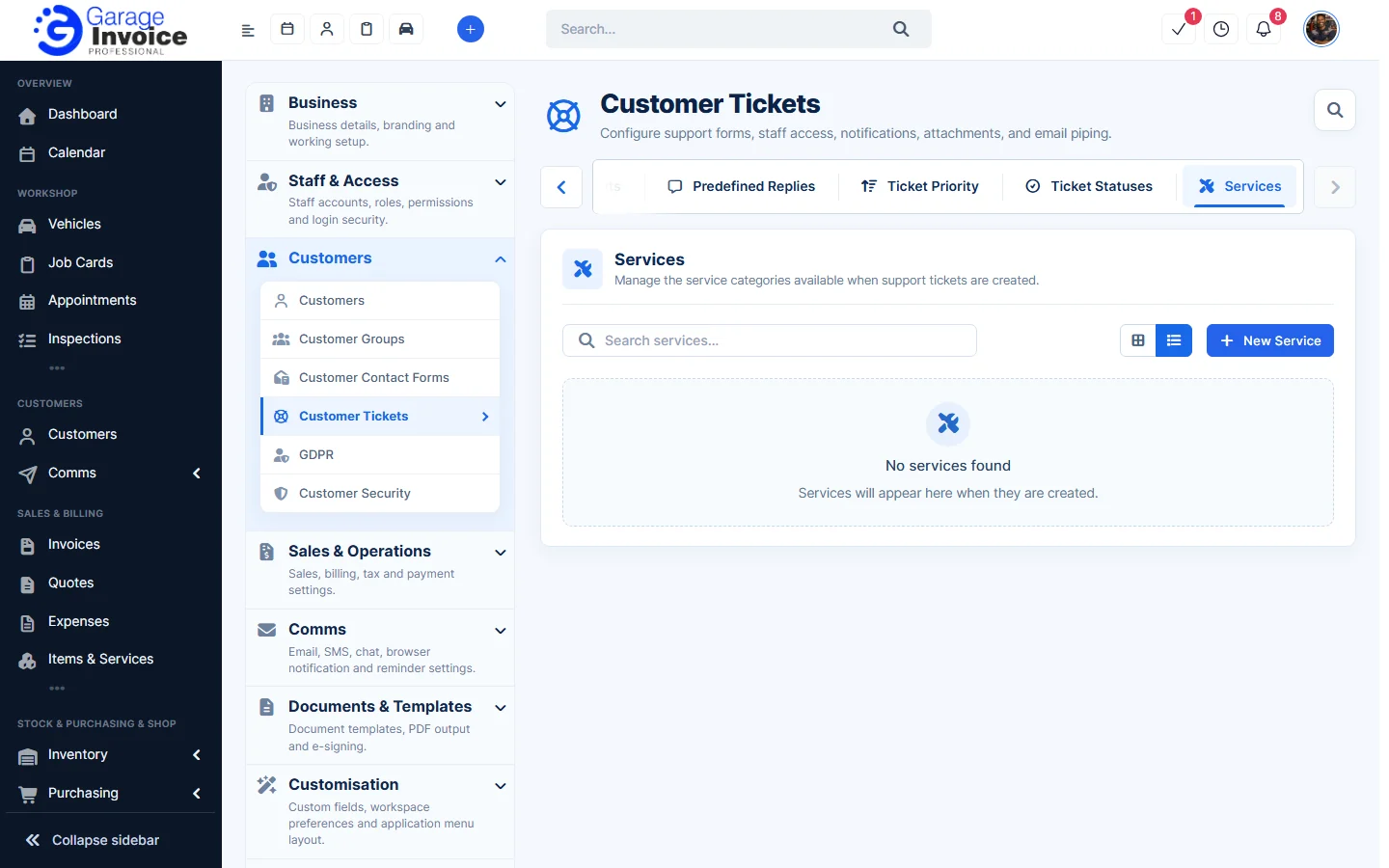
Services
On the Services tab, click New Service to add the services customers can choose on a ticket (when Use services is on).
Public support form
- On the General tab, scroll down to Public Support Form.
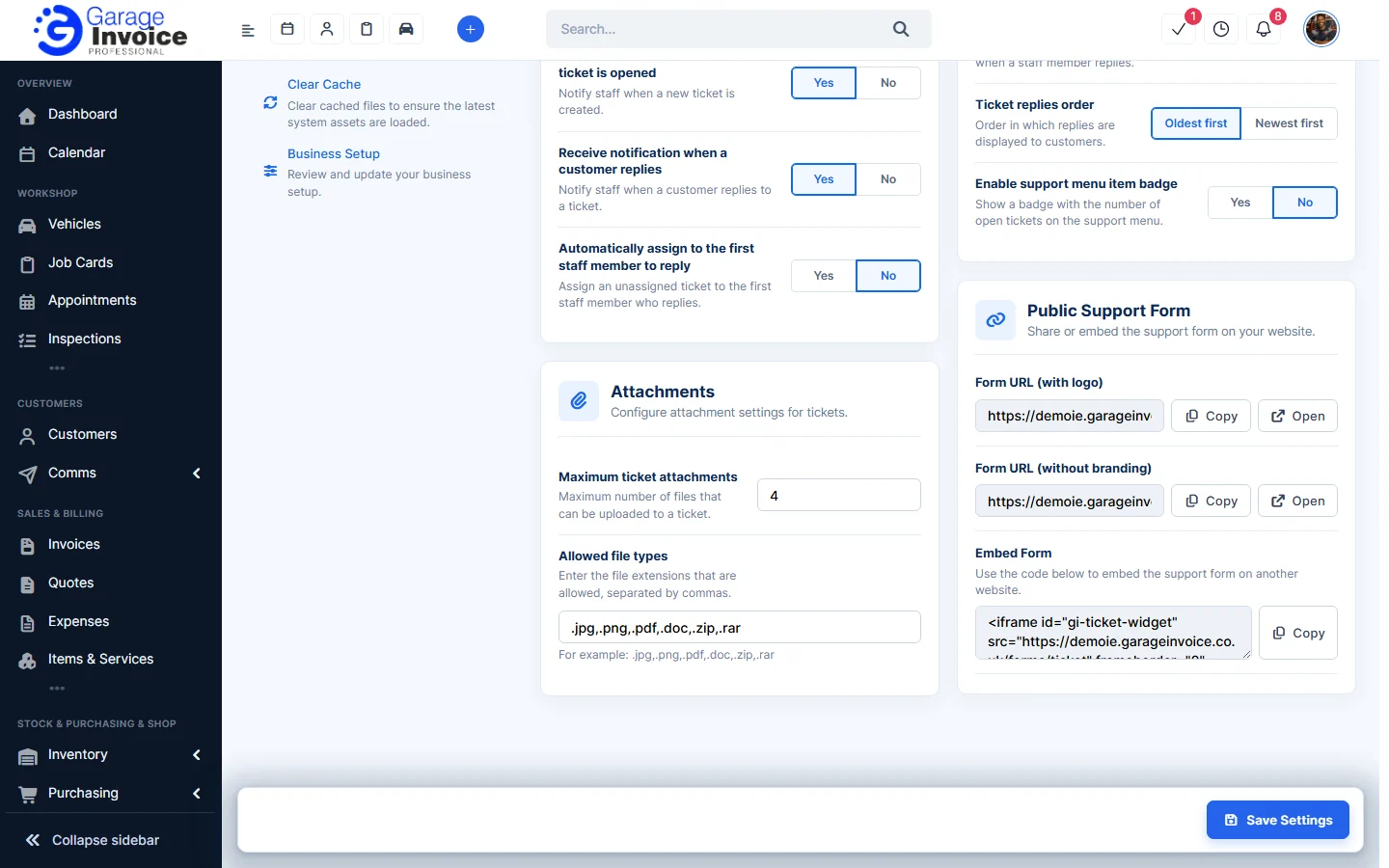
- Use Form URL (with logo) or Form URL (without branding): click Copy to copy the link, for example to add it to your website or emails, or Open to see the form.
- To show the form inside a page of your website, copy the Embed Form code and paste it into the page.
Customers fill in the form and click submit; the ticket appears in your Tickets list.
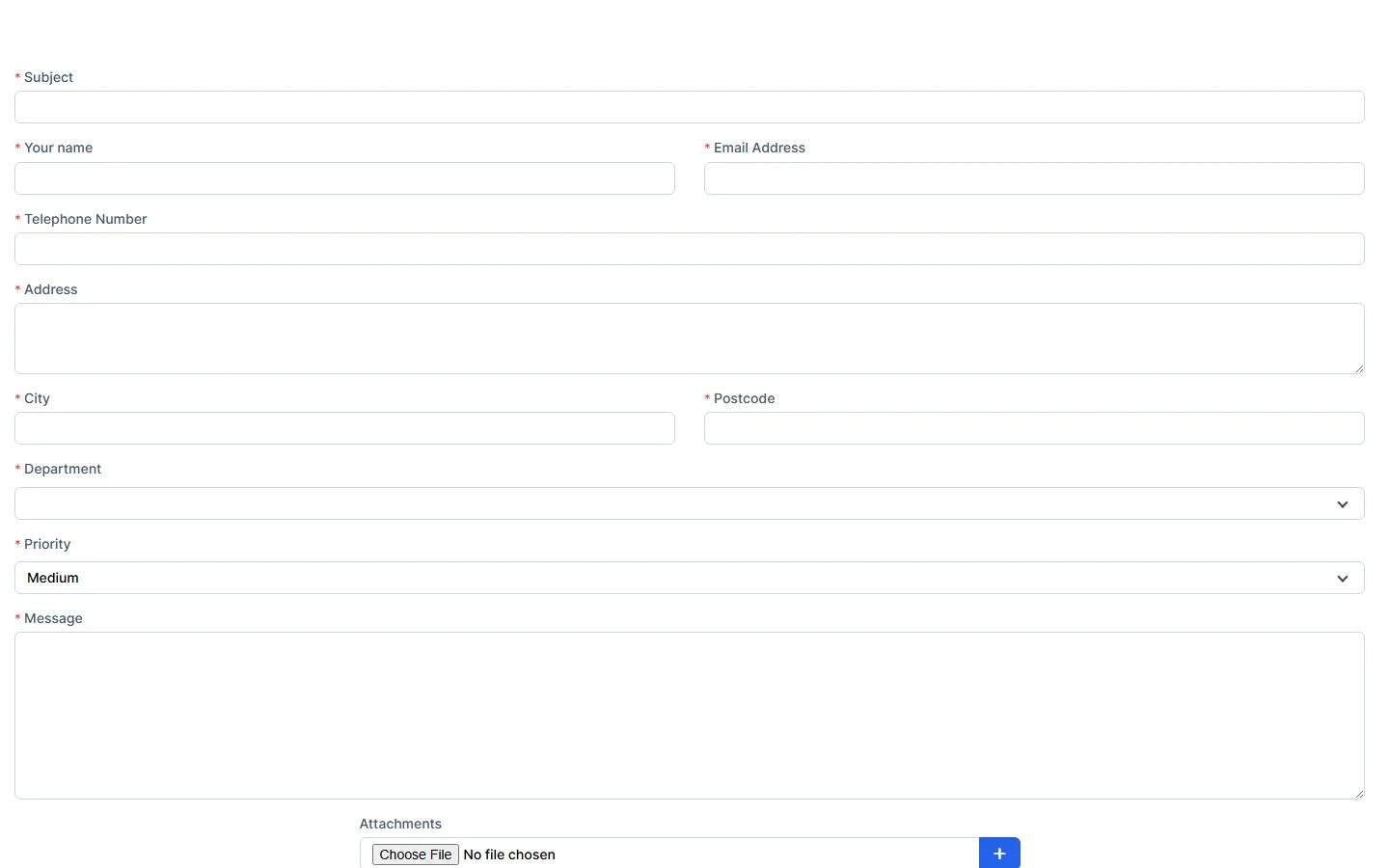
Tip: turn the fields on the form on or off under Ticket Form on the General tab.