
- Click Settings in the sidebar, open Sales & Operations and click Appointments. Open the Services tab. The Booking Form Builder lists your Services and Extras on the left and the Booking Form Structure on the right.
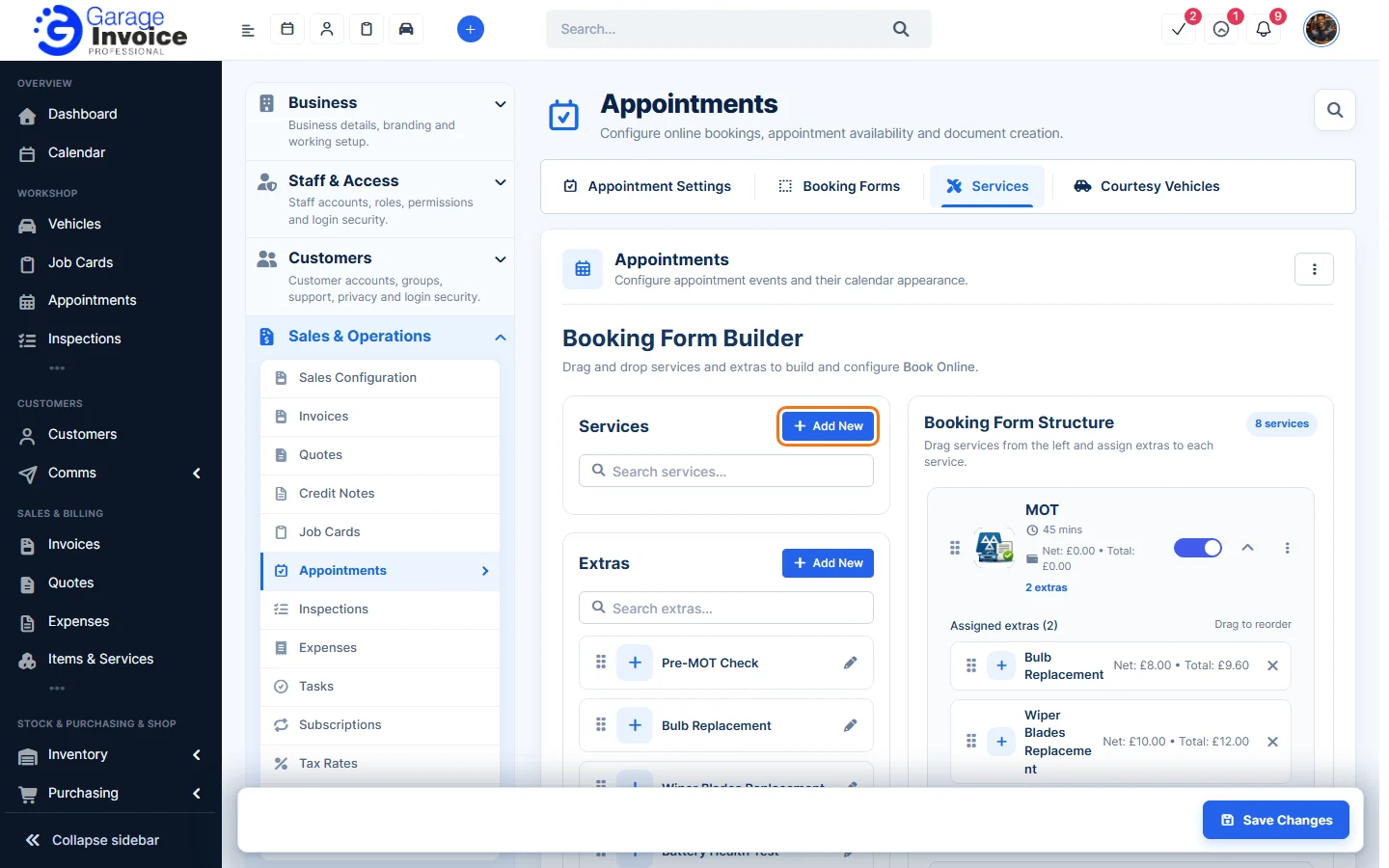
- Click Add New next to Services (or click a service to change it).
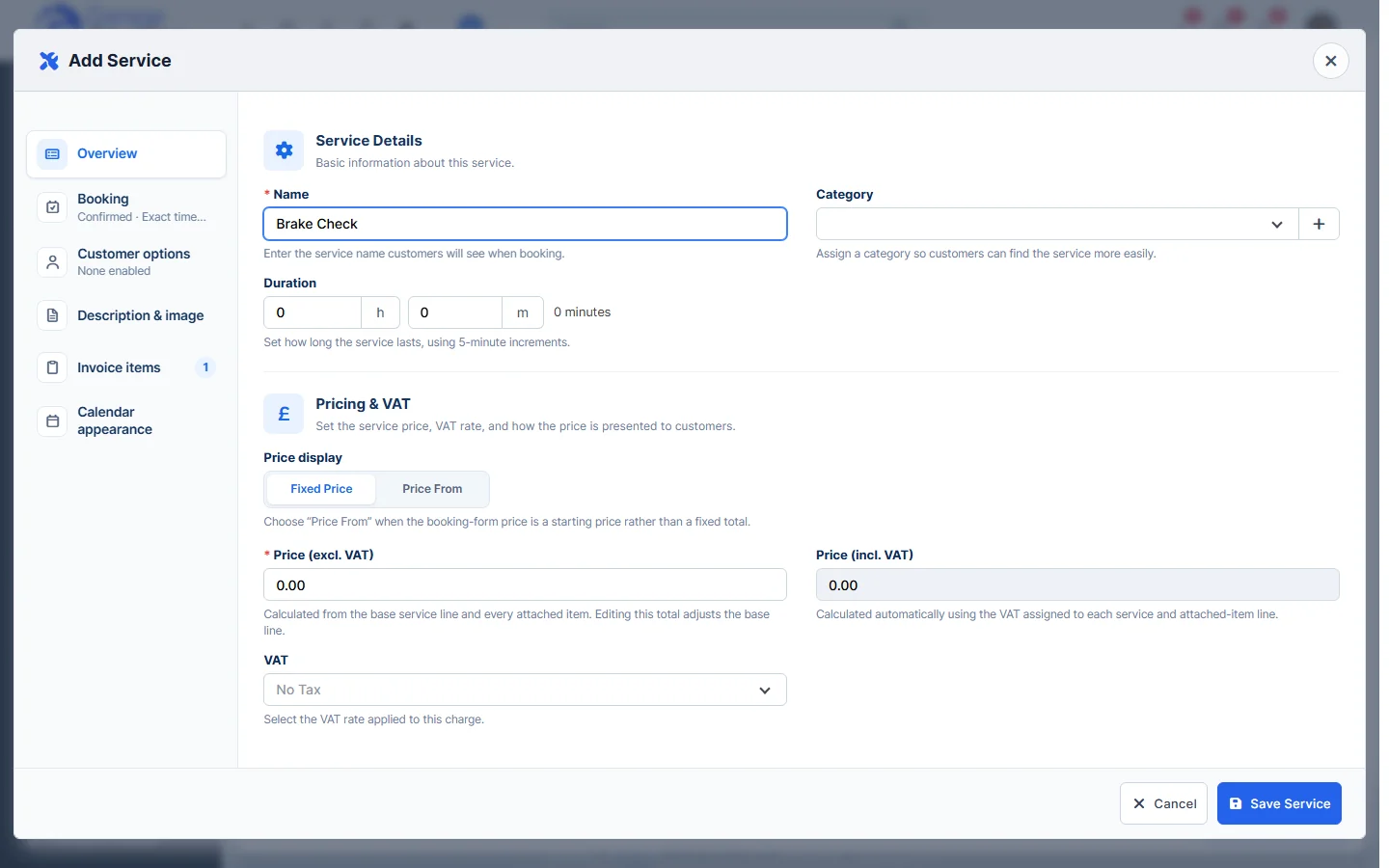
- Overview: enter the Name, choose a Category, set the Duration and the Price (excl. VAT) and VAT. Choose Price From instead of Fixed Price if the price is a starting price.
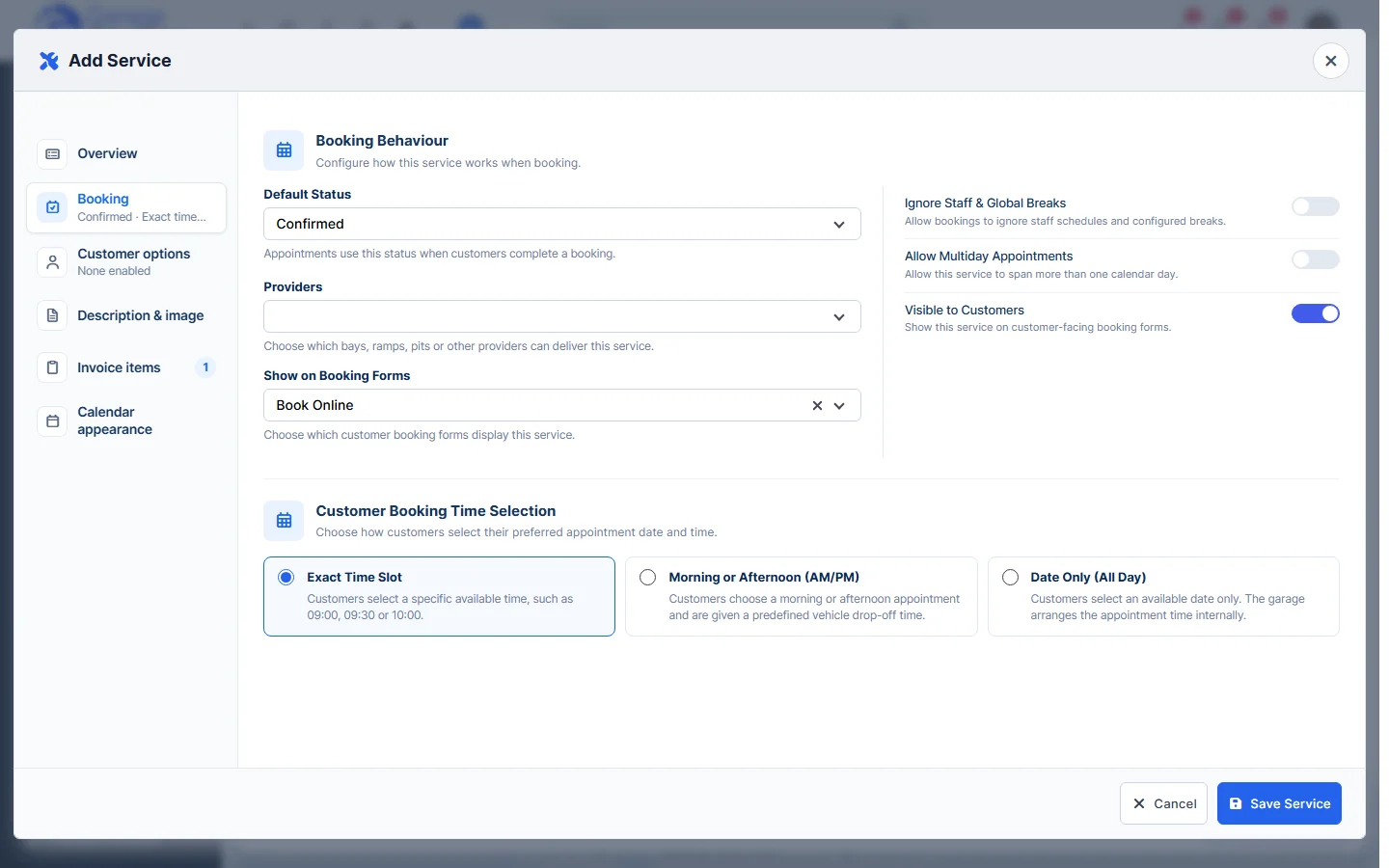
- Booking: choose the Default Status for online bookings, the Providers that can do the service and which booking forms show it. Choose how customers pick a time: Exact Time Slot, Morning or Afternoon (AM/PM) or Date Only (All Day).
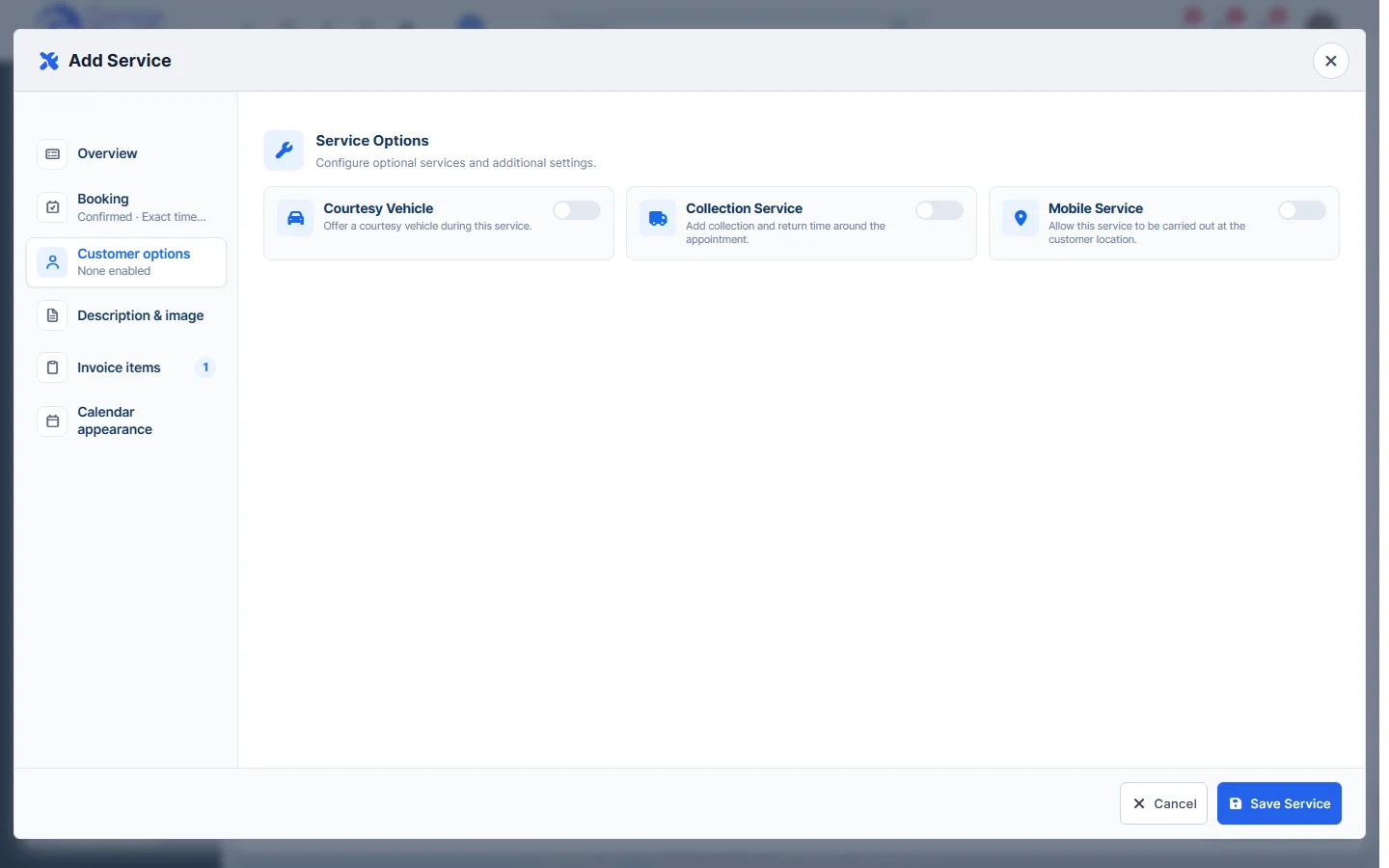
- Customer options: turn on Courtesy Vehicle, Collection Service or Mobile Service if customers can ask for them with this service.
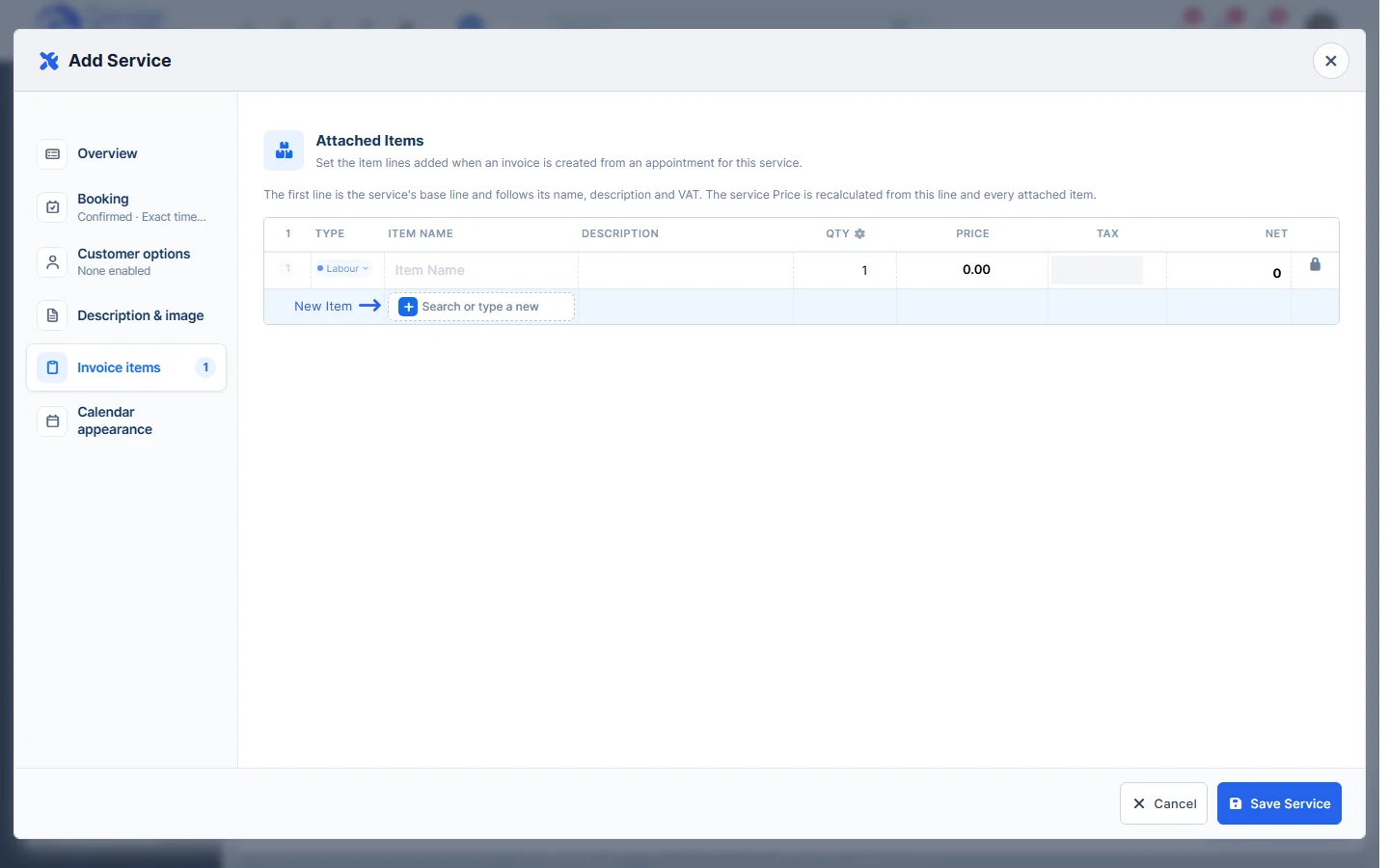
- Description & image: add an image and the description shown on booking forms. Invoice items: set the lines added when an invoice is created from the appointment. Calendar appearance: choose the icon and colour used on the calendar.
- Click Save Service, then Save Changes on the Services tab.
Related: Service Extras / Add-ons · Service Categories · Booking Forms
Feature Online booking and appointments: see what it does and how it fits your workshop.