
The Email Template Designer sets the look of all your emails: the layout around the message, colours, fonts and extra blocks such as your logo or a “Book online” button. The wording of each email is set separately in the email templates.
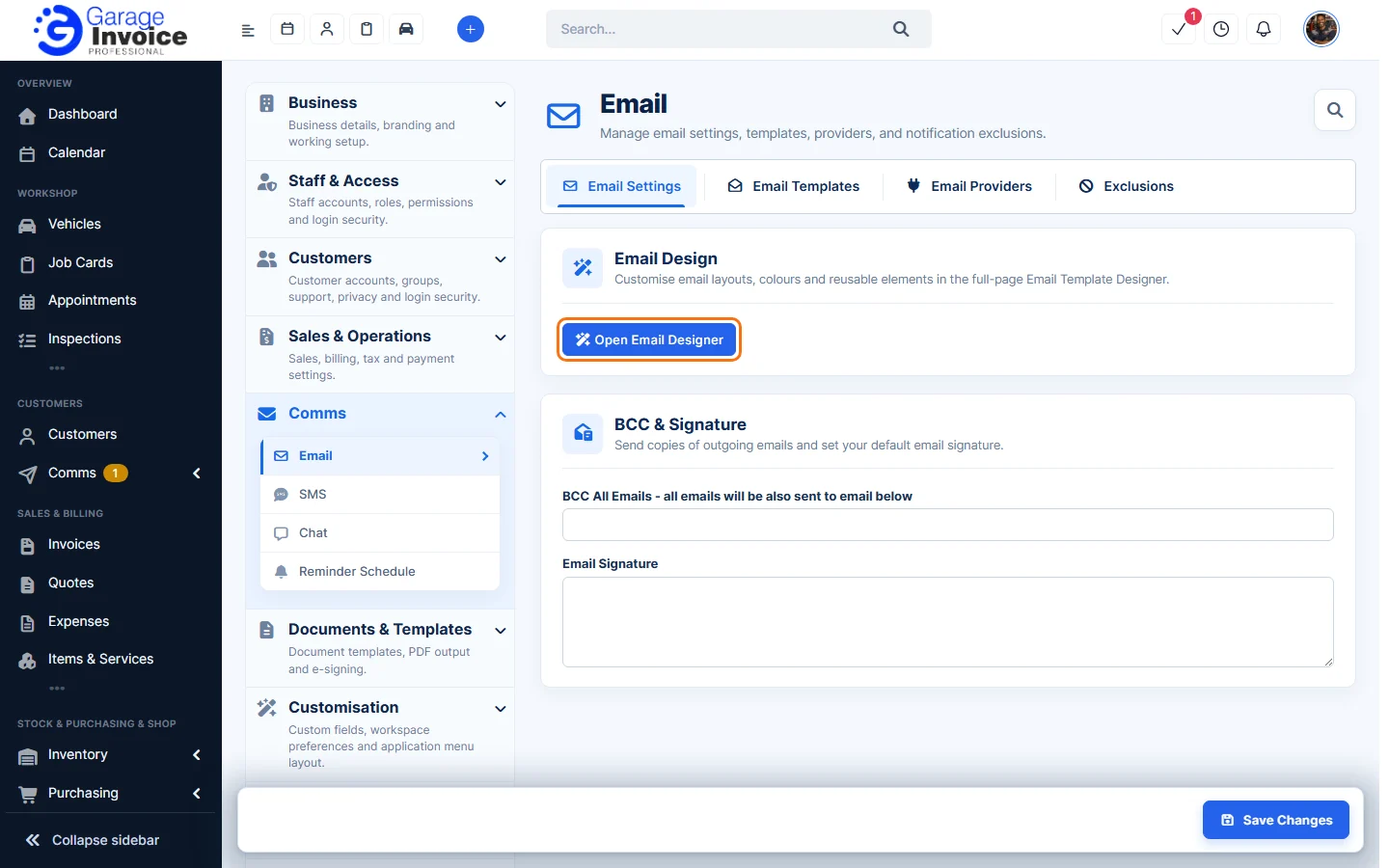
- Click Settings at the bottom of the sidebar, under Administration. In the panel on the left, open Comms and click Email. On the Email Settings tab, click Open Email Designer.
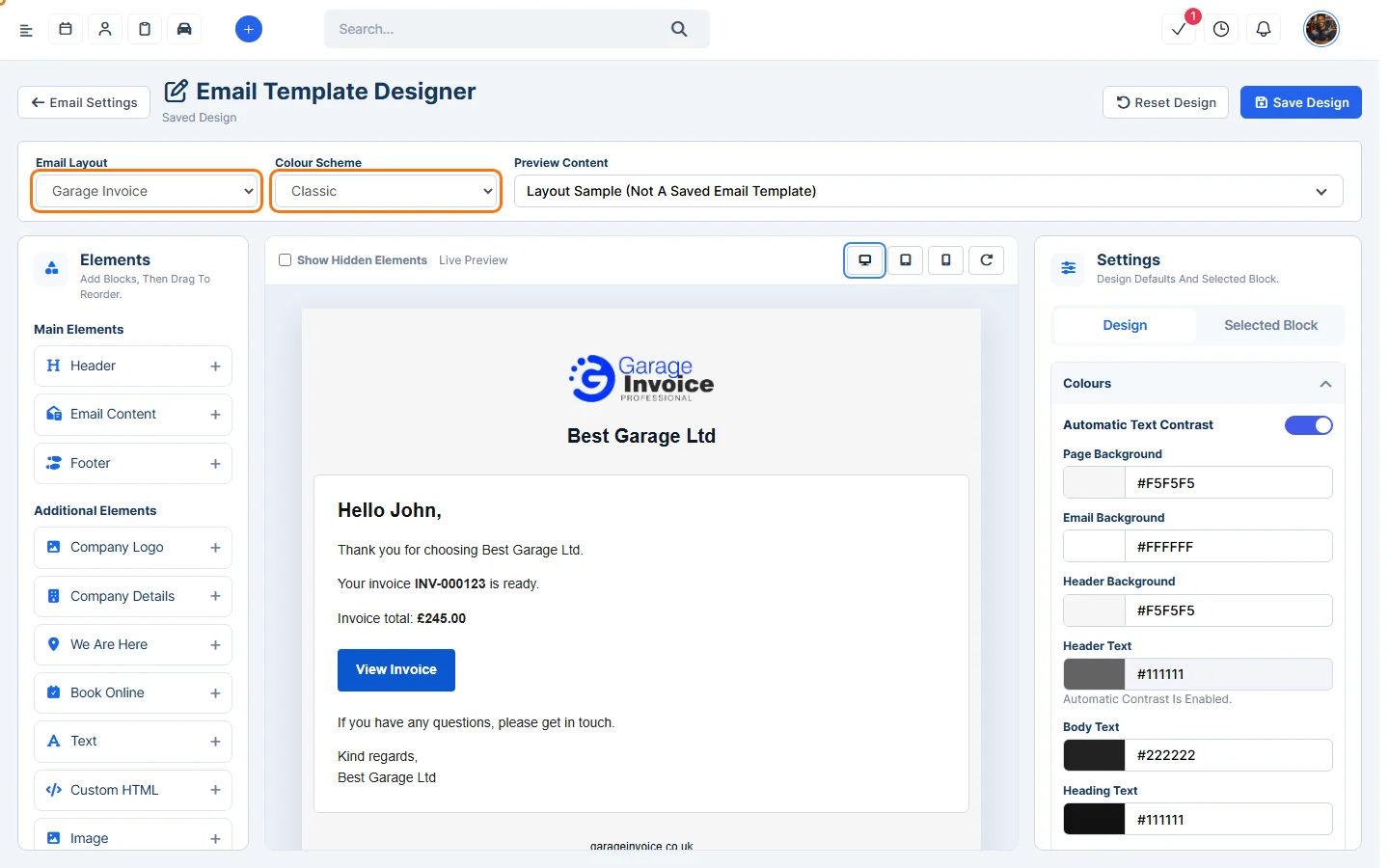
- At the top, choose:
- Email Layout: the overall design, for example Garage Invoice, Classic, Modern, Minimal, Banner, Business, Clean, Workshop Artwork, Textured Canvas, Blueprint, Pit Lane or Signature Frame.
- Colour Scheme: a set of colours, for example Ocean Blue, Racing Red or Monochrome.
- Preview Content: which email to show in the preview. Layout Sample is example text; you can also pick any of your email templates to see how it will look.
The Live Preview in the middle updates as you go. Use the buttons above it to preview on desktop, tablet or phone.
- Under Elements on the left, the Main Elements are the Header, Email Content and Footer. Click + on an Additional Element to add it: Company Logo, Company Details, We Are Here (your address), Book Online, Text, Custom HTML, Image, Button, Social Links, Divider or Spacer. Drag blocks in the preview to reorder them.
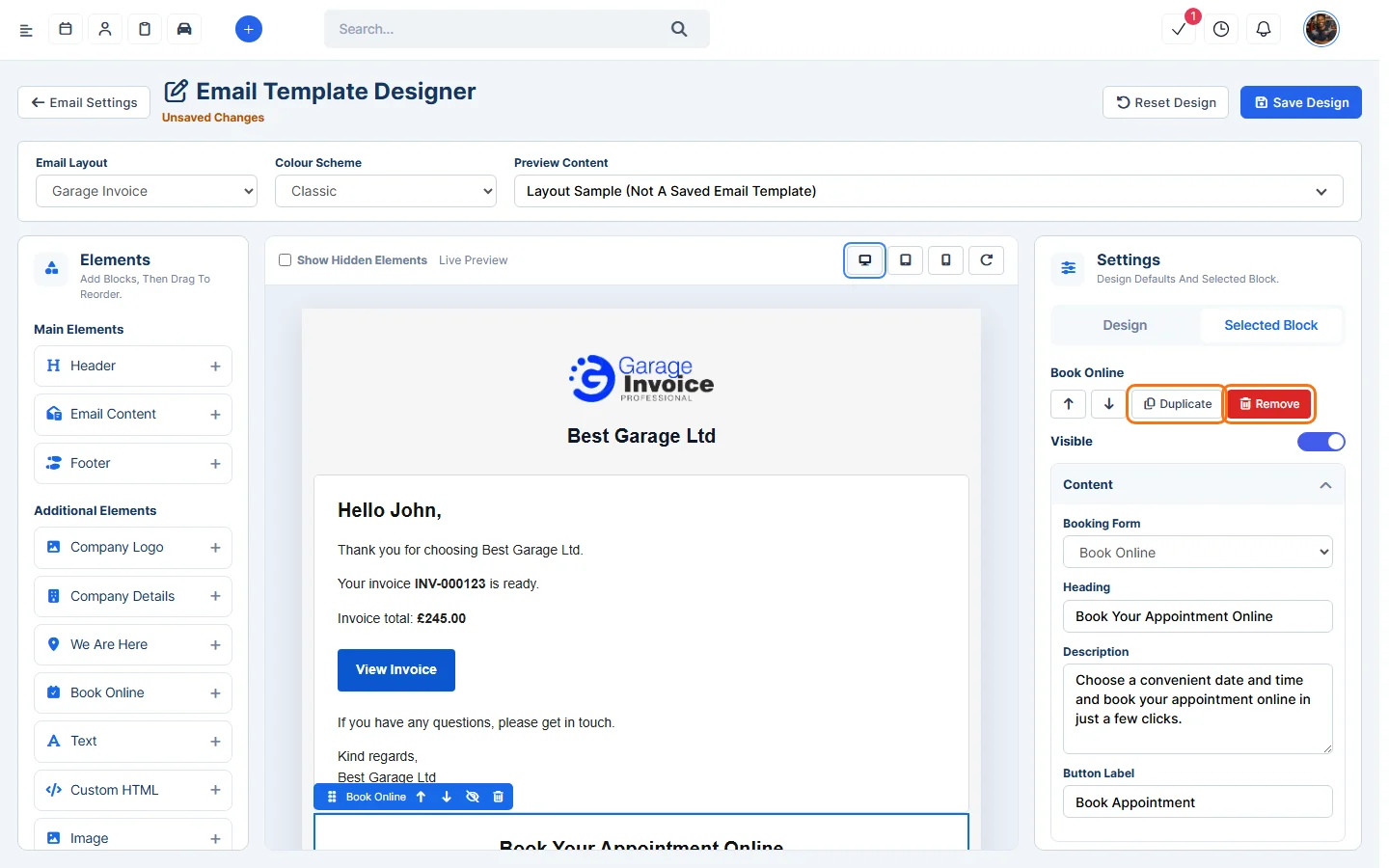
- Click a block in the preview to edit it on the Selected Block tab on the right: its content, layout and padding, typography, background and border. Use Duplicate or Remove, or switch Visible off to hide it. Tick Show Hidden Elements to see hidden blocks again.
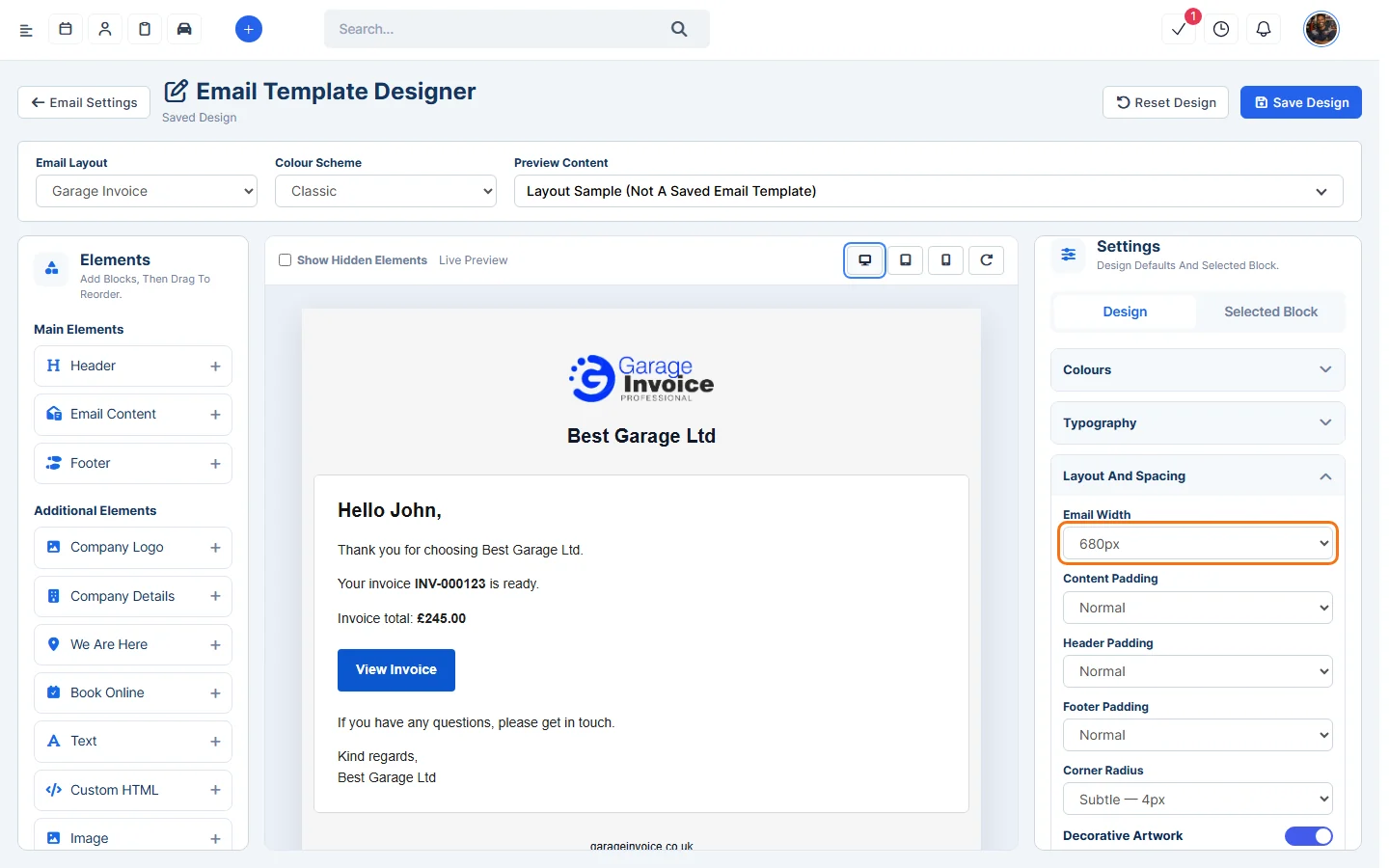
- On the Design tab on the right, set the defaults for the whole email:
- Colours: page, email, header, body text, headings, links, divider and footer. With Automatic Text Contrast on, text colours are picked to stay readable on your backgrounds.
- Typography: font, heading font, font weights and line height.
- Layout And Spacing: Email Width (600, 640 or 680px), Content Padding, Header Padding, Footer Padding (Compact, Normal or Spacious), Corner Radius, and the decorative artwork and paper textures some layouts use.
- Click Save Design. Reset Design goes back to the standard design. Click Email Settings to go back.

Tip: to change what an email says, see Edit Email Template.
Feature Email and SMS notifications: see what it does and how it fits your workshop.