
In your Clickatell account
- Sign up or log in to your Clickatell account.
- In the Clickatell Dashboard, copy the API key for your SMS integration.
Connect Clickatell in Garage Invoice
- Click Settings at the bottom of the sidebar, under Administration. In the panel on the left, open Comms and click SMS. Click the SMS Providers tab. SMS Connections lists every provider and whether it’s connected.
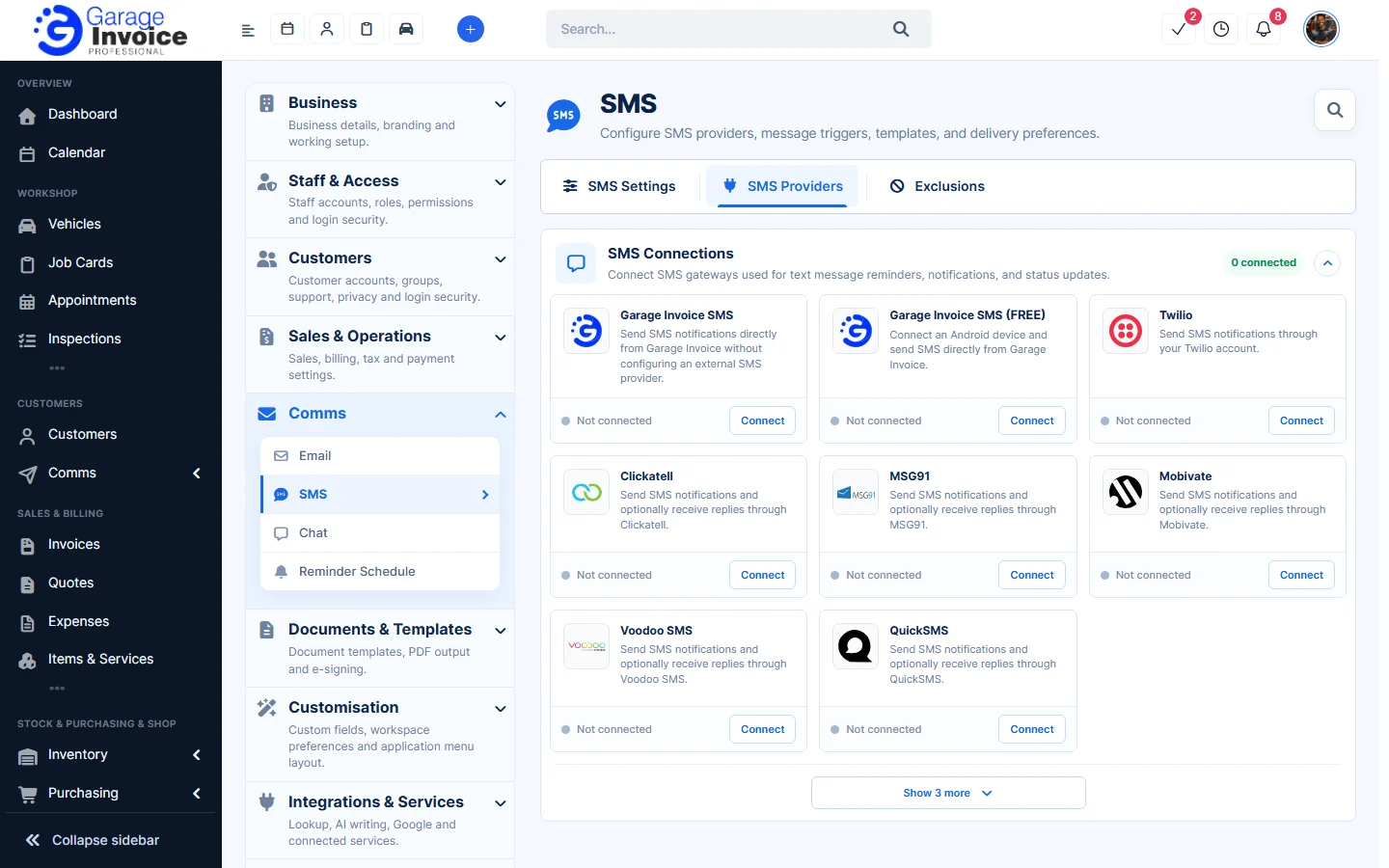
- Next to Clickatell, click Connect, then click Continue.
- Enter the details from your Clickatell account:
- API Key: the API key for your SMS integration, from your Clickatell Dashboard.
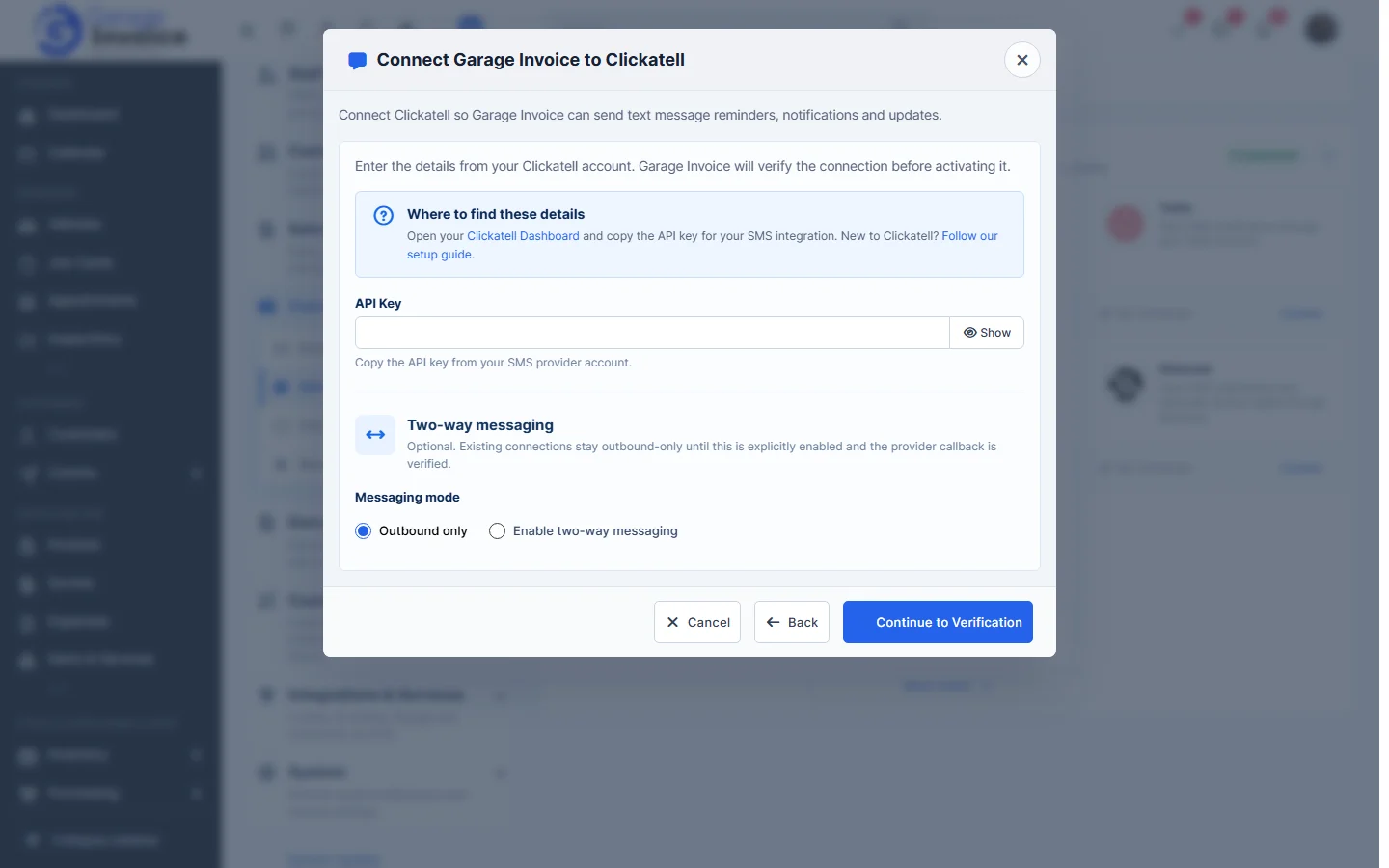
- Leave Outbound only selected, or choose Enable two-way messaging if customers should be able to reply.
- Click Continue to Verification. Garage Invoice checks the connection before turning it on.
Tip: once connected, choose which messages are sent in SMS Settings.
Feature Email and SMS notifications: see what it does and how it fits your workshop.